Manage API Credentials🔗
Use the Manage API Credentials feature to add, delete, rotate, and locate API credentials in the Secureworks® Taegis™ XDR UI. This document explains each action and emphasizes the importance of securely managing credentials.
Overview🔗
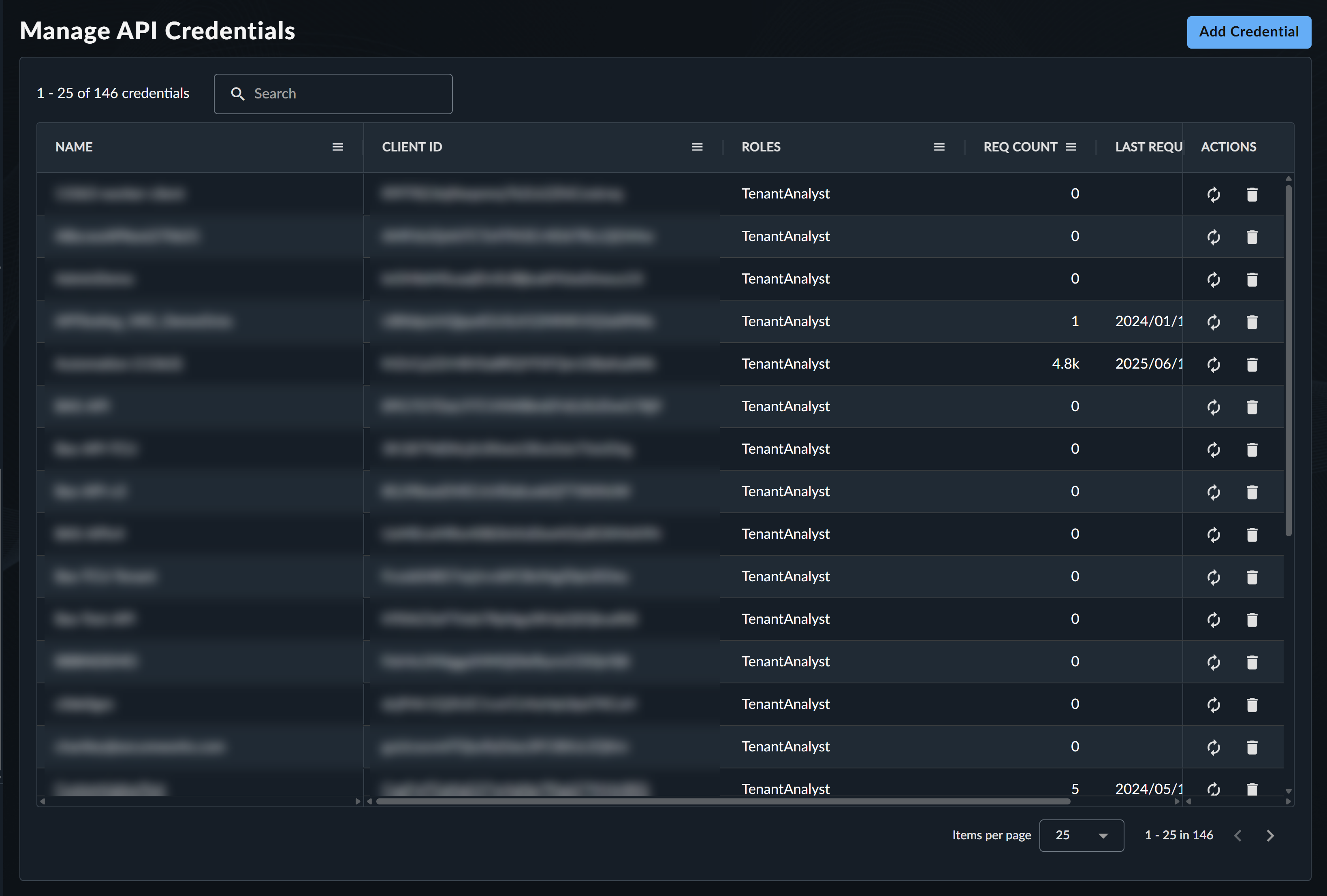
Tenant Administrators and Tenant Analysts can manage API credentials via the table on the Manage API Credentials page. To access this page, select Tenant Settings → Manage API Credentials from the Taegis Menu.
Note
Tenant Analysts cannot rotate API credentials manually.
Add API Credentials🔗
Adding new API credentials from the Secureworks® Taegis™ XDR UI replaces the process of creating client credentials manually.
Note
Only users with the Tenant Admin or Tenant Analyst role can configure API credentials.
To add a new API credential:
- From the Taegis Menu, select Tenant Settings → Manage API Credentials.
- Select Add Credential from the top right of the page.
- In the Add API Credential modal, enter a name for the new credential.
- Select the Role permissions to apply to the credential.
- Select Submit.
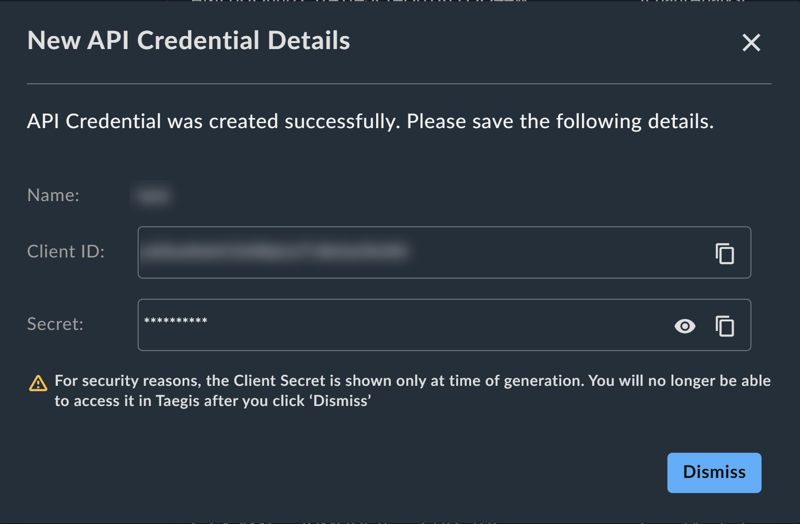
After submission, the system generates a new Client ID and Secret.
Important
The Client Secret is displayed only once, immediately upon creation. Make sure to copy and securely save the Secret, as you will not be able to retrieve it again.
Manage Existing API Credentials🔗
Delete API Credentials🔗
Deleting unused or compromised credentials is vital for maintaining system security and minimizing the risk of unauthorized access. A Tenant Admin can delete credentials by following these steps:
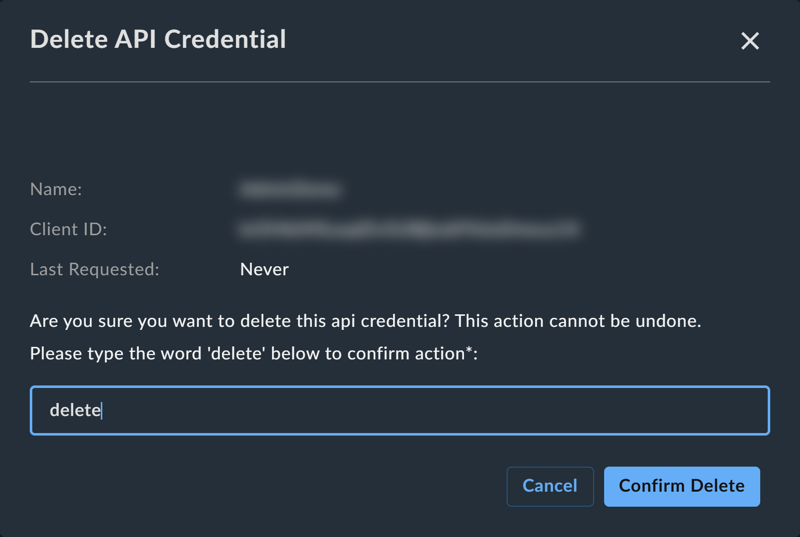
- From the Manage API Credentials page, select the Trash icon from the Actions column for the relevant credential. The Delete API Credential confirmation modal displays.
- From the confirmation modal, type the word
deleteto confirm your intent. This extra step helps prevent accidental removal of critical credentials. - Select Confirm Delete.
Rotate API Credentials🔗
Rotating credentials is a recommended security practice, as it limits the risk window if credentials are exposed or become obsolete. To rotate, or refresh, an existing credential's secret, follow these steps:
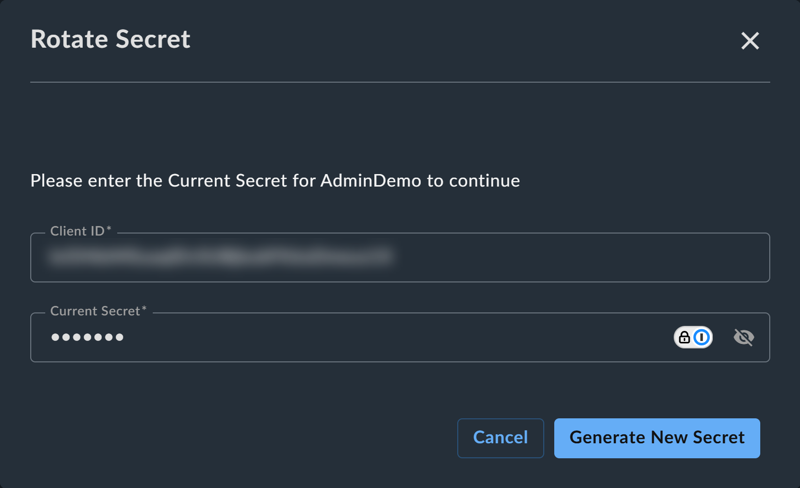
- From the Manage API Credentials page, select the Rotate icon from the Actions column for the relevant credential. The Rotate Secret modal displays.
- From the modal, enter the credential's current Secret to proceed. This ensures that only authorized users can rotate credentials and that the action is intentional.
- Select Generate New Secret.
Note
Tenant Analysts cannot rotate API credentials manually.
Locate Credentials and Customize View🔗
- Use the Search field above the table to quickly locate specific credentials by name or
client_id. - Adjust the visible columns in the table by modifying the column settings to suit your workflow.
Security Best Practices🔗
Keep your API credential environment secure by following the guidelines below and leveraging the features provided in the Manage API Credentials interface.
- Regularly rotate credentials to enhance security.
- Delete unused or compromised API credentials promptly.
- Store generated Secrets in a secure password manager or other secure locations, as they cannot be retrieved after creation.
- Restrict credential management access to authorized administrators only.