Update Cloud API Integrations🔗
Use the instructions below to update Cloud API integrations that support the Update function. The parameters that can be updated depend upon the specific integration. See our Cloud API Integration Update Overview page for a list of Update-supported integrations and their parameters.
Update the Microsoft Azure Active Directory Activity Reports Integration🔗
Identify the Expiration Date for the Registered Microsoft Application Certificate🔗
- Navigate to the Microsoft Azure Portal or the Microsoft Entra Admin Center and go to App registrations.
-
Choose the application registered for the Microsoft Azure Active Directory Activity Reports integration. The application was created and registered as part of the "Register an Application in Azure" process in the Microsoft Azure Active Directory Activity Reports Integration Guide.

Check the Certificate Status in Microsoft Entra Admin Center
Update the Credentials for the Registered Microsoft Application🔗
- Navigate to the Microsoft Azure Portal or the Microsoft Entra Admin Center and go to App registrations.
- Choose the application registered for the Microsoft Azure Active Directory Activity Reports integration.
- Follow the instructions to upload a new certificate.
Important
Certificates will expire and need to be renewed both with Microsoft Entra ID and with XDR to allow for continued functionality before their expiration date.
- XDR supports only the Privacy-Enhanced Mail (PEM) format. More information on the PEM format can be found in RFC 7468.
- Encrypted keys and client secrets are not supported.
- Self-signed certificates are supported.
Use one of the following commands to generate a self-signed PEM (.pem extension) certificate using PowerShell or OpenSSL.
# Prompt user for input

$certname = Read-Host -Prompt "Enter certificate name"
$keyname = Read-Host -Prompt "Enter key name"
$mypwd = Read-Host -Prompt "Enter password" -AsSecureString
$location = Read-Host -Prompt "Enter location"
$cert = New-SelfSignedCertificate -Subject "CN=$certname" -CertStoreLocation "Cert:\CurrentUser\My" -KeyExportPolicy Exportable -KeySpec Signature -KeyLength 2048 -KeyAlgorithm RSA -HashAlgorithm SHA256
Export-PfxCertificate -Cert $cert -FilePath "$location\$certname.pfx" -Password $mypwd
Install-Module -Name PSPKI -Scope CurrentUser
Import-Module -Name PSPKI
Convert-PfxToPem -InputFile "$location\$certname.pfx" -Outputfile "$location\$certname.pem"
# Read the PEM file content

$pemContent = Get-Content "$location\$certname.pem" -Raw
# Extract private key and certificate

$privateKey = $pemContent -replace "(?ms).*?(-----BEGIN PRIVATE KEY-----.+?-----END PRIVATE KEY-----).*", '$1'
$certificate = $pemContent -replace "(?ms).*?(-----BEGIN CERTIFICATE-----.+?-----END CERTIFICATE-----).*", '$1'
# Save private key and certificate to separate files

$privateKey | Set-Content "$location\$keyname.pem"
$certificate | Set-Content "$location\$certname.pem"
Write-Host "Files located at: $location"
pause
Note
Copy and paste the preceding code into a text file, save the file with .ps1 extension (e.g., CertGen.ps1), and run the script using Powershell.
Tip
Depending on the PowerShell version being used, you may need to replace -Subject with -SubjectName if there are any errors with -Subject.
Or:
Update Integration in XDR🔗
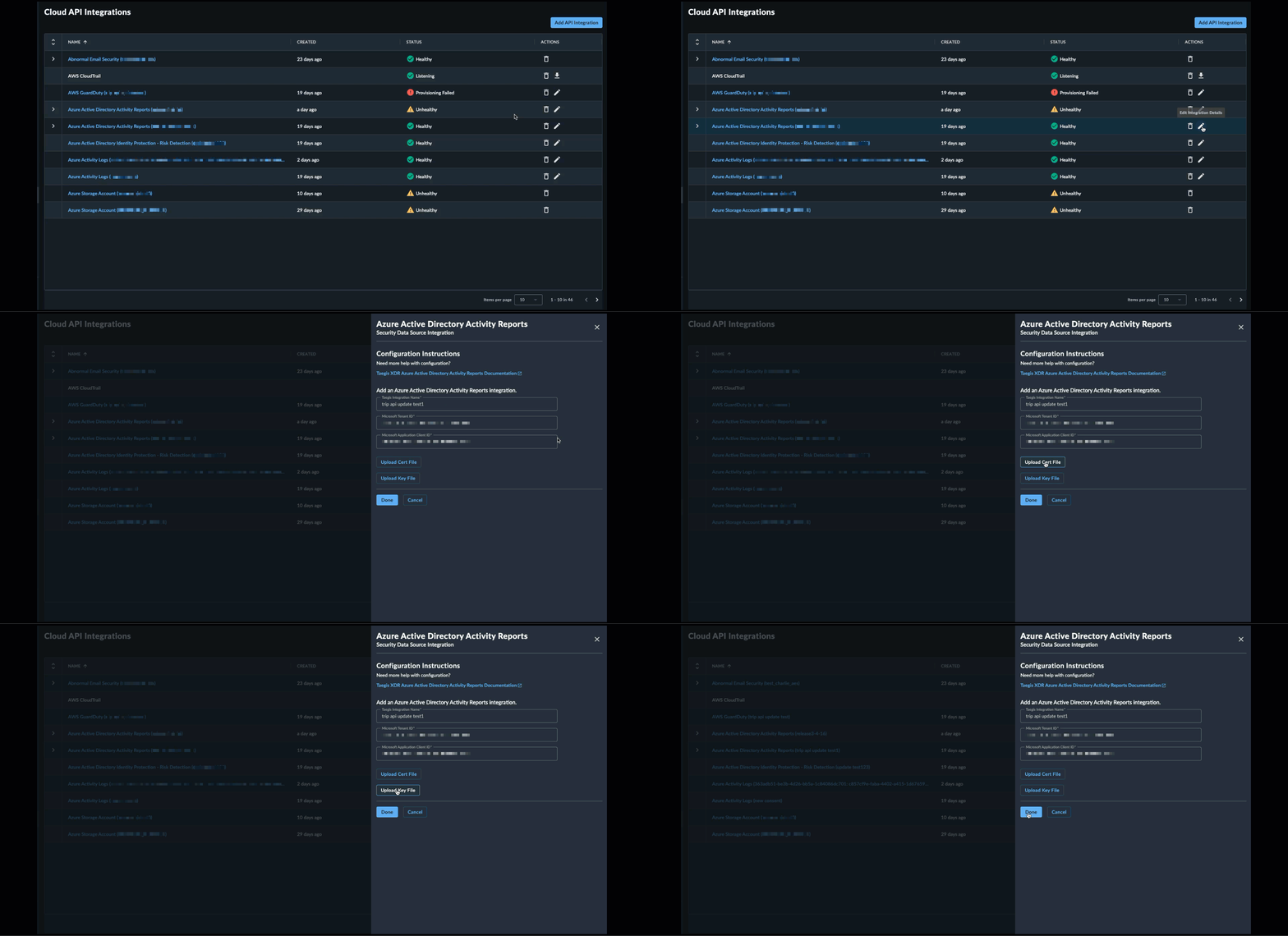
- From the Taegis Menu, select Integrations → Cloud APIs → and click the Edit Integration Details button for the integration to be updated.
- Upload the certificate and its associated private key.
-
Select Done to complete the integration update.
Update the case integration