Sophos Endpoint Agent for Windows Installation🔗
Prerequisites🔗
Before installation, review the requirements and complete the prerequisite steps in Sophos Endpoint Agent Information and Prerequisites.
Installation🔗
Choose one of the following options to install Sophos Agent for Windows:
- Install using PowerShell Upgrade Script
- Install Using the EXE Installer
- Install Using the Command Line
- Install Using MDMs
Install Sophos Agent Using PowerShell Script🔗
Secureworks provides a PowerShell script that automates the validation of prerequisites for the Sophos Agent. The script can be used to upgrade to Sophos Agent from Red Cloak Endpoint Agent or Taegis Endpoint Agent.
At a high level, the script:
- Performs pre-installation validation checks
- Installs Sophos Agent on the endpoint the script is run
- Performs post-install validation checks
- Uninstalls Red Cloak Endpoint Agent or Taegis Endpoint Agent, if present
For detailed script usage instructions, see this Knowledge Base article: How To: Windows Upgrade Script from Legacy Endpoint Agents to Sophos Agent.
Install Sophos Agent Using the EXE Installer🔗
- Locate the
SophosSetup.exefile you downloaded. -
Run the installer as Administrator.
Tip
If prompted by User Account Control, select Yes to allow the installation.
-
After the prerequisite checks, select Install to begin the installation.
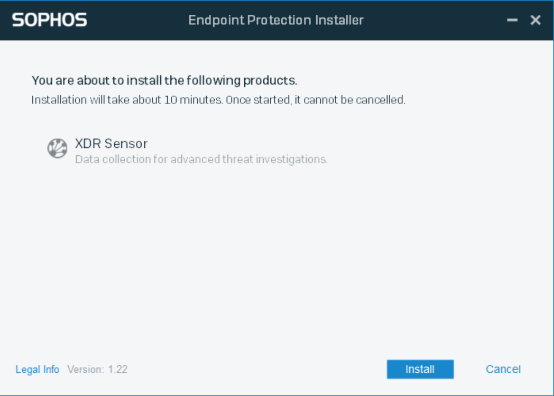
Sophos Endpoint Agent Installation Note
Installation may take around 10 minutes to complete.
-
Select Finish to complete the installation.
- Test compatibility with commonly used internal applications to ensure day-to-day tasks remain accessible.
Install Using the Command Line🔗
Some command-line options may not be available for all customers.
You can use the following command-line options with Sophos Agent installers for Windows.
| Option | Description | Example |
|---|---|---|
--quiet |
Runs the installer without displaying the user interface. | SophosSetup.exe --quiet |
--noproxydetection |
Doesn't attempt to perform automatic proxy detection. | SophosSetup.exe --noproxydetection |
--nocompetitorremoval |
Doesn't attempt to automatically remove competitors. (Only on installation of Sophos Anti-Virus.) |
SophosSetup.exe --nocompetitorremoval |
--language=<ID> |
Manually set the installer language. By default, the installer uses the system language. Replace <ID> with the language ID from the list below. |
SophosSetup.exe --language=1033 |
--devicegroup=<group>--devicegroup=<group>\<subgroup> |
Specifies the Sophos Fusion device group or subgroup to join. Use backslashes for hierarchy. Quotes are required for names with spaces. |
SophosSetup.exe --devicegroup="Application Servers\Terminal Servers" |
--proxyaddress=<host>:<port> |
Specifies a custom proxy address and port. | SophosSetup.exe --proxyaddress=myproxy.local:8080 |
--proxyusername=<user> |
Specifies a proxy username for authenticated proxies. Only Digest Authentication is supported. | SophosSetup.exe --proxyusername=myuser |
--proxypassword=<pw> |
Specifies the proxy password if a proxy username is set. | SophosSetup.exe --proxypassword=mypassword |
--pacurl=<URL> |
Uses the specified Proxy Auto-Configuration (PAC) file during installation. Replace |
SophosSetup.exe --pacurl=http://example.com/proxy.pac |
--messagerelays=<address>:<port> |
Install using a message relay. | SophosSetup.exe --messagerelays=192.168.10.100:8190 |
Language IDs🔗
| Language | ID |
|---|---|
| English | 1033 |
| French | 1036 |
| German | 1031 |
| Japanese | 1041 |
| Spanish | 1034 |
| Italian | 1040 |
| Polish | 1045 |
| Brazilian Portuguese | 1046 |
| Korean | 1042 |
| Chinese Simplified (Mandarin) | 2052 |
| Chinese Traditional (Cantonese) | 3076 |
| Chinese Hong Kong | 3076 |
| Chinese Macau | 3076 |
| Chinese Singapore | 2052 |
Windows Command-Line Installation Examples🔗
-
Install Sophos Anti-Virus and Intercept X without user interaction:
-
Install ZTNA only:
-
Install using a proxy:
Replace
<IP/FQDN>with the proxy's IP address or fully qualified domain name, and<port>with the proxy's port number. -
Install using a message relay:
-
Install into a subgroup:
This puts an installed server into the “Terminal Servers” subgroup of the “Application Servers” group. Quotes are required for names with spaces.
Install Using MDMs🔗
Below are instructions for installing the Sophos Agent using various MDM solutions and deployment tools; each method links to a detailed Knowledge Base article.
- For deployment using an Active Directory Startup Script, see the following Knowledge Base article: How To: Deploying Sophos Agent Using Active Directory (AD) Startup Script.
- For deployment using Intune for Windows hosts, see: How To: Deploying Sophos Agent for Windows with Intune.
- For deployment using MECM (SCCM) for Windows hosts, see: How To: Deploying Sophos Agent for Windows with MECM.
Validate Installation🔗
- Locate and open the Sophos Endpoint Agent application.
- Ensure the agent status shows as Protected.
- If you see any alerts or warnings, contact your administrator or refer to the Sophos Support Knowledge Base.
Review Endpoint Agents Summary🔗
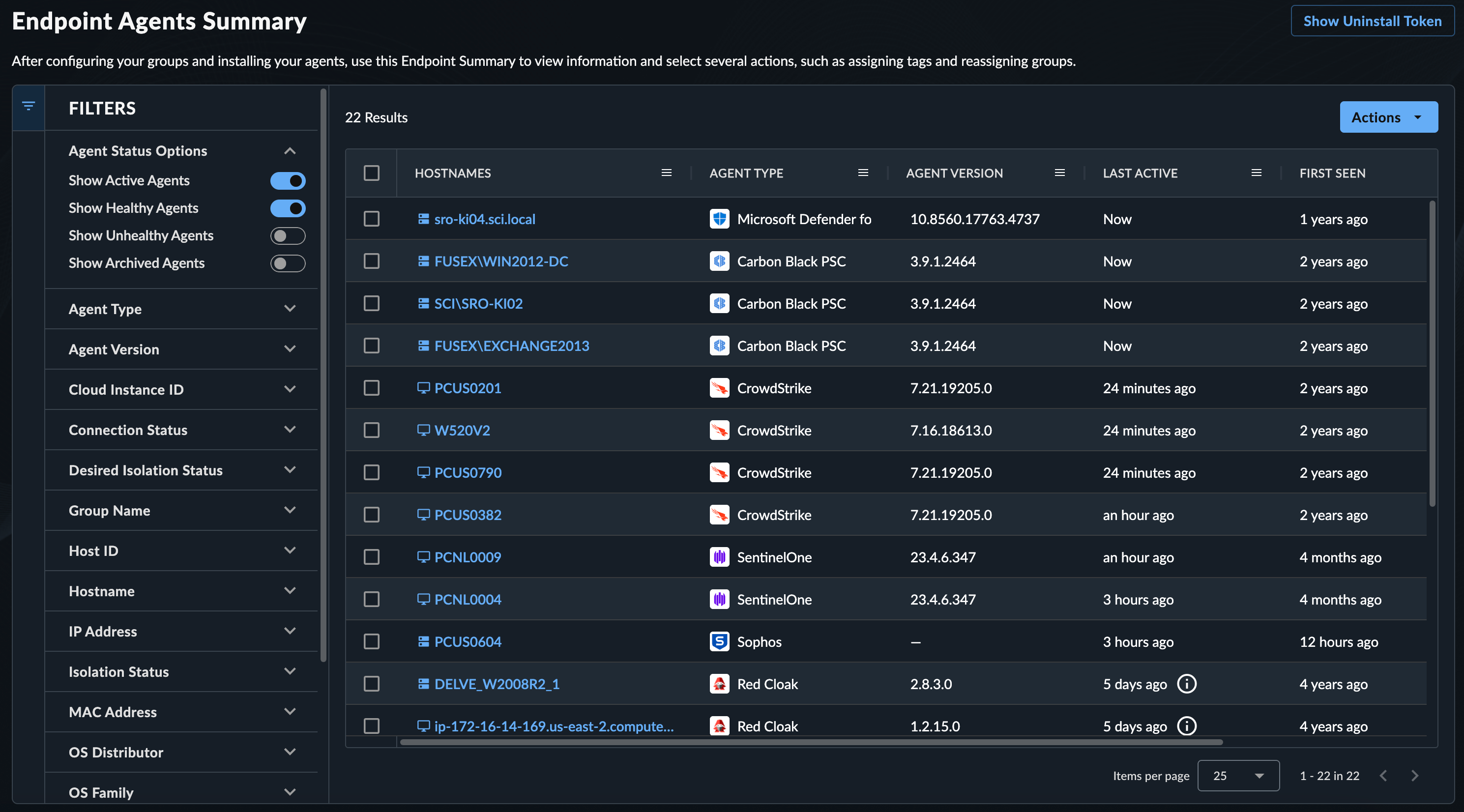
As XDR processes endpoint telemetry, a list of endpoints is generated. Review these by navigating to Endpoint Agents → Summary from the Taegis XDR menu. For more information, see Manage Endpoint Agents.