Live Response🔗
Live Response in Secureworks® Taegis™ XDR lets you connect directly to Sophos Endpoint Agent devices to examine and remediate potential security issues. With Live Response, you can:
- Stop suspicious processes.
- Restart devices with pending updates.
- Browse folders and delete files.
- Run custom commands for investigation and remediation.
You can turn on Live Response for computers and servers, specify which devices can be accessed, and audit all activity and sessions.
Turn On Live Response🔗
You must enable Live Response separately for computers and servers from Sophos Fusion. Only XDR Tenant Administrators can change these settings.
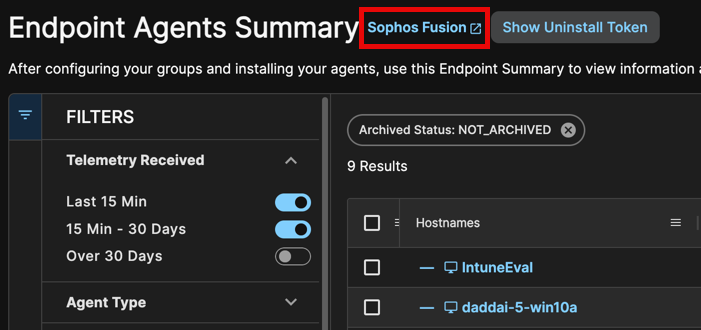
Access Sophos Fusion from various links throughout your XDR tenant. The easiest way is to use the Taegis Menu to navigate to Endpoint Agents > Summary, then select the Sophos Fusion link next to the page title. Note that the active tenant in Taegis must be a customer tenant in Sophos Fusion for this route to work.
Note
When you access Sophos Fusion via SSO from your Secureworks® Taegis™ XDR tenant, your user account role maps to specific permissions in Sophos Fusion. For details, see the user role mappings documentation.
-
Go to My Products → Endpoint → Policies.
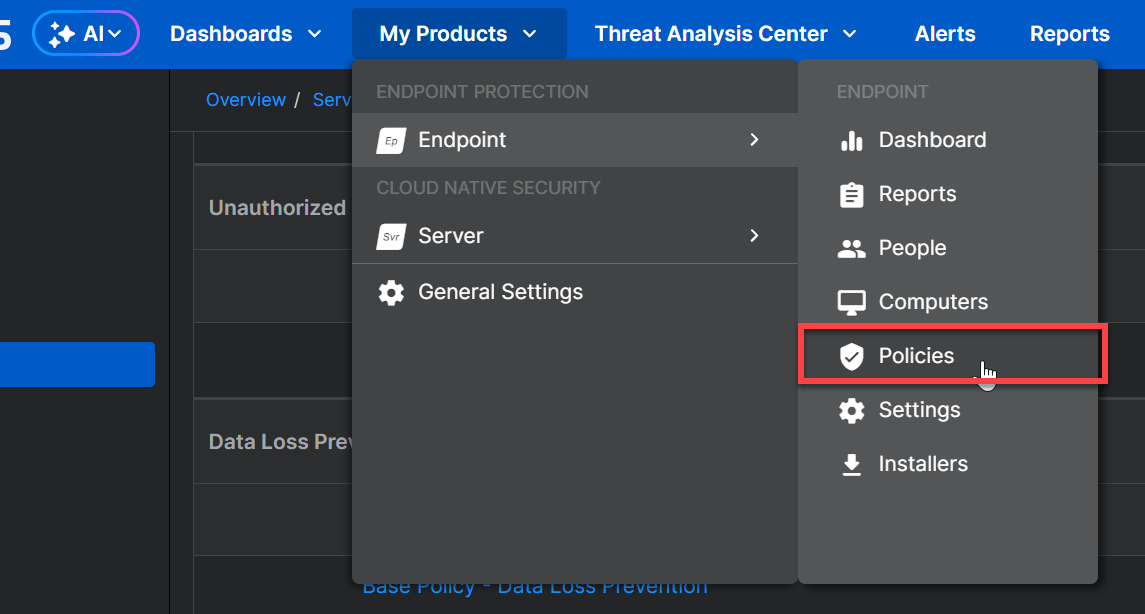
Locating Policy Settings -
Navigate to the Data Collection and Investigation feature and select a policy to open its details.
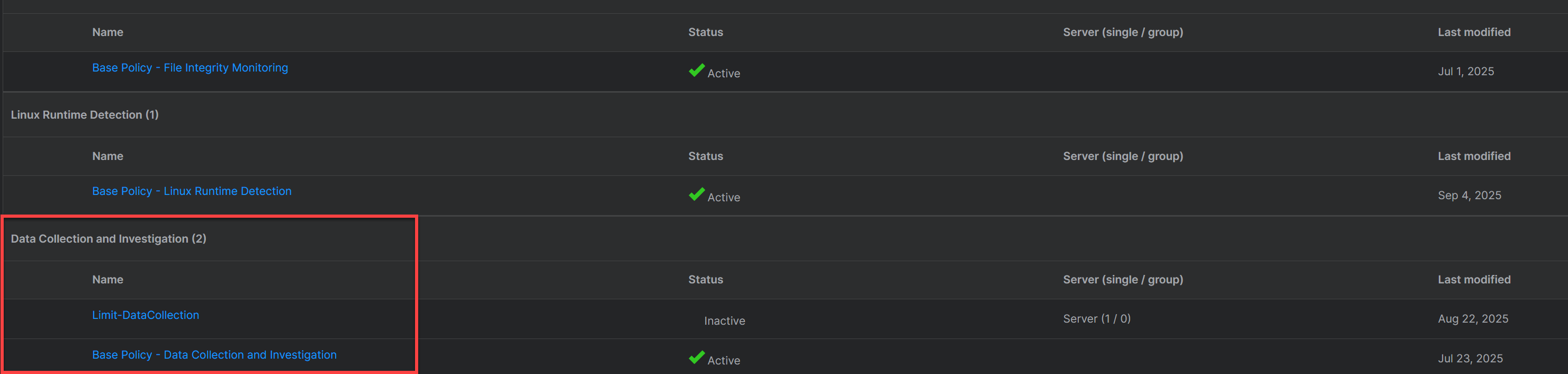
Data Collection and Investigation Policy Note
The base policy applies to all computers by default. You might also have custom policies for groups of computers that you specify.
-
Select the Settings tab.
-
Turn on Allow Live Response connections to computers.
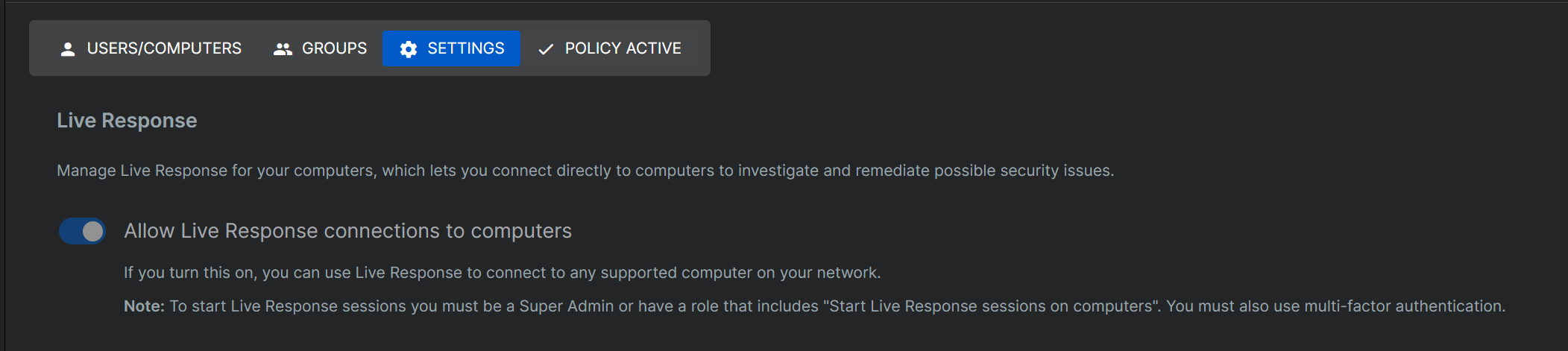
Enable Live Response Note
Live Response can connect to all computers by default when selected.
-
Press Save.
-
Go to My Products → Server → Policies.
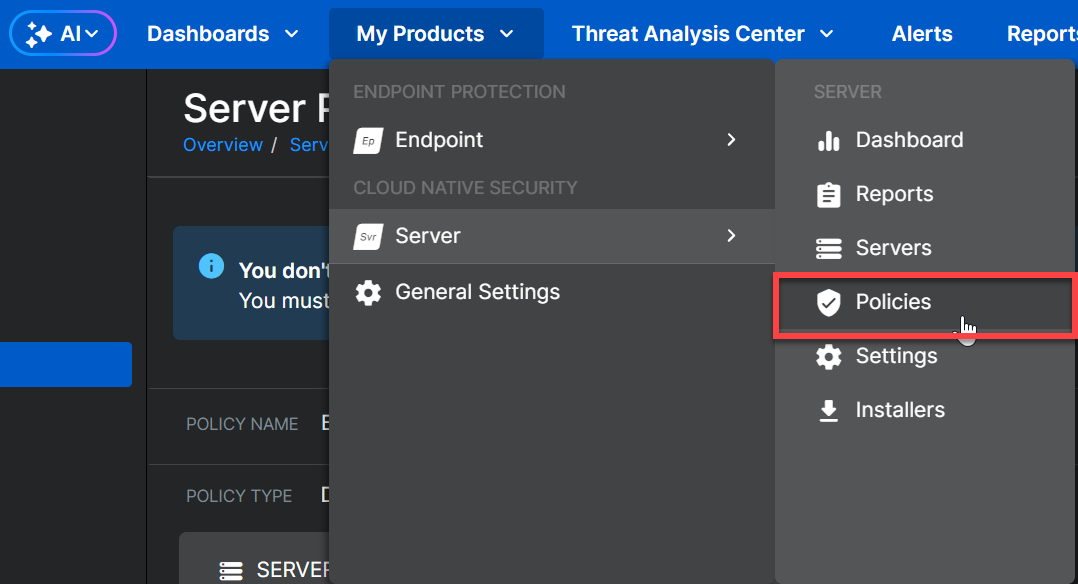
Locating Live Response Settings -
Navigate to the Data Collection and Investigation feature and select a policy to open its details.
Data Collection and Investigation Policy Note
The base policy applies to all servers by default. You might also have custom policies for groups of servers that you specify.
-
Select the Settings tab.
-
Turn on Allow Live Response connections to servers.
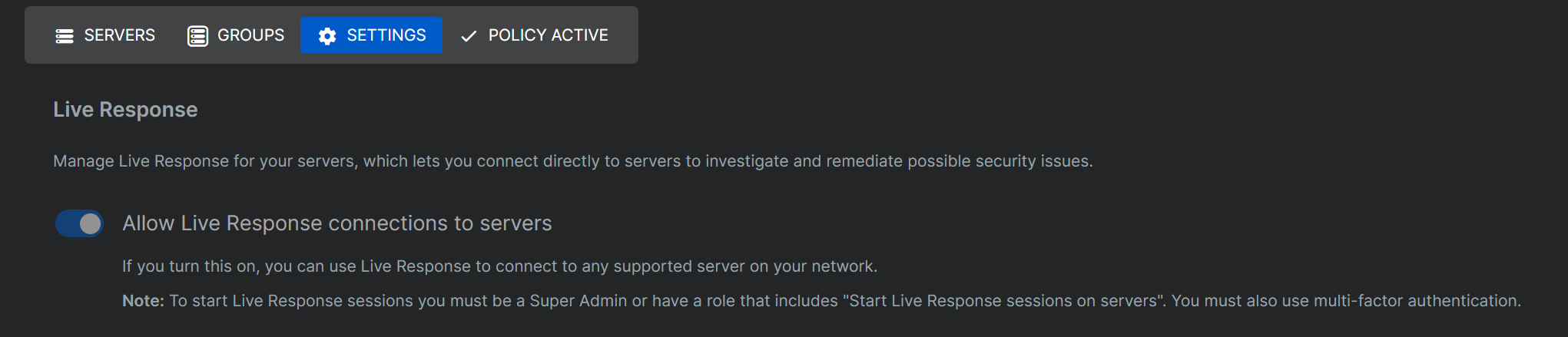
Enable Live Response Note
Live Response can connect to all servers by default when selected
-
Press Save.
Start a Live Response Session🔗
Start a Live Response session on a Sophos Agent device by following the steps below:
Note
To start a session, you must have Tenant Administrator permissions in your XDR tenant. For information on roles, see User Roles.
- Select Endpoint Agents → Summary from the Taegis Menu.
- Select an agent entry to view the side drawer summary, or view all agent information in a new tab.
-
Under Agent Details, select Sophos Live Response.
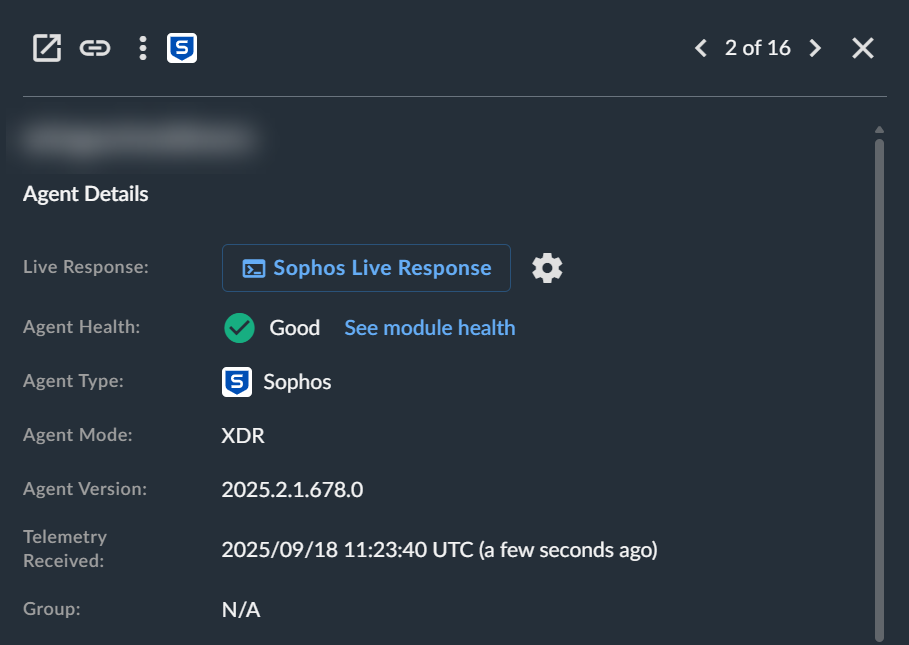
Initiate Sophos Live Response Session Note
The cog icon initiates a connection to your Sophos Fusion tenant to view Policies in Sophos Fusion. Navigate to the Data Collection and Investigation feature to configure Live Response settings.
Data Collection and Investigation Policy -
A new browser tab opens with a terminal window. If the tab does not open, configure your browser to allow pop-ups.
-
When prompted, record your reason for starting the Live Response session to meet audit requirements.
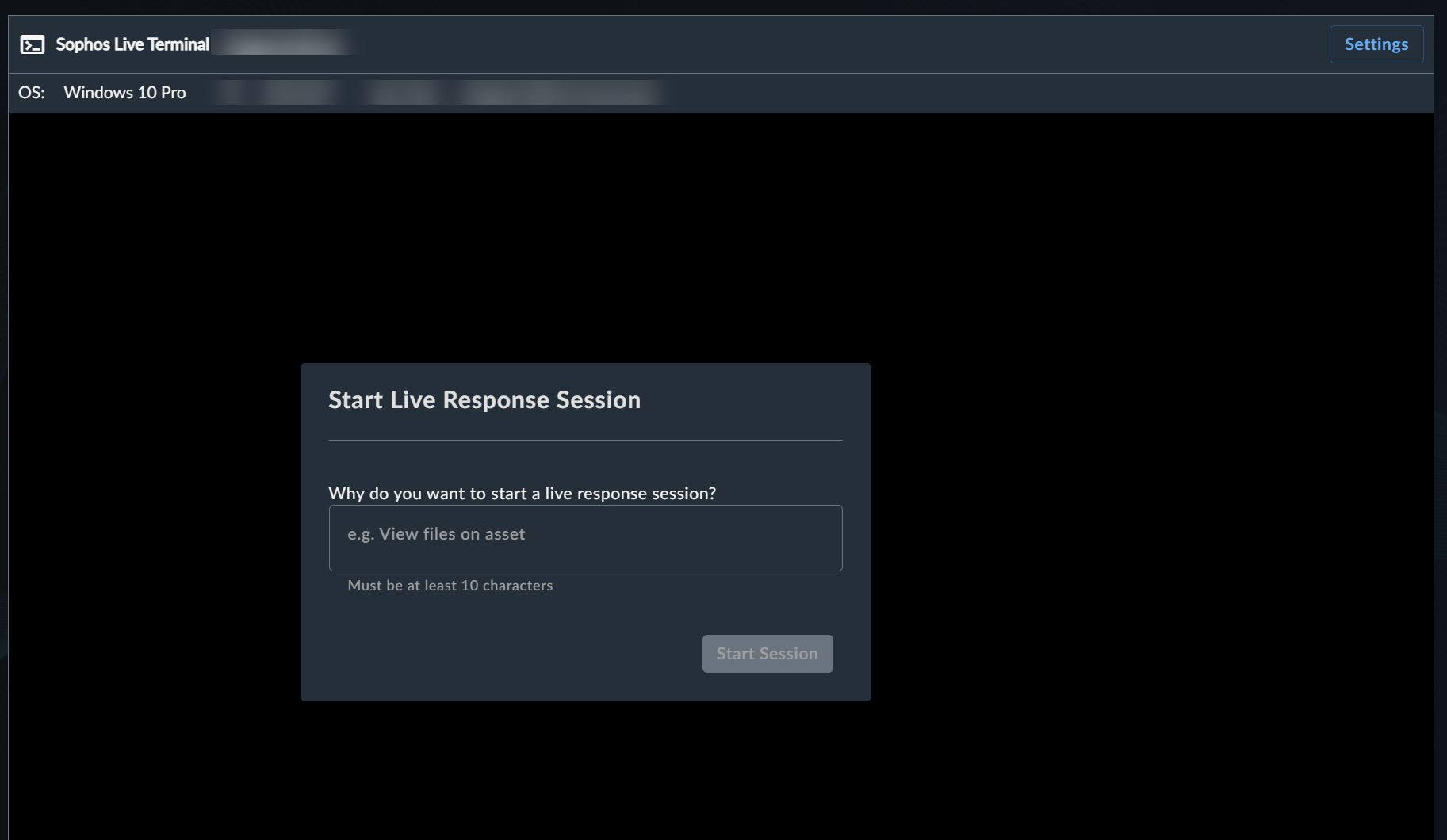
Live Response Session Prompt Note
The Settings button initiates a connection to your Sophos Fusion tenant to view Policies in Sophos Fusion. Navigate to the Data Collection and Investigation feature to configure Live Response settings.
Data Collection and Investigation Policy -
At the command prompt, enter triage or remediation commands.
Tip
Use DOS, UNIX, or Linux commands based on the connected device's operating system.
-
Select End Session, when complete.
Note
The session also ends if:
- You close the tab.
- You refresh the tab.
- You browse elsewhere in XDR from the session tab.
- There is no activity for 30 minutes.
Audit Live Response Activity🔗
You can review general Live Response activity in Sophos Fusion and view details for specific sessions.
View General Live Response Activity🔗
- Go to Reports → Logs.
- Under General Logs, select Audit Logs.
- Review session start and end times, the admin who started each session, the accessed device, and the "Purpose" entered when starting the session.
- For full session details, click See session audit logs next to a log entry.
Audit a Specific Live Response Session🔗
To access session audit logs, you must have Tenant Administrator permissions in your XDR tenant.
- Go to Reports → Logs.
- Under Endpoint & Server Protection Logs, select Live Response session audit.
- Find the session you want to review and select Download session log.
- The session log downloads as a gzip-compressed file.
- Extract the file to view it.
The audit log shows all commands entered during the Live Response session.