Update Caches and Message Relays🔗
Sophos Endpoint Agent enables you to optimize update delivery and communication with Sophos Fusion by using Update Caches and Message Relays. This guide explains what they are, how they work, and how you can set them up to improve bandwidth usage and connectivity in your environment.
Overview🔗
- Update Cache: Allows computers to get agent updates from a local cache on your network, reducing bandwidth consumption.
- Message Relay: Enables computers that can’t contact Sophos Fusion directly to communicate through a relay on your network.
How Update Caches and Message Relays Work🔗
When you configure an Update Cache or Message Relay in your environment, it does the following:
- Installs the Sophos caching software (and relay software, if selected).
- Fetches updates from Sophos Fusion and stores them in the local cache.
- Automatically configures computers in your network to update from the cache and use the relay if needed.
You can also manually assign computers to use a specific cache or relay.
Note
Using Update Caches does not affect how often or when computers are updated.
Supported Operating Systems🔗
Devices Where You Can Set Up Update Caches and Message Relays🔗
- Update Caches:
- Windows Server 2008 R2 or later
- Windows 10 (update caches only)
- Message Relays:
- Windows Server 2008 R2 or later
Tip
For both update caches and message relays, use Windows Server 2016 or later for best performance.
Devices That Can Use Caches and Relays🔗
- Caches: Windows 7 and later (including servers)
- Relays: Windows 7 and later (including servers)
Restrictions🔗
- You can only set up a message relay on a server that also has an update cache.
- You can’t set up message relays on Windows 10.
Prerequisites🔗
Before setting up an update cache or message relay, ensure the following:
- The device meets the operating system requirements.
- At least 5 GB of free disk space is available.
- Port
8191is open to computers updating from the cache. - Port
8190is open to computers using the relay. - Windows Firewall is automatically configured by the installer.
Note
If you use the Reject Network Connections feature in Sophos Firewall, it could prevent a cache from delivering updates.
Setting Up an Update Cache or Message Relay🔗
You can set up a cache and a relay together, a cache only, or add a relay to an existing cache.
To Set Up a Cache or Relay:🔗
- Navigate to My Products → General Settings in Sophos Fusion.
-
Select Manage Update Caches and Message Relays under the General category.
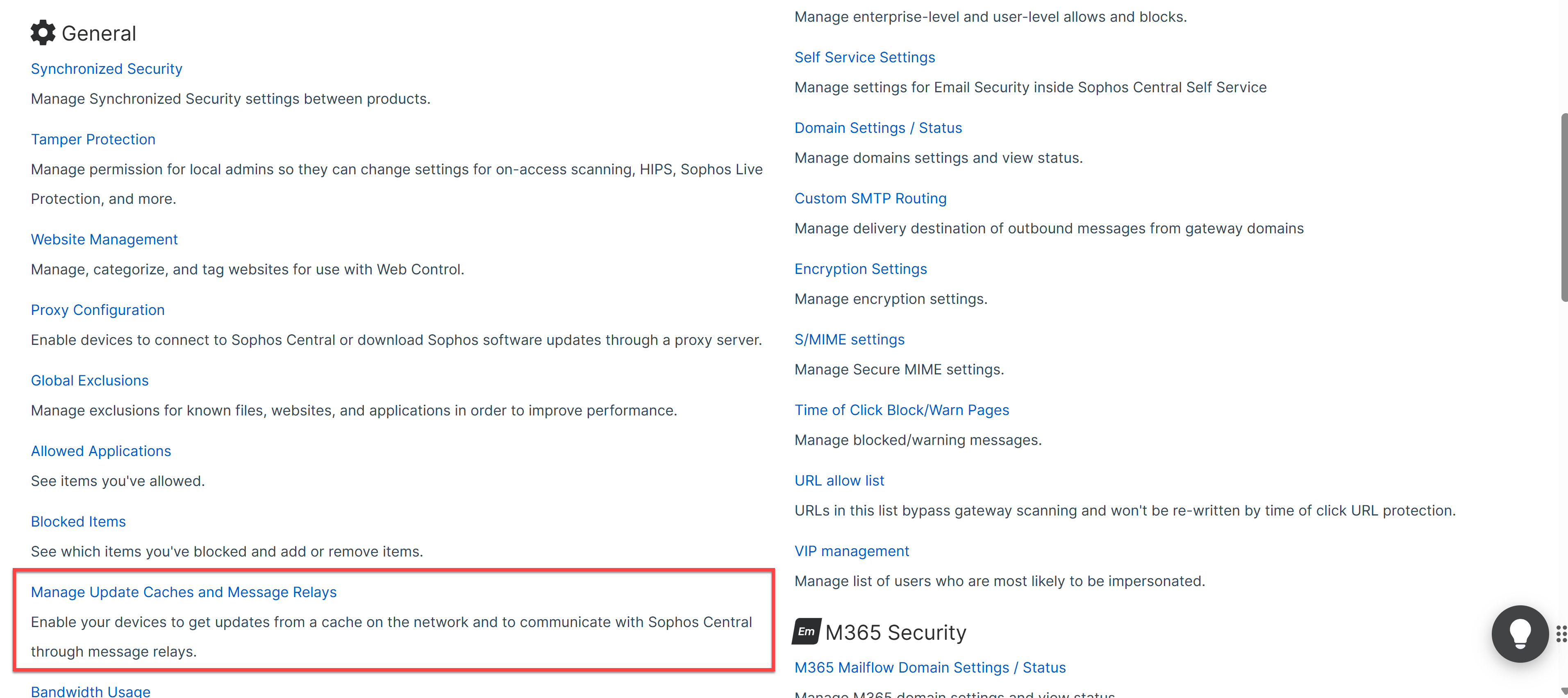
General Settings → Manage Update Caches and Message Relays -
In the filter above the table, select Cache Capable Servers or Cache Capable Computers to see suitable devices.
Note
To set up a relay on a server that already has a cache, select Devices with Update Cache.
-
Select the devices where you want to set up a cache or relay.
- Click Set Up Cache.
If you select servers, the button appears as Set Up Cache/Relay.

Sophos Fusion automatically configures computers in your network to use the cache or relay. You can also manually assign computers to a specific cache or relay.
Tip
To ensure new computers get the latest Sophos Agent agent from a cache, set up your caches before deploying.
Assigning Computers to a Specific Cache or Relay🔗
You can manually assign computers to use a particular cache or relay if needed.
- Navigate to My Products → General Settings and select Manage Update Caches and Message Relays.
- Find the device where the cache or relay is installed.
- Select the link showing the number of computers in the Using Cache or Using Relay row.
- Select Manual Assignment.
- Select the computers to assign.
- Press Save.
Viewing Cache and Relay Usage🔗
To see which computers use update caches or message relays:
- Navigate to My Products → General Settings and select Manage Update Caches and Message Relays.
-
In the device list, you can:
- View which devices have update caches and message relays.
- See the number of computers using each cache or relay.
- Review update cache activity.
-
Select a device to see detailed information on the computers using its update cache or message relay.
Removing an Update Cache or Message Relay🔗
Important
If you want to remove a cache that has computers manually assigned to it, reassign those computers first.
When you remove a cache or relay, Sophos Fusion does the following:
- Uninstalls caching software and removes cached updates.
- Closes port
8191(cache) and, if applicable, port8190(relay) in Windows Firewall. - Uninstalls relay software if present.
- Reconfigures affected computers to use another cache or relay if available, or to connect directly to Sophos Fusion.
If all caches or relays are removed, computers update and communicate directly with Sophos Fusion.
To Remove a Cache or Relay:🔗
- Go to My Products → General Settings and select Manage Update Caches and Message Relays.
- In the filter above the table, select Devices with Update Cache or Servers with Message Relay.
- Select the device(s) you want to remove.
-
Select Remove Cache.
Note
If you selected a server, the button appears as Remove Cache/Relay.