Schema Library🔗
Open Schema Library by clicking the Schema Library icon  in Data Lake Search. Schema Library provides a tabular reference of searchable schemas, fields, and logical types in Secureworks® Taegis™ XDR. Use the tabs to switch between Schemas, Fields, and Logical Types.
Tip
Click the Menu icon in a column header to do the following:
- Pin: Pin the column to the left or right.
- Autosize: Autosize the selected column, or autosize all columns.
- Reset: Restore the default column size and order.
- Filter : Narrow results or use checkboxes to show certain values.
- Show/hide : Choose which columns to display.
Rearrange columns by dragging their headers.
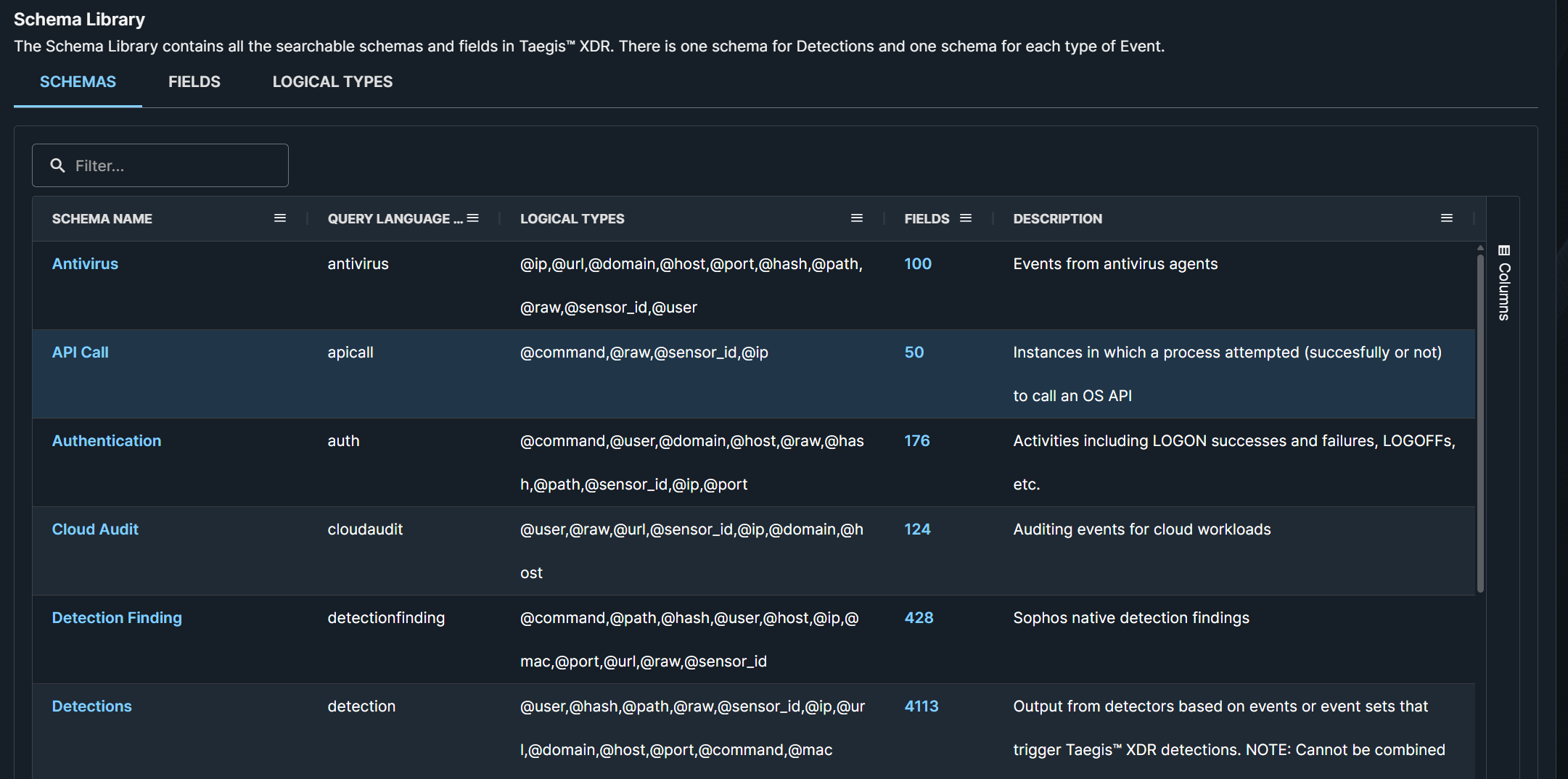
The Schema Name column lists available data schemas, with each row showing the schema’s attributes and description. Click a schema name to open its dedicated page with example queries, related logical types, and a table of fields associated with that schema.
Tip
Use the breadcrumbs on a schema page to return to the Schema Library.
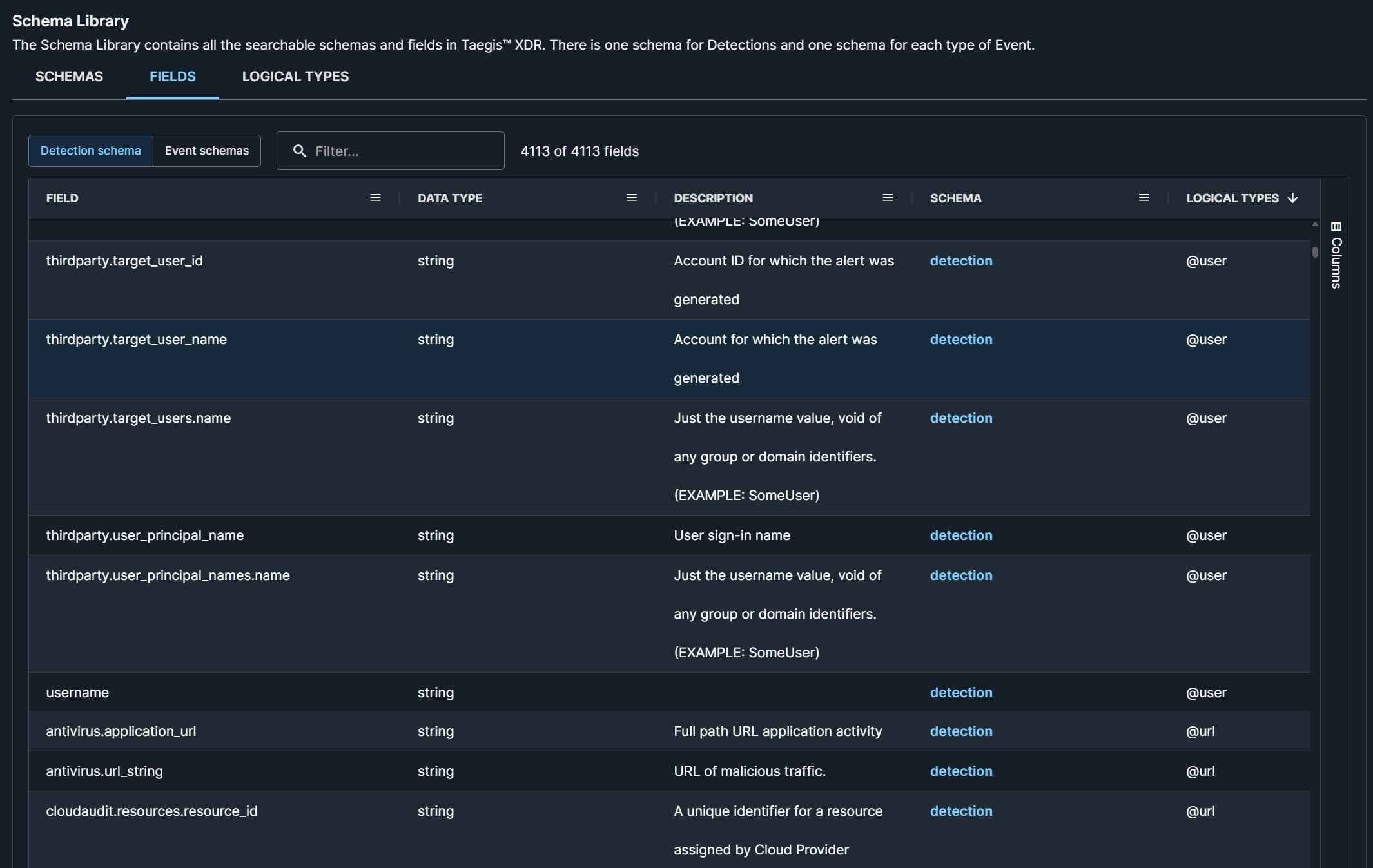
The Fields table lists all fields you can search in Data Lake Search. Use the search bar to filter fields by your input. Detection schema is selected by default and shows all fields relevant to detections.
Note
Many fields relevant to detections also appear in event schemas. In detection queries, prefix these fields with <schema_name>.field_name, for example:
auth.auth_system
Use this field in a detection query as shown in the example below:
FROM detection WHERE auth.auth_system CONTAINS 'jdoe@company.com'
Click Event schemas to view all event schema fields. Each row lists the field’s data type—such as string, number, or boolean—description, and attributes, including its related schema.
Tip
Click the schema link to open the dedicated schema page for that field.
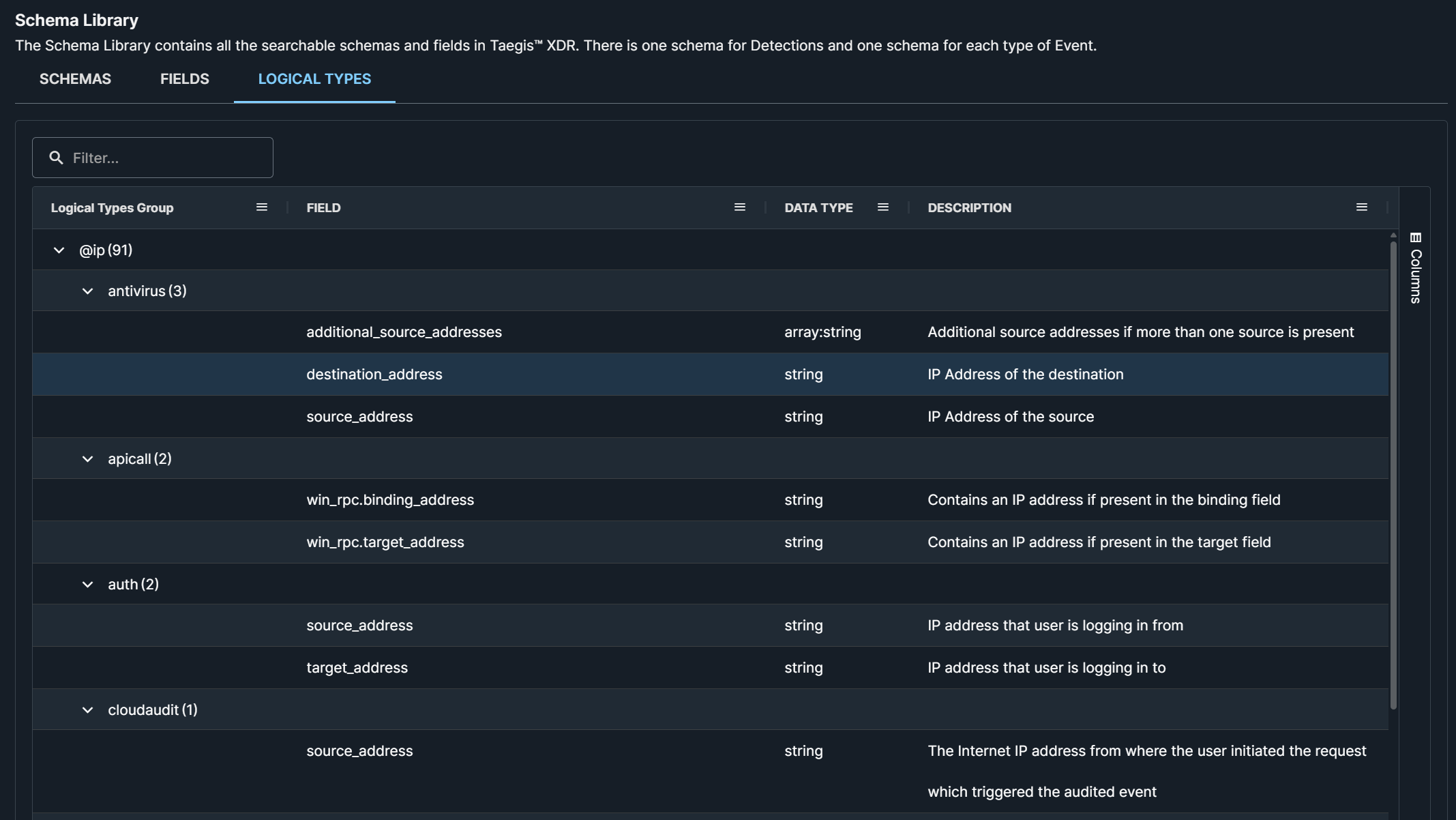
The Logical Types Group column lists available logical types. Expand a logical type to view its schemas, then expand a schema to see its fields in the Field column.