Detection Suppression Rules🔗
You can create detection suppression rules that resolve detections as suppressed when they're created so that they don't show by default on the Detection Triage Dashboard but can still be found in searches.
Important
Suppressed detections are not triaged by Secureworks analysts.
Tip
The Secureworks Professional Services team is here to help you realize the full potential from your Taegis XDR investment if a higher level of support is desired. Our highly skilled consultants can help you deploy faster, optimize quicker, and accelerate your time to value. For more information, see Professional Services Overview.
How Detection Suppression Works🔗
To understand why suppression rules sometimes behave differently from Advanced Search, it's important to understand how suppression runs are processed.
Detection suppression is applied early, while a detection is being generated, before it's finalized and published to the Detection Triage Dashboard. This is intentional: Resolving a detection as suppressed before it's published prevents it from triggering downstream automated response actions, such as automated playbooks or host isolation. If suppression ran after a detection was published, an automated workflow could fire before the detection was suppressed.
Running early has three consequences to keep in mind when building rules:
1. Not all fields are available to suppression rules. Some data is added to a detection after it's generated, including additional enrichment, decoded values, and summary metadata. Those fields can't be included in a suppression rule because they're not available at the time of suppression rule execution. See the FAQ for specific examples.
2. Suppression and Advanced Search are evaluated by different systems. Advanced Search queries finished, fully enriched detections. Suppression rules are evaluated by a separate engine against detection data at the earlier point described above. As a result:
- A query can return results in Advanced Search but match nothing in suppression, and vice versa.
- The See potential matches with current data preview uses Advanced Search, so it's a helpful guide but not a guarantee that a suppression rule will match the same detections.
- Some field names and syntax differ between the two. Where they differ, use the suppression syntax described on this page.
Note
Because of this timing, changes to a suppression rule aren't applied instantly. After you create, edit, enable, or disable a rule, allow at least 10 minutes for the change to take effect. A detection created immediately after a rule change may not be affected by it.
3. Suppression criteria must all be true together, not just true somewhere across the detection. A detection can combine matching criteria that became true separately over time. Advanced Search evaluates your query against the finished detection as a whole, so a query like source_entities.x = a AND source_entities.y = z can match even if x and z became true at different points that were later combined into the same detection. Suppression rules require all criteria to be true together. If x and z were only ever true separately, the rule will not match, even though the same query finds the detection in Advanced Search.
Note
There's currently no way to tell from a detection or its entities whether your criteria were true together or separately. If a suppression rule doesn't match a detection that Advanced Search finds, try testing with a single condition at a time.
View Detection Suppression Rules🔗
- From the Taegis Menu, select Detections > Customization Rules. The Custom Rules table displays.
- Select the Suppression Rules tab to view all of the current suppression rules.
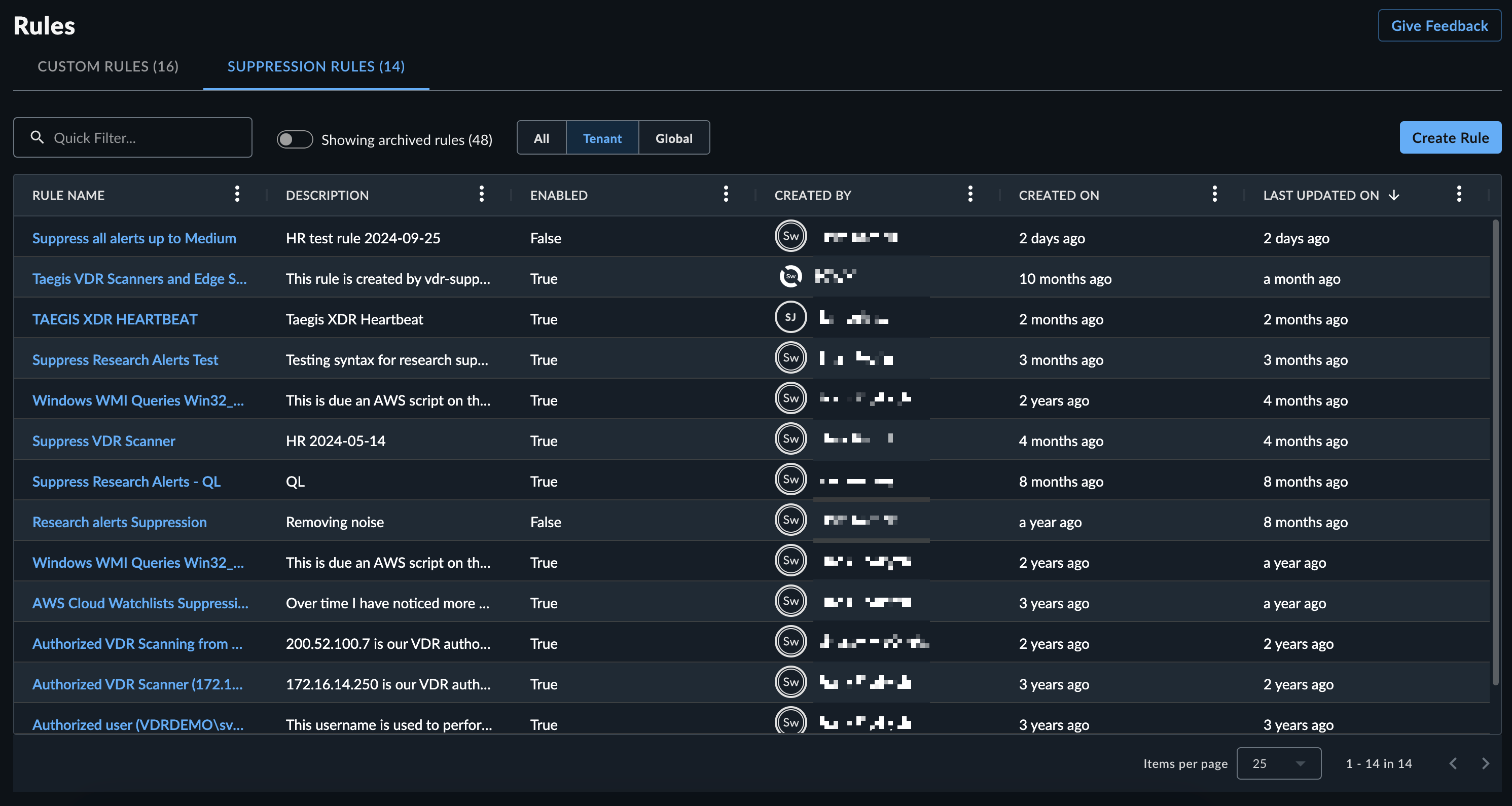
Tenant rules are specific to the tenant and only suppress detections for that individual tenant. Global rules apply to ALL XDR tenants. Global rules are commonly created to triage detection floods until the detection rule or detector is tuned. Global rules are read-only. Please contact support if you have questions about a global rule.
Create Suppression Rules🔗
You can create a detection suppression rule in one of the following ways:
Tip
We recommend the query language method. The detection method uses an older regex-based criteria format that we plan to deprecate in a future release.
Query Language Method🔗
Suppression rules support matching on a detection's underlying event data using Advanced Search query language. For example, suppression rules can use query language elements such as process.commandline, process, parent_image_path, and other event schemas.
Note
See the FAQ for additional information.
Use advanced search first to create the query that targets the desired detections before you create the suppression rule.
- Build your Advanced Search query to verify which past detections are to be suppressed in the future. When you are satisfied with the results, copy the query to paste into the rule builder.
- Go to Detections > Customization Rules and select the Suppression Rules tab.
- Click Create Rule above the Suppression Rules table.
-
In Create Suppression Rule, paste the Advanced Search query that targets the desired detections in the Rule Criteria field.
Tip
Click See potential matches with current data in the right pane to preview the detections your query currently targets. This preview uses Advanced Search, so treat it as a guide rather than a guarantee — see How Detection Suppression Works.
-
Enter a Name and Description for the rule.
-
Select the resolution status you want detections that match this rule to be labeled with.
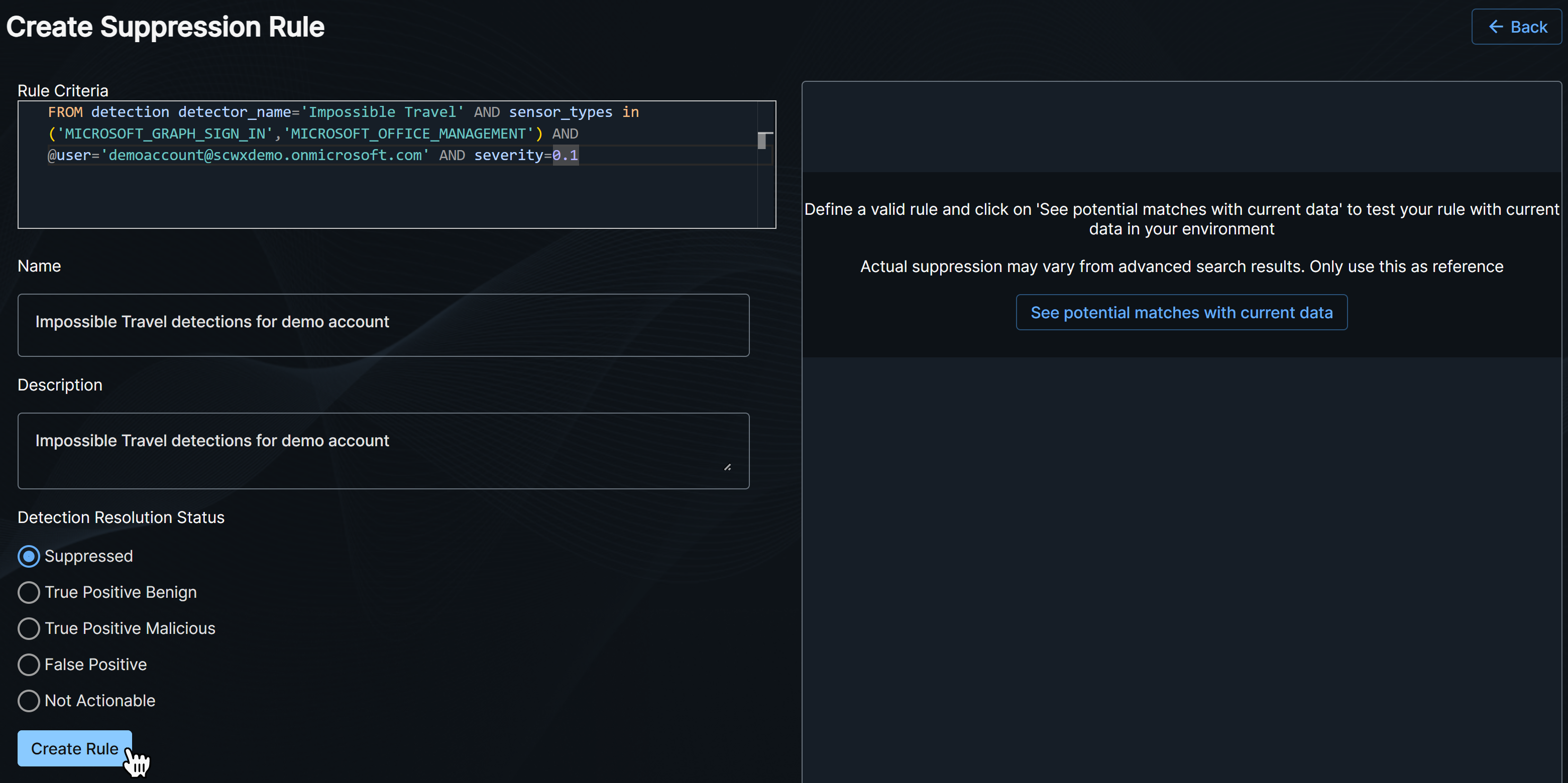
Create a Suppression Rule with Query Language -
Click Create Rule.
Detection Method🔗
Note
The detection method uses an older regex-based criteria format that we plan to deprecate in a future release. For new rules, we recommend the query language method.
- Open the details of a detection you want to suppress.
- From the detection details page, select Actions > Create Suppression Rule.
-
The Create Suppression Rule form populates with entities from the detection. Select one or more entities to build your rule, or manually add criteria.
- Multiple criteria are joined with an
ANDoperator. -
Criteria use PCRE regular expressions to perform matching.
Note
The pipe symbol
|is not supported as a logical OR in manually added criteria. -
Suppression rules run queries against streaming data and Primitive Fields do not automatically get default values, which differs from data stored in the Taegis data lake and queried by Data Lake Search. In suppression rules, you can use the NULL operators to check if these Primitive Fields are set.
- Regular expression special characters are automatically escaped when you use the prepopulated entities. If you manually add criteria, you must escape these characters. See the following note for more details.
Note
The following characters have special meaning within regular expressions:
. ^ $ * + - ? ( ) [ ] { } \ | /. For IP addresses, domain names, and other instances, take care to escape the characters with a backslash:1\.1\.1\.1.
To escape long sequences that contain multiple characters, enclose the whole string between\Qand\Eso that the string is not evaluated for regex characters. For example, escaping this full string:
\Q${jndi:ldap://log4shell-smb-21yg3cbuy21gbcy21gc321uc${lower:ten}.w.nessus.org/nessus}\E
is equivalent to:
\$\{jndi:ldap:\/\/log4shell\-smb\-21yg3cbuy21gbcy21gc321uc\$\{lower:ten\}\.w\.nessus\.org\/nessus\} - Multiple criteria are joined with an
-
Enter a Name and Description for the rule.
-
Select the resolution status you want detections that match this rule to be labeled with.
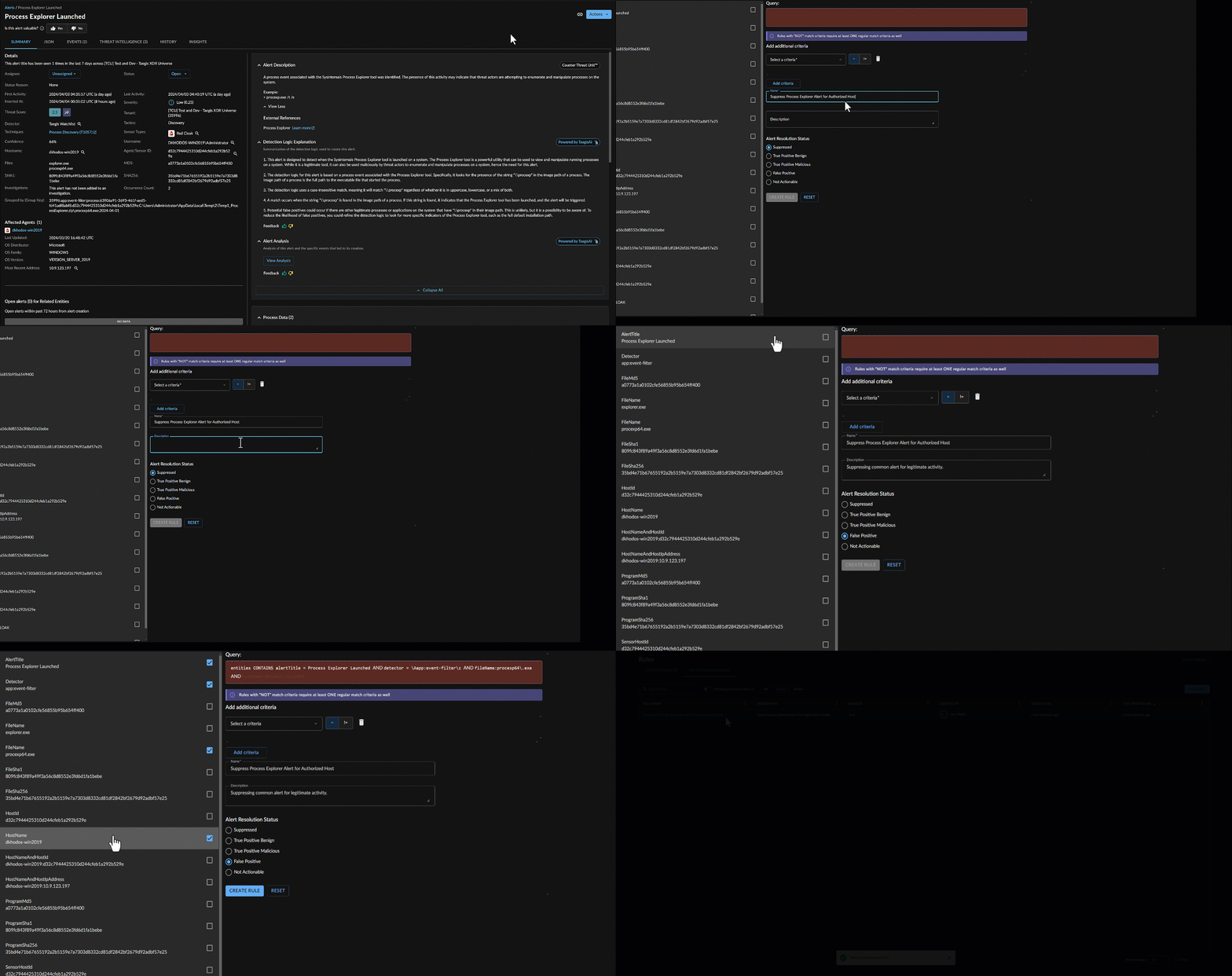
Create a Suppression Rule from a Specific Detection -
Click Create Rule.
View Suppression Rule Details and History🔗
Select a rule name from the Suppression Rules table to view its details and history.
Suppression Rule Details🔗
The Details tab of the suppression rule contains overview information for the rule with the criteria the rule matches on. You can edit the rule name, criteria, description, and resolution label from this view.
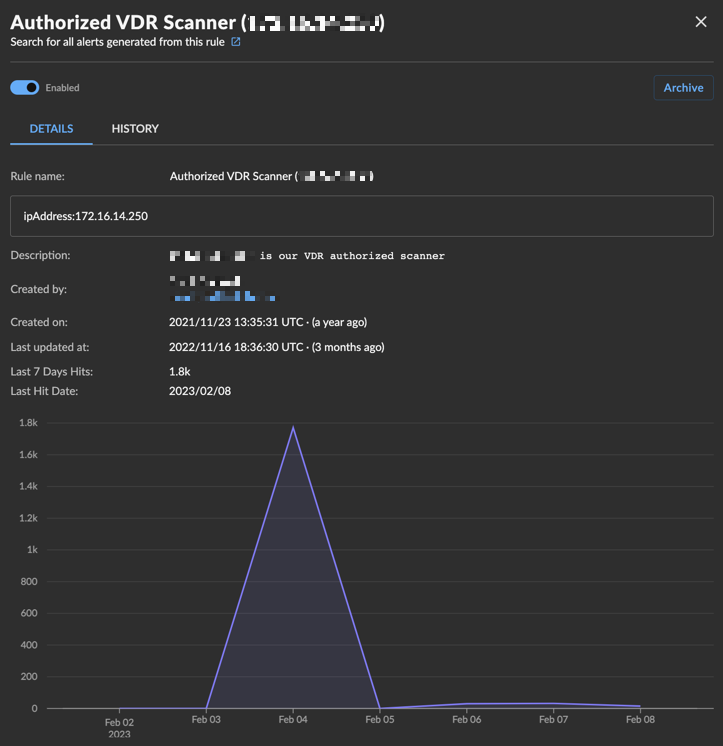
If the rule has matched on and suppressed detections in the last seven days, the following display:
- Number of hits in the last seven days
- Last hit date
- Line graph visualizing the amount of hits
If there has been no activity in the last seven days, this section does not display.
Suppression Rule History🔗
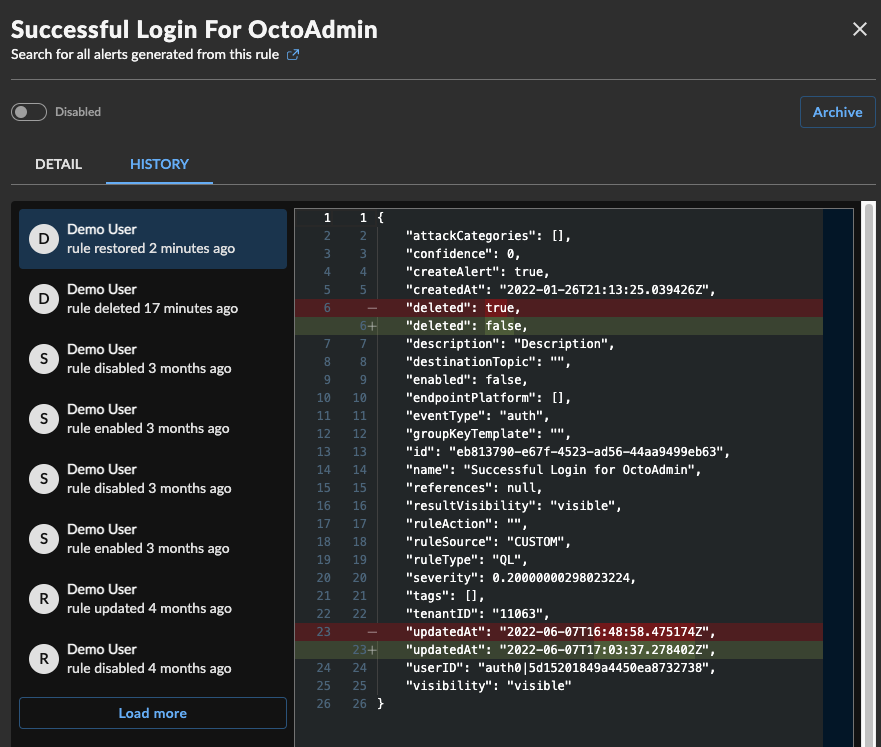
The History tab of the suppression rule contains a changelog of edits to the rule. Choose an audit log from the list on the left to view the diff in the right pane.
Archive and Restore a Suppression Rule🔗
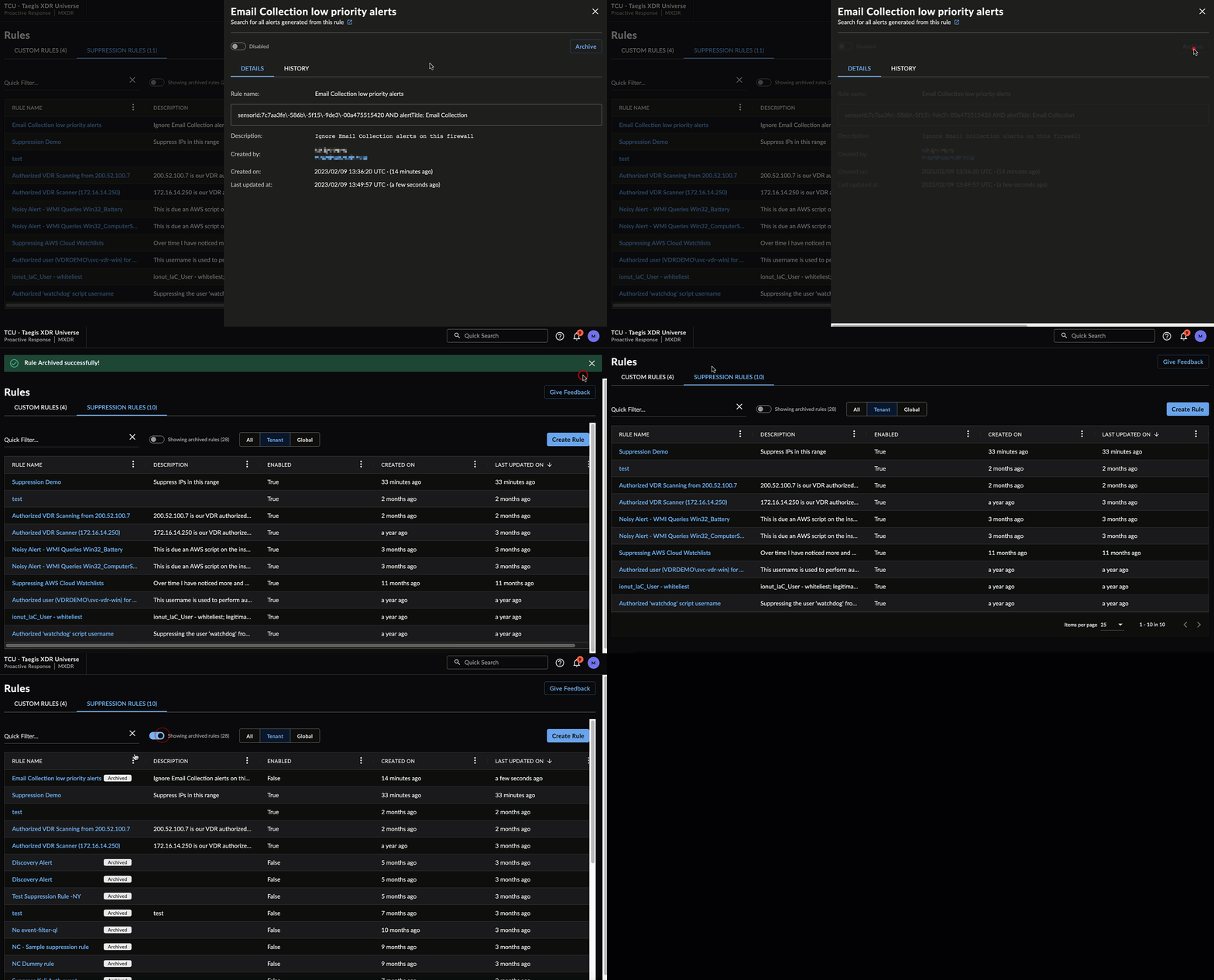
When viewing a suppression rule, you can archive the rule by selecting Archive and confirming the action. This disables the rule, marks it as archived, and removes it from the default view of the Suppression Rules table.
To view archived rules, select Showing Archived Rules above the table.
When viewing an archived suppression rule, you can restore the rule by selecting Restore and confirming the action. This restores the rule in a disabled state and returns it to the default view of the Suppression Rules table. Select the toggle to enable the rule.
Share a Suppression Rule🔗
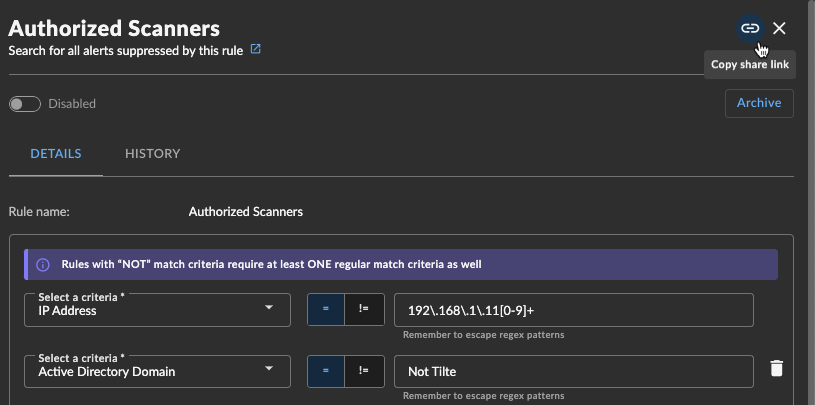
To share a suppression rule with another user within the tenant, select the Copy share link icon from the rule details for a direct URL.
Common Detection Suppression Rules🔗
Authorized Scanner🔗
Use Source IP Address to suppress detections originating from an authorized scanner.
If you have multiple authorized scanners, use a regular expression to include all IP addresses into one suppression rule.
Guest Network Range🔗
Use Source IP Address to suppress detections from a guest network range, using a regular expression to match the entire network range.
Authorized Process Execution on Endpoint🔗
Use a combination of patterns to match both the endpoint and process.
-
Use one to match endpoint:
- Sensor Host ID
- IP Address (if host has a static IP address and does not have an endpoint agent installed)
-
Use one to match the process:
- File Name
- File (MD5|SHA1|SHA256|SHA512)
- Program Name
- Program (MD5|SHA1|SHA256|SHA512)
- Script SHA1 (This is a hash of the executed script)
FAQ🔗
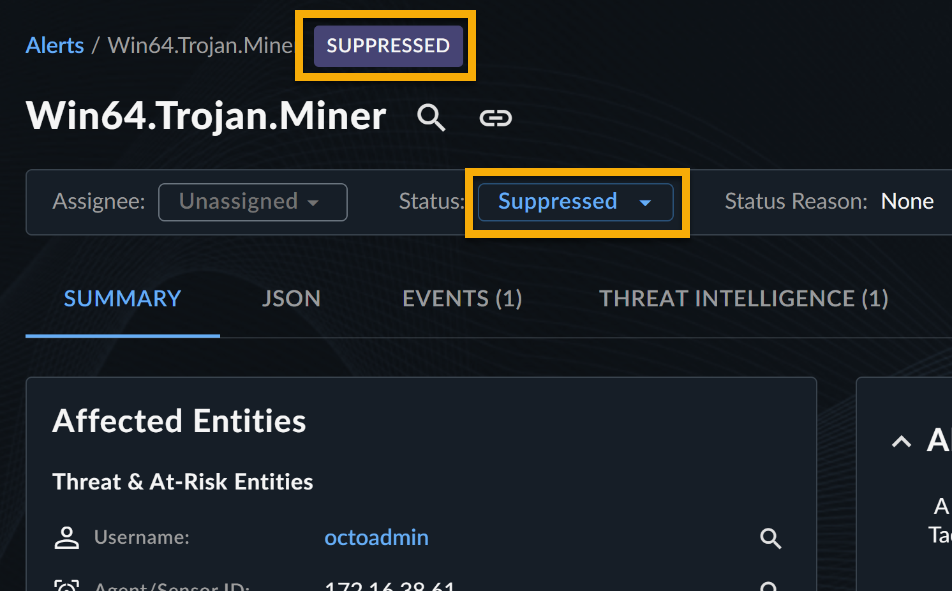
How do I know if a detection has been suppressed?
Suppressed detections are marked with a feedback label of Suppressed.
How can I search for suppressed detections?
Suppressed detections have the feedback label Suppressed. You can search for them using the following query:
To exclude suppressed detections from your results, add a NOT to the labelName criteria match:
Another method is to run a pivot search from the rule itself. Open a rule and select the new tab icon next to Search for all alerts suppressed by this rule. This opens up an advanced search that queries for detections that were suppressed by this specific rule.
Can I add suppressed detections to a case?
Yes, suppressed detections can still be added to new or existing cases.
Can I change the feedback label on a suppressed detection?
Yes, in the detection details view, you can remove the feedback label or change the label.
Can I audit rule manager activity?
Yes, actions in the rules manager are viewable by navigating to Tenant Settings > Audit Logs. Audit logs will have the category of Rules.
Additionally, a changelog of edits to the rule is available from the rule itself. See View Suppression Rule Details and History.
When a detection is suppressed, how do I know which rule suppressed the detection?
When viewing detection details, click the rule name in the Suppression Rule field to view the rule in a side panel.
What regular expression features do the rules support?
The detection suppression engine utilizes Hyperscan to apply regular expressions. Hyperscan supports the pattern syntax used by the PCRE library libpcre, described at http://www.pcre.org/. However, not all constructs available in libpcre are supported. The use of unsupported constructs will result in compilation errors.
For more details, see Hyperscan Developer Reference Compilation.
For domain names or IP addresses, do I need to do anything special to handle the dots?
Yes, you need to escape the dots using a backslash. In regular expressions, a dot means to match any single character except newline.
Example: 192\.168\.1\.1 or www\.secureworks\.com
What entities can I match against, and how do I use them?
There are three ways to match detection entities in a suppression rule: logical types, structured entities, and legacy entities. We recommend logical types or structured entities — legacy entities remain supported, but are planned for deprecation.
Logical types
Use logical types to match an entity without needing to know which specific field holds the value. To suppress by hostname, use @host:
Structured entities
Suppression rules support matching on structured entities using the format:
In a suppression rule, <entity_type> must be the specific entity type — for example ip_address, auth_domain, user, or cloud_user.
This is a common source of confusion because Advanced Search and suppression use different syntax for the same entity. Advanced Search uses a generic properties segment; a suppression rule requires the specific entity type. If you copy a query from Advanced Search, convert the properties segment to the specific entity type, or the suppression rule will fail validation.
| Advanced Search syntax | Suppression rule syntax |
|---|---|
source_entities.properties.cloud_user_type |
source_entities.cloud_user.cloud_user_type |
source_entities.properties.ip_geo_auto_system_org |
source_entities.ip_address.ip_geo_auto_system_org |
Example (suppression rule):
FROM detection WHERE title CONTAINS 'Detected suspected stolen user credential for user' AND source_entities.ip_address.ip_geo_auto_system_org CONTAINS 'Cato' AND severity > 0.6
Tip
When building a rule, the editor suggests valid entity fields as you type — use these to find the correct entity type and field names.
Legacy entities
Legacy entities are the entities listed in the entities JSON object on a detection. To view them when viewing detection details:
- Go to the JSON tab.
- Expand the entities JSON object.
-
View the entities listed on the detection.
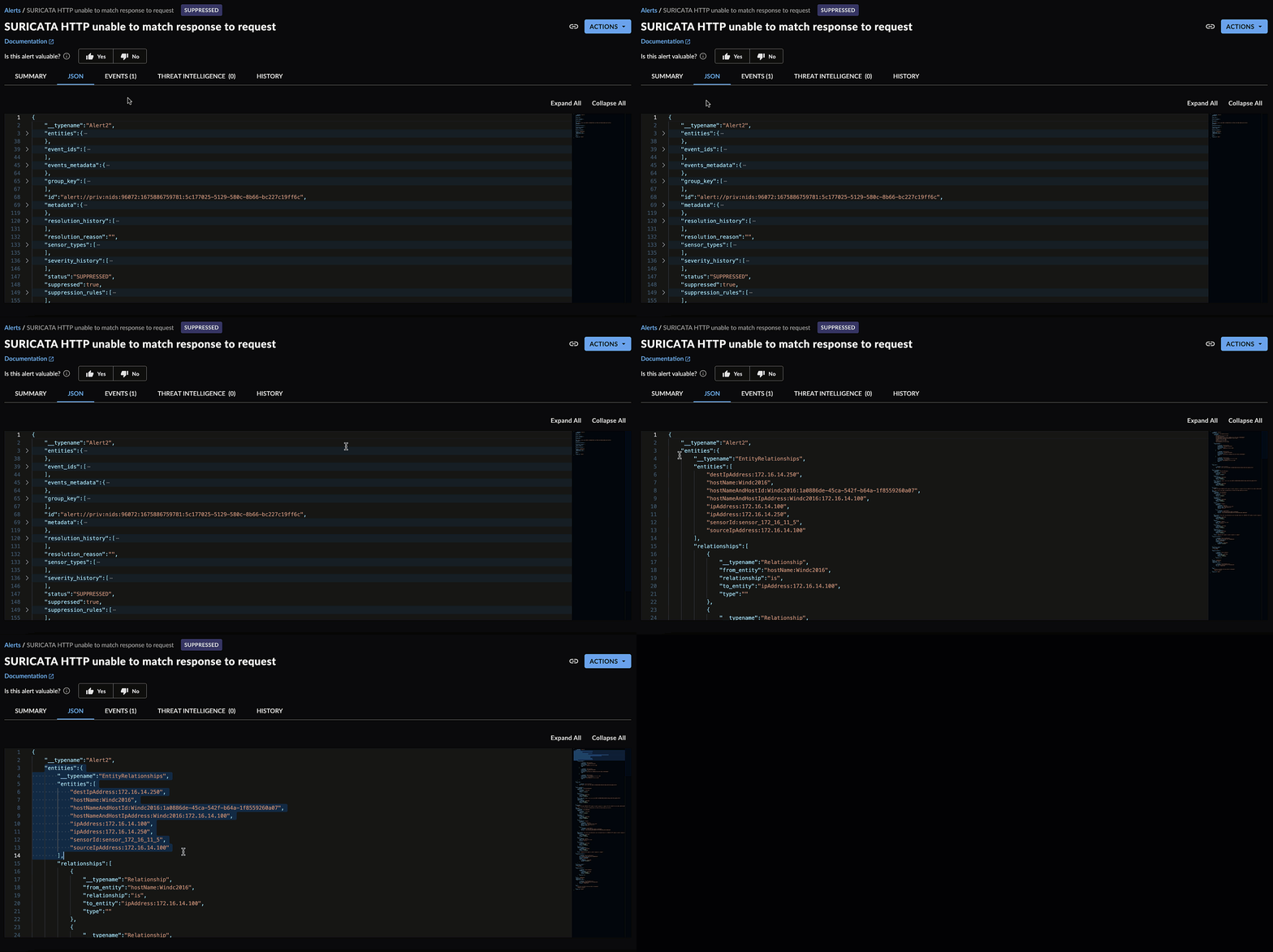
Detection Entities
When building your rule, you can also pick these entities from a drop down.
To match against a legacy entity directly, use the entire string from entities.entities. To suppress by destination IP address:
Note
The legacy entities format remains supported today, but we plan to deprecate it in a future release. For new rules, use logical types or structured entities.
The following legacy entities can be used to create detection suppression rules. Unique entities are parsed from the individual events included in the detection.
| Entity Prefix | Entity Description |
|---|---|
| authDomainName | Active Directory Domain |
| sourceUserName | Auth Source Username |
| sourceAuthDomainName | Auth Source Domain Name |
| targetUserName | Auth Target Username |
| targetAuthDomainName | Auth Target Domain Name |
| computerName | Computer Name |
| decodedScriptSha1 | Decoded Script SHA1 |
| destHostName | Destination Hostname |
| destIpAddress | Destination IP Address |
| destIpGeo | Destination IP Geolocation |
| destMacAddress | Destination MAC Address |
| dnsName | DNS Name |
| fileMd5 | File MD5 |
| fileName | File Name |
| fileSha1 | File SHA1 |
| fileSha256 | File SHA256 |
| fileSha512 | File SHA512 |
| ipAddress | IP Address |
| city | IP Address Geolocation City |
| country | IP Address Geolocation Country |
| latLon | IP Address Latitude,Longitude |
| macAddress | MAC Address |
| programMd5 | Program MD5 |
| programName | Program Name |
| programSha1 | Program SHA1 |
| programSha256 | Program SHA256 |
| programSha512 | Program SHA512 |
| registryName | Registry Name |
| registryPath | Registry Path |
| scriptSha1 | Script SHA1 |
| sensorHostId | Sensor Host ID |
| sensorId | Sensor ID |
| sourceIpAddress | Source IP Address |
| sourceIpGeo | Source IP Geolocation |
| sourceMacAddress | Source MAC Address |
| topPrivateIpDomain | Top Private IP Domain |
| userName | Username |
| workstationName | Workstation Name |
Which detectors support detection suppression?
All detectors and detection sources support suppression.
Are there limitations to using query language for suppression rules?
The following detection schema fields are not supported at this time:
- enrichment_details
- third_party_details — use
thirdpartyevent schema instead - status
- case
The following are also not available to suppression rules because they are added or updated after a detection is generated (suppression runs earlier):
- Decoded / derived fields (for example
commandline_decoded) — match on the raw (encoded) value instead. The decoded value still appears on the finished detection and in Advanced Search, which is why it looks available. events_metadatafields (for exampleevents_metadata.total_events) — generated after publication and continually updated, so the value is not static.
How can I create a suppression rule for detections containing a specific commandline?
To suppress by commandline, use the process.commandline schema in the query language for the advanced suppression rule.
FROM detection WHERE process.commandline CONTAINS 'your_string'
A field isn't shown in the detection JSON — can I still use it in a suppression rule?
Often, yes. A detection is built from underlying events, and the detection JSON shows only a summary of them. Fields that aren't listed in the detection JSON are still part of those underlying events, so you can match on them — in both Advanced Search and suppression rules. For example, auth.application_name may not appear in the detection JSON, but you can use it in a suppression rule (and in Advanced Search) because it exists on the underlying events.
My suppression rule doesn't match, even though Advanced Search finds the detection with the same criteria
This can happen when your rule's criteria were true at different points that were later combined into a single detection. See How Detection Suppression Works.
For example:
FROM detection WHERE source_entities.user.user_name = 'jsmith' AND source_entities.host.hostname = 'somehost'
This matches in Advanced Search if the detection contains both jsmith and somehost anywhere in its data — even if they were never true at the same time. It only suppresses if both were true together. Since there's no way to check this from the detection details, if a rule you expect to match isn't matching, try testing with a single condition at a time.
What is the best way to match on a username, domain, host, or IP address?
Rather than a logical type (for example @user, @domain, @host, @ip), we recommend matching on the specific structured entity property or event field, for example:
FROM detection WHERE source_entities.user.user_name CONTAINS 'jsmith'FROM detection WHERE source_entities.host.hostname = 'somehostname'FROM detection WHERE auth.target_host_name = 'somehostname'FROM detection WHERE process.username CONTAINS 'jsmith'
Use Schema Library to find the specific field to use. Its Fields tab lists every searchable field per schema, and its Logical Types tab shows you which schemas and fields a given logical type expands to, so you can pick the exact field a logical type would otherwise match for you.
Note
A domain can appear on more than one structured entity, and which one to use depends on the entity present on the detection you want to suppress:
user.domain_name— the domain associated with a specific user entity, such as "scwx.com" from "SYS\j.doe@scwx.com". (user.auth_domainis deprecated; useuser.domain_nameinstead.)auth_domain.auth_domain— a standalone authentication domain entity, not tied to a specific user.
Check the entities on the detection you want to suppress (see the FAQ "What entities can I match against, and how do I use them?") to determine which structured entity, and therefore which field, applies.
Do I need to include the AND operator between conditions?
Yes — always use an explicit AND. While conditions on separate lines may currently behave as though joined by AND, this is not guaranteed. Always join conditions with an explicit AND operator.
Can I still edit an older suppression rule that uses the regex-based criteria format?
Yes. Rules created with the older regex-based criteria format — for example, rules built with the detection method — remain fully editable.
Going forward, we recommend creating rules with the query language method. We plan to deprecate the regex-based criteria format in a future release, so new rules are best built with query language.
How can I use IP CIDR ranges for suppression?
You can now use IPv4 CIDR ranges in your rule's query.
Note
Detection search does not support CIDR ranges, so these queries cannot be built using advanced search. We recommend that you build the query in advanced search without the CIDR ranges and then add the ranges when ready to create the suppression rule.
Note
IPv6 CIDR ranges are not supported in suppression rules at this time.
How do I suppress detections with IPv6 addresses?
Suppression rules support IPv6 addresses. When you use an IPv6 address in a suppression rule, the rule automatically normalizes the address so that it matches equivalent representations. For example, a rule that uses the compressed form also matches the uncompressed form, and vice versa.
You can match an IPv6 address in a suppression rule in three ways:
-
Logical type (e.g.,
@ip):FROM detection WHERE @ip = '2001:db8:85a3::8a2e:370:7334' -
Schema field (e.g.,
auth.source_address):FROM detection WHERE auth.source_address = '2001:db8:abcd:1234:0:1::' -
Entities (e.g.,
sourceIpAddress):FROM detection WHERE entities = 'sourceIpAddress:2001:db8:abcd:1234:0:1::'
In all three cases, the rule matches events regardless of whether the address was stored in compressed (e.g., 2001:db8:abcd:1234:0:1::), partially expanded (e.g., 2001:db8:abcd:1234:0:1:0:0), or fully expanded (e.g., 2001:db8:abcd:1234:0000:0001:0000:0000) format.
Note
- Suppression rules do not support IPv4-mapped IPv6 addresses (such as
::ffff:192.0.2.47) at this time. - Suppression rules do not support IPv6 CIDR ranges at this time. To suppress a range of IPv6 addresses, create individual rules or use a regular expression pattern with the detection method.