Start and Add to a Case🔗
You can add detections, events, search queries, and attachments to existing cases, or create new cases from them, as you navigate throughout Secureworks® Taegis™ XDR.
Start a New Case From Detections or Events🔗
-
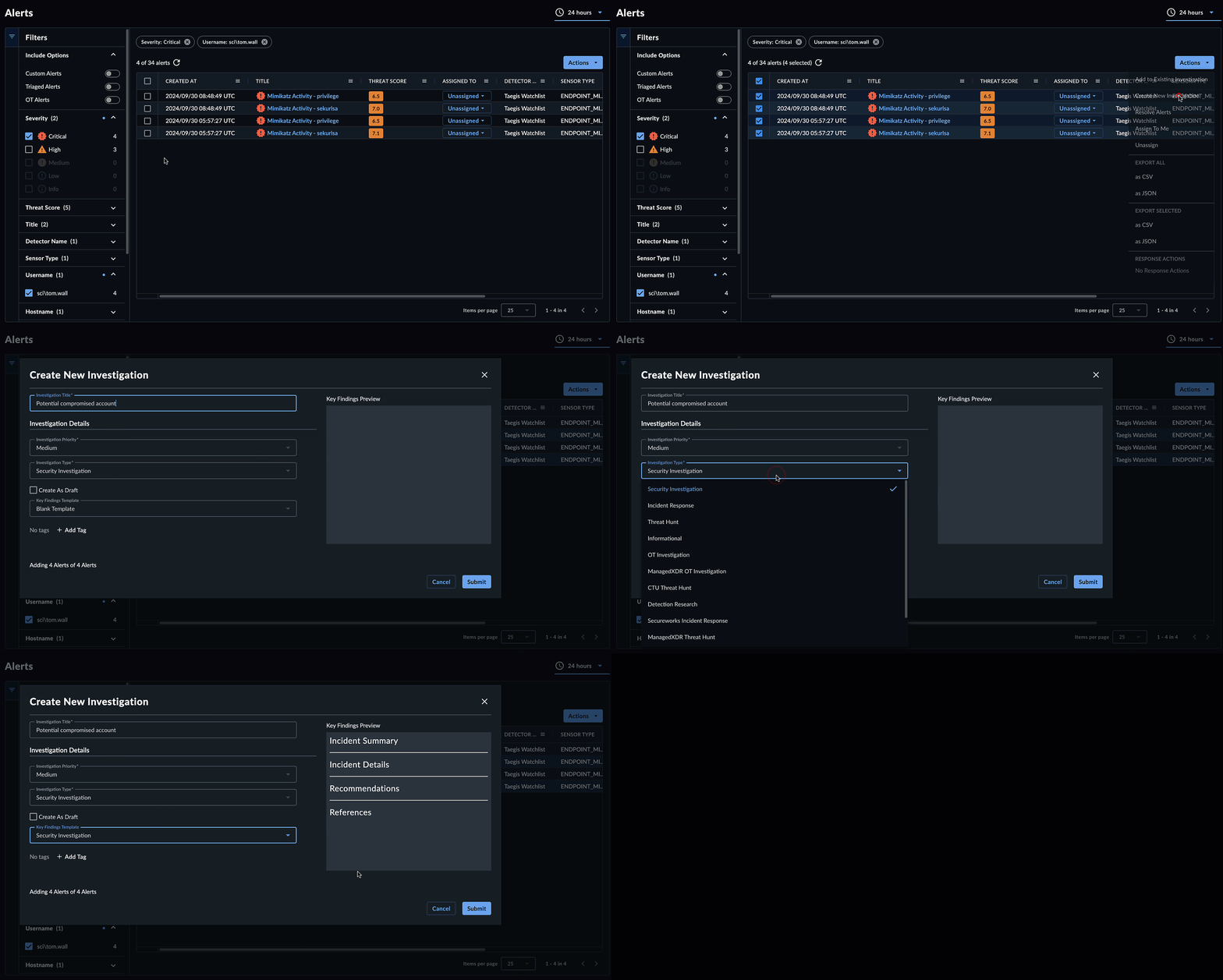
Select Create New Case when viewing any detection or event. (This option may be in the Actions drop-down list.)
Tip
To add multiple detections or events to a case at a time, select them using the checkboxes in the table, then choose Actions→Create New Case.
-
Give the case a title and select a Priority and Type.
- Specify the Key Findings Template as blank or Security Investigation, then select Submit.
- A direct link to the new case appears in a notification.
Start a New Case with All Detections🔗
You can add all detections from the Detections page or from search results to a new case. This is helpful when there are too many results to display in the table, but you want to add them quickly to a new case.
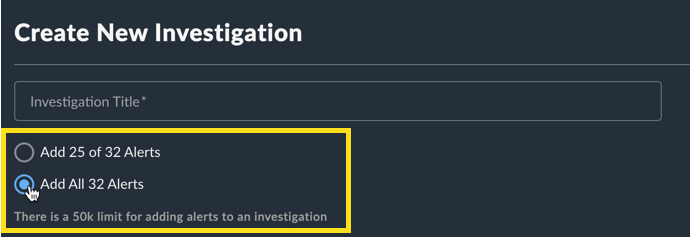
- Select one or more results using the checkboxes.
- Select Actions > Create New Case. The Create New Case dialog displays.
- Give the case a title.
- Choose the Add All Detections option.
- Select a Priority and Type.
- Specify the Key Findings Template as blank or Security Investigation.
- Select Submit. The case is created.
Note
There is a 50k limit for adding detections to a case.
Note
Due to processing time, it may take a few minutes for the detections to be visible in the case.
Create a New Empty Case🔗
A new empty case is a case with no content.
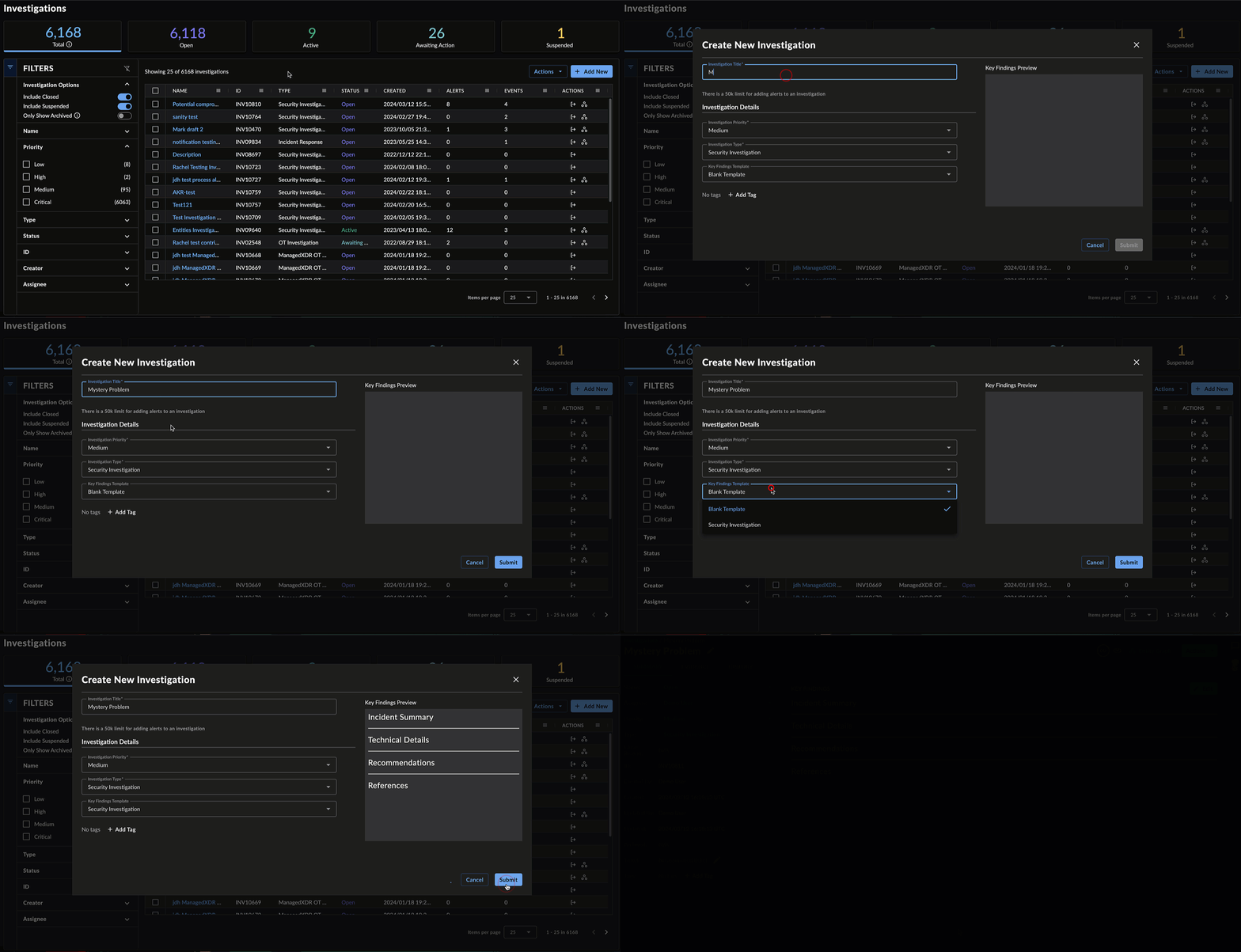
- From the Taegis Menu, select Cases > Cases.
- Select + Add New. The Create New Case dialog displays.
- Give the case a title and select a Priority and Type.
- Specify the Key Findings Template as blank or Security Investigation, then select Submit.
- A direct link to the new case appears in a notification, and a new, empty case displays in the case table.
Add Detections or Events to an Existing Case🔗
While viewing events and detections throughout XDR, select Actions → Add to Existing Case and choose the existing case you want to add the detection or event to.
Tip
To add multiple detections or events to a case at a time, select them using the checkboxes in the table, then choose Actions→Add to Existing Case.

Add All Detections to an Existing Case🔗
You can add all detections from the Detections page or from search results to an existing case. This is helpful when there are too many results to display in the table, but you want to add them quickly to a case.
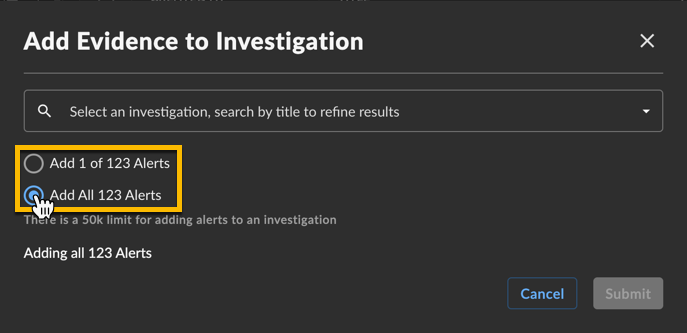
- Select one or more results using the checkboxes.
- Select Actions > Add to Existing Case. The Add Evidence to Case dialog displays.
- Select a case from the case list.
- Choose the Add All Detections option.
- Select Submit. The detections are added to the case.
Note
There is a 50k limit for adding detections to a case.
Note
Due to processing time, it may take a few minutes for the detections to be visible in the case.

Link a Saved Search to a Case🔗
Linking saved search queries to a case adds extra context and facilitates easier hand-offs between analysts, improving the overall case workflow. When you do this, the case will include a link to the original search query.
Note
Please note that linking saved search queries does not make a copy of the search results. It also does not make a copy of the original detection or event data and does not alter the Secureworks’s data retention policy.

- Go to Advanced Search > Data Lake Search.
- Select Saved Queries.
-
From the Saved Queries table, select the three dots for the desired saved search and choose Add to Existing Case.
Tip
You can also choose Create New Case to add the search query to a new empty case.
-
In the Add Evidence to Case dialog, select a case from the case list.
- Select Submit.
Tip
The same search query can be added to multiple cases.
The Searches section of a case displays all linked search queries.
Note
This section displays the search query name, not the search results of that query.

Attach Files to a Case🔗
Share files relevant to a case by uploading them to a case.
Important
When uploading a potentially malicious file, you should embed it within a password-protected ZIP archive with infected as the password.
- Open a case.
- Select the Evidence tab and then the Attachments sub-tab.
- Choose Upload File.
-
Drag and Drop or select browse to add one or more files.
Note
The max individual file size that can be uploaded is 2 GB.
-
Select Close.

Note
Files attached to cases are not subject to the data retention policy nor do they count towards the monthly data cap.