Sophos Endpoint Agent Isolation Exclusions🔗
Sophos Endpoint Agent Isolation helps protect compromised devices by restricting their network communication. In certain situations, you may need to allow limited and authorized communications for remediation, such as remote troubleshooting or downloading cleanup tools. This document describes how to access controls in Sophos Fusion to configure isolation exclusions for these scenarios.
For details on how to configure isolation and restore actions in Secureworks® Taegis™ XDR, refer to the knowledge base article: How To: Configure Taegis Actions - Isolate Host.
Terminology🔗
| Term | Definition |
|---|---|
| Isolated Device | A device restricted from network communication due to a detected compromise |
| Exclusion | A rule that allows specific, limited network communication for an isolated device |
| Local Port | The network port on the isolated device |
| Remote Port | The network port on the remote device or service |
| Remote Address | The IP address or hostname of the remote device or service allowed for communication |
Configure Isolation Exclusions🔗
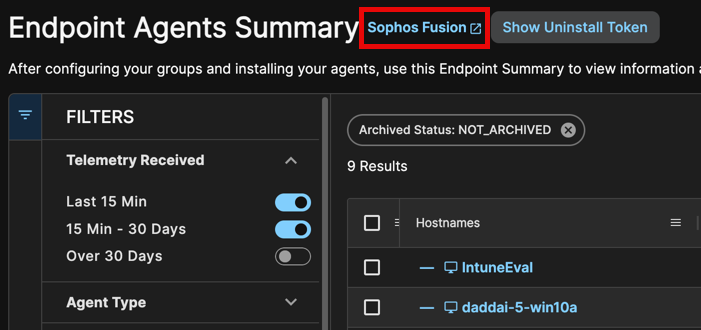
Access Sophos Fusion from various links throughout your XDR tenant. The easiest way is to use the Taegis Menu to navigate to Endpoint Agents > Summary, then select the Sophos Fusion link next to the page title. Note that the active tenant in Taegis must be a customer tenant in Sophos Fusion for this route to work.
- In Sophos Fusion, navigate to My Products > General Settings.
- On the General Settings page, under the General category, select Global Exclusions.
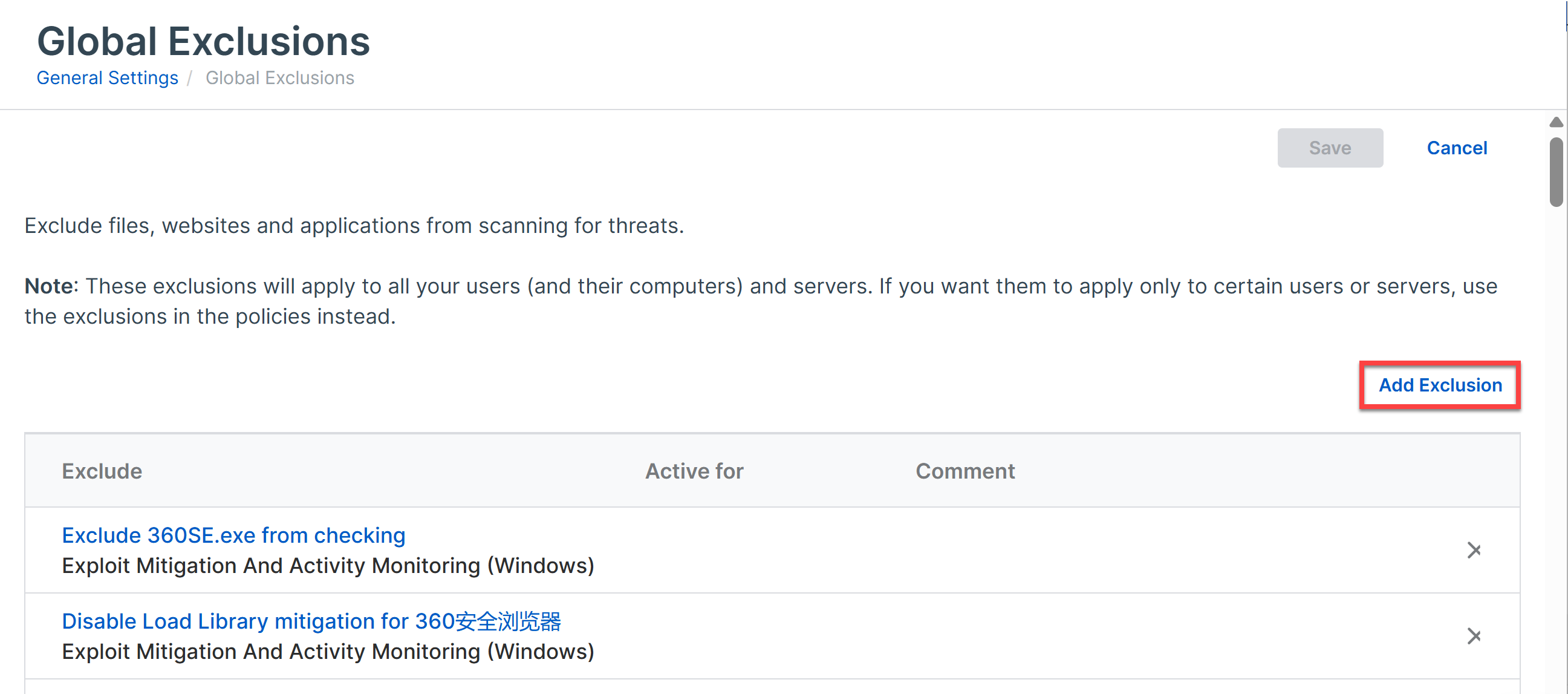
- On the Global Exclusions page, select Add Exclusion to define a new exclusion rule.
- From the Exclusion Type dropdown, choose Device Isolation (Windows/Mac/Linux).
You can allow isolated devices to communicate with specific devices or services by creating exclusions. Exclusions can be set for:
- Inbound connections: Allow specified remote devices to connect to the isolated device.
- Outbound connections: Allow the isolated device to connect to specified remote devices or services.
- Both directions: Allow communication in both directions if needed.
Use the following settings to restrict communications:
- Local Port: Any device can use this port on isolated devices.
- Remote Port: Isolated devices can use this port on any device.
- Remote Address: Isolated devices can only communicate with the device at this IP address.
Common Scenarios🔗
Enable Inbound Remote Desktop or SSH Access🔗
You may need to access an isolated device remotely to troubleshoot or investigate. Follow these steps to allow remote desktop (RDP) or SSH access:
- In Direction, select Inbound Connection.
-
In Local Port, enter the port number required for your remote access tool.
- To allow RDP access (Windows devices), enter port
3389. - To allow SSH access (Linux devices), enter port
22.
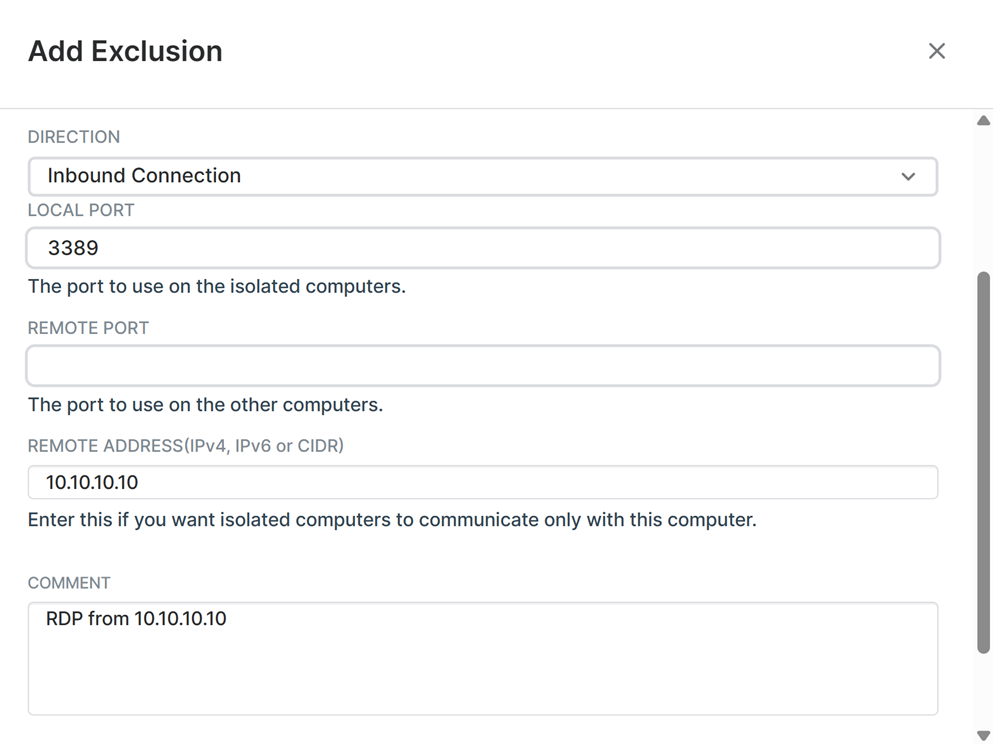
Inbound Rule Configuration - To allow RDP access (Windows devices), enter port
Note
Only allow connections from trusted devices. Use the Remote Address setting to specify the source IP address if required.
Allow Isolated Devices Outbound to Download Cleanup Tools🔗
Isolated devices may need to connect to a secure server to download remediation or cleanup tools. To enable this:
- In Direction, select Outbound Connection.
-
In Remote Address, enter the IP address or hostname of the authorized server.
Example
To allow the device to download tools from a cleanup server at
10.10.10.10, enter10.10.10.10in Remote Address. -
(Optional) In Remote Port, define the port relevant to access the remote service.
Best Practices🔗
- Always restrict exclusions to only the ports and addresses required for remediation.
- Specify both Local Port and Remote Address whenever possible to limit exposure.
- Remove exclusions once remediation is complete to restore full isolation.