AWS S3 Server Access Logs Integration Guide🔗
The following instructions are for configuring an AWS S3 Server Access Logs integration to facilitate log ingestion into Secureworks® Taegis™ XDR.
Note
The following should be done in the same AWS region as your AWS S3 server access logs bucket.
Typically the S3 bucket, CloudFormation template, and Lambda all should be in the same account and region for deployment. It is possible to configure your CloudTrail instance in a different account to emit logs to the cross-account S3 bucket. For information on how to do this, see Receiving CloudTrail Log Files from Multiple Accounts.
Data Provided from Integrations🔗
| Normalized Data | Out-of-the-Box Detections | Vendor-Specific Detections | |
|---|---|---|---|
| Amazon S3 Server Access Logs | HTTP | HTTP |
Note
XDR detectors are not guaranteed to be triggered, even if a data source's logs are normalized to a schema associated with a given detector. However, you can create Custom Detection Rules to generate detections based on normalized data from a data source.
Set Up AWS S3 Server Access Logs🔗
Note
If you do not have login access to XDR, have someone who does help you complete any steps that require access. You can also contact your Secureworks® representative for help.
- From the Taegis Menu, select Integrations → Cloud APIs.
-
Select Add an Integration from the top of the page.

Add an Integration -
From the Optimized tab, choose AWS and then select Set Up under AWS Cloudtrail.
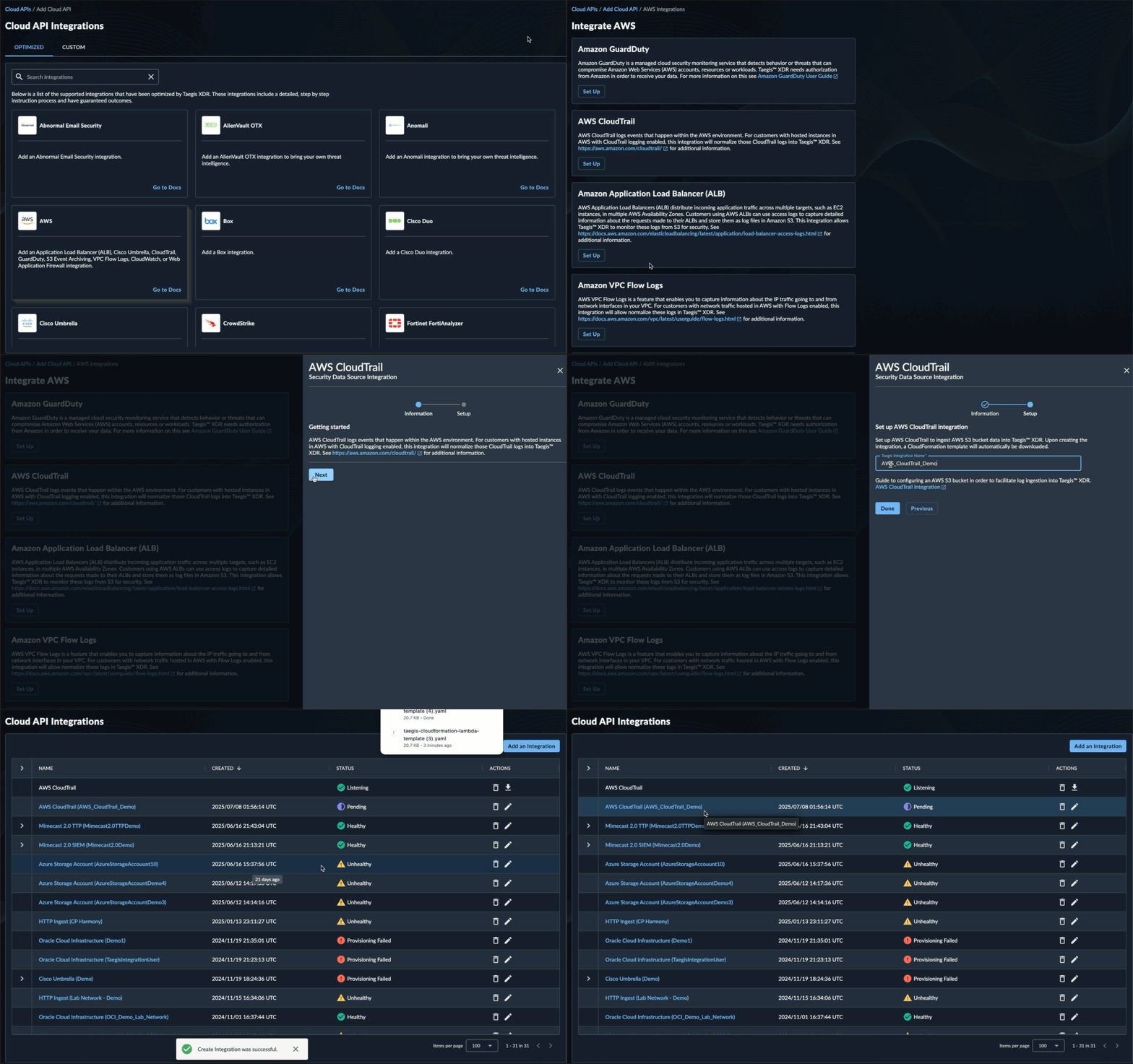
Set up AWS CloudTrail Integration -
Select Next.
- Enter the Taegis Integration Name. This serves as a unique name for your integration; it can include any valid values up to 100 characters.
-
Select Done. The CloudFormation template will automatically download as
taegis-cloudformation-lambda-template.yaml.Tip
You can consolidate cloudtrail logs into one account to simplify your deployment see Receiving CloudTrail Log Files from Multiple Accounts in the AWS CloudTrail User Guide for details.
Tip
You can consolidate cloudtrail logs into one region to simplify your deployment see Receiving CloudTrail Log Files from Multiple Regions in the AWS CloudTrail User Guide for details.
Upload the CloudFormation Template to S3 (Optional)🔗
- Log in to the AWS Console for the region (e.g., https://us-east-1.console.aws.amazon.com/cloudformation) with an account that has permissions to create roles, lambdas, secrets, and policies, or using a role that can assume another role with these permissions.
- In the Storage section, select S3.
- Create a new bucket or locate an existing bucket in which to store the CloudFormation template. The bucket does not need to be public, versioned, or encrypted.
-
Upload
taegis-cloudformation-lambda-template.yamlto the same bucket.Tip
Take note of the bucket name and the key, including any prefix. These identifiers are needed when you create a stack.
Create the Lambda Stack🔗
- Log in to the AWS Console for the region (e.g., https://us-east-1.console.aws.amazon.com/cloudformation) with an account that has permissions to create roles, lambdas, secrets, and policies, or using a role that can assume another role with these permissions.
- In the Management and Governance section, select CloudFormation.
-
Click Create Stack.
Note
You may see a list of CloudFormation stacks when you select CloudFormation like the following image. If that is the case, click Create Stack and choose With new resources (standard).

Create New Stack -
In the Prerequisite - Prepare Template section, click Choose an existing template.
-
In the Specify Template section, click Upload a template file > Choose file.
Note
If you uploaded the template to an S3 bucket, you can specify the S3 URL instead.
-
Click Next.
-
Enter an appropriate stack name.
Note
Spaces are not allowed in stack names.
-
Select the
IntegrationTypedrop-down. This describes what sort of log objects are in theNotificationBucket. If there's more than one type, or you are not sure, choosegeneric.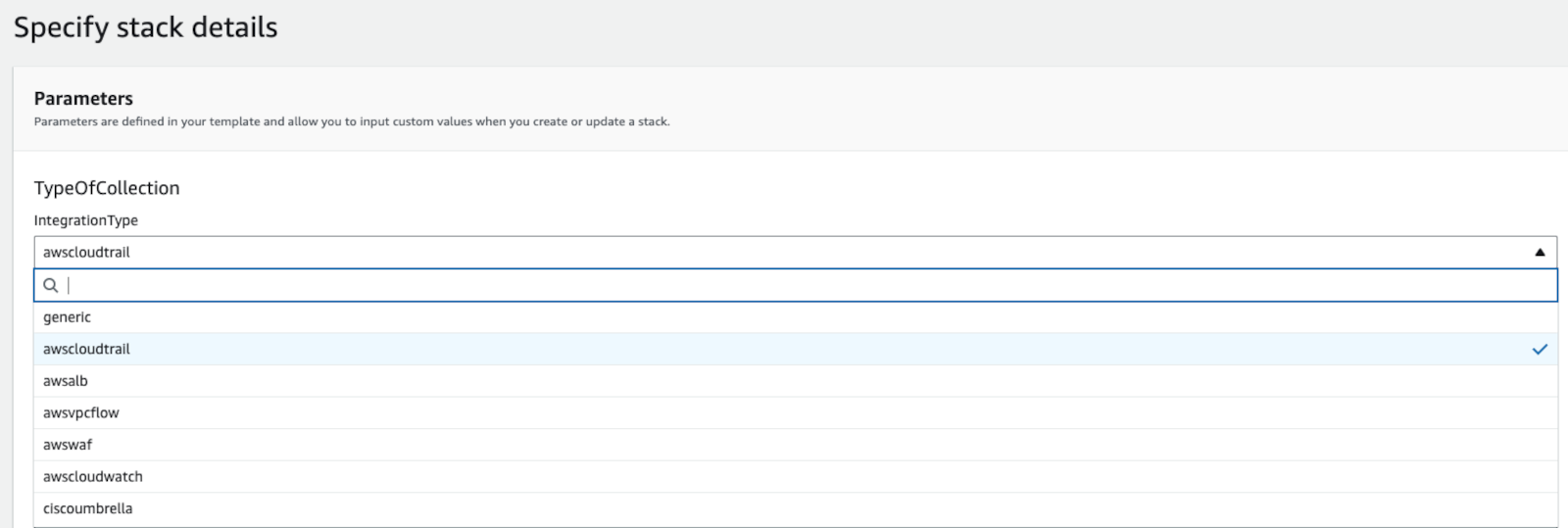
Update Lambda Stack Integration Type -
In
NotificationBucket, enter the bucket name, not a URL or URI, that houses the logs. - (Optional) Enter the appropriate value into the
SNSNotificationarnfield if you wish to use SNS notifications going forward instead of S3 notifications. - Leave the remaining fields as default.
- Click Next.
- Accept the acknowledgement statement: I acknowledge that AWS CloudFormation might create IAM resources.
- Click Next.
- Review all parameters and click Submit.
- Wait at least 30 seconds, then click Refresh. The process may take a minute or more to finish. A status of CREATE_COMPLETE for the stack indicates the process has finished.
Add the Lambda Trigger🔗
- In the AWS console, go to the Lambda service.
- Locate the new Lambda by name. The default name is {STACKNAME}-scwx-tdr-lambda-{INTEGRATIONTYPE}. For example:
ct-demo-scwx-tdr-lambda-awscloudtrail. - Click the Lambda name to open the stack's edit page.
- Expand the Function overview section and click Add Trigger.
- In the Trigger Configuration editor, select S3 from the drop-down menu. Optionally, use an SNS trigger configured with a previously created topic.
- From the Bucket options, find the bucket containing the logs and select it.
- From the Event Type options, choose All Object Create Events.
- In the Prefix field, enter the bucket prefix where the logs are located. Leave this blank if no prefix is used.
- Leave the Suffix field blank.
- Accept the acknowledgment statement about the cost impact of a Lambda function.
-
Click Add. The configuration page for that Lambda displays again. A message at the top indicates that the trigger was added successfully. For example,
The trigger wmikeking was successfully added to function Logs-TDR-Upload. The function is now receiving events from the trigger.Important
AWS Lambda Concurrency Guidance🔗
The Reserved Concurrency value set by the Taegis XDR CloudFormation template (
taegis-cloudformation-lambda-template.yaml) is 5. For more information regarding Lambda concurrency and the calculation of a value appropriate for your environment, please reference Lambda function scaling in AWS Docs.Please reference the following AWS documentation to the identify the values to be used in the concurrency calulation:
AWS Concurrent Execution Limit🔗
If you see the following error when running your Lambda:

AWS Concurrent Execution Limit You need to request a quota increase from AWS to raise your concurrent execution limit. For more information, see Lambda quotas in AWS Docs.
Verify Event Flow with Advanced Search🔗
You can use Data Lake Search to verify a successful setup by searching for events from the specific integration. For this integration, use this search:
FROM http WHERE sensor_type = 'Amazon S3 server access log'