AI Assistant Overview🔗
The Sophos AI assistant is a generative AI tool that helps you investigate security issues using natural-language prompts. It combines data from the Taegis data lake with AI-driven analytics to streamline and improve security analysis.
You can use the assistant to investigate cases as follows:
- Choose from predefined prompts to generate a case summary, review device activity, view recommended actions, and more.
- Enter your own custom prompts.
- Add AI assistant responses to your case's Key Findings.
Start AI Assistant🔗
-
From the Taegis Menu, click AI Assistant. The Sophos AI page opens in a new tab.

AI Assistant Navigation -
On the Sophos AI page, click the assistant type you want. The assistants currently available are Security Analyst and Threat Hunter.
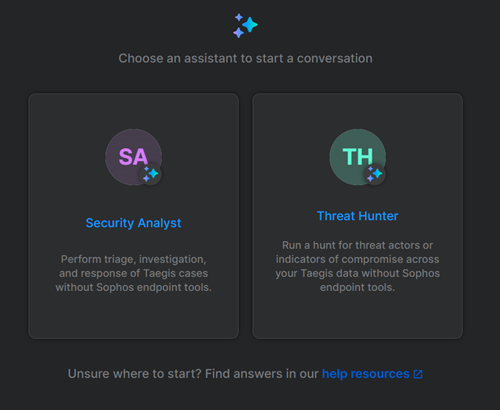
AI Assistant Types
Note
You can also start the AI Security Analyst assistant from inside a case. Go to Cases, open a case, and click Ask Sophos AI.
Continue to the next section for step-by-step instructions for using the assistant you want.
Chat with AI Assistant🔗
Click the tab below for instructions for your assistant type.
A Security Analyst chat focuses on helping you triage a specific case.
-
Click Security Analyst. A list of cases is shown. The Security Analyst can help with both Taegis MDR-managed cases and self-managed cases.
Tip
If you started AI assistant from within a case, you are taken directly into a chat using that case as context.
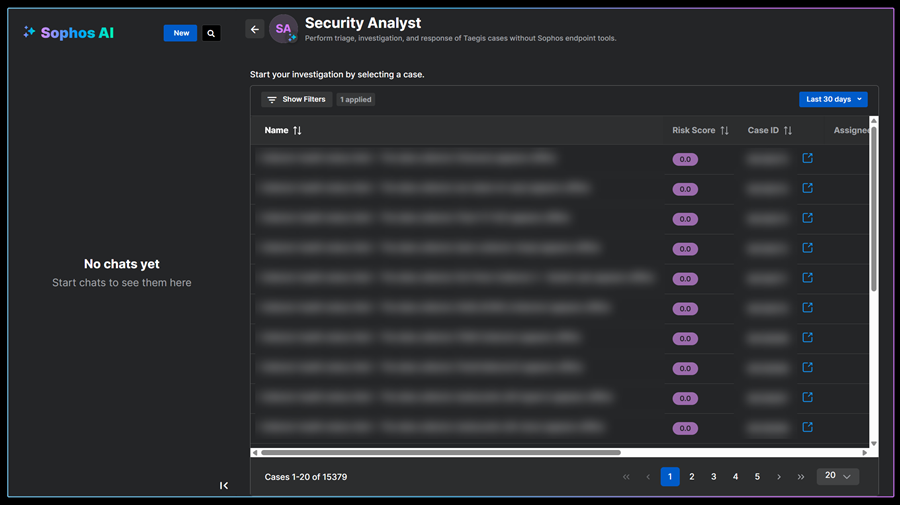
Case list -
If needed, click Show Filters to narrow the case list by selecting from the available criteria.
You can also click Select a date range to choose a time window to refine the list further.
If you need to see details of a case, click the New Tab icon to go to the case details.
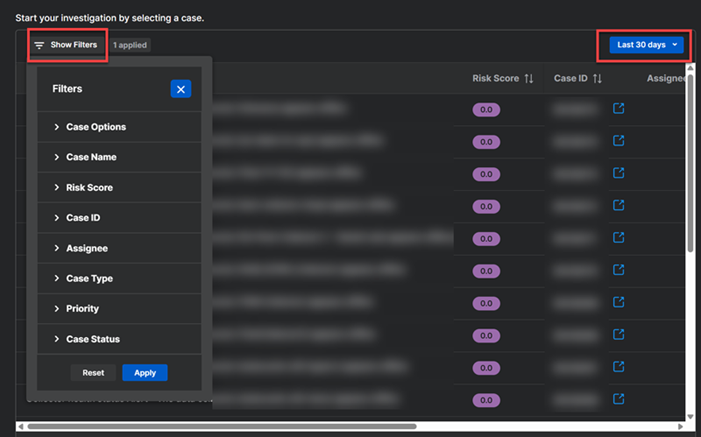
Case List Filters -
Click a case row to start your Security Analyst chat. The AI assistant automatically collects the case and detection details so that it knows the context of the chat.
-
Enter a prompt in one of the following ways:
-
Click a predefined prompt to add it to the input box. For example, "What actions can I perform?".
Tip
To see more predefined prompts, enter a forward slash
/in the input box. You can modify predefined prompts, if required. -
Enter your own prompt in the input box. For example, "Check for processes communicating with IP address 10.0.1.108 on any endpoint in the past 24 hours."
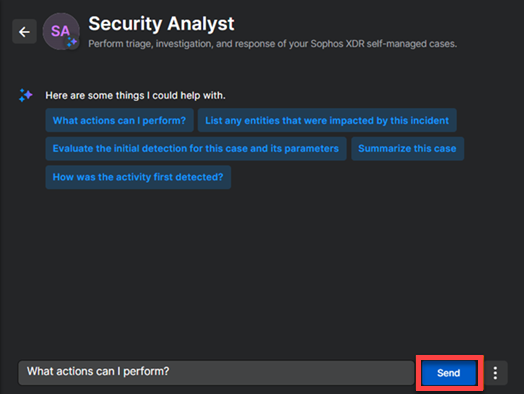
Security Analyst Chat
-
-
Click Send. The AI assistant shows the response when it is ready. Your chat is added to a list in the left panel.
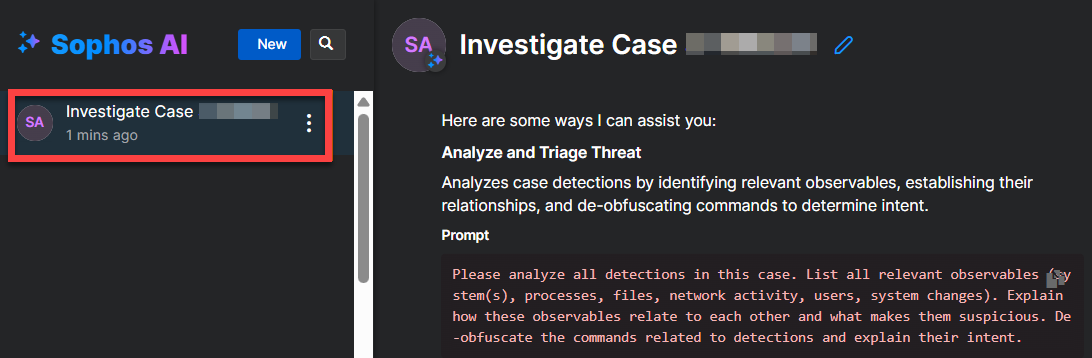
Security Analyst Chat Response -
(Optional) Run further prompts in the same chat to refine your investigation. The AI assistant remembers your previous prompts in the current chat, so it has the context it needs to understand your follow-up prompts.
-
To finish the chat, close the Sophos AI page or click New to start another chat.
The chat is cleared from the page, but remains available in the left pane.
A Threat Hunter chat lets you hunt for malicious actors or indicators of compromise in the data lake.
Note
The Threat Hunter assistant can only help you with self-managed threat cases.
- Click Threat Hunter.
-
Enter a prompt in one of the following ways:
-
Click a predefined prompt to add it to the input box. For example, "What actions can I perform?".
Tip
To see more predefined prompts, enter a forward slash
/in the input box. You can modify predefined prompts, if required. -
Enter your own prompt in the input box. For example, "Check for processes communicating with IP address 10.0.1.108 on any endpoint in the past 24 hours."
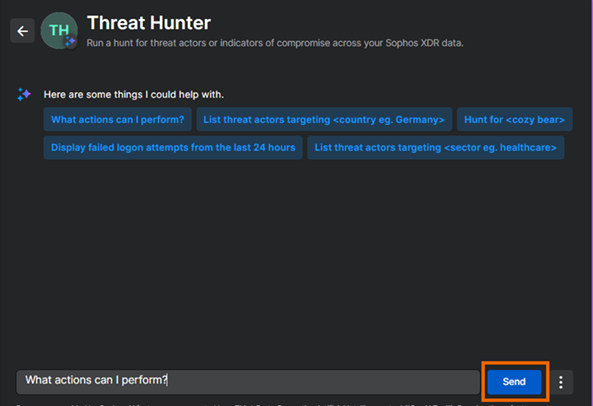
Threat Hunter Chat
-
-
Click Send. The AI assistant shows the response when it is ready. Your chat is added to a list in the left panel.
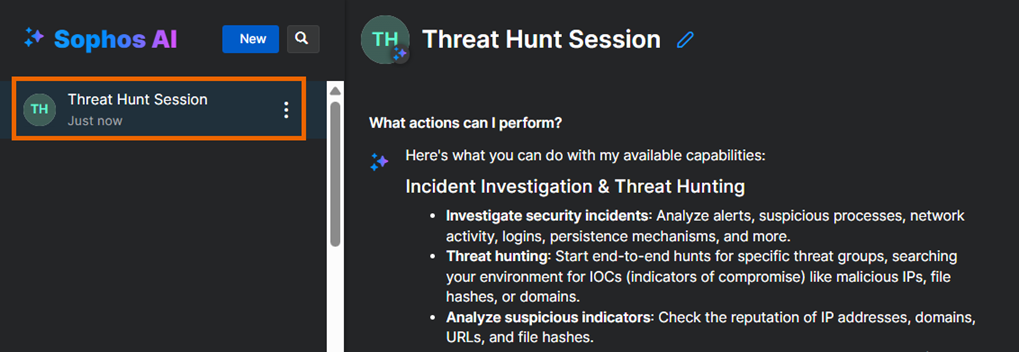
Threat Hunter Chat Response -
(Optional) Run further prompts in the same chat to refine your investigation.
The AI assistant remembers your previous prompts in the current chat, so it has the context it needs to understand your follow-up prompts.
-
Close the Sophos AI page to finish the chat, or click New to start another chat.
The chat is cleared from the page, but remains available in the left pane.
Add AI Responses to Cases🔗
You can save AI assistant responses to a case's Key Findings section.
Add a Single Response🔗
To add a single response, do as follows:
-
Go to the end of the response you want to add where a set of icons lets you take actions.
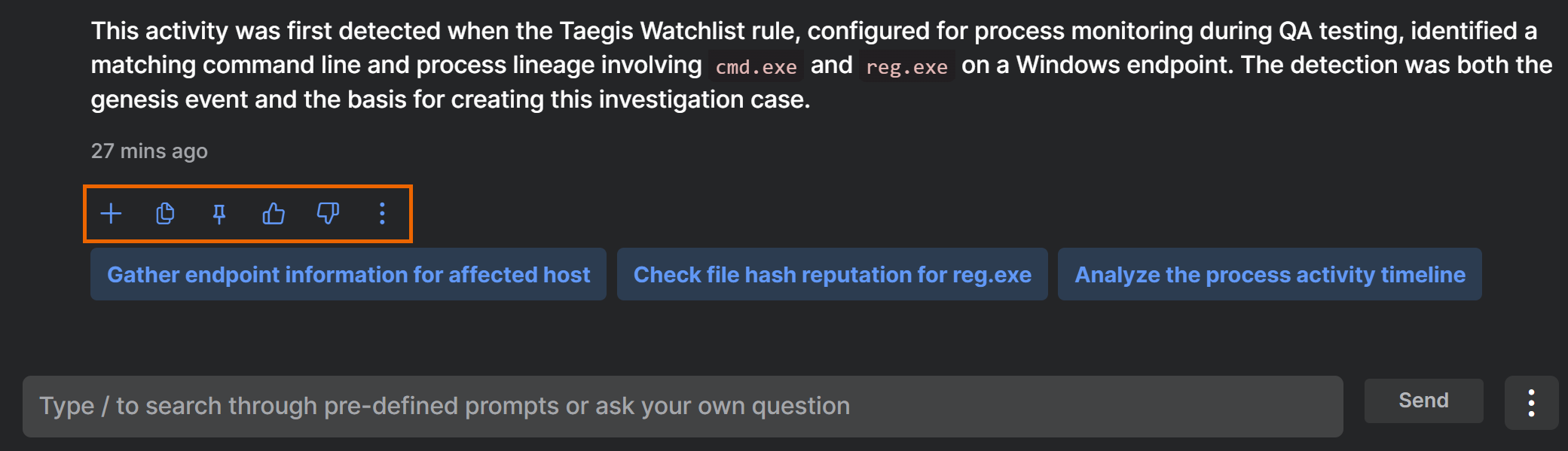
AI Assistant Action Icons -
Click the Plus icon .
-
If you're saving a response from a Threat Hunter chat, select a case from the Cases list when prompted.
If you're saving a response from a Security Analyst chat, the assistant automatically saves to the case you're investigating.
-
Confirm that you want to add the response.
Add Multiple Responses🔗
To add multiple responses, do as follows:
-
At the bottom of the chat page, next to the Send button, click the three dots and click Select responses.
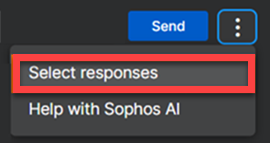
Select Responses -
Checkboxes are now shown to the left of each response, and a message prompts you to select the responses you want. Click the checkboxes and then click Add to case in the message.

Add Responses to Case -
If you're saving responses from a Threat Hunter chat, select a case from the Cases list when prompted.
If you're saving responses from a Security Analyst chat, the assistant automatically saves to the case you're investigating.
The responses are added to the case's Key Findings section.
Save Prompts🔗
You can save a new prompt from the prompts list, from the prompt input box, or from a prompt you've run in the current chat.
Save a Prompt from the Prompts List🔗
The prompts list is a list of suggested prompts, including your recently-used and saved prompts, as well as predefined ("canned") prompts that Sophos provides.
To open the list and save a prompt, do as follows:
- Type / in the text box at the bottom of the AI assistant. The prompts list opens.
-
Click Save new prompt.
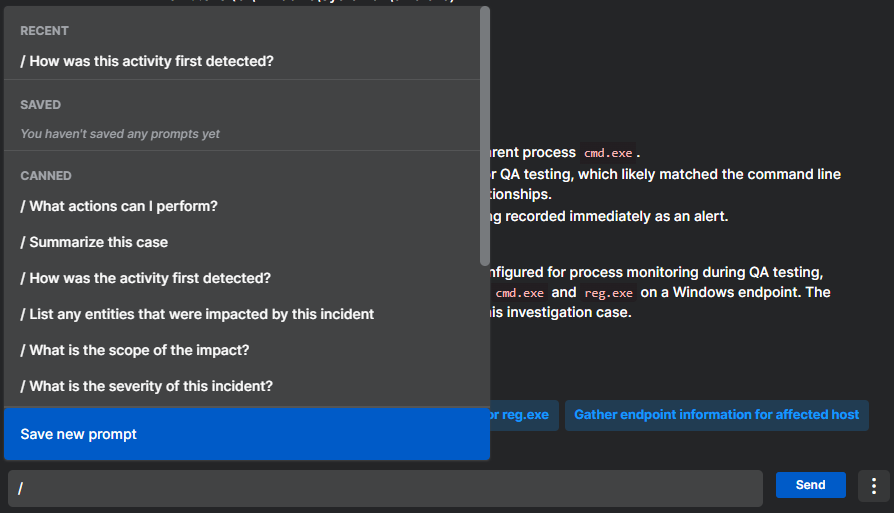
Save New Prompt -
In Save new prompt, do as follows:
- In Alias, enter a short name that'll be shown in the prompts list.
- In Prompt, enter the prompt content.
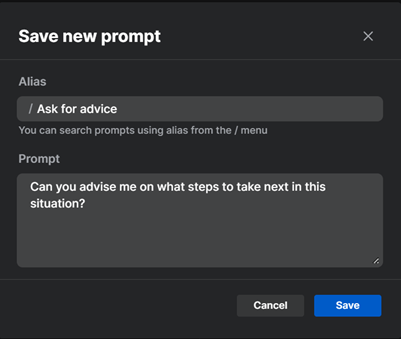
Enter Alias and Prompt -
Click Save. The prompt is added to the prompts list that is shown when you enter
/in the input box.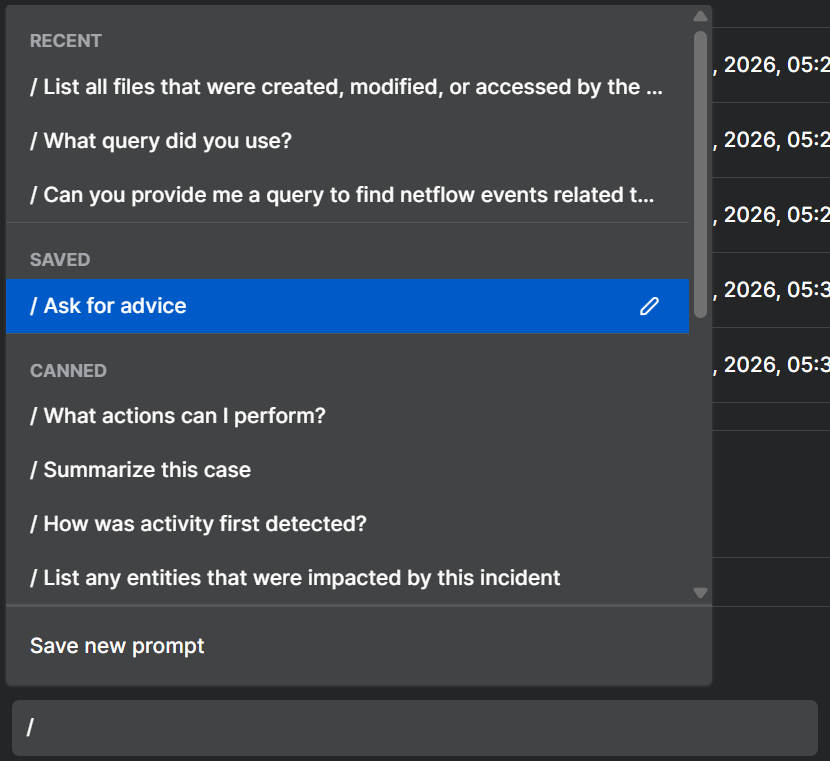
Use Saved Prompt
Save a Prompt from the Input Box🔗
To save a prompt you've entered in the input box, do as follows:
-
Enter your query and click Save at the end of the input box.

Save Prompt -
In Save new prompt, in Alias, enter a short name that'll be shown in the prompts list. The query you entered is added as the prompt.
Enter Alias -
Click Save. The prompt is added to the prompts list that is shown when you enter
/in the input box.
Save a Prompt You Already Ran🔗
You can save a prompt that you've run in your current chat with the AI assistant.
- In your current chat, hover over a prompt that you've already run.
-
Click Save prompt.
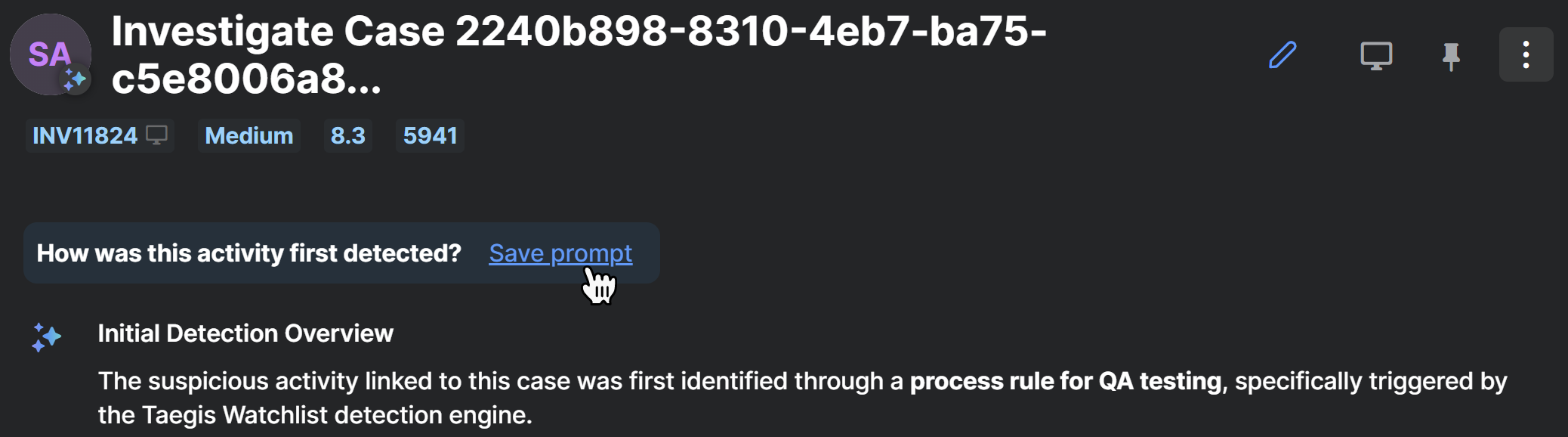
Save a Prompt You Already Ran -
In Save new prompt, in Alias, enter a short name that'll be shown in the prompts list.
The full prompt text is automatically added.
-
Click Save.
The prompt is added to the Saved section of the prompts list. You can see and run it again the next time you open the prompts list.
Reopen an Earlier Chat🔗
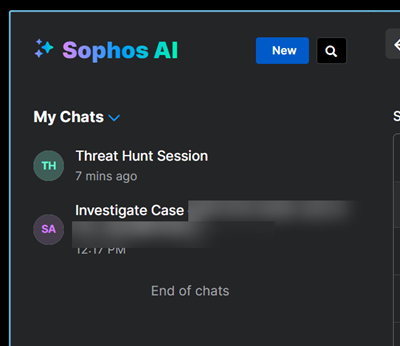
You can reopen and resume an earlier chat. In the left panel, find the chat you want and click it. The earlier chat opens in the chat page and you can enter further prompts.
Delete Chat🔗
You can delete all the AI assistant's responses in the current thread or any past thread as follows:
-
In the left panel, click the three dots next to the chat title and select Delete.
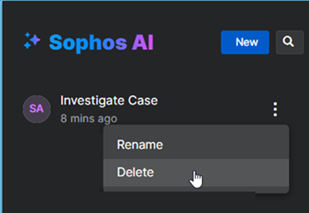
Delete Chat -
Confirm that you want to delete all the history.
Who Can See the Responses?🔗
Other Secureworks® Taegis™ XDR users can use the AI assistant to investigate the same case, but only you can see the chat you started.
However, if you add responses to a case's Key Findings section, other users with access to the case can see them. For more information, see AI Features FAQ.
Give Feedback🔗
You can give feedback about the AI assistant to help us improve its accuracy and usefulness.
We provide pre-defined feedback tags that you can use to tell us which features you like or dislike. To submit feedback, do as follows:
-
Find the action icons under a chat response.
AI Assistant Action Icons -
Click the Thumbs-up icon for positive feedback or the Thumbs-down icon for negative feedback.
-
(Optional) Select a tag or multiple tags to give reasons for your feedback. For example, "Uses analyst-friendly language".
You can use multiple tags in a single feedback submission.
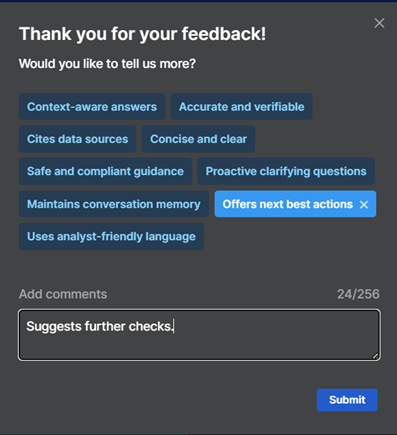
Feedback Submission -
(Optional) In Add comments, tell us more about your experience of the AI assistant.
- Click Submit.