AI Search🔗
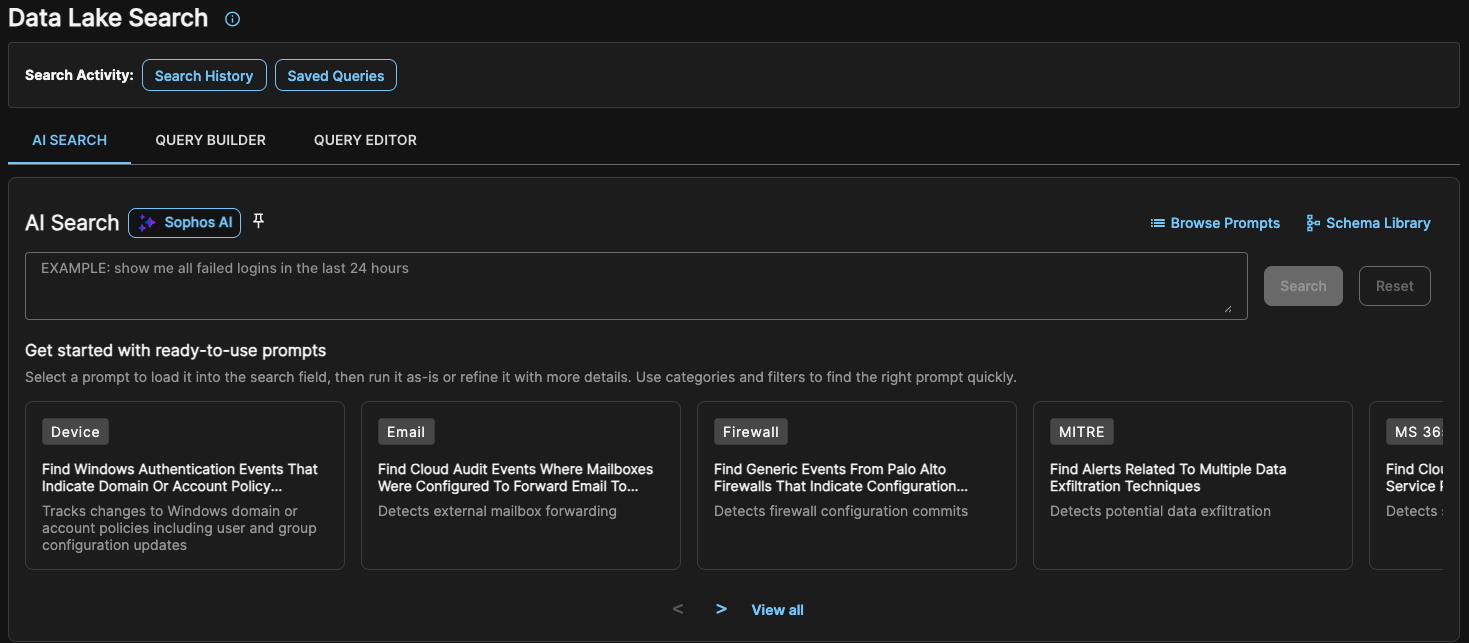
AI Search uses generative AI to turn your natural language query into Advanced Search query language, reducing complexity and enhancing your ability to quickly retrieve critical security data. This enables you to interact with Data Lake Search using intuitive, everyday language, saving time and simplifying the search process.
To access AI Search, do as follows:
- From the Taegis Menu, go to Advanced Search > Data Lake Search.
- Click the AI Search tab.
Prompts🔗
A selection of ready-to-use prompts shows below the search field. To see all prompts, click View All below the prompts or Browse Prompts above the search field to open the Ready-to-use Prompts drawer.
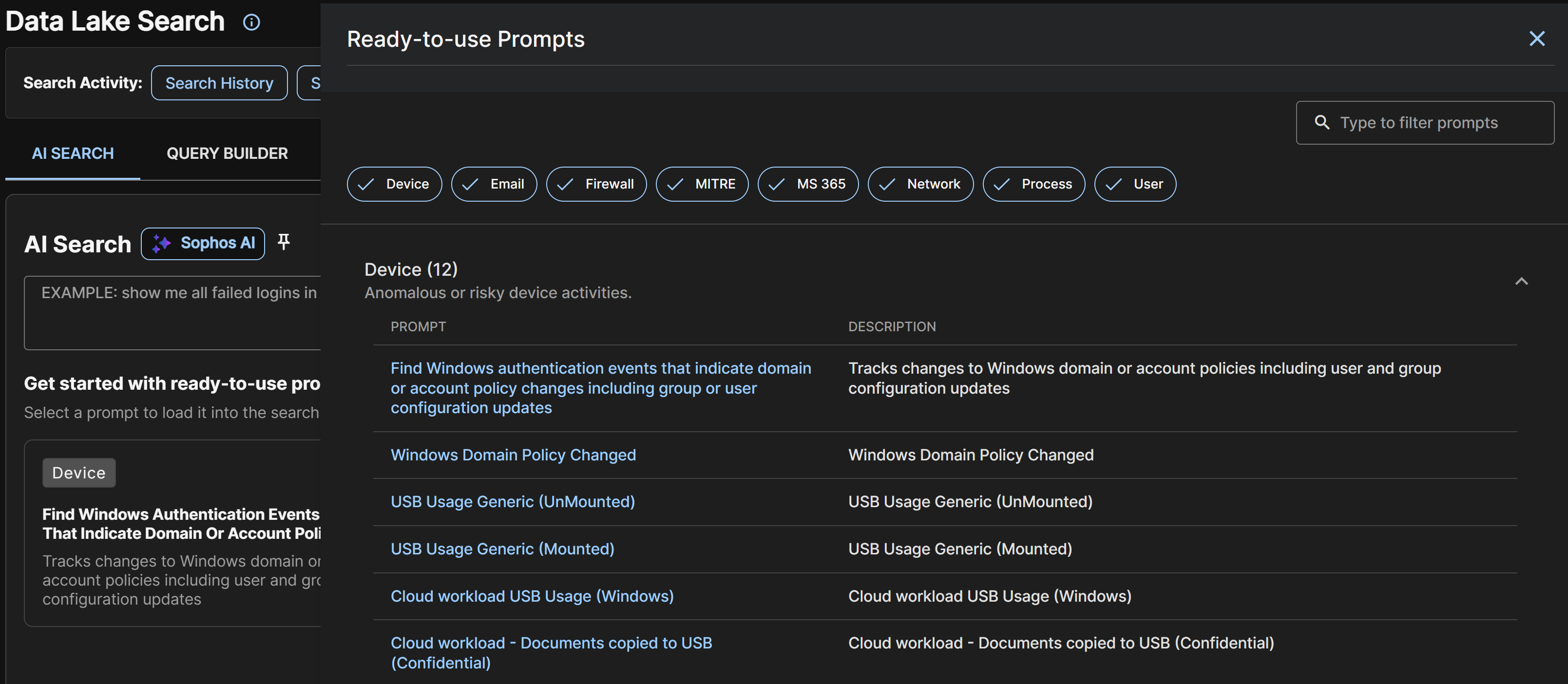
Find the prompt you wish to use with the following controls:
- Click a category filter chip to add or remove that category of prompts from the list.
- Enter a term in the search field to filter prompts by that term.
Click a prompt to load it in the search field to run or refine.
Run your Search Query🔗
- Enter a natural language query in the search field, or click a ready-to-use prompt to load it in the search field.
- Click Search.
-
The AI-generated query shows with the results below.
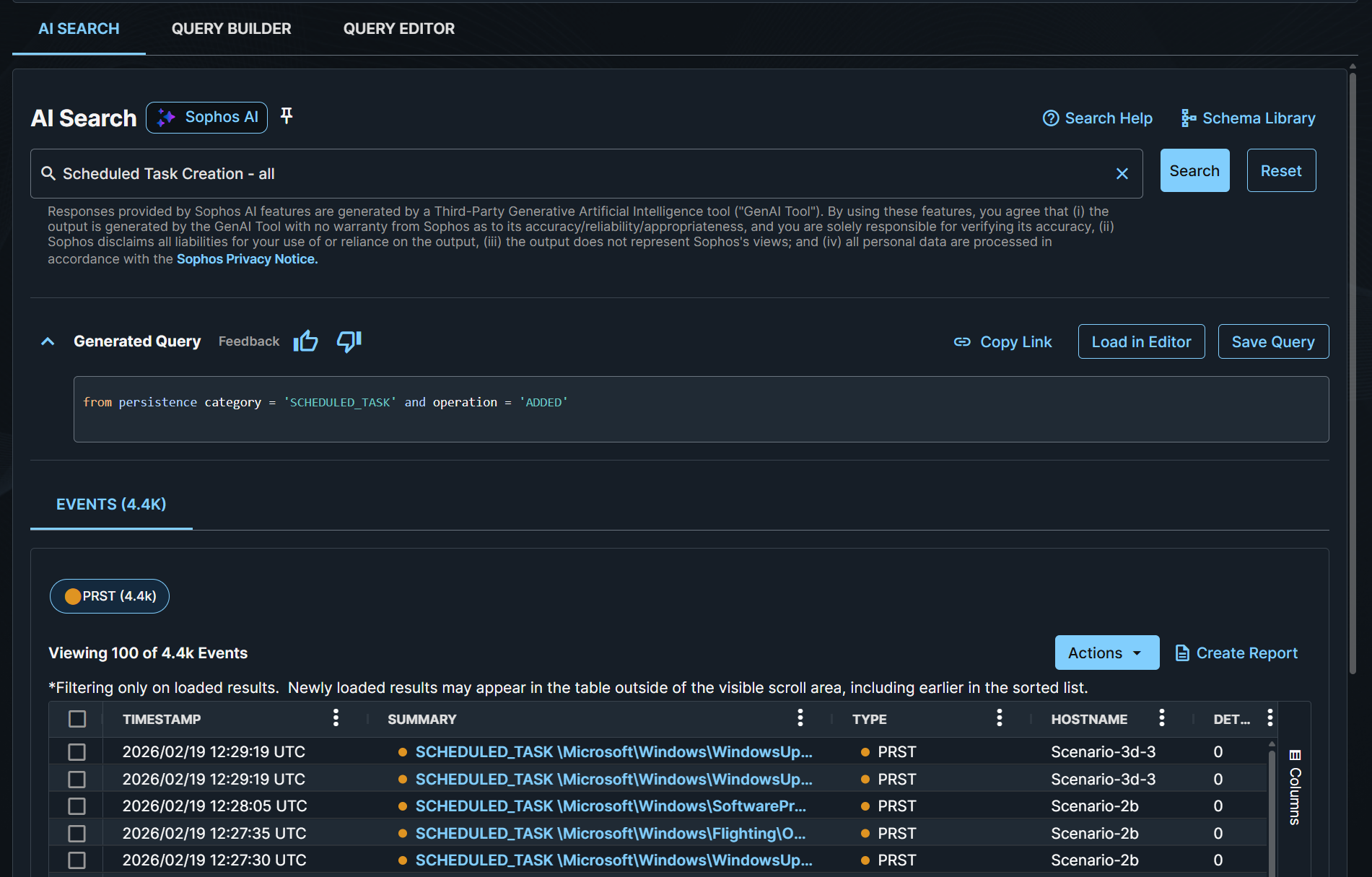
AI search results. -
(Optional) Click the Feedback icons to provide your feedback on if the performance of the translation from natural language to generated query meets your expectations or how it could be improved.
Tip
Click Load in Editor to automatically copy the AI-generated query into Query Editor.
-
If necessary, refine your prompt and click Search again.