Identity Overview🔗
Identity Overview provides a snapshot of your organization's identity risk. It shows how many identities and devices IDR is monitoring, your overall Risk Posture Score and its trend, and the findings, accounts, and users that need attention.
Use it to understand your current identity risk before exploring the Directory, Identity Findings, or Dark Web Intelligence pages for more details.
Identity Breakdown🔗
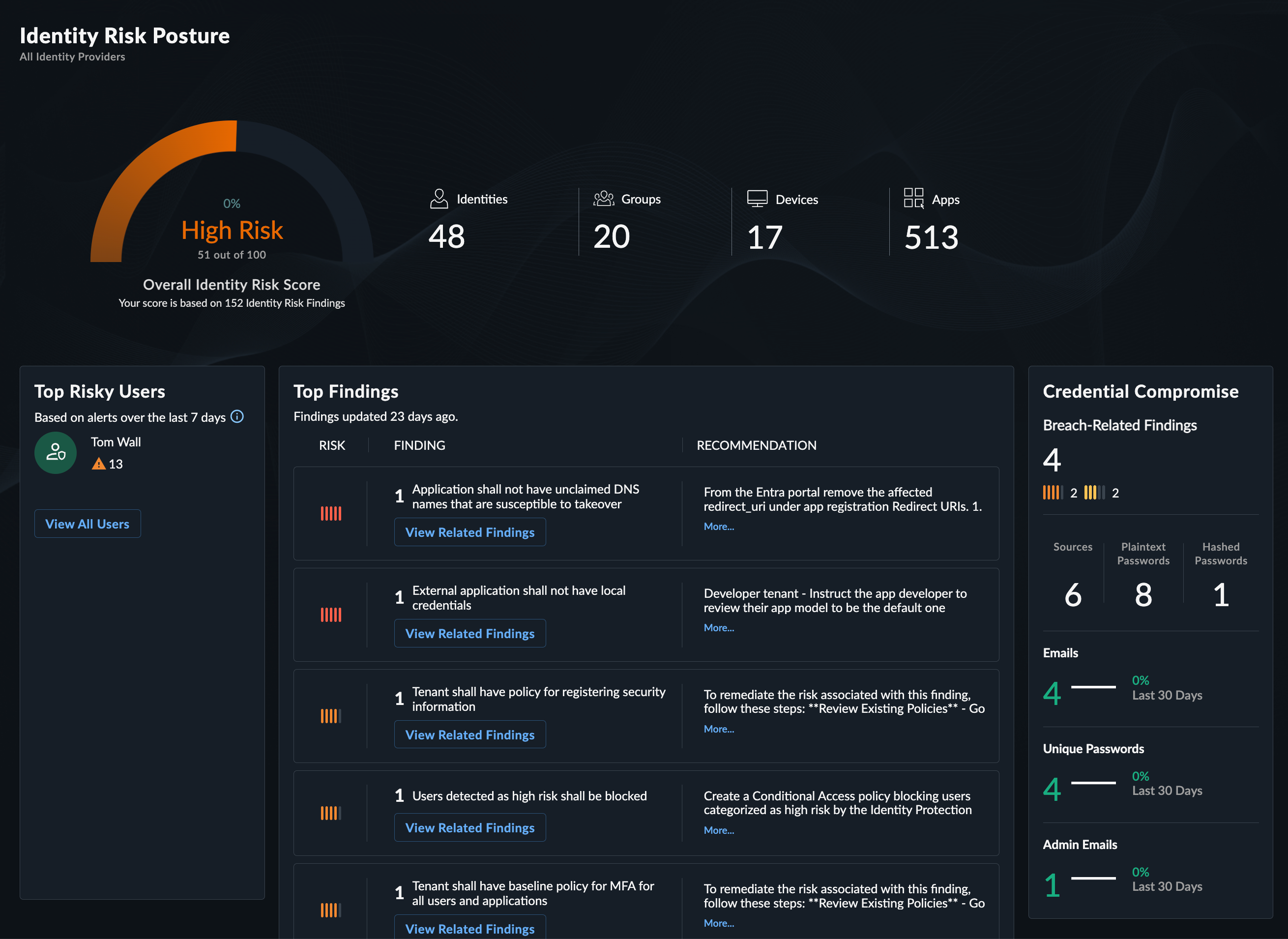
The Identity Breakdown widget shows three cards representing the identities and devices IDR is monitoring in your environment based on data collected from your identity provider:
- Humans: Active human identities.
- Non-Human Identities (NHI): Active service principals, applications, and other machine identities.
- Devices: Registered devices.
Note
Applications are consolidated within Non-Human Identities (NHI) rather than shown separately.

Click a card to go to the matching section of the Directory page.
Identity Risk Posture Score🔗
The Identity Risk Posture Score widget shows your organization-level score based on the number and risk level of open findings across your environment. The score updates daily and increases or decreases based on whether findings are discovered, remediated, or dismissed. In addition, the percent change and arrow shows how the score changed from the previous day.
Risk ratings:
- Critical: 75-100
- High: 50-74
- Medium: 25-49
- Low: 0-24
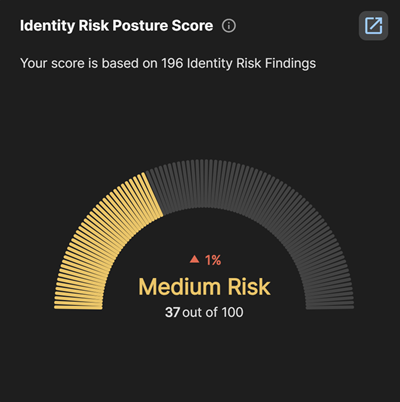
Click the New Tab icon in the widget to open the Identity Risk Posture Score History page for a trend view of the score over a custom date range.
Risk Over Time🔗
The Risk Over Time widget shows the trend of your average monthly Identity Risk Posture Score for the last six months. Each month's point in the graph is the average of that month's daily score changes. The widget also includes the following statistics:
- Current: The most recent daily Risk Posture Score.
- Change: Percent change from the prior period.
- Peak: The highest score observed over the charted period.
Tip
Hover over a point in the chart to see the average of all risk scores in that month.
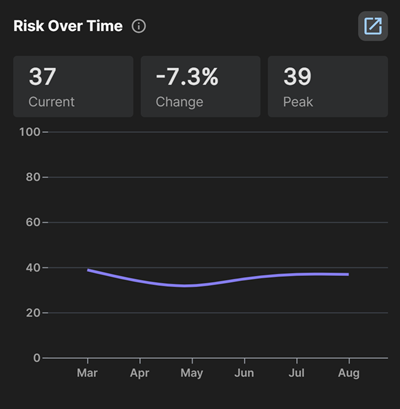
Click the New Tab icon to open the Identity Risk Posture Score History page, where you can choose a custom date range and drill into what changed on any given day.
Recommendations & Actions🔗
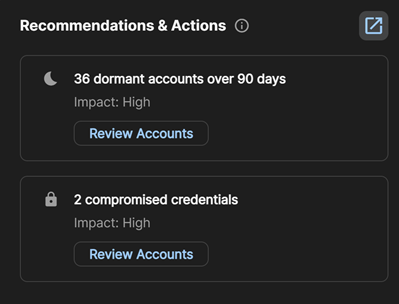
The Recommendations & Actions widget shows a list of remediation steps based on your current open findings, such as the following:
- Enable MFA for privileged accounts
- Review dormant accounts inactive for an extended period
- Review accounts with compromised credentials
Each recommendation shows an Impact rating and a button that opens the relevant page, such as the Directory or Identity Findings, filtered for the accounts or findings the recommendation pertains to.
Aggregate of Open Findings🔗
The Aggregate of Open Findings widget shows the number of open findings from the last seven days in three ways. To see each view, select one of the following options from the Group by menu above the chart:
- Severity: Risk severity level.
- Source: Data source or check category that generated the finding.
- Type: Finding type.
Below the chart, the following four cards summarize recent finding activity from the last seven days:
- Total: Total open findings.
- New this week: Findings opened.
- Resolved this week: Findings resolved.
- Dismissed this week: Findings dismissed.
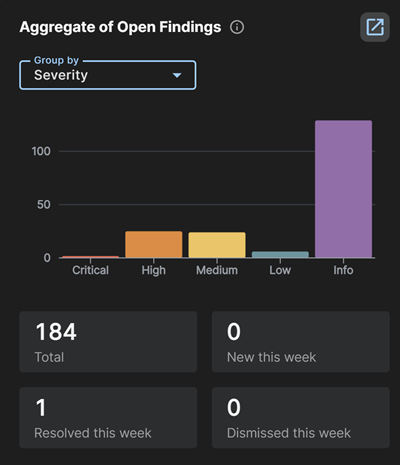
Click a bar in the chart to go to the Identity Findings page filtered by the selected severity, source, or type.
Top Findings🔗
The Top Findings widget shows your top five findings based on risk level.
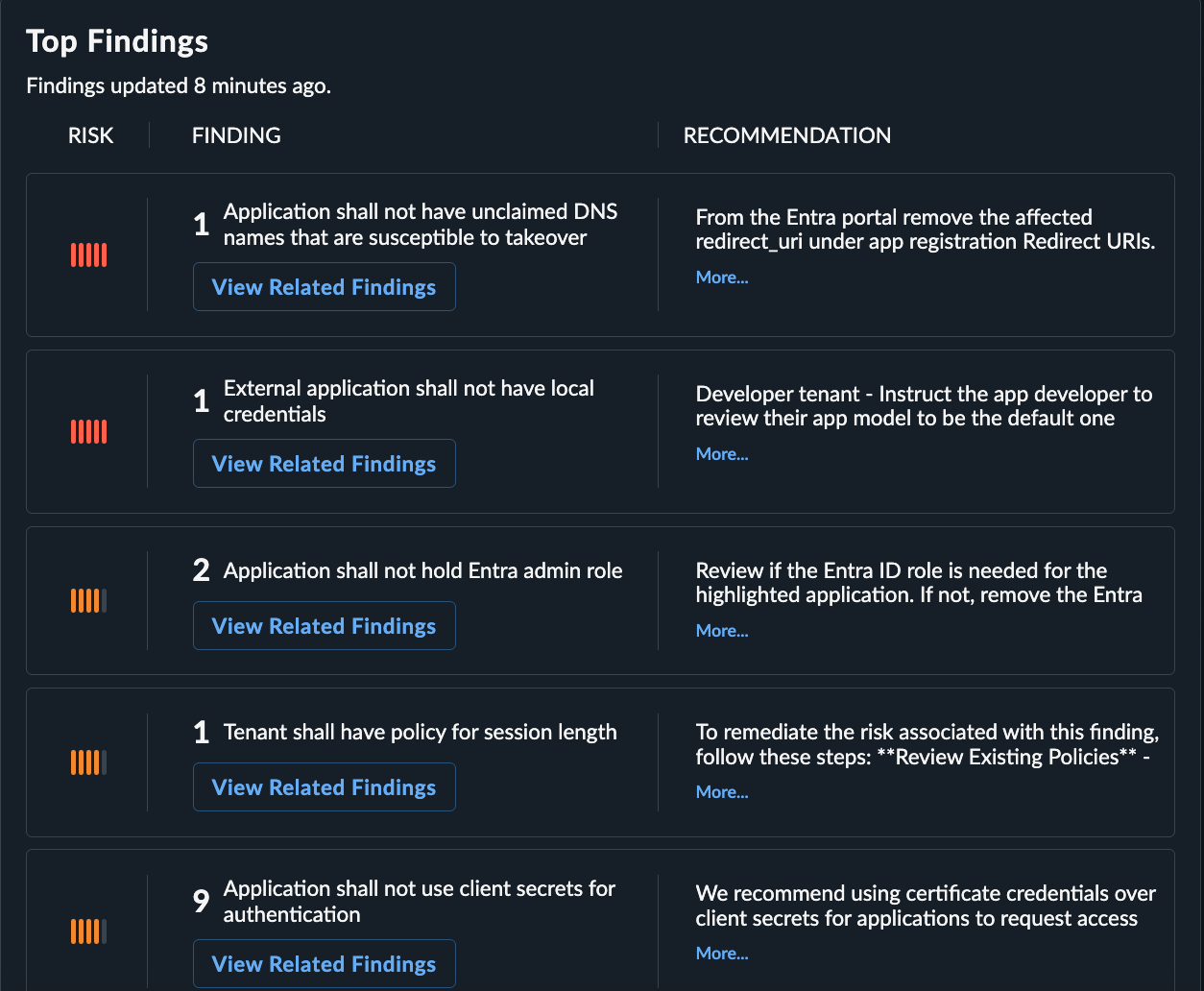
Click a finding entry to go to the Identity Findings page filtered by that finding.
MFA Coverage🔗
The MFA Coverage widget shows the percentage of identities with multi-factor authentication configured, both overall and by the following identity types:
- Admin Users: Identities with an admin role.
- Internal Users: Standard internal human identities.
- Guest Users: Guest accounts.
- VIP Users: Identities configured for VIP monitoring.
Note
The widget excludes on-premises Active Directory identities, which don't support native MFA.
Use this widget to spot where MFA gaps are concentrated. For example, guest users typically show the lowest coverage and are a common place to start remediation.
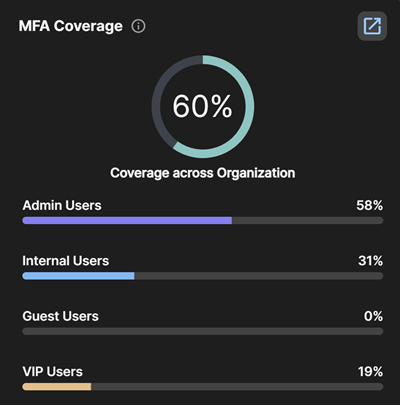
Click an identity type to go to the Directory page filtered by the matching identities.
Top 5 Risky Users🔗
The Top 5 Risky Users widget shows the identities that combine a high Risk Score with open findings: the highest-priority users to review each day. Each entry shows the identity name, the number of open findings by severity, and the current score.
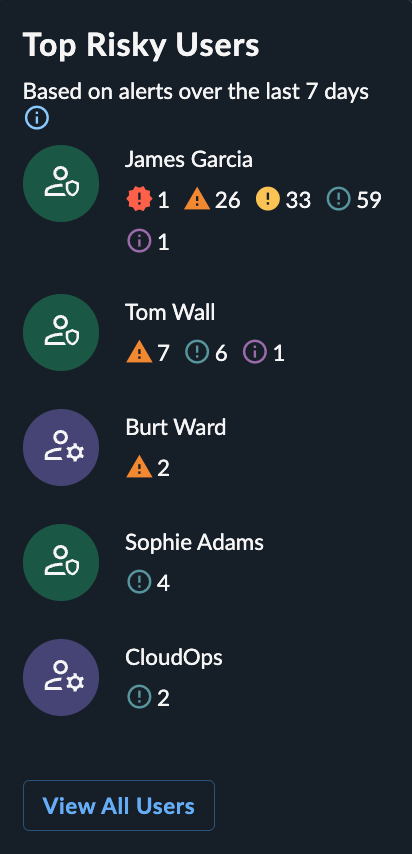
Take the following actions from this widget:
- Click the user name or icon to go to the Identity Details for that user.
- Click the number of findings to go to the Findings tab for that user.
Dormant Accounts🔗
The Dormant Accounts widget shows the number of accounts that have not signed in during the last 90 days, both overall and by the following account types:
- Members: Non-guest accounts.
- Guests: Guest accounts.
- Admins: Identities with an admin role.
- No MFA: Identities with no MFA enabled.
- Compromised: Identities with an active credential leak.
- VIP: Identities configured for VIP monitoring.
Each category is an independent metric, not a mutually exclusive breakdown. For example, the Admins shows how many of your admin users are dormant, regardless of their MFA status. Similarly, No MFA shows how many accounts with no MFA enabled are dormant. An account can be present in more than one category.
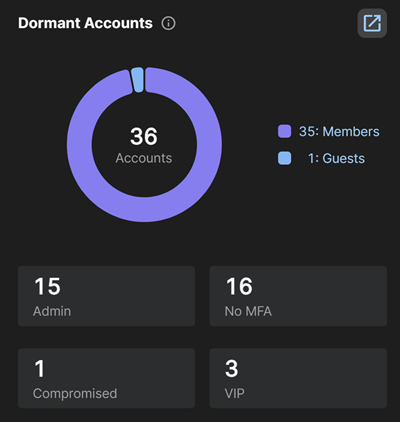
Click a segment in the chart to go to the Directory filtered for those identities.
Credential Leaks🔗
The Credential Leaks widget shows the number of open credential compromise findings by risk level as well as metrics related to leaked credentials found for the domains configured within your environment. Where applicable, it also shows the trend of this activity over the previous 30 days.
Note
The following statistics include all known active credential leaks. This could include data for users that are no longer with the organization or old leaked data matching the selected domains. We only generate findings for what we consider Active Breaches, including where there is an active matching identity, and as such, the stats may differ from what you see within the findings view.
- Leak-Related Findings: The number at the top of the widget shows
Opencredential compromise findings with the counts by risk level beneath. - Sources: The number of
activeunique leak sources where data for your domains has been observed. - Plaintext: The number of
activeleaks whereplaintext passwordswere identified in the leak data. - Hashed: The number of
activeleaks wherehashed passwordswere found in the leak data. - Breached Email Accounts: The number of
activeuniqueemail accountsthat have been observed in the leak data, with the percent change from the prior period. - Unique Passwords Breached: The number of
activeuniquepasswordsthat have been observed in the leak data, with the percent change from the prior period. - VIP Account Leaks: The number of
activeleaks tied to identities configured for VIP monitoring, with the percent change from the prior period.
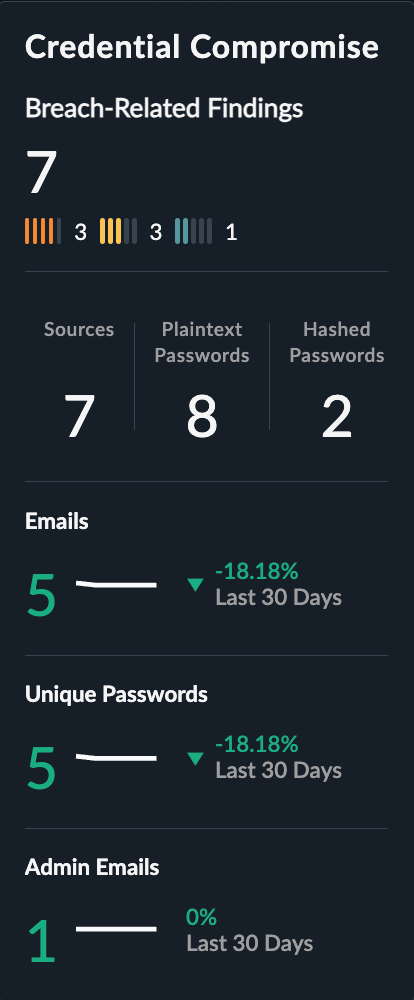
Take the following actions from this widget:
- Click a metric to view matching breach data on the Dark Web Intelligence page.
- Click the Leak-Related Findings number to go to the Findings page filtered by Dark Web Intelligence findings.
VIP Users🔗
The VIP Users widget shows the total number of users you have configured for VIP monitoring, along with a Top Risky VIP Users list: the same ranking as the Top 5 Risky Users widget, filtered to VIP users only. Each entry shows the user's name, number of open findings by severity, and the current Risk Score.
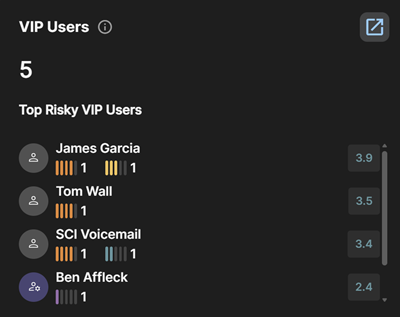
Take the following actions from this widget:
- Click the user name or icon to go to the Identity Details for that user.
- Click the number of findings to go to the Findings tab for that user.
Identity Risk Posture Score History🔗
The Identity Risk Posture Score History page shows how your score changes over time. To get to the page, click the New Tab icon in the Identity Risk Posture Score or Risk Over Time widgets.
By default, the page shows your score trend for the previous 14 days. Use the date picker at the top of the page to select a predefined range or specify a custom date range.
Tip
There are no limits on the time range, so you can view the score for as long as there is data.
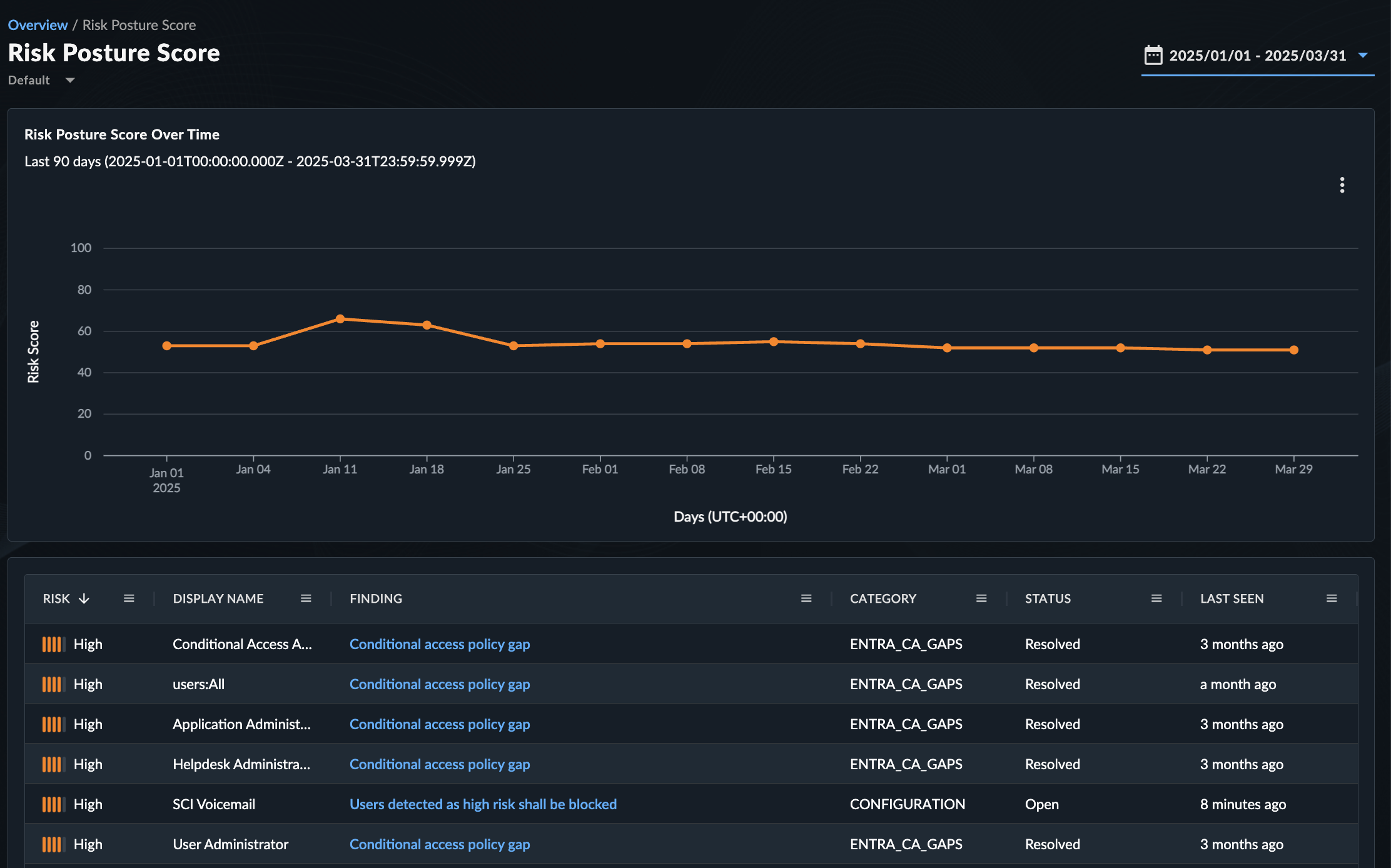
Take the following actions to explore the data:
- Hover over a point in the graph to view the score, rating, and percentage change for that date.
- Click a point in the graph to update the table with findings that were created, reopened, dismissed, or resolved on that date. Findings opened before that date that remain active won't be shown.
- Click a finding in the table to open the finding details.
Note
Findings that continue to persist after they are initially opened will have their last_seen time updated. As a result, it is expected that you might not see a lot of days with new findings.
Export Identity Risk Posture Score Graph🔗
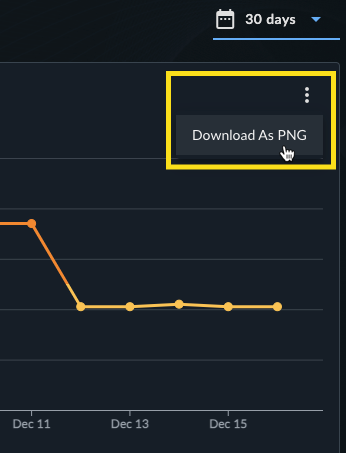
To export the line graph as a .PNG file, click the three dots and select Download as PNG.