Identity Settings🔗
Identity Settings is where you can configure your monitored domains, view the identity module integration health, and configure the Identity Posture check preferences.
Configured Integrations🔗
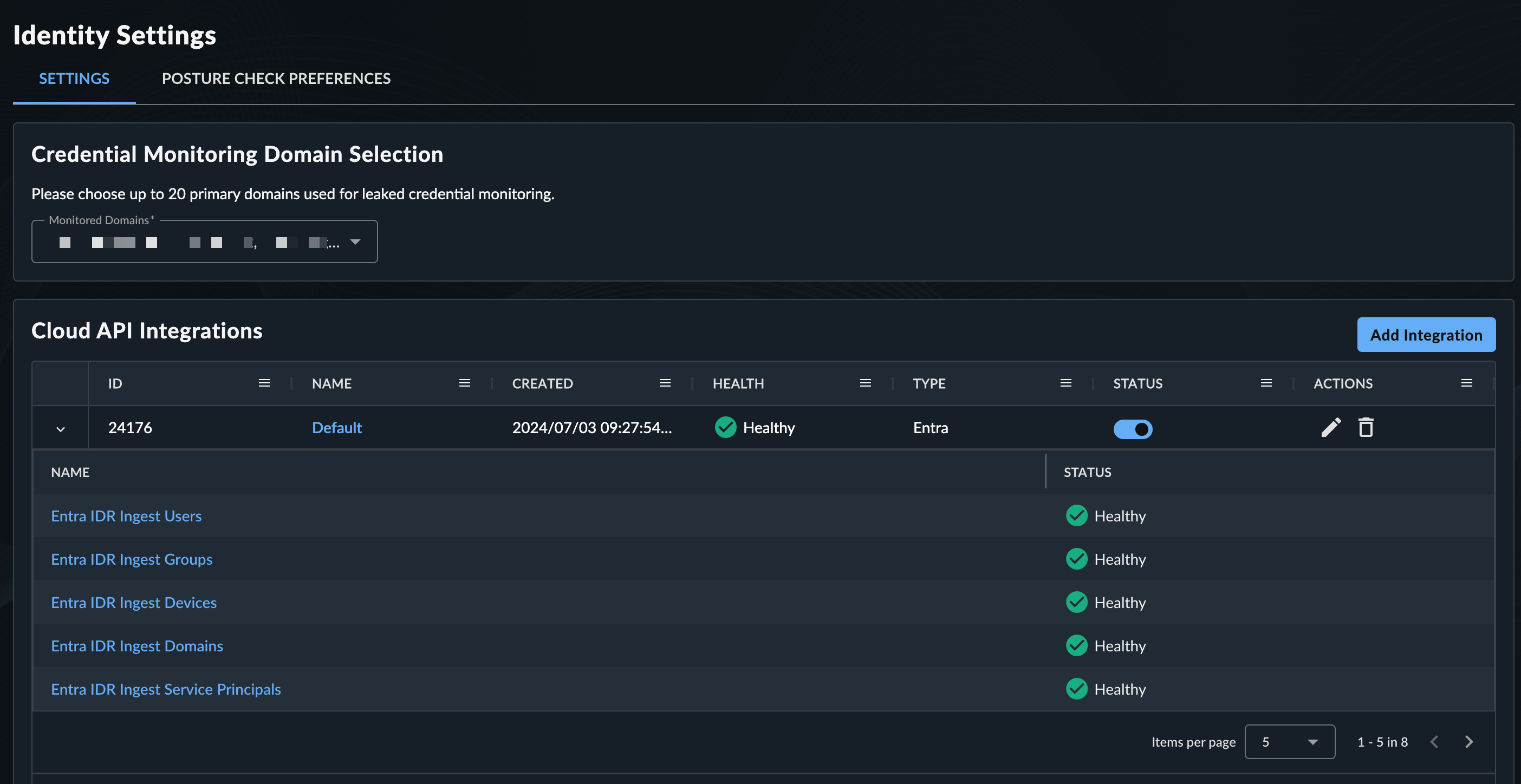
The Configured Integrations section displays a table of the identity provider integrations used by Taegis™ IDR to collect data and execute the security assessments against your Microsoft Entra ID and on-premises Active Directory environment. Expand a row on the Entra ID integration to see the child integrations and their health status.
Note
The parent name will show the child with the most severe error condition.
Disable Integration🔗
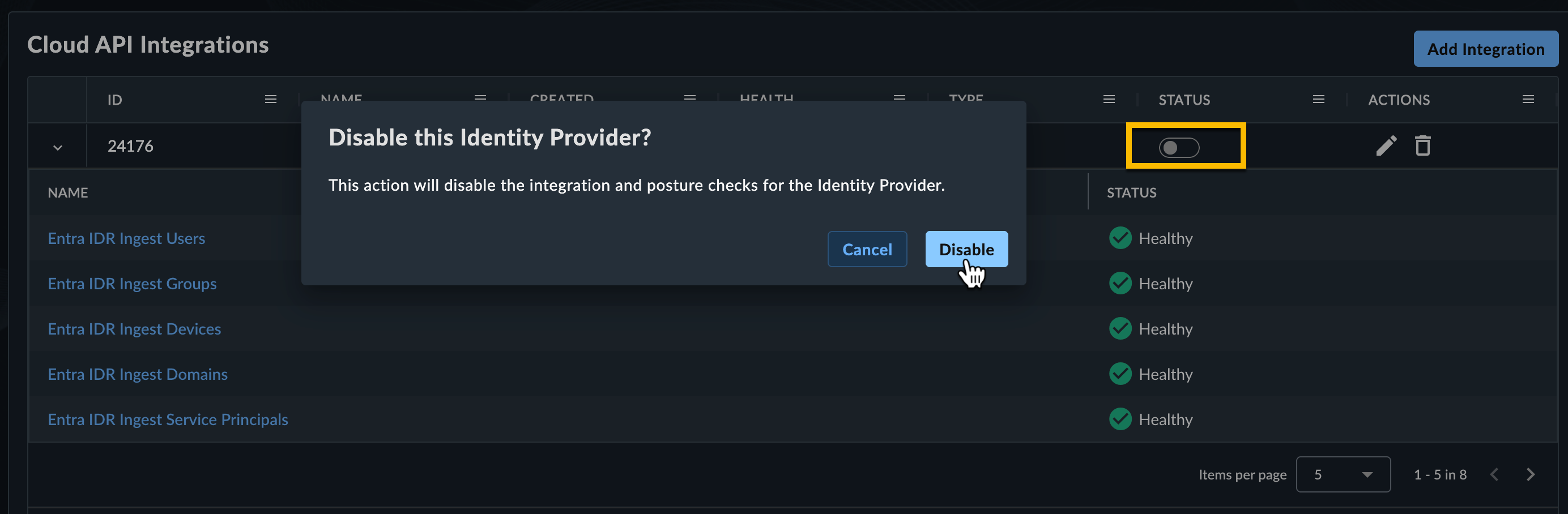
To disable the integration and posture checks for an Identity Provider, disable the toggle from the Status column and confirm your action.
Edit Integration🔗
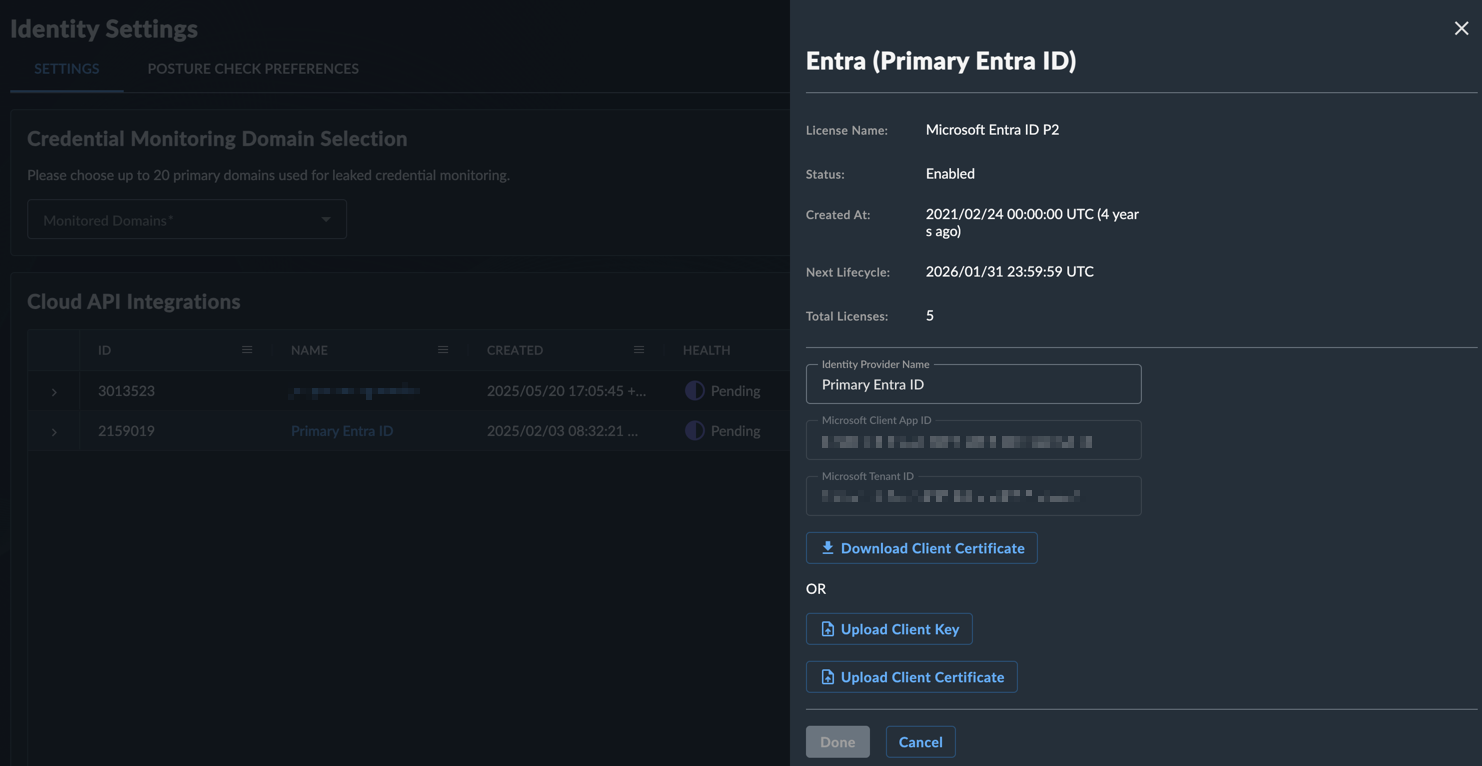
To edit the integration configuration, select the edit icon from the Actions column.
Tip
Click Grant Admin Consent to regrant admin consent for the Identity Application in Entra, if required.
Delete Integration🔗
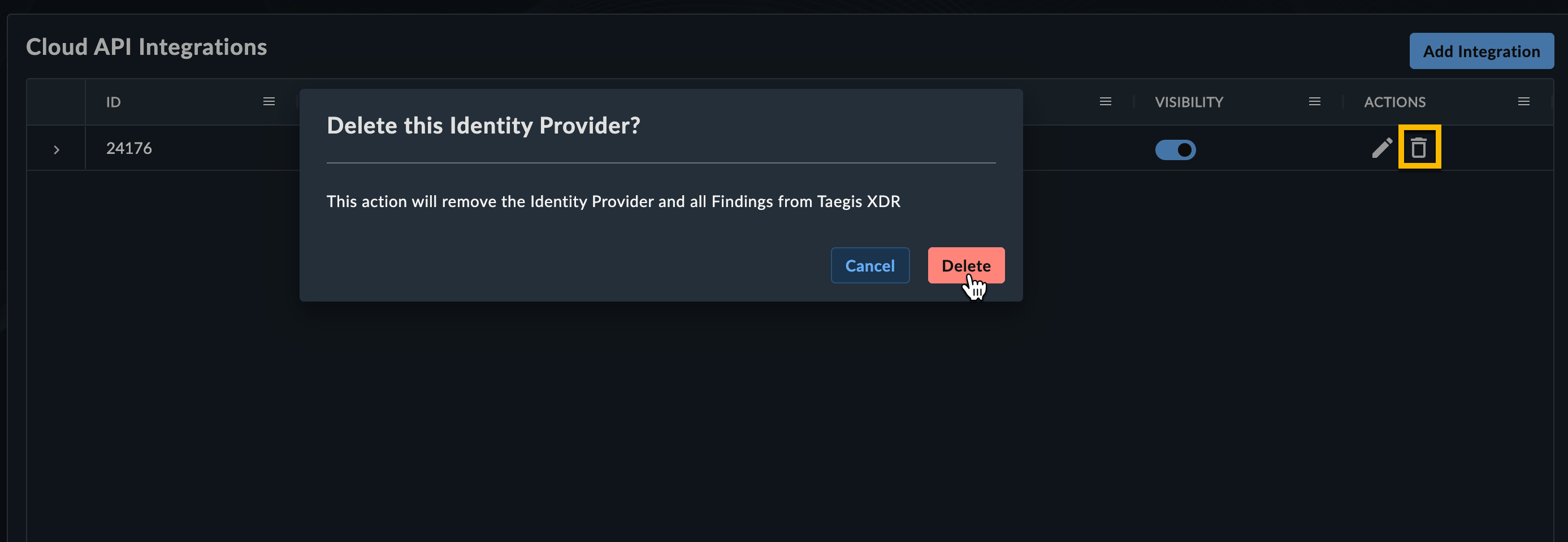
To delete the integration and remove the Identity Provider and all findings, open the additional actions menu and select Delete Integration. Click Delete to confirm your action.
Dark Web Monitoring🔗
The Dark Web Monitoring tab allows you to set which primary domains are monitored for credential leaks and configure users for VIP monitoring.
Domains🔗
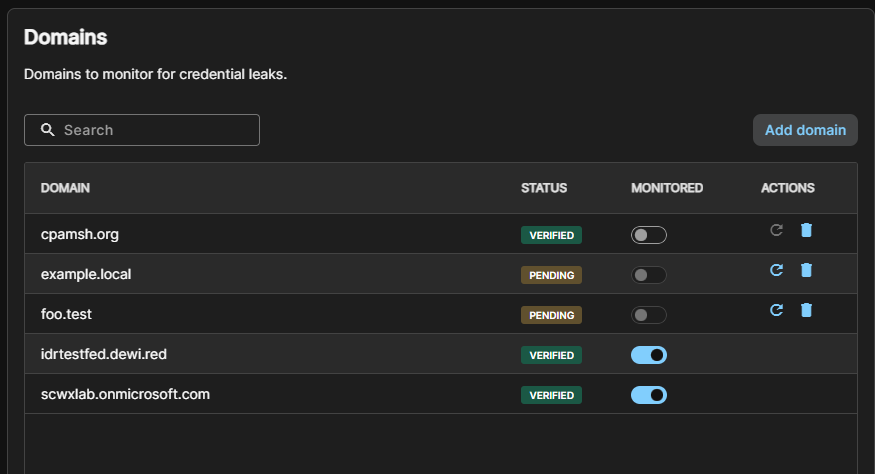
The Domains section lists every domain available for credential leak monitoring. A domain reaches this list one of two ways:
- Automatically collected: Synced from your Microsoft Entra ID tenant. These domains sync every 24 hours and do not show in the Domains section immediately after initial IDR setup.
- Manually added: Entered directly by a Tenant Admin. Since ownership of a manually-added domain isn't already established by a provider sync, it must be verified with a DNS TXT record before it can be monitored. This is currently the only way to add domains for an on-premises Active Directory environment.
| Status | Meaning |
|---|---|
| Verified | Domain ownership is established — automatically for synced domains, or after DNS TXT verification for manually-added domains. Monitoring can be turned on. |
| Pending | Domain has not been verified yet. Monitoring is unavailable and no leak data is collected for the domain until it's verified. |
Turn Monitoring On or Off🔗
For a Verified domain, use the toggle in the Monitored column to turn credential leak monitoring on or off for that domain.
Note
The Monitored toggle is disabled for Pending domains. Verify the domain first following the steps below.
Add and Verify a Domain🔗
To manually add a domain that wasn't automatically collected from your identity provider sync, do as follows:
- Click Add domain.
- Enter the domain name and click Add.
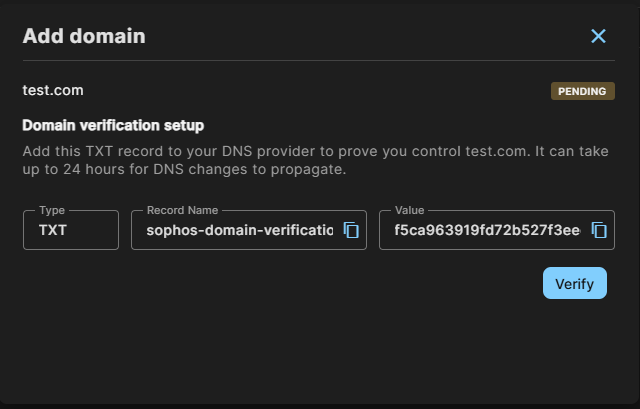
- In the Domain verification setup panel, copy the Record Name and Value for the generated TXT record using the Copy icon next to each field.
-
Add the TXT record to your domain's DNS provider.
Note
It can take up to 24 hours for DNS changes to propagate.
-
Once the record is live, click Verify.
If verification succeeds, the domain's status changes to Verified and monitoring becomes available for it. If verification fails, a message tells you to confirm the TXT record and wait for DNS propagation before trying again. Click the Retry icon in the domain's Actions column to reopen the verification panel and try again without re-entering the domain.
Delete a Domain🔗
To remove a manually-added domain, click the Delete icon in the Actions column and confirm. Deleting a domain that is currently monitored also stops monitoring for it.
Note
Automatically-collected domains don't have a delete action — they're managed by your identity provider sync.
Select Users for VIP Monitoring🔗
The VIP Monitored Users section allows you to select users that you consider very important. The users you select have a VIP tag present throughout IDR to signify their VIP status. VIP monitoring focuses on identifying business-related leaks, mentions, or campaigns against users that include personal email addresses, phone numbers, or social media accounts.
Configuring a user for VIP monitoring is also a Profile Factor in that identity's Risk Score — VIP-monitored identities are treated as higher-value targets and score higher accordingly.
Note
VIP Monitoring is not intended to be a replacement for personal identity monitoring solutions, which often include sensitive PII monitoring and provide notifications when your personal information is found.
To select a user for VIP monitoring, do as follows:
- Click Add User.
- In Configure VIP Monitoring, click the Name menu and select a user.
-
Define the attributes that you want to monitor as follows:
- Enter email addresses to be monitored, such as personal email addresses. Click the Plus icon next to Email to add a maximum of five addresses.
- Enter a primary and secondary phone number. Click the Plus icon to add a maximum of five numbers.
- Enter a zip code.
- Enter a social media username. Click the Plus icon to add a maximum of five usernames.
-
Click Configure.
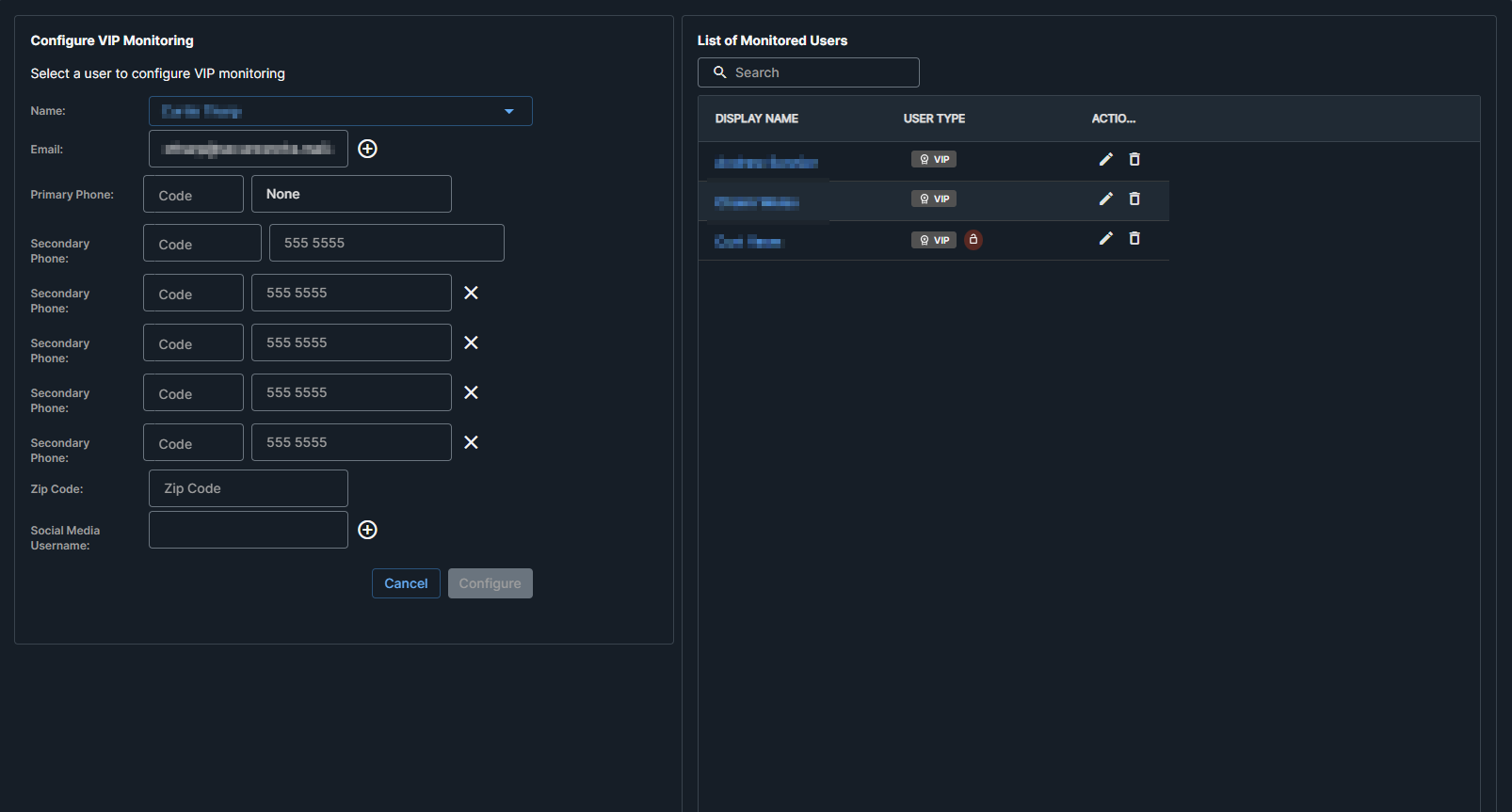
When you configure a user, we monitor the dark web for the user's attributes along with company names and domains to identify potential business leaks or mentions within the past year.
To edit a VIP user's attributes or delete a user's VIP status, click the Pencil icon or Delete icon in the VIP Monitored Users section.
Posture Check Preferences🔗
In the Posture Check Preferences section, you can turn posture checks used by IDR on or off and view their details. All posture checks are turned on by default.
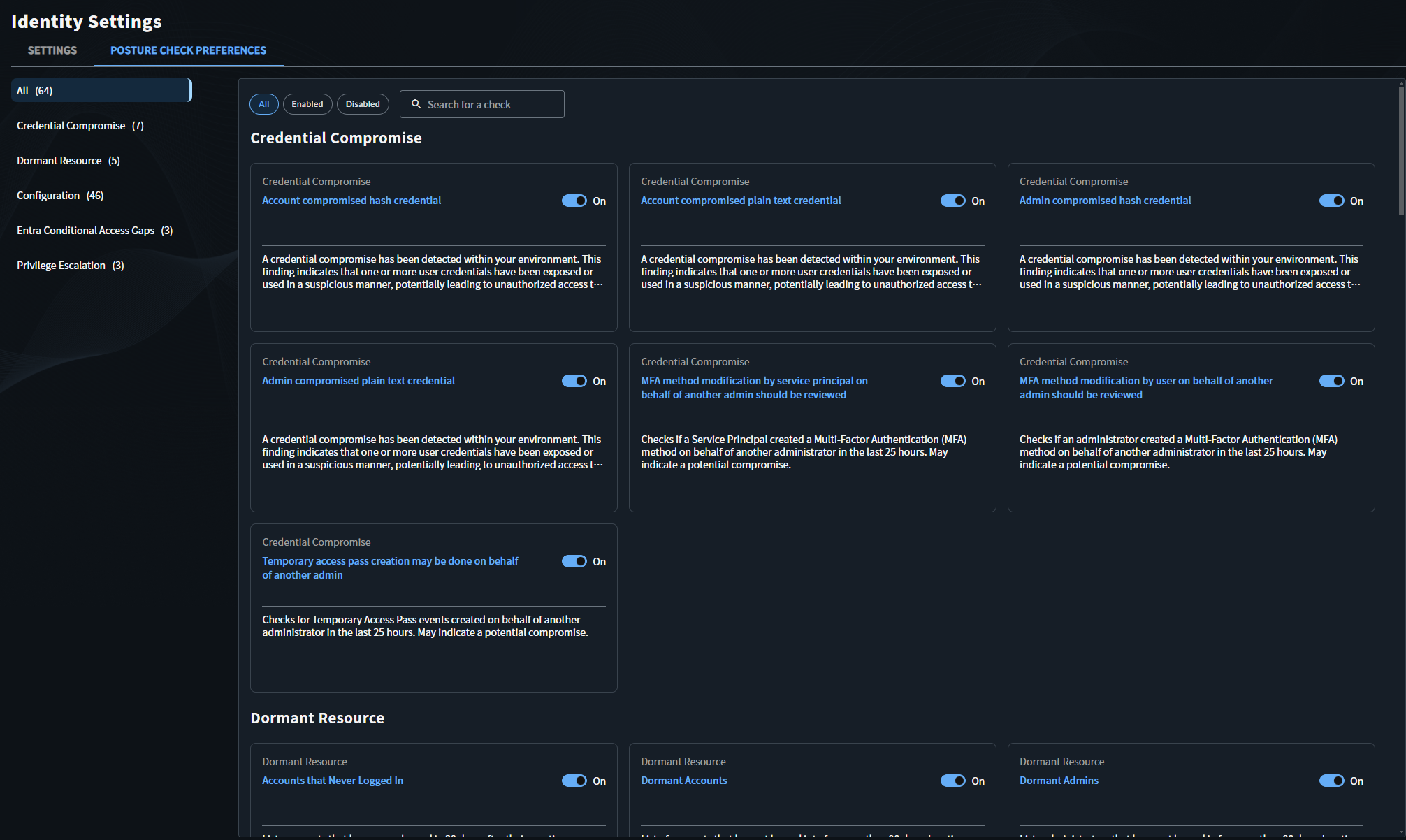
The table shows the following information:
- The title, category, provider type, tags, published date, last modified date, and status for each check.
- A New badge next to the check title for checks published in the last seven days.
- Tags shown as chips. If a check has multiple tags, additional tags collapse into a +N chip. Hover over the +N chip to see all tags.
Find Posture Checks🔗
Use the following actions to find specific checks:
- Search: Enter text in the search box to filter checks by title.
- Filter: Filter by Category, Tags, Status, Provider Type, Auto Resolution Disabled status, Published at date range, or Last modified date range. Some filters are expanded by default. Click the up or down arrow on the right of the filter name to expand or collapse the filter.
- Sort: Click the Title, Category, Published, or Last Modified column header to sort the table by that column.

The counter above the table shows how many checks match your current filters. Click the X on a filter chip to remove it, or click Clear All to reset the table.
View Posture Check Details🔗
Click a title in the table to open the details panel, which shows the check description, risk narrative, details, recommendations, and references. Use the previous and next arrows to move between checks.
Customize Posture Checks🔗
Click the toggle in the Status column or in the details panel to turn a posture check on or off. For disabled checks, the details panel shows who last turned it off and when.