Cisco Umbrella Integration Guide🔗
The following instructions are for configuring a Cisco Umbrella integration to facilitate log ingestion into Secureworks® Taegis™ XDR.
XDR supports two integration paths for Umbrella log ingestion:
- (Preferred) Integrate via Cisco-Managed S3 Bucket — This option is preferred as it does not require any XDR components to be deployed in your environment to enable log ingestion.
- Integrate via Customer-Managed S3 Bucket — This option provides equivalent data to the Cisco-Managed S3 integration, but requires deployment of the XDR Lambda function in your AWS environment.
Data Provided from Integrations🔗
| Normalized Data | Out-of-the-Box Detections | Vendor-Specific Detections | |
|---|---|---|---|
| Cisco Umbrella | DNS, HTTP, Netflow |
Note
XDR detectors are not guaranteed to be triggered, even if a data source's logs are normalized to a schema associated with a given detector. However, you can create Custom Detection Rules to generate detections based on normalized data from a data source.
Start Cisco-Managed S3 Integration🔗
Prerequisites🔗
The following tasks must be completed in the Umbrella console prior to beginning the integration in XDR. Follow the instructions in the vendor documentation to configure Umbrella to log to a Cisco-managed S3 bucket.
- Select Use Cisco-managed Amazon S3 storage.
- Select a Region that is closest to the XDR environment in which your tenant resides.
| Taegis Environment | AWS Region |
|---|---|
| US1 | US East (Ohio) |
| US2 | US East (Ohio) |
| US3 | US West (Oregon) |
| EU1 | Europe (Frankfurt) |
| EU2 | Europe (Ireland) |
- Select any Retention Duration value.
- Click Save and Continue.
When activation is complete, a summary page displays. Copy the Data Path, Access Key, and Secret Key values to a safe location. These values will be used to complete the Umbrella integration in XDR.
Important
The Data Path must be in the format: cisco-managed-<Region>/<ID>. For example, cisco-managed-us-west-1/2069997_6ff2802af17337def701c2e7816cf14913zf848a.
Add Integration in XDR🔗
- From the Taegis Menu, select Integrations → Cloud APIs.
-
Select Add an Integration from the top of the page.

Add an Integration -
From the Optimized tab, select Cisco Umbrella.
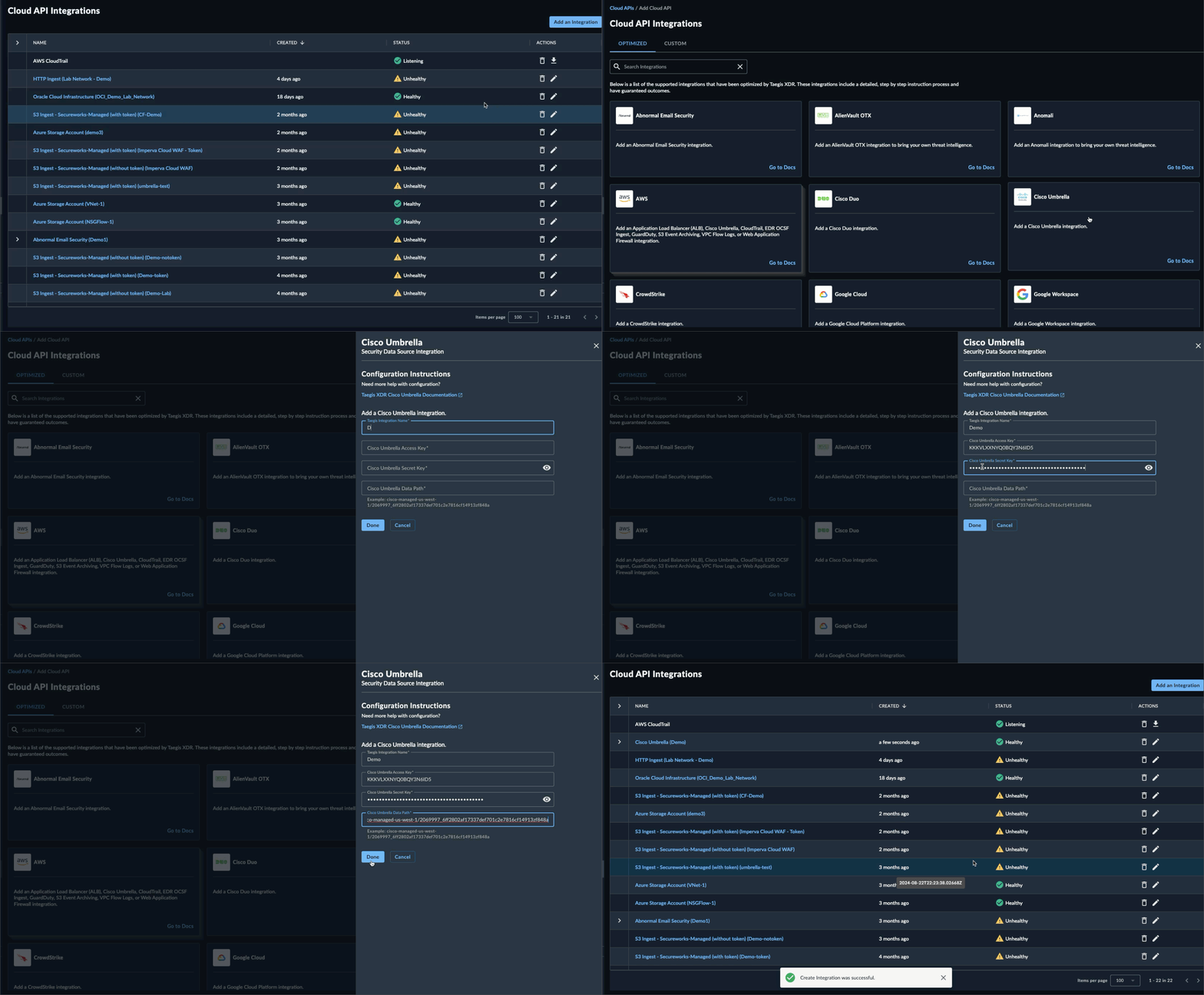
Set up Cisco Umbrella Integration -
Enter the following fields:
- Taegis Integration Name — Any unique string
- Cisco Umbrella Access Key — Generated in the Prerequisites section
- Cisco Umbrella Secret Key — Generated in the Prerequisites section
- Cisco Umbrella Data Path — Generated in the Prerequisites section
-
Select Done. The Cloud API Integrations table displays the successfully added Cisco Umbrella integration.
Start Customer-Managed S3 Integration🔗
Note
If you do not have login access to XDR, have someone who does help you complete any steps that require access. You can also contact your Secureworks® representative for help.
- From the Taegis Menu, select Integrations → Cloud APIs.
-
Select Add an Integration from the top of the page.
Add an Integration -
From the Optimized tab, choose AWS and then select Setup under Cisco Umbrella.

Set up Cisco Umbrella Integration -
Select Download CloudFormation Shared Resources and save it as
taegis-cloudformation-shared-resources.yaml. -
Select Download CloudFormation Lambda Template and save it as
taegis-cloudformation-lambda-template.yaml. -
Select Download Lambda; the file should be named
taegis-lambda-amd64.zip. -
Select Download Credentials.
-
Select Create after you have downloaded all files.
Create an S3 Bucket for Cisco Umbrella🔗
- Follow the instructions in the Cisco Umbrella documentation, Enable Logging to Your Own S3 Bucket.
- The bucket you create will be the
NotificationBucketparameter in the CloudFormation template.
Upload the Lambda Executable and CloudFormation Templates to S3🔗
- Log in to the AWS Console for the region (e.g., https://us-east-1.console.aws.amazon.com/cloudformation) with an account that has permissions to create roles, lambdas, secrets, and policies, or using a role that can assume another role with these permissions.
- In the Storage section, select S3.
- Create a new bucket or locate an existing bucket in which to store the Lambda executable and, optionally, the CloudFormation templates. The bucket does not need to be public, versioned, or encrypted.
- Upload the Lambda
taegis-lambda-amd64.zipto the root of the bucket and take note of the bucket name. -
Optionally upload
taegis-cloudformation-shared-resources.yamlandtaegis-cloudformation-lambda-template.yamlto the same bucket.Tip
Take note of the bucket name and the key, including any prefix. These identifiers are needed when you create a stack.
Create a Shared Resources Stack in Each AWS Region That Will Contain a Lambda Deployment🔗
Important
The Shared Resources Stack (Steps 1-11) only needs to be deployed once per AWS region.
- Log in to the AWS Console for the region (e.g., https://us-east-1.console.aws.amazon.com/cloudformation) with an account that has permissions to create roles, lambdas, secrets, and policies, or using a role that can assume another role with these permissions.
- In the Management and Governance section, select CloudFormation.
-
Select Create Stack to create a new stack using the
taegis-cloudformation-shared-resources.yamltemplate provided.Note
You might see a list of CloudFormation stacks when you select CloudFormation like the following image. If that is the case, select the Create Stack drop-down and choose With new resources (standard).

Create New Stack -
From the Prepare Template section, choose Template is ready.
- From the Specify Template section, choose Amazon S3 URL OR choose Upload a template file.
-
If you choose Amazon S3 URL, input the CloudFormation object URL gathered previously into the Amazon S3 URL field. For example,
https://cwl-poc.s3.amazonaws.com/taegis-cloudformation-shared-resources.yaml.To find the URL, navigate to the S3 service and open the S3 bucket to which the
taegis-cloudformation-shared-resources.yamlfile was uploaded. Select the CloudFormation template then click Copy URL.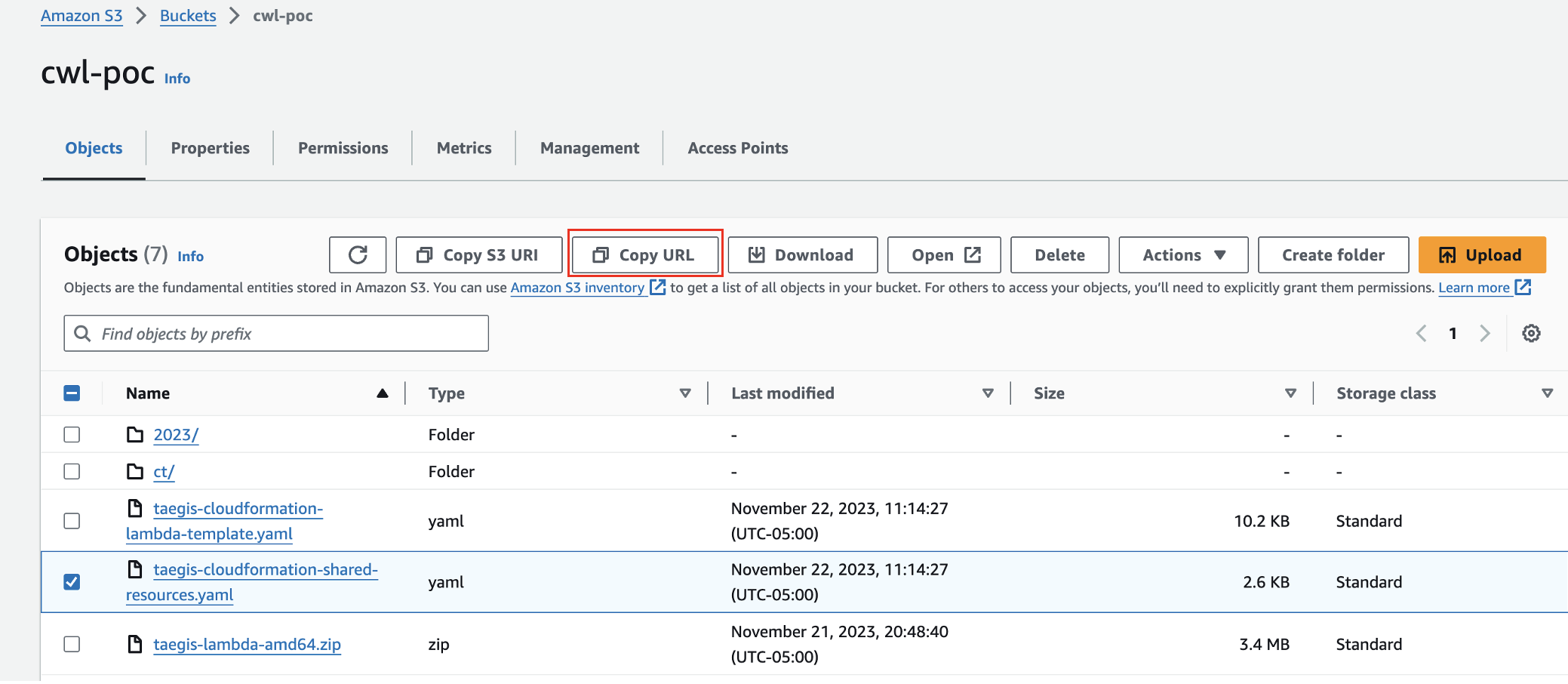
Copy CloudFormation URL -
Select Next.
-
Enter an appropriate stack name.
Note
Spaces are not allowed in stack names.
-
Enter the contents of the
credentials.txtfile into theSecretValuefield. - Select the correct
TaegisRegionbased off of your XDR login URL; for example, selectctpxif you use https://ctpx.secureworks.com/login orfoxtrotif you use https://foxtrot.taegis.secureworks.com/. - Select Next.
- On the Configure stack options page, the default selections and values can be accepted. Select Next.
- On the Review and create page, select Submit.
Create the Lambda Stack🔗
Note
The AWS Lambda function uses the following two secret tokens to communicate with the Taegis™ XDR API:
- A short-lived token that expires every 10 hours and is rotated by XDR
- Long-lived credentials that do not expire
- Log in to the AWS Console for the region (e.g., https://us-east-1.console.aws.amazon.com/cloudformation) with an account that has permissions to create roles, lambdas, secrets, and policies, or using a role that can assume another role with these permissions.
- In the Management and Governance section, select CloudFormation.
-
Select Create Stack.
Note
You might see a list of CloudFormation stacks when you select CloudFormation like the following image. If that is the case, select the Create Stack drop-down and choose With new resources (standard).
Create New Stack -
From the Prepare Template section, choose Template is ready.
- From the Specify Template section, choose Amazon S3 URL OR choose Upload a template file.
-
If you choose Amazon S3 URL, input the CloudFormation object URL gathered previously into the Amazon S3 URL field. For example:
https://cwl-poc.s3.amazonaws.com/taegis-cloudformation-lambda-template.yaml.To find the URL, navigate to the S3 service and open the S3 bucket to which the
taegis-cloudformation-lambda-template.yamlfile was uploaded. Select the CloudFormation template, then click the Copy URL button.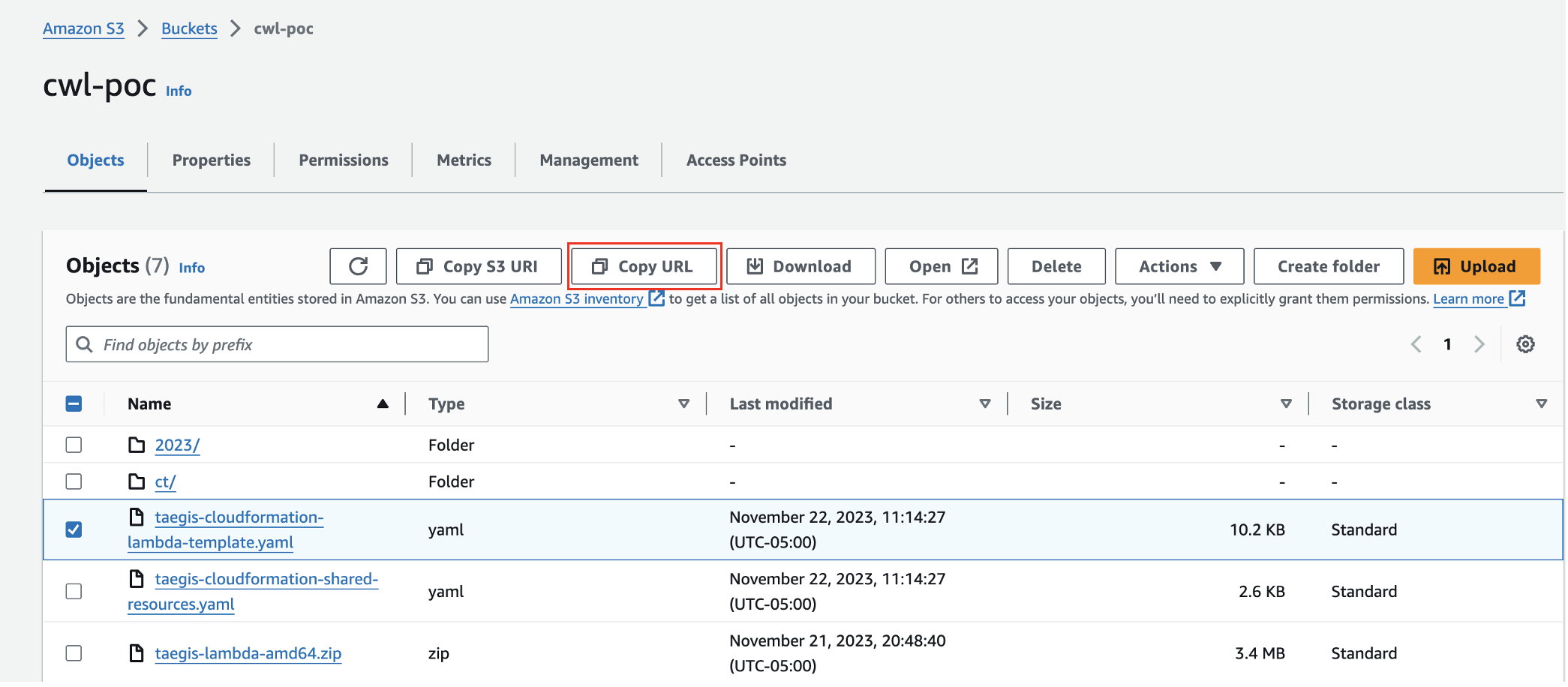
Copy CloudFormation URL -
Select Next.
-
Enter an appropriate stack name.
Note
Spaces are not allowed in stack names.
-
Select
IntegrationTypefrom the dropdown. This describes what sort of log objects are in theNotificationBucket. If more than one type, or you are not sure, selectgeneric.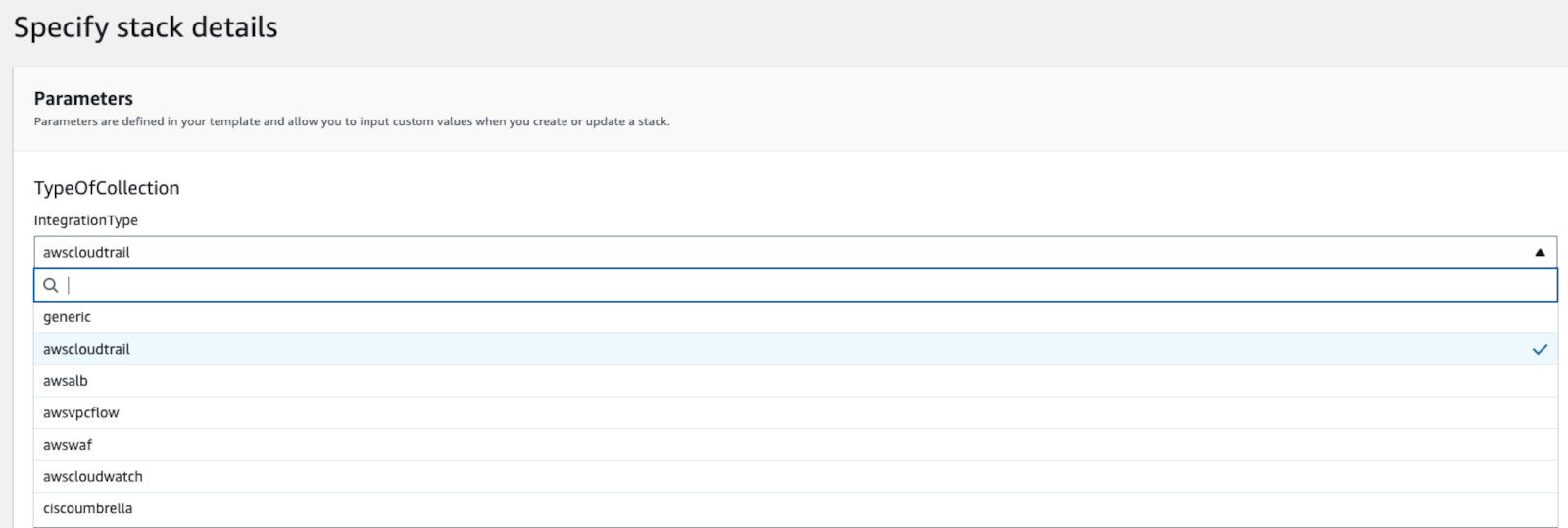
Update Lambda Stack Integration Type -
In the field
NotificationBucket, enter the bucket name, not a URL or URI, that houses the logs. - (Optional) Enter the appropriate value into the
SNSNotificationarnfield if you wish to use SNS notifications going forward instead of S3 notifications. - (Optional) Enter the appropriate value into the
NotificationBucketCustomerManagedKMSarnif you wish to add the KMS key ARN that may be encrypting the objects in theNotificationBucket. The KMS key policy must haveEnable IAM User Permissions. If not, the Lambda ARN can be added to your KMS key. - The field
TaegisLambdaS3BucketNameshould be the name of the S3 bucket that contains the Lambda that was previously uploaded. - The field
LambdaEnvKMSarncan be left empty. If populated, the KMS key must haveEnable IAM User Permissions. - The field
EnableObjectTaggingwill enable tagging of processed objects if set to true. For more information, see AWS Lambda Lifecycle Policy Management. - The remaining fields can be left at their defaults.
- Select Next.
Complete Remaining Stack Options🔗
- The configure stack options page is optional.
- Select Next.
-
Review all parameters. Make sure that all fields you have specified from Step 9 through Step 15 have a valid value.
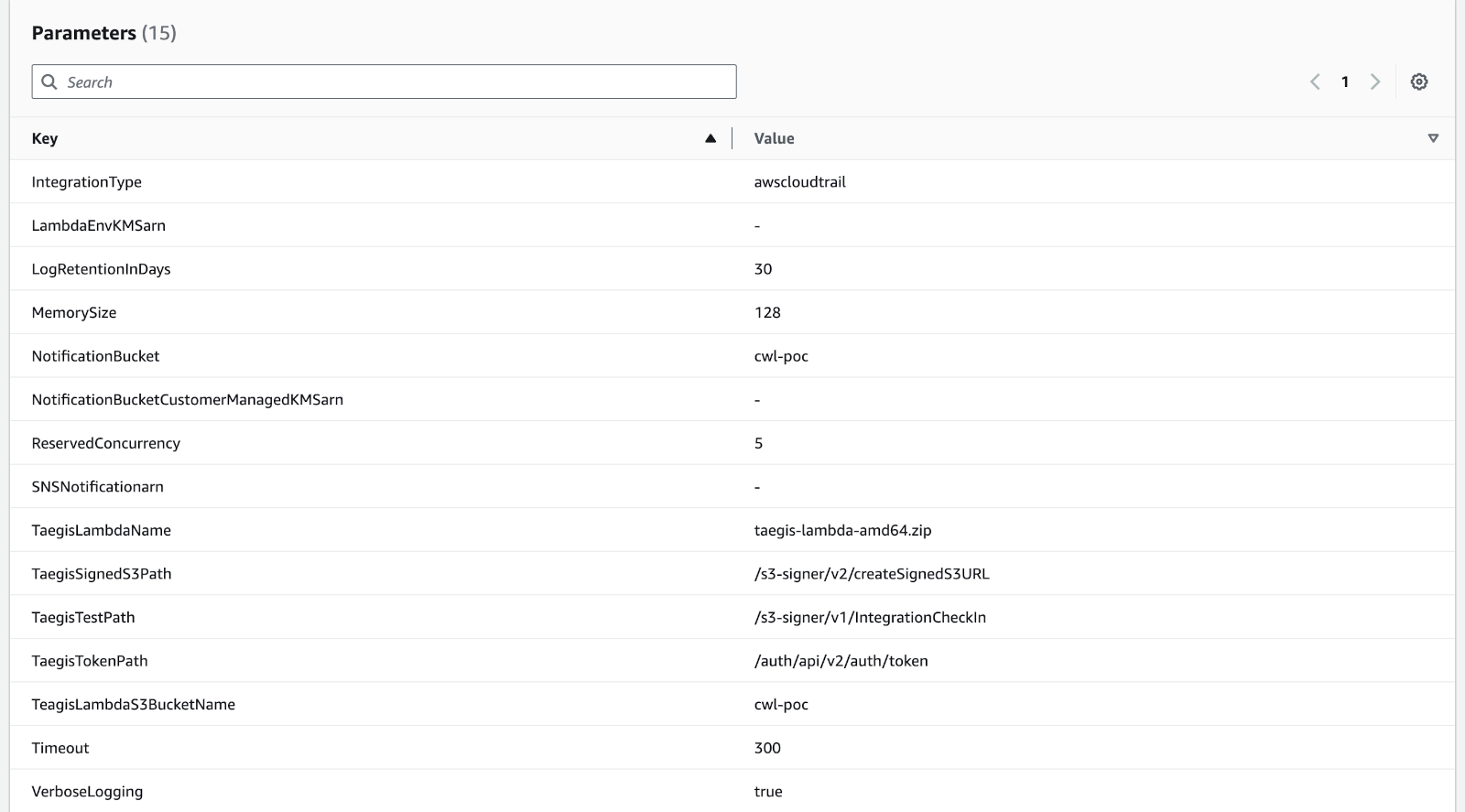
Review Lambda Parameters -
Select the I acknowledge that AWS CloudFormation might create IAM resources checkbox and choose Submit.
- Wait at least 30 seconds and then select the refresh button. The process may take a minute or more to finish. A status of CREATE_COMPLETE for the stack indicates the process has finished. Discard the
credential.txtfile containing the client_id and client_secret downloaded in the Set Up section. These values are now stored in the AWS SecretsManager.
Add the Lambda Trigger🔗
- In the AWS console, switch to the Lambda service.
- Locate the new Lambda by name. The default name is {STACKNAME}-scwx-tdr-lambda-{INTEGRATIONTYPE}. For example:
ct-demo-scwx-tdr-lambda-awscloudtrail. - Select the Lambda name. The edit page for that Lambda displays.
- Expand the Function overview section and choose Add Trigger.
- In the Trigger Configuration editor, select the drop-down menu and choose S3. Optionally, use an SNS trigger configured with a previously created topic.
- From the Bucket options, find the bucket containing the logs and select it.
- From the Event Type options, choose All Object Create Events.
- In the prefix field, enter the bucket prefix where the logs are located. Leave this blank if no prefix is used.
- Leave the suffix field blank.
- Check the following box to acknowledge the cost impact of a lambda function.
- Choose Add. The configuration page for that lambda displays again. A message displays at the top indicating adding a trigger was successful; for example,
The trigger wmikeking was successfully added to function Logs-TDR-Upload. -
The function is now receiving events from the trigger.
Important
AWS Lambda Concurrency Guidance🔗
The Reserved Concurrency value set by the Taegis XDR CloudFormation template (
taegis-cloudformation-lambda-template.yaml) is 5. For more information regarding Lambda concurrency and the calculation of a value appropriate for your environment, please reference Lambda function scaling in AWS Docs.Please reference the following AWS documentation to the identify the values to be used in the concurrency calulation:
AWS Concurrent Execution Limit🔗
If you see the following Rate Exceeded error when running your Lambda, you need to request a quota increase from AWS to raise your concurrent execution limit. For more information, see Lambda quotas in AWS Docs.

AWS Lambda Concurrent Execution Limit Error
Verification Steps🔗
-
Verify Lambda Runtime settings. The
Runtimevalue should be Custom runtime on Amazon Linux 2.
Verify Lambda Runtime Settings -
See Test AWS Lambda Logs to verify that the AWS Lambda function for your integration is working by configuring a test for it in the AWS Console.
-
In the AWS console, go to the Lambda function that was installed. If there is an error, select Fix errors.
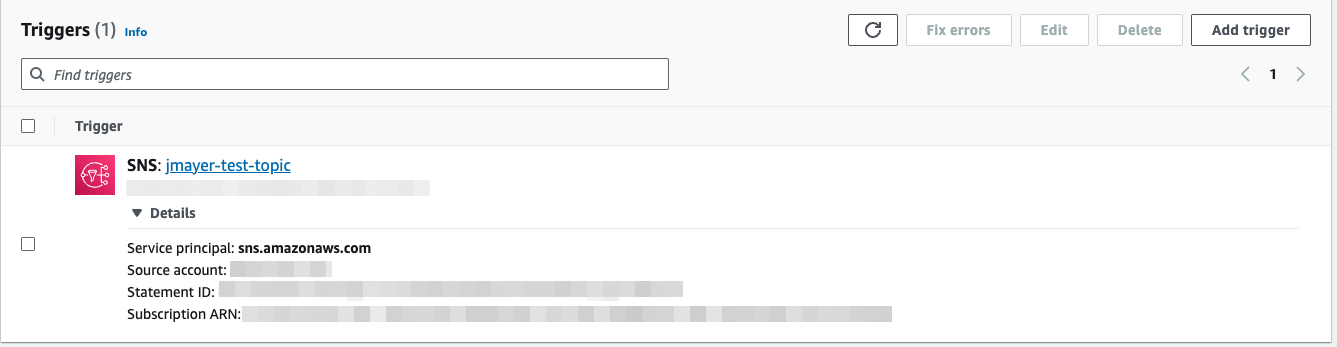
Fix Lambda Errors -
See View AWS Lambda Logs to view logs generated by your AWS Lambda functions and verify successful uploads. This verifies the trigger is working, on the assumption there is new S3 data being published to the bucket.
{"level":"debug","time":"2023-11-15T19:27:19Z","message":"Uploading data to s3"}
Download Existing Integration Setup Files🔗
If you need to add your integration to many regions or completely redo the integration, you can download the existing set of integration files including the templates, Lambda, and credentials files at any time.
- From the Taegis XDR menu, navigate to Integrations → Cloud APIs.
- From the Cloud API Integrations table, click the download icon from the Actions column in the row of the integration you want to redo/modify.
-
Select the Download Integration icon. The Download panel appears.

Download Existing Integration Files -
Download any needed files.
Related Topics🔗
Centralized Umbrella Log Management🔗
Read more about Cisco’s approach to Centralized Umbrella Log Management with Amazon's S3 service for MSP, MSSP, and Multi-org customers.