Event Details🔗
Events are visible in search results, cases, and from detection details. What details are displayed for each event vary by event type and available data. For a list of available event types, see Event Schemas.
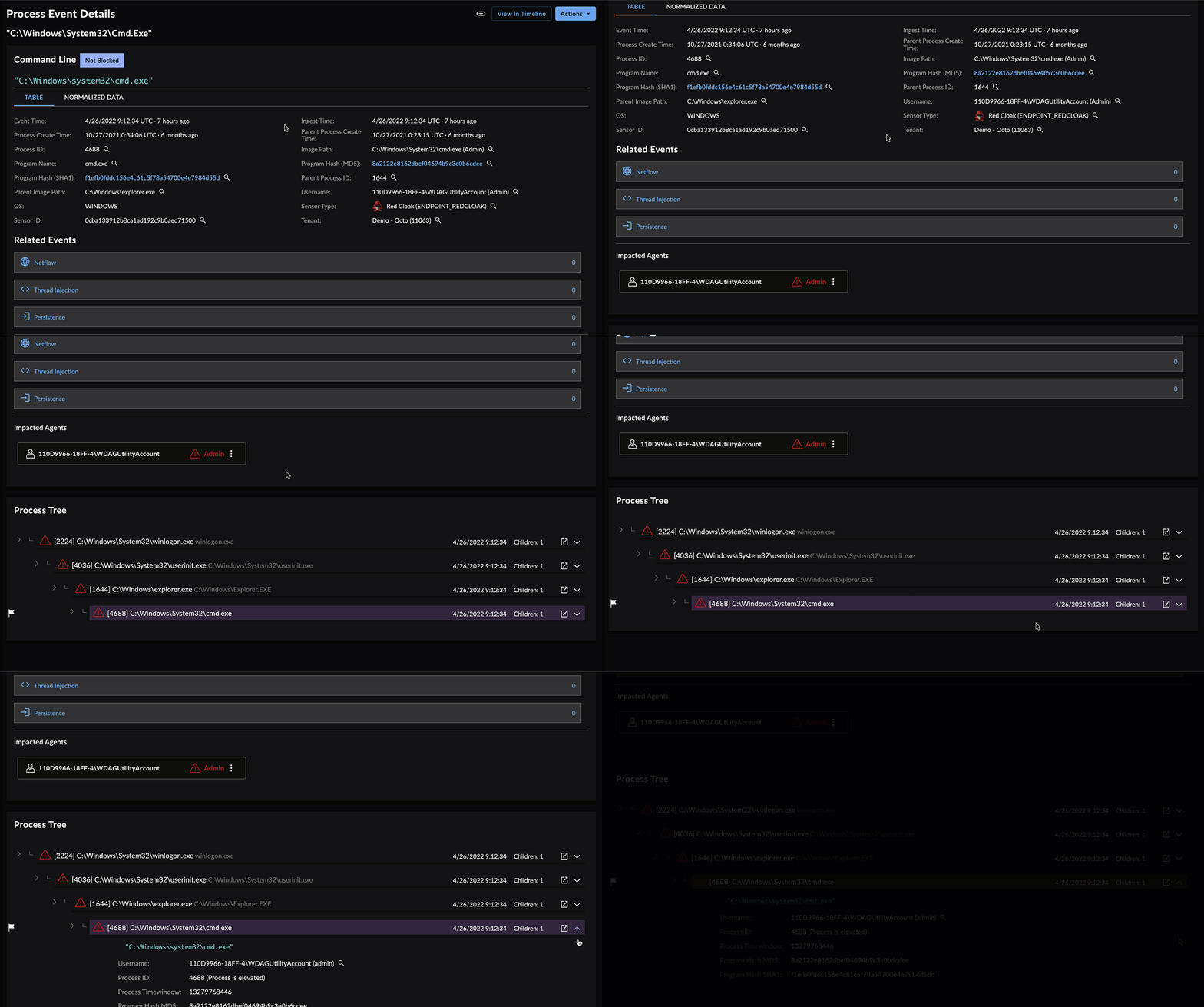
When viewing tables of events, select an event title to view some of its essential details in a preview side panel. This allows you to continue browsing through the results table without losing your place or your filters. To view the full details of the event, select the Open in New Tab icon. The event details open in a new tab.
Tip
Adjust the width of the preview side panel by holding and dragging it.
Event Details🔗
Most events include:
- Event Summary — A short summary of what occurred in the event.
-
Netflow Diagram — Netflow and NIDS events may show a netflow diagram.
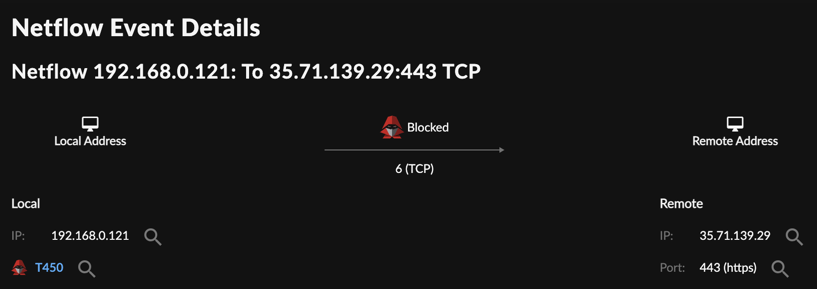
Netflow Event Showing Netflow Diagram -
Event Details Table — Provides a selection of the normalized information about the event. The line items in the table vary dependent on the event schema.
-
Normalized Data — Shows all of the normalized information about the event, in JSON format in an expandable/foldable tree view.
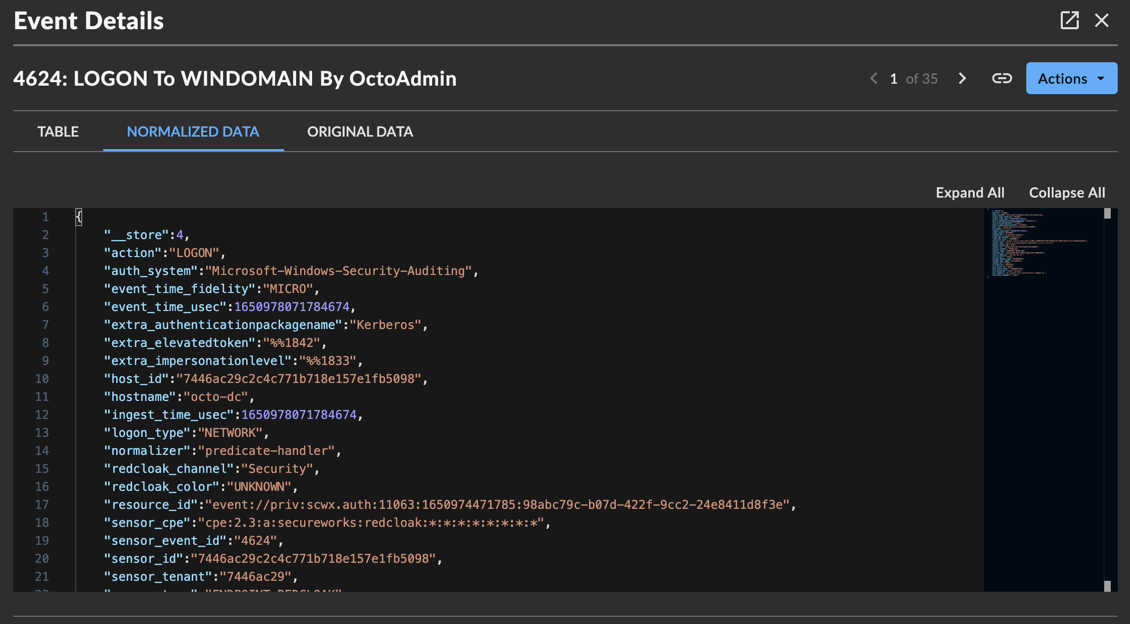
JSON View in Event Details for an Auth Event -
Original Data — If available, shows the original, pre-normalization data for the event.
- View in Timeline — An option in some events to pivot from the selected event to a timeline view of related detections and events that occurred on the same host, by host_id. For more information, see Related Events Timeline View.
Process Event Details🔗
In addition to the above event details, process events include:
- Lineage — A visual, interactive view of the process tree. For more information, see Event Lineage and Process Tree.
- Related Events — Direct links to advanced searches for netflow, thread injection, persistence, and script block events related to the current process event.
Create a Case from an Event🔗
-
At the top of an event details page, open the Actions drop-down and select Create New Case. The Create New Case dialog displays.
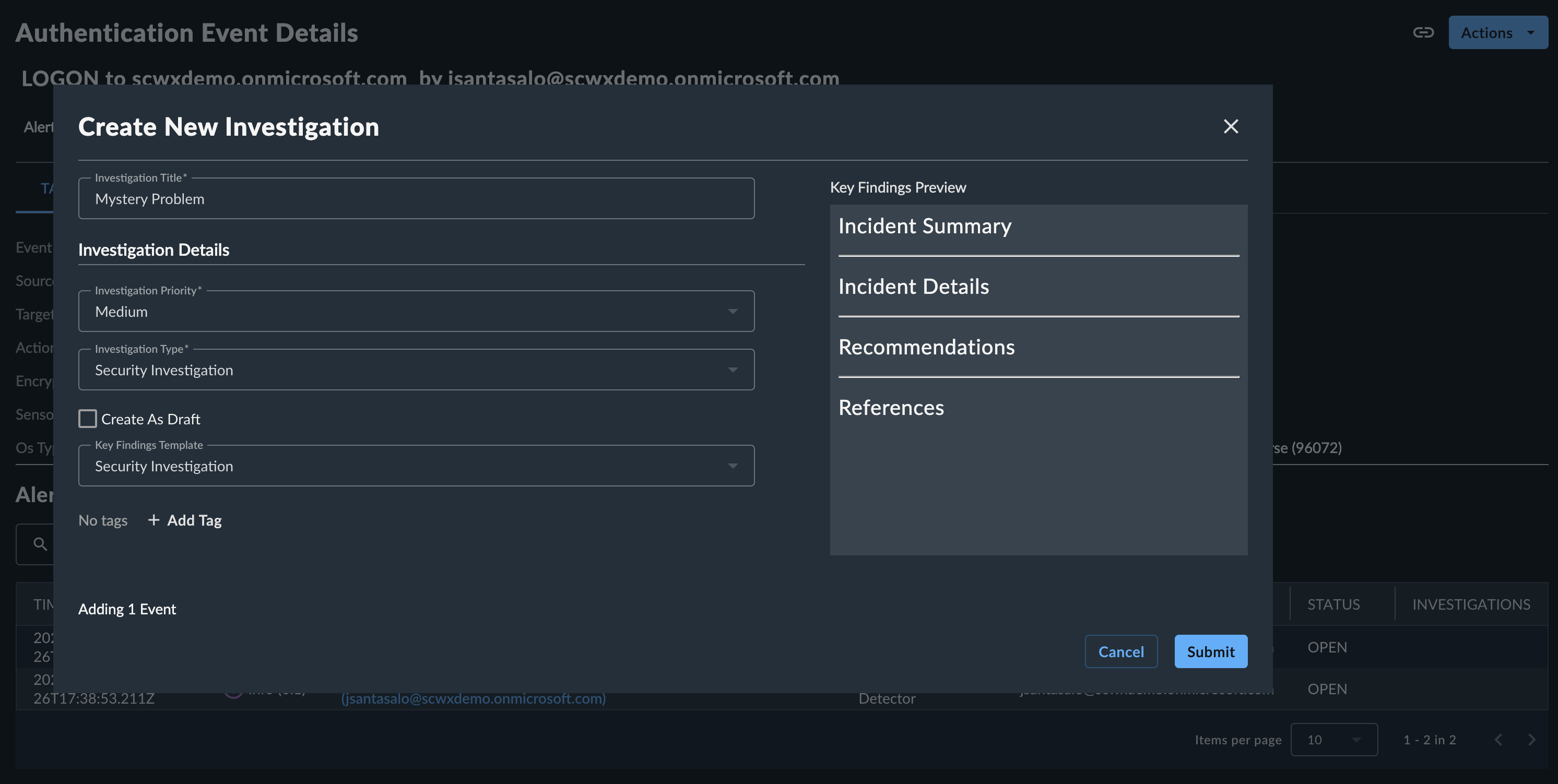
New Case -
Give the case a title and select a Priority and Type.
- Specify the Key Findings Template as blank or Security Investigation, then select Submit. The case is created.
Add an Event to an Existing Case🔗
- At the top of an event details page, open the Actions drop-down and select Add to Existing Case. The Add Evidence to Case dialog displays.
- Select the case you want to add the event to, then select Submit.