Pivot Search🔗
A pivot search allows you to quickly search across detections and events in Secureworks® Taegis™ XDR for particular search terms. It then returns results for detections and multiple event types.
Note
Detections may be searched for any time period.
However, event data is treated differently and can be searched for any period of 31 days or less in duration. Event data can be queried either from Advanced Search by choosing any non-detection Type or from Quick Search. When using either of these ways to query event data, a custom date picker allows you to specify a search time range. From this custom date picker, you can select any start date for which the account may have retained data. But when selecting the end date for the search time range, note that the number of days in the range (the difference between the start and end date) must be less than or equal to 31 days.
Pivot searches are designed to query data before and after the timestamp of an event or detection. By default a pivot search looks for results within 24 hours from the original timestamp —that is, it looks 24 hours before and 24 hours after the timestamp of the event or detection, or a 48 hour search window in total.
Run a Pivot Search🔗
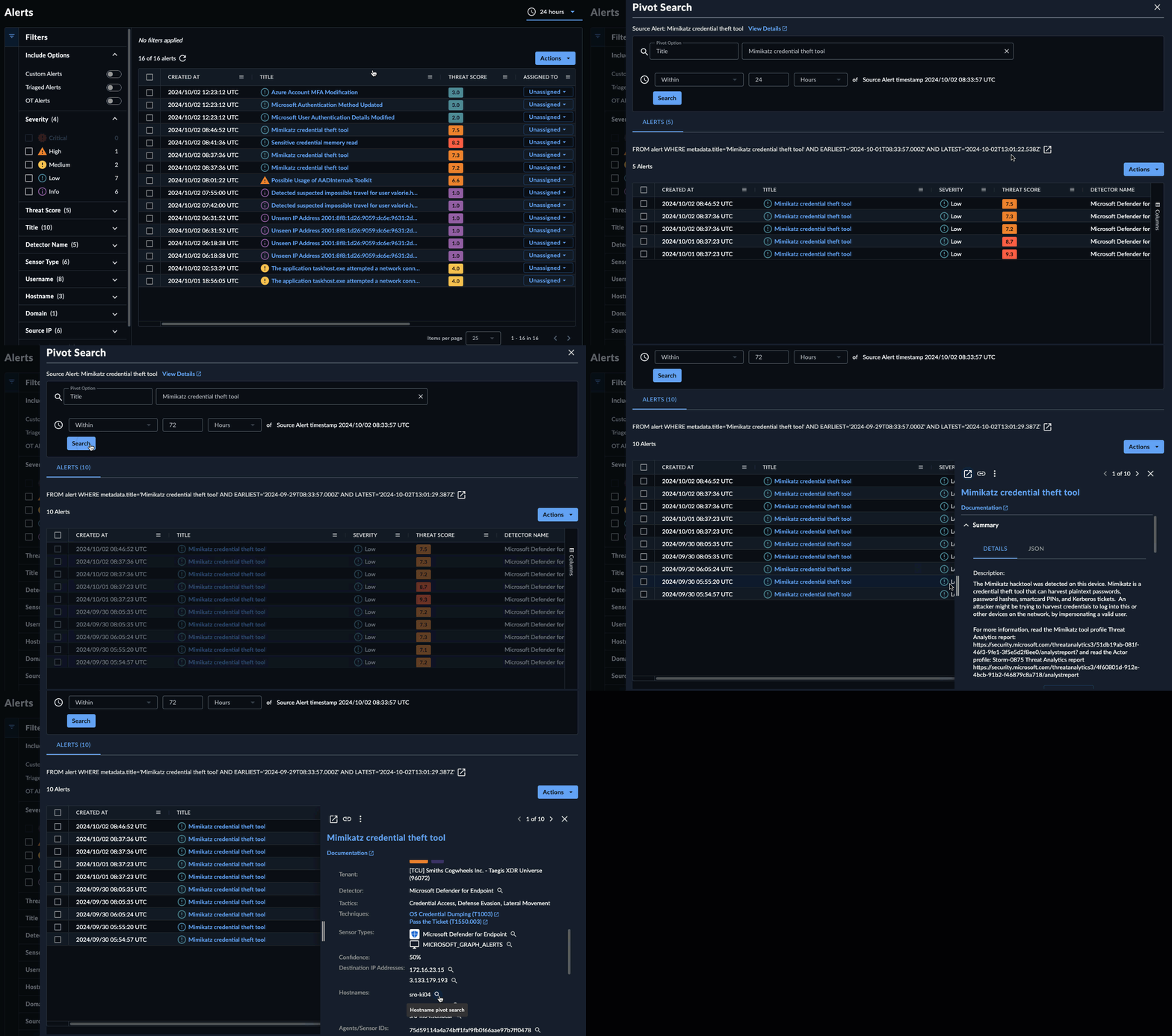
To run a pivot search, hover over various detection details throughout XDR, such as source IPs and usernames, and click the magnifying glass.
The Pivot Search form opens in a drawer with a table of results. Click through the search result tabs, such as Process Events and Auth Events, to view results for each initiated search.
Once on a pivot search, you can further edit the search query by choosing different fields and time frames to search.
Tip
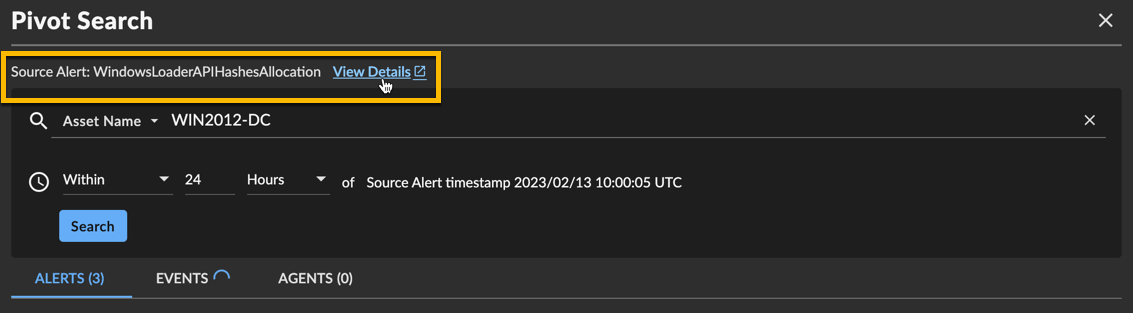
Want to view the source detection that spawned the pivot search? Click View Details next to the source detection at the top of the form.
Run an Advanced Search from a Pivot Search🔗
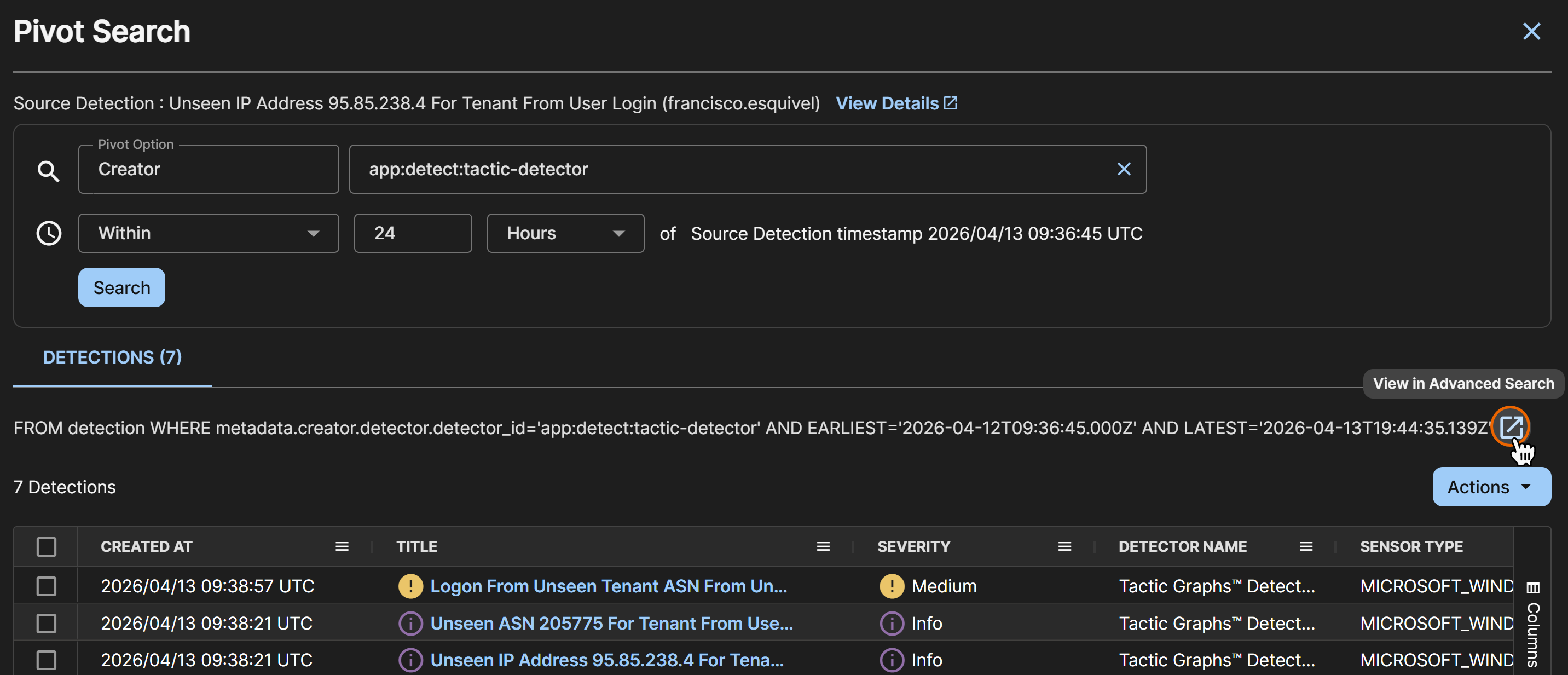
In each tab of results, you can open and edit the underlying query in Query Editor, where you have more options to customize your query.
To do so, click the New Tab icon next to the query above the results table. A pre-populated query opens in Query Editor in a new tab, where you can adjust the parameters and save the search if desired.