Resolve Detections (Change Detection Status)🔗
After you have reviewed detections in Secureworks® Taegis™ XDR, resolve them by setting one of the following statuses:
- True Positive: Benign — Activity was correctly identified, but either it does not compromise the targeted system or data, or it has been mitigated.
- True Positive: Malicious — A confirmed security incident. Activity indicates that your organization's systems or data have been compromised or that measures put in place to protect them have failed.
- False Positive — Activity that is misidentified and non-malicious.
- Not Actionable — The activity may be valid, but remediation actions may not be possible.
- Open — The detection has not been reviewed or assessed.
Tip
Once detections are resolved they no longer appear on the Detection Triage Dashboard or on the Detections page as they are now considered triaged.
Note
Detection ratings help the system learn what types of detections and information within those detections are valuable to your organization. As the system gradually learns, you can expect to see this influence the severity, confidence, and suggested prioritization of similar activity.
There are a few ways to apply one of these labels:
From an Individual Detection🔗
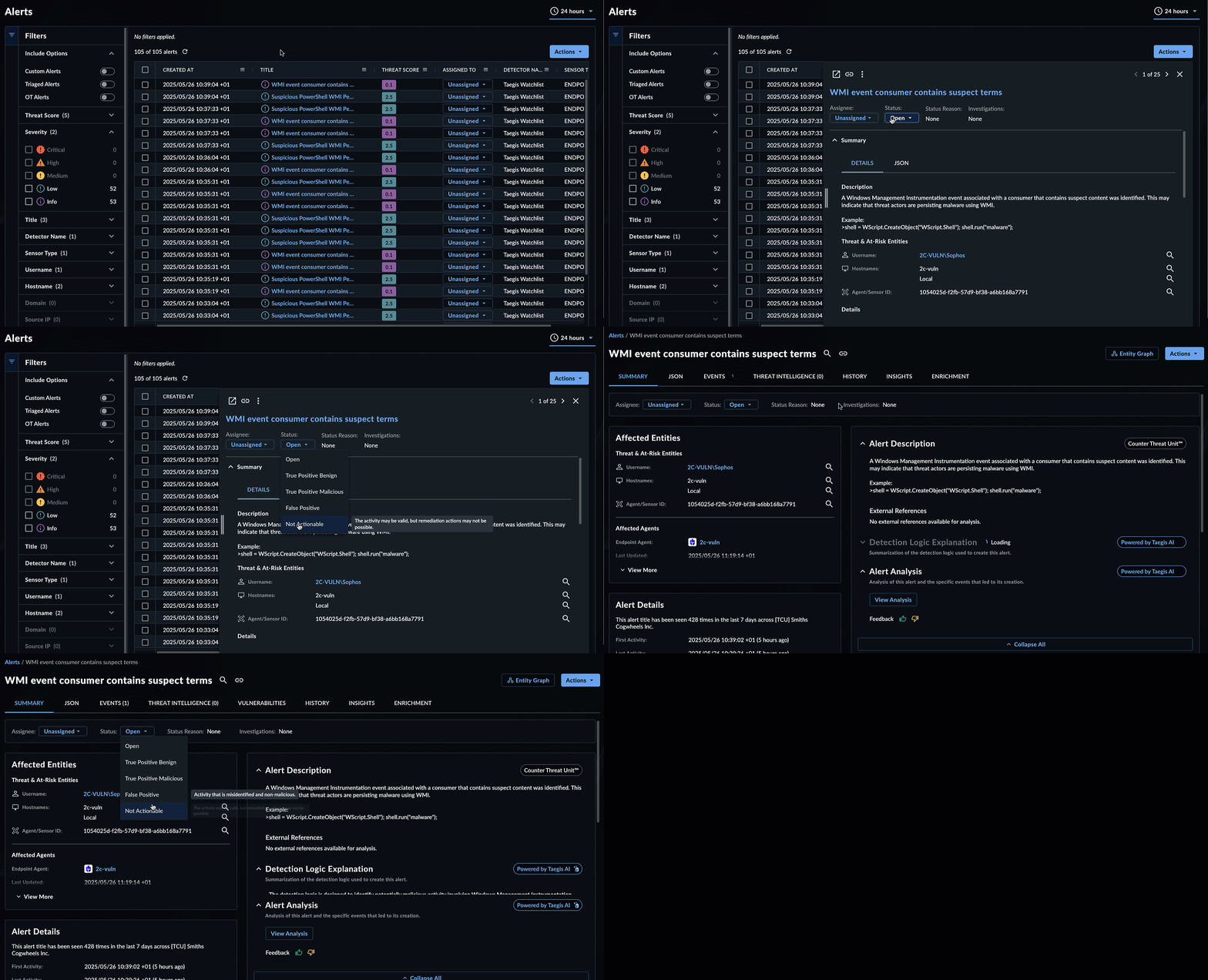
When viewing detections from the side panel preview or the individual detection details page, there is a persistent Detection Details header across all views and tabs containing drop-down options to set the detection Status and Assignee.

Note
The Detection Details header will reflect accordingly when a status reason is given or the detection is included in a case.
To change detection status:
- View a detection side panel preview or the individual detection details page.
- Locate the Status dropdown and select a suitable status.
- (Optional) Provide further details about why this status applies.
- Select Submit.
From a Table of Detections🔗
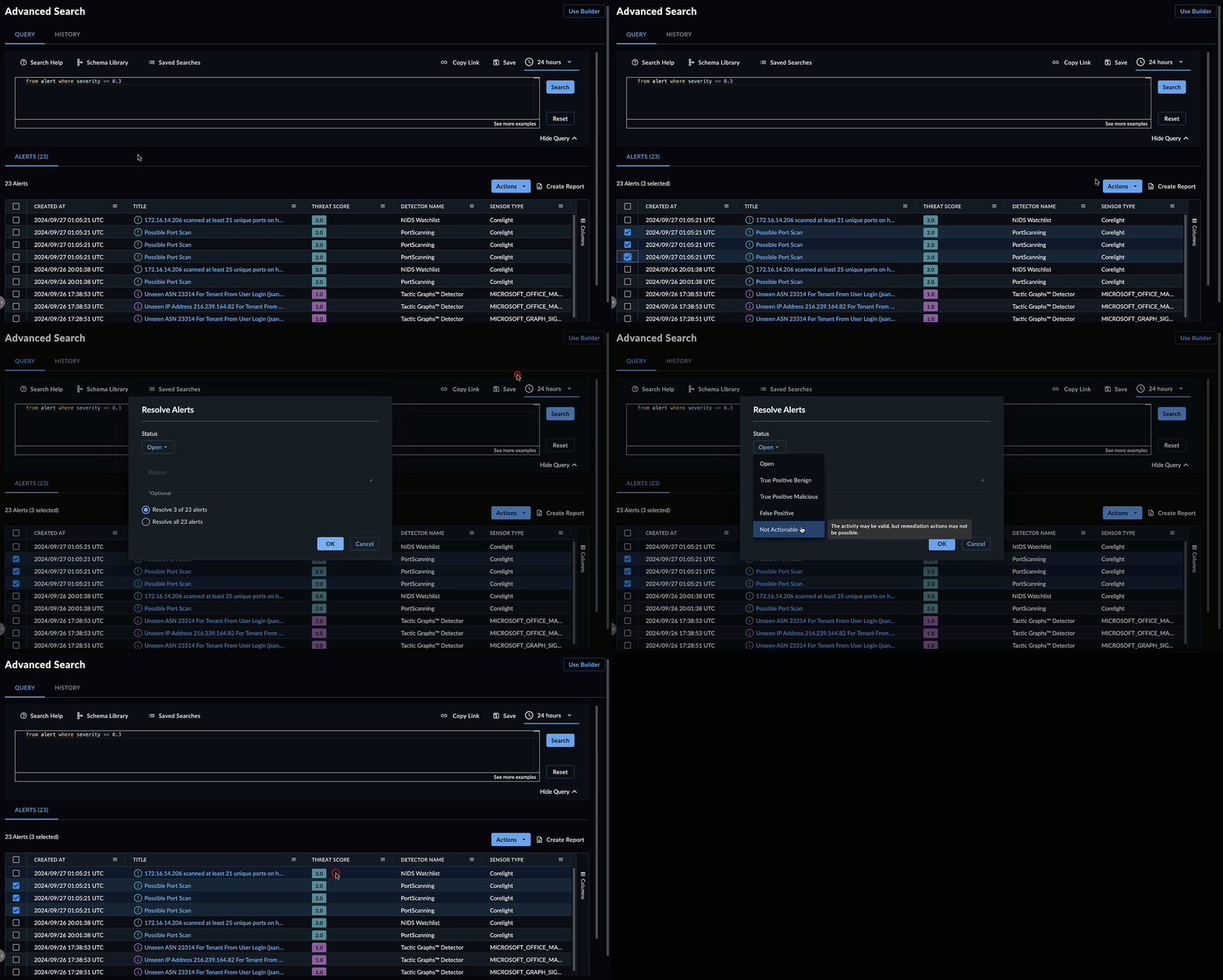
When viewing a table of detections, such as on the Detections page or in search results:
- Select one or more detections using the checkboxes.
- Select Actions > Resolve Detections.
- Choose a status and provide further (optional) details about why this status applies.
- Select OK.
From a Case🔗
When a case is closed, its related detections and genesis detections will be labeled automatically according to the close code. See Close a Case for steps and to see how close codes map to detection labels.
What is the Difference between a False Positive and True Positive?🔗
To understand how benign events are classified, what decisions you may have to make, and what comes next, it helps to think about security events and detections like a building’s fire alarm.
| POSITIVE | NEGATIVE | |
|---|---|---|
| TRUE | The building catches fire, and the alarm sounds. | The building is not on fire, and the alarm does not sound. |
| FALSE | There is no fire, but someone pulls the fire alarm. | The building is on fire, but the alarm does not sound. |
This analogy helps explain how to label detections in XDR:
| Labels | Fire Alarm Analogy | Detection Examples |
|---|---|---|
| False Positive | A prankster pulls the fire alarm even though there is no danger. | - DGA detector classifying a domain malicious when it is not. - Anti-virus classifying file as malicious when it is not. |
| True Positive: Benign | The fire department tests the alarms, or someone smokes in the bathroom. There is no danger, even though the alarm is triggered. | - Administrative commands that are also used by threat actors - Legitimate applications registering persistence - Internal penetration test |
| True Positive: Malicious | A fire starts in the kitchen and the alarm sounds. The fire will be put out. | - Malware Infection - Successful Exploit - Account Compromise |
| Not Actionable | The fire alarm is malfunctioning in the neighbor’s house. | - Malware infection identified on guest wireless network - Activity identified on unowned assets |