IDR Integration Guide🔗
When Taegis™ IDR has been enabled for your tenant, select Identity from the Taegis Menu to begin configuring your integration with Microsoft Entra ID or on-premises Active Directory (AD).
Microsoft Entra ID🔗
The setup process uses the Sophos Master Application in Azure to automatically create the required application and grant the necessary permissions within your Azure tenant.
Prerequisites🔗
- Access to XDR with the Identity module enabled
- XDR Tenant Administrator role
- Entra ID Admin role with permissions to Grant Tenant Wide Admin Consent
- Microsoft Entra ID P1 or above license
Set up the Microsoft Entra ID Integration🔗
- From the Taegis Menu, go to Identity.
-
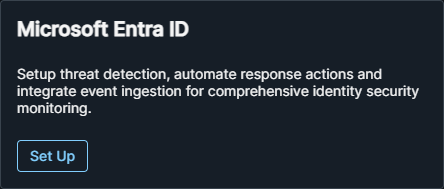
The Identity Settings page shows two integration cards:
- Microsoft Entra ID for cloud-based identity monitoring
- On-Premise Active Directory for on-premises AD environments
-
Click Set Up on the Microsoft Entra ID card.
Click Set Up -
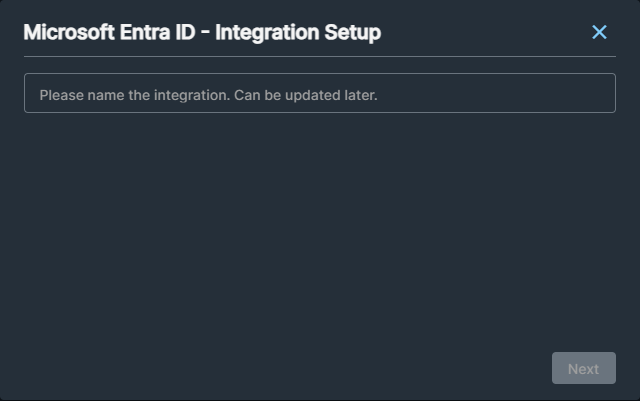
Enter a name for the integration and click Next.
Name the Integration -
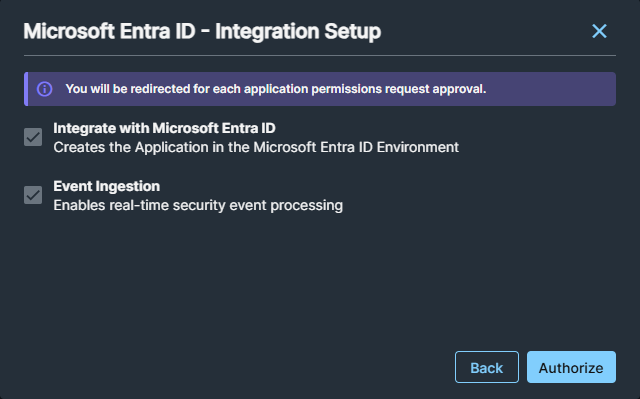
Click Authorize to be redirected to Microsoft's identity provider.
Click Authorize -
When prompted, sign in with a user account that lets you grant organization-wide consent for integration with the Entra ID tenant. Then approve the listed permissions to give IDR access to Entra ID. For more information, see the Microsoft documentation.
-
When setup is complete, click Close.
Retry Integration Authorization🔗
If the Admin Consent process fails with an error that states the applications weren’t found, Microsoft replication delays usually cause the issue. Use the following steps to complete the setup:
-
Wait 15–30 minutes for the service principals to replicate across Microsoft’s infrastructure. You can continue working on other tasks while you wait.
-
Go to Identity > Settings.
-
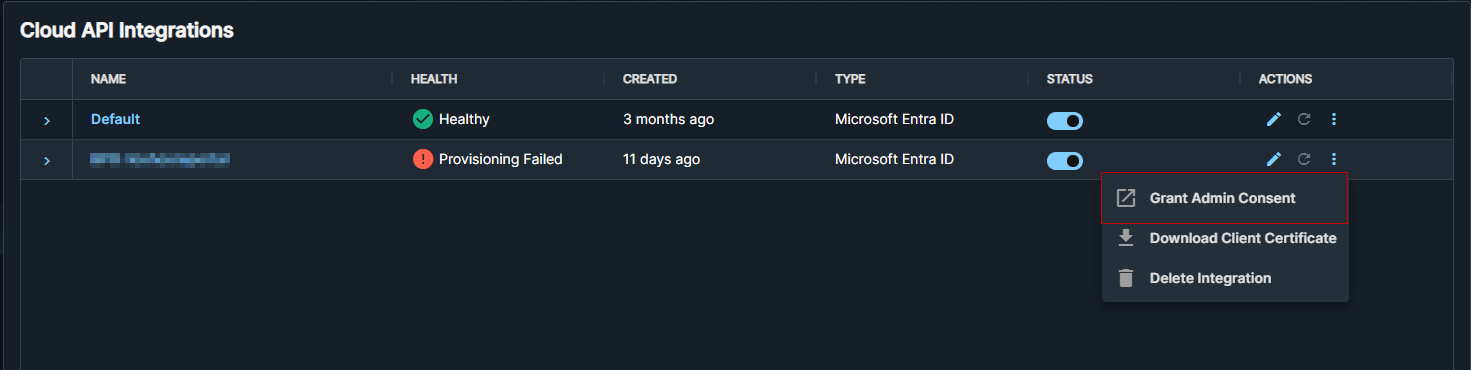
Click the Ellipsis icon in the Actions column and select Grant Admin Consent, which redirects you to Microsoft’s identity provider to complete authorization.
Click Grant Admin Consent -
When prompted, sign in with an account that can grant organization-wide consent for the Entra ID tenant. Approve the listed permissions to grant IDR access to Entra ID. For more information, see the Microsoft documentation.
-
After you grant consent, click the Refresh icon to re-provision the integrations.

Reprovision Integration
Tip
Provisioning retries automatically for up to 60 minutes. Click Refresh only if more than 60 minutes have passed since you started the integration.
On-Premises Active Directory🔗
The on-premises Active Directory integration allows you to deploy the Sophos ITDR sensor to extend identity security monitoring to your on-premises AD environment. The ITDR sensor currently supports English language only.
Note
The on-premises AD integration can be deployed independently without a Microsoft Entra ID integration. When used without Entra ID, visibility and posture assessments are limited to your on-premises AD environment only.
Prerequisites🔗
- Access to XDR with the Identity module enabled.
- XDR Tenant Administrator role.
- An Active Directory server running a supported Windows Server version (2016–2025) with Microsoft .NET Framework 4.8 installed.
- Knowledge of your AD domain names, such as
CORP.LOCALorCHILD.CORP.LOCAL. - A read-only service account in AD.
- Outbound firewall access enabled to these domains if your firewall blocks by default.
Set up the On-Premises Active Directory Integration🔗
To set up the on-premises AD integration:
- From the Taegis Menu, go to Identity.
-
The Identity Settings page shows two integration cards:
- Microsoft Entra ID for cloud-based identity monitoring
- On-Premise Active Directory for on-premises AD environments
-
Click Set Up on the On-Premise Active Directory card.
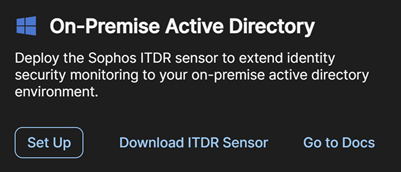
On-Premise Active Directory Setup Card Tip
The card also provides links to download the ITDR Sensor and to open the documentation if needed before setup.
-
In On-Premise Active Directory, fill in the following fields and then click Next.
Field Description Example Name the directory service A friendly display name for this integration Production ADActive Directory domains to monitor Comma-separated list of AD domain names to monitor CORP.LOCAL, CHILD.CORP.LOCAL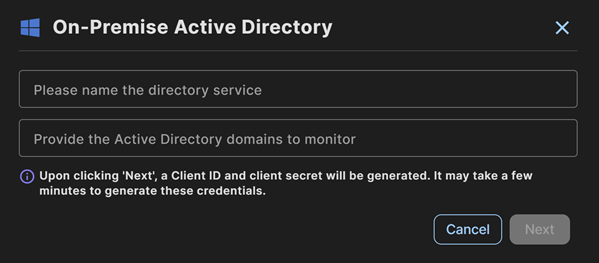
On-Premise Active Directory Setup Dialog Important
When you click Next, a Client ID and Client Secret are automatically generated. This process may take a few minutes.
-
After credentials are generated, the API Credential Summary shows the following:
- Name: The display name you entered.
- Domains: The AD domains you specified.
- Client ID: Auto-generated identifier for the ITDR sensor.
- Client Secret: Auto-generated secret for the ITDR sensor.
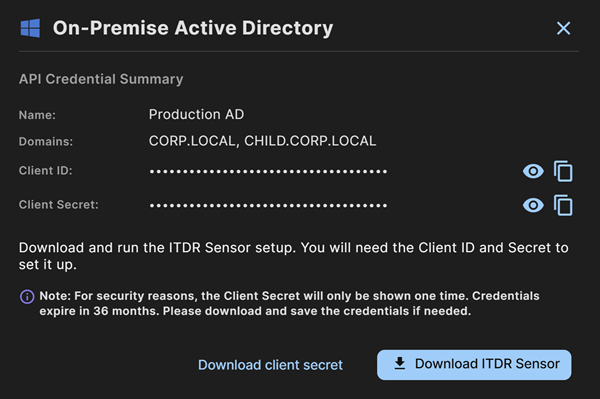
API Credential Summary Important
The Client Secret is only shown once. You must copy or download the secret before closing this dialog. It cannot be retrieved again. Credentials expire in 36 months.
-
Click Download client secret to save the credentials as a file, or click the Copy icon next to each field to copy the Client ID and Client Secret to your clipboard.
Download and Install the ITDR Sensor🔗
To download and install the sensor:
- Click Download ITDR Sensor to download the sensor installer.
- Transfer the installer to the Windows Server that will host the sensor on your on-premises network.
-
Run the installer on that server and work through the setup wizard:
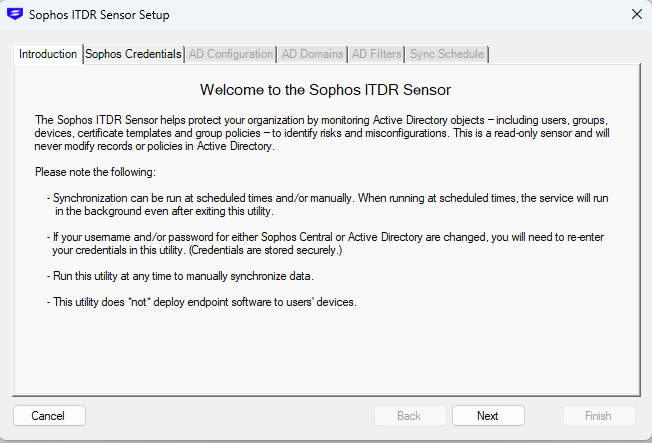
ITDR Sensor Setup Wizard -
When prompted, enter the Client ID and Client Secret generated in the preceding section, then click Next.
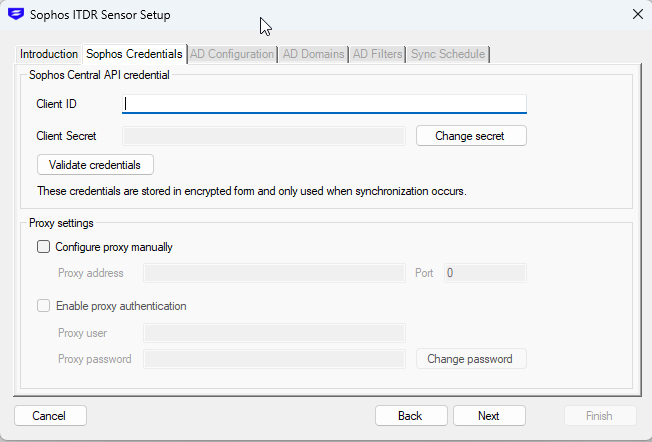
Sophos Credentials Entry -
Configure LDAP settings, then click Next. We recommend selecting LDAP over SSL for secure communication.
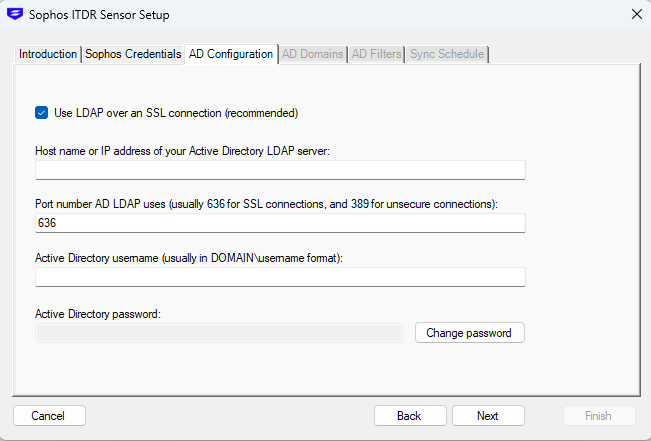
LDAP Configuration -
Enter the Service Account username and password, then click Next.
-
Select the Domains you want to include in monitoring, then click Next.
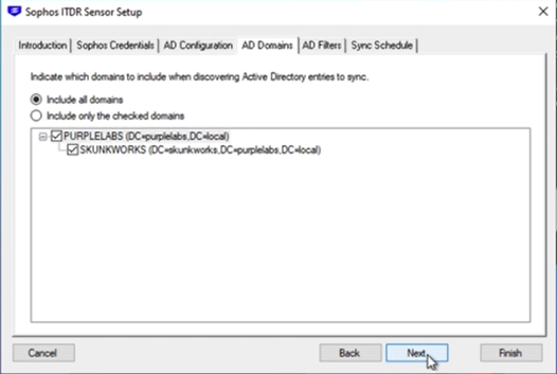
Domain Selection -
On the AD Filters tab, leave the default settings selected to ensure all required object types are collected, then click Next.
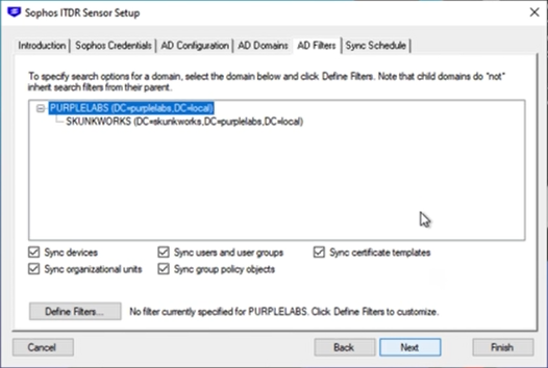
AD Filters -
On the Sync Schedule tab, leave the default interval set to 1 hour to ensure timely updates, then click Finish.
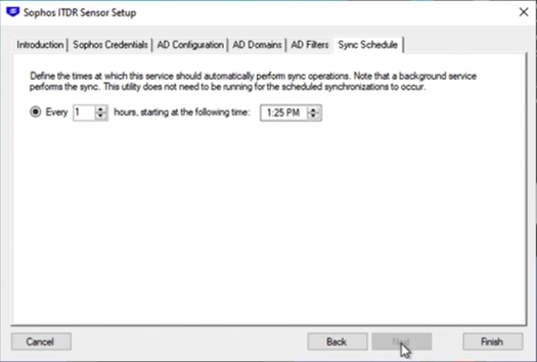
Sync Schedule -
After the wizard completes, a communication status window appears. Click Sync Now to run the initial full sync of your AD environment.
Note
The first sync may take several minutes depending on the size of your AD environment. Subsequent syncs send only incremental changes.
Verify the Integration🔗
When the ITDR sensor is installed and running, do as follows to verify the integration:
- Return to Identity Settings in XDR.
-
Your new integration shows in the Configured Integrations table with the following details:
- Type: On-Prem Active Directory
- Health: Healthy
- Status: Enabled (toggle on)
-
If the Health status shows as Unhealthy, verify the following:
- The ITDR sensor service is running on the host server.
- The Client ID and Client Secret were entered correctly.
- The server has outbound network connectivity to Sophos cloud services.
Sophos ITDR Active Directory Domains🔗
If you're using the ITDR sensor and your firewall blocks outbound access by default, you need to allow the following pre-signed S3 domains to enable outbound communication.
Ports
443(HTTPS)53(DNS)
Domains
tf-presigned-url-eu-west-1-prod-*-bucket.s3.eu-west-1.amazonaws.comtf-presigned-url-eu-central-1-prod-*-bucket.s3.eu-central-1.amazonaws.comtf-presigned-url-us-east-2-prod-*-bucket.s3.us-east-2.amazonaws.comtf-presigned-url-us-west-2-prod-*-bucket.s3.us-west-2.amazonaws.comtf-presigned-url-ca-central-1-prod-*-bucket.s3.ca-central-1.amazonaws.comtf-presigned-url-ap-southeast-2-prod-*-bucket.s3.ap-southeast-2.amazonaws.comtf-presigned-url-ap-northeast-1-prod-*-bucket.s3.ap-northeast-1.amazonaws.comtf-presigned-url-ap-south-1-prod-*-bucket.s3.ap-south-1.amazonaws.comtf-presigned-url-sa-east-1-prod-*-bucket.s3.sa-east-1.amazonaws.comtf-presigned-url-me-central-1-prod-*-bucket.s3.me-central-1.amazonaws.com
Allow the following wildcards:
*.s3.eu-west-1.amazonaws.com*.s3.eu-central-1.amazonaws.com*.s3.us-east-2.amazonaws.com*.s3.us-west-2.amazonaws.com*.s3.ca-central-1.amazonaws.com*.s3.ap-southeast-2.amazonaws.com*.s3.ap-northeast-1.amazonaws.com*.s3.ap-south-1.amazonaws.com*.s3.sa-east-1.amazonaws.com*.s3.me-central-1.amazonaws.com
Set Up Automations🔗
If you want to use response actions with IDR, you can configure the necessary actions, playbooks, and connectors, including on-premises LDAP automations and automated response actions for Identity findings.
For more information, including important hybrid Microsoft Entra ID behavior to be aware of, see Identity Response Actions.