Search History🔗
Click Search History to view a table of searches previously executed by you or other users in your tenant from up to 30 days ago. Searches are automatically added to the search history table upon execution. Click the Filter icon to filter the table using various criteria.
Note
A grayed-out entry in the table indicates the search is in progress. Click the Refresh icon to refresh the contents and view the results of a pending search once it has completed.
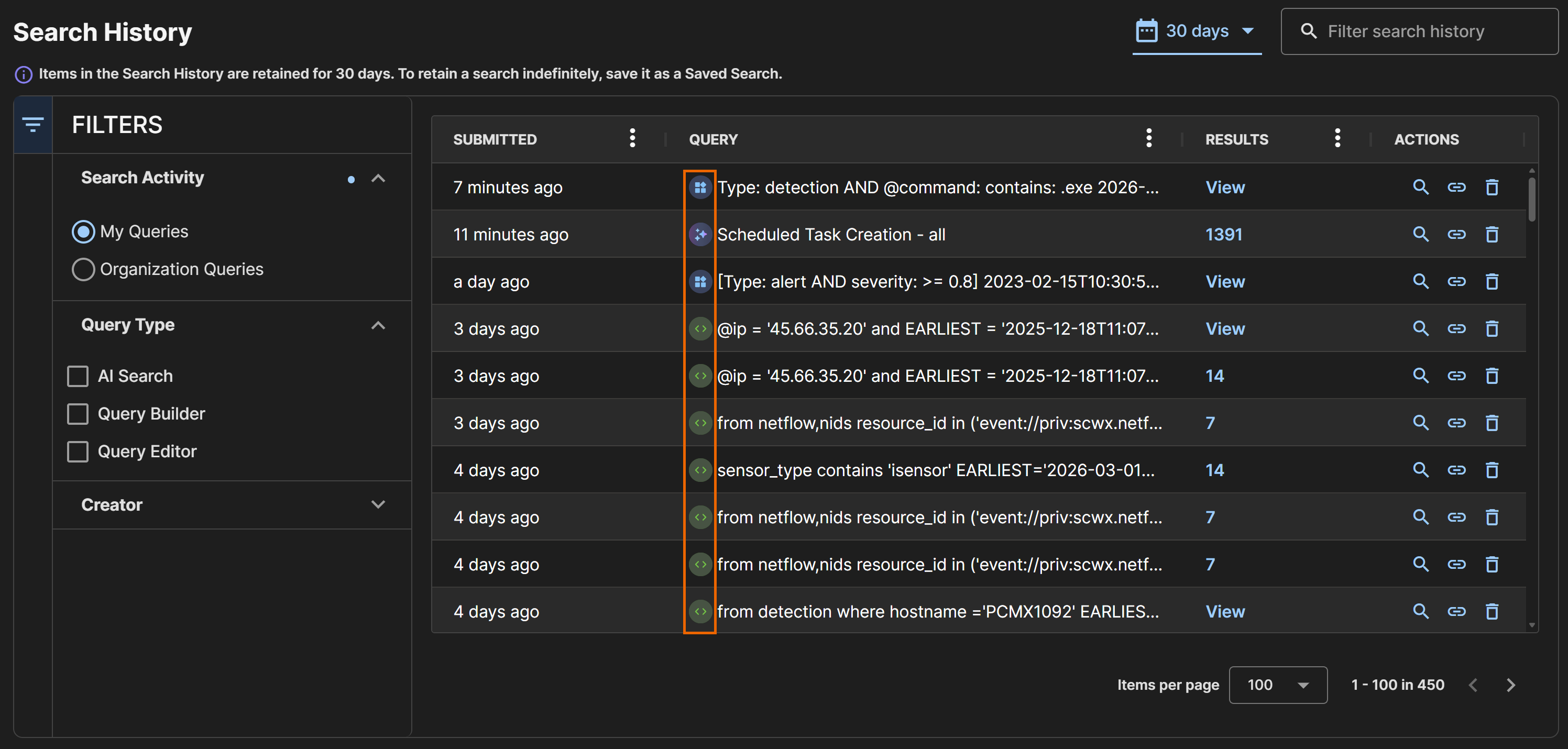
Identify the method for each search by its icon in the Query column. The following table shows each icon and the search method it represents.
| Icon | Method |
|---|---|
 |
AI Search |
 |
Query Builder |
 |
Query Editor |
Search History Actions🔗
The Actions column provides controls for each query, letting you manage and interact with it in different ways.
| Icon | Meaning |
|---|---|
| Magnifying Glass icon | Load the query to edit or run. |
| Share Link icon | Copy share link to share the query. |
| Trash icon | Delete the query from Search History. |
Retrieve Query Results🔗
The Results column contains the number of results for events searches, as these results remain static. For detections searches, the Results column contains a View link, as these results may change after a search is executed if any of the detections have been resolved. For more details, see Resolve Detections.
Filter and Rearrange Columns🔗
Click the Three Dots in a column header to do the following:
- Pin Pin the column to the left or right.
- Autosize: Autosize the selected column, or autosize all columns.
- Reset: Restore the default column size and order.
- Show/hide : Choose which columns to display.
Rearrange columns by dragging their headers.