Sophos Endpoint Agent Policies🔗
The Sophos Endpoint Agent automatically applies base or default policies to ensure recommended protection on all devices. You can add custom policies if needed, such as using different settings for specific users or device groups. Use Sophos Fusion to manage and create Sophos Endpoint Agent policies.
Note
Some policies related to the protective functionality of Sophos Endpoint Agent are not applicable to Sophos Agent Detection Only.
Separate policies exist for endpoint computers and servers. For more information, use the relevant tab and select the links to access Sophos documentation:
You can align policies to computers with the following features.
- Threat Protection
- Peripheral Control
- Application Control
- Data Loss Prevention
- Web Control
- Update Management
- Windows Firewall
-
Data Collection and Investigation
Note
A base policy applies to each feature until you add and apply a new policy.
You can align policies to servers with the following features.
- Server Threat Protection
- Server Peripheral Control
- Server Application Control
- Server Web Control
- Server Lockdown
- Server Data Loss Prevention
- Server Update Management
- Server Windows Firewall
- Server Data Collection and Investigation
- Server File Integrity Monitoring
-
Server Linux Runtime Detection
Note
A base policy applies to each feature until you add and apply a new policy.
Note
Some policy features contain Secureworks® Taegis™ XDR-specific configuration options. For more information, see the Data Collection and Investigation section.
Accessing Sophos Endpoint Agent Policies🔗
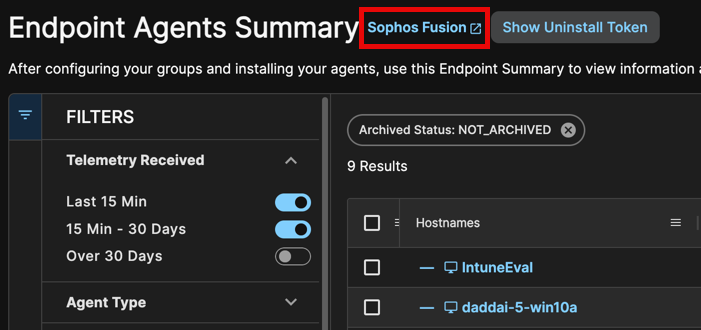
Access Sophos Fusion from various links throughout your XDR tenant. The easiest way is to use the Taegis Menu to navigate to Endpoint Agents > Summary, then select the Sophos Fusion link next to the page title. Note that the active tenant in Taegis must be a customer tenant in Sophos Fusion for this route to work.
Note
When you access Sophos Fusion via SSO from your Secureworks® Taegis™ XDR tenant, your user account role maps to specific permissions in Sophos Fusion. For details, see the user role mappings documentation.
Apply policies to Computers, People, and Servers. The process varies slightly for each type. Select a tab below to view the steps for each.
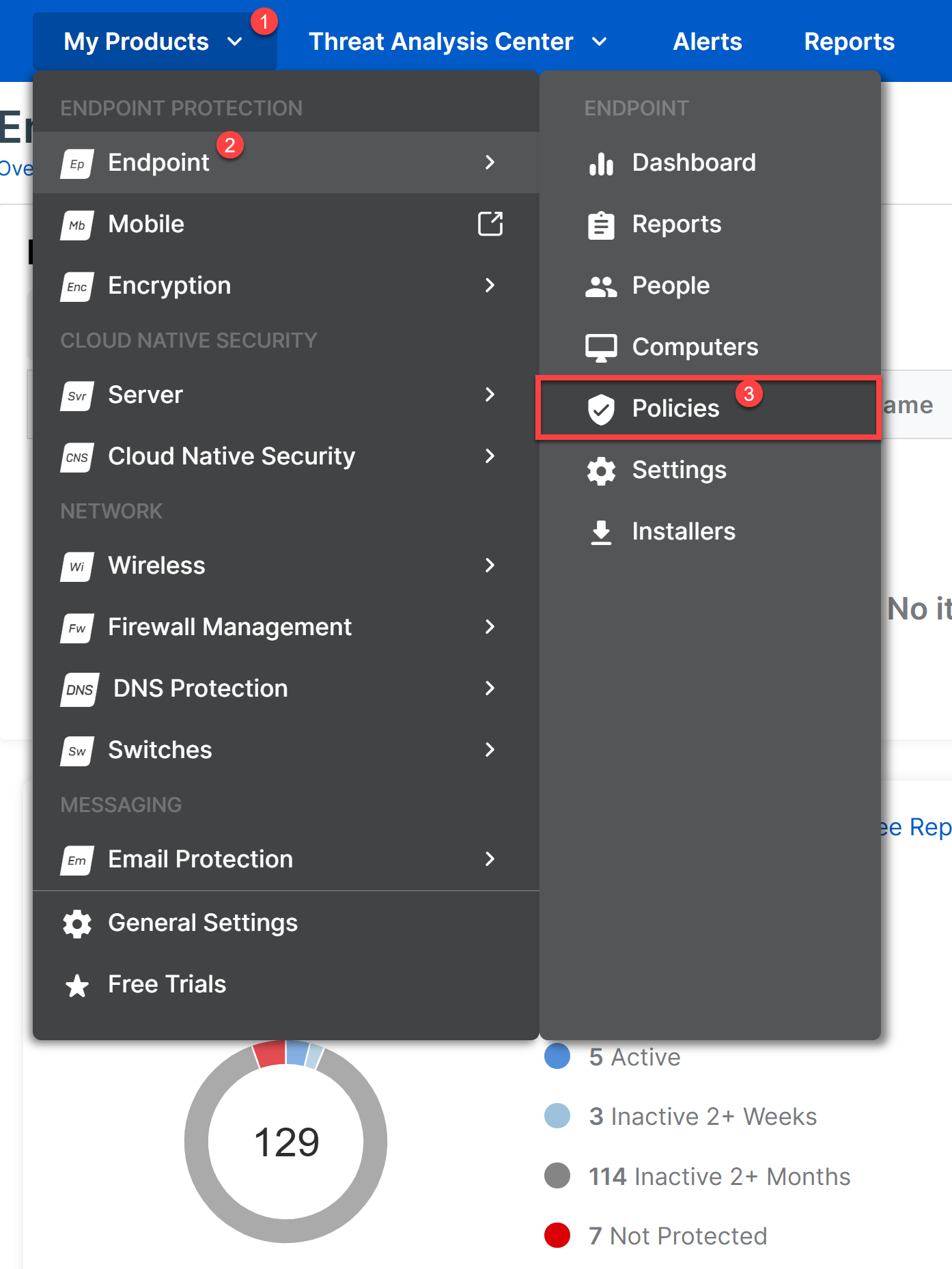
To apply policies to Computers, navigate to My Products → Endpoint → Policies.
About the Sophos Endpoint Agent Policies List🔗
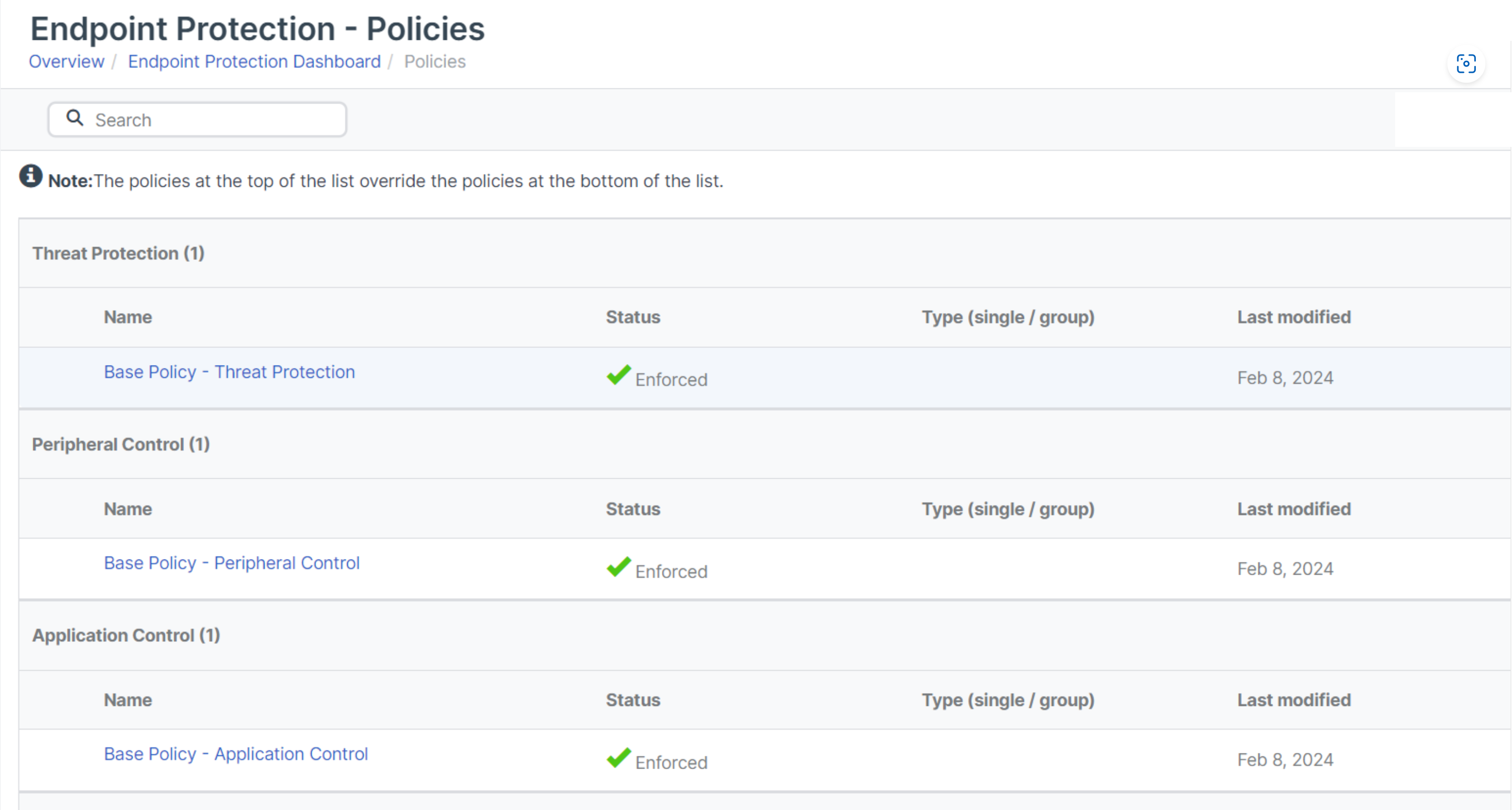
The current policies for each feature are listed. The policies at the top of the list override those at the bottom of the list for each feature.
Tip
Reorder policies by dragging them up or down in the list.
To see full details for a policy such as assigned groups, settings, and status, select the policy name.
Tip
Use the Search box to start typing a name to filter the displayed policies.
Adding a Policy🔗
To add a new policy:
-
Select Add Policy in the upper right of the page.
Sophos Endpoint Add Policy -
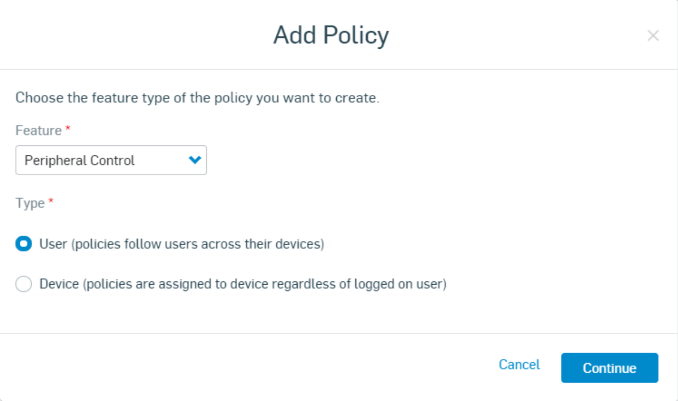
Select the feature type of the policy, and apply a type of Device.
Note
Update Management policies are applicable to devices only.
Sophos Endpoint Add Policy Tip
When choosing Device, the policy settings apply to the device or groups of devices, regardless of the logged-on user.
-
Press Continue.
-
Select the devices or groups of devices you want to apply the policy to, and move them to the Assigned Computers or Assigned Computer Groups list.
Add Computers to Policy -
Select the Settings tab to configure the policy.
-
Edit the settings as required.
Tip
For more information on configuring policies aligned to specific features, select the relevant link in the Sophos Endpoint Agent Policies section to access Sophos documentation.
-
Press Save to apply the policy.
On the Policies page, you can now see a new policy and the number of devices it applies to.
Validate New Policy Policies are applied in each section in the order shown on the Policies page.
-
Check the order of your policies. Drag your most specific policies, such as those for specific devices to the top so they're applied first.
To apply policies to People, navigate to My Products → Endpoint → Policies.
About the Sophos Endpoint Agent Policies List🔗
The current policies for each feature are listed. The policies at the top of the list override those at the bottom of the list for each feature.
Tip
Reorder policies by dragging them up or down in the list.
To see full details for a policy such as assigned users, groups, settings, and status select the policy name.
Tip
Use the Search box to start typing a name to filter the displayed policies.
Adding a Policy🔗
To add a new policy:
-
Select Add Policy in the upper right of the page.
Sophos Endpoint Add Policy -
Select the feature type of the policy, and apply a type of User.
Note
Update Management policies are applicable to devices only.
Sophos Endpoint Add Policy Tip
When choosing User, the policy settings follow any users or groups of users the policy is assigned to.
-
Press Continue.
-
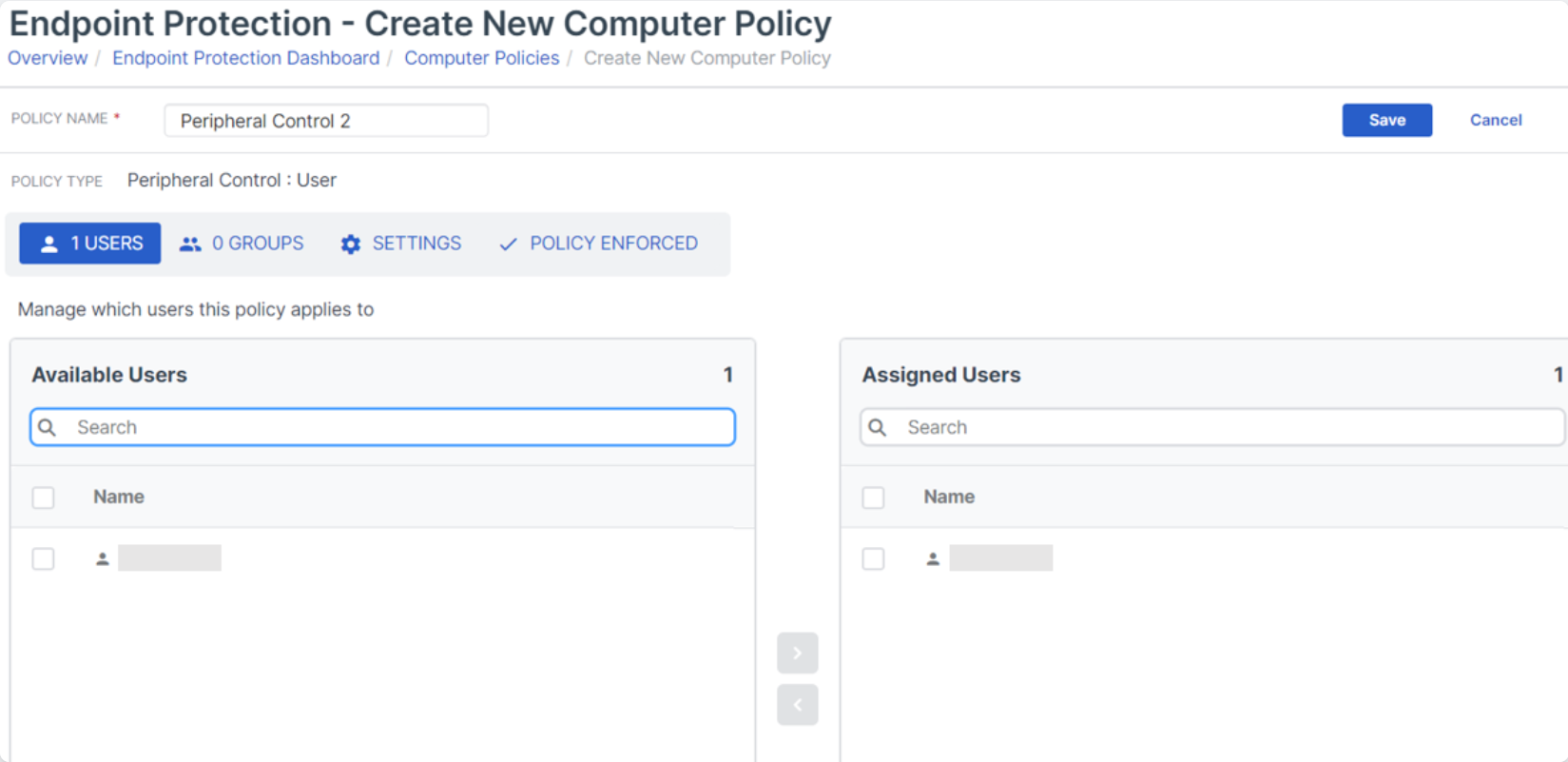
Select the users or groups of users you want to apply the policy to, and move them to the Assigned Users or Assigned User Groups list.
Add Users to Policy -
Select the Settings tab to configure the policy.
-
Edit the settings as required.
Tip
For more information on configuring policies aligned to specific features, select the relevant link in the Sophos Endpoint Agent Policies section to access Sophos documentation.
-
Press Save to apply the policy.
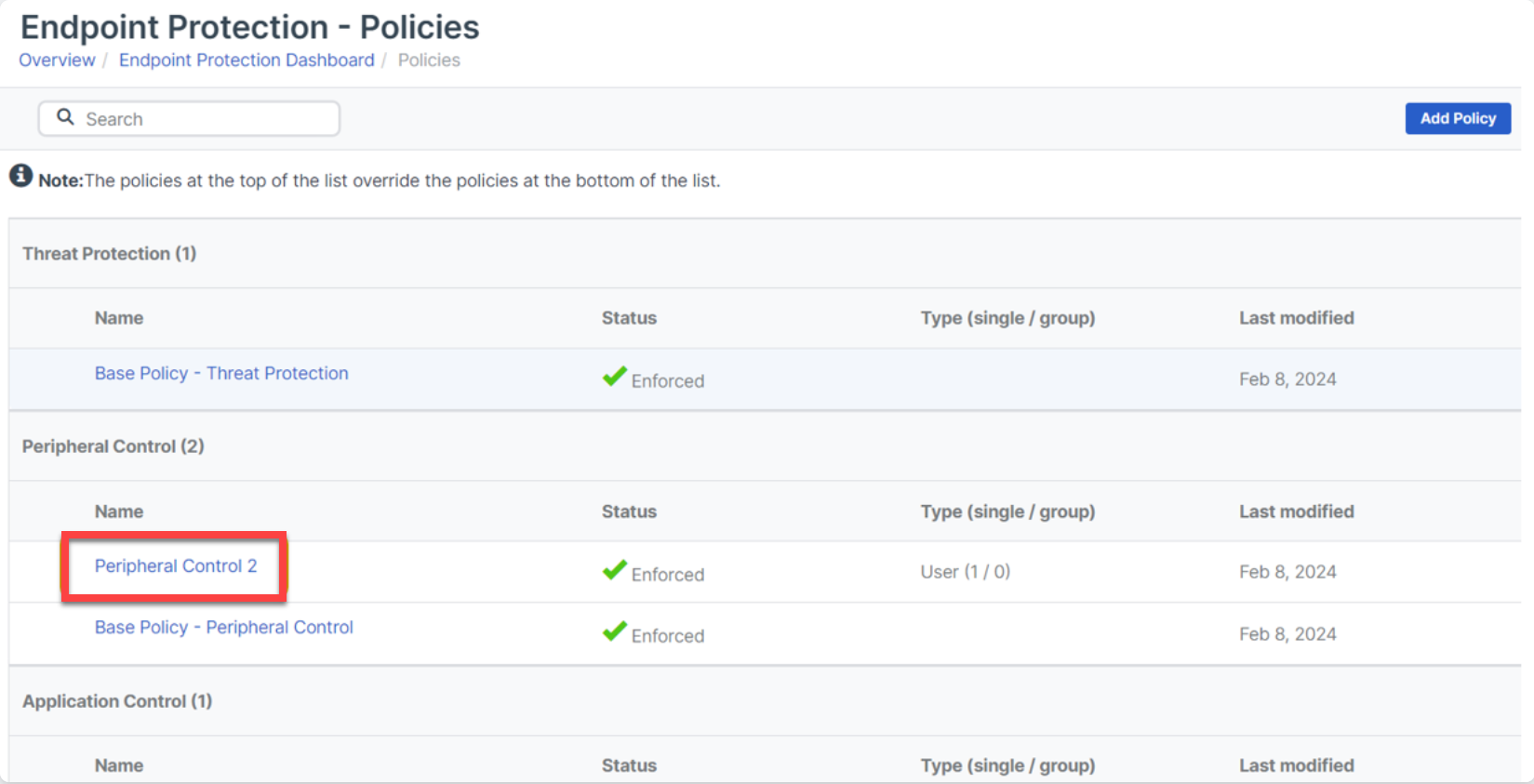
On the Policies page, you can now see a new policy and the number of users it applies to.
Validate New Policy Policies are applied in each section in the order shown on the Policies page.
-
Check the order of your policies. Drag your most specific policies, such as those for specific users, to the top so they're applied first.
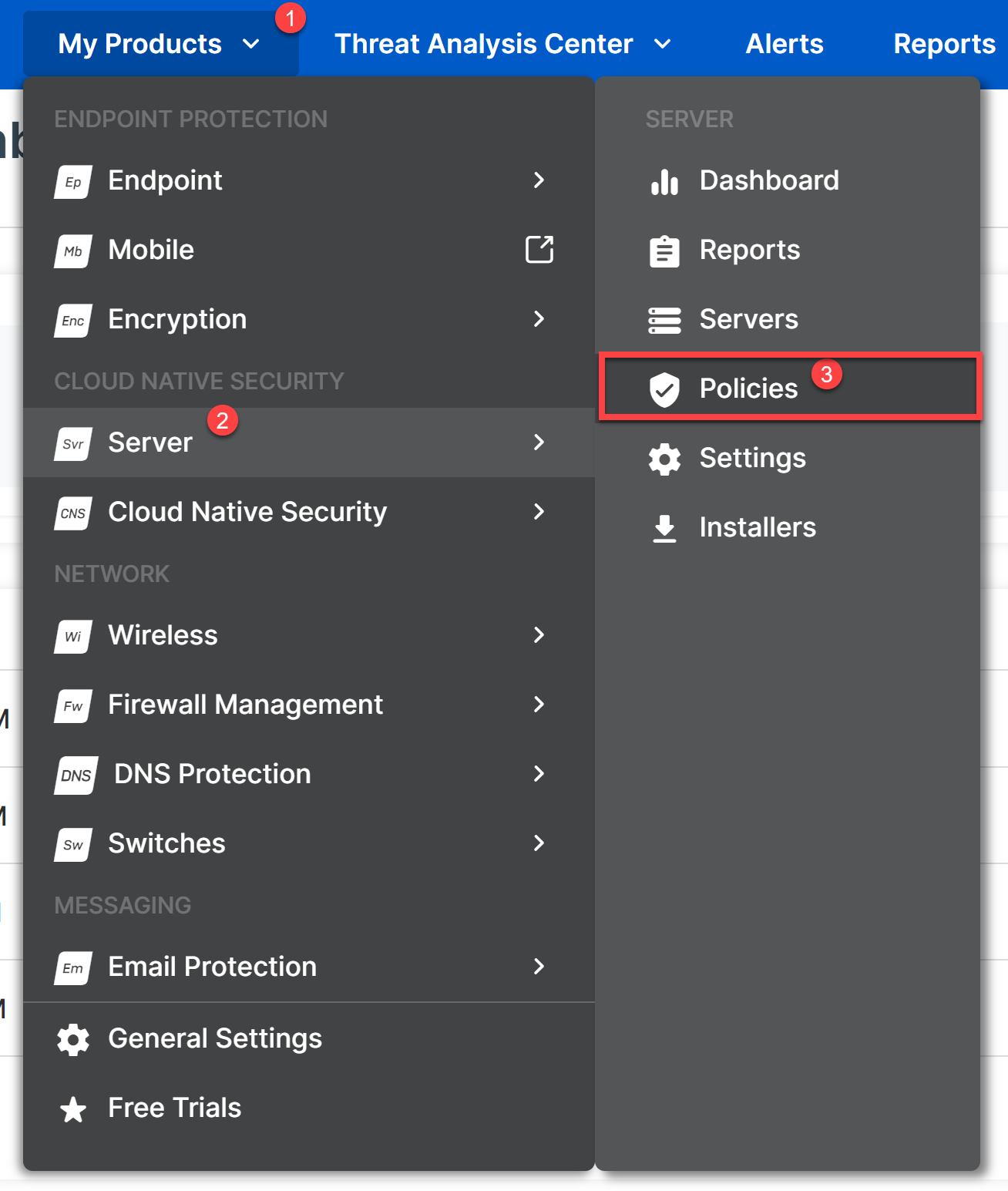
To apply policies to Servers, navigate to My Products → Server → Policies.
About the Sophos Endpoint Agent Policies List🔗
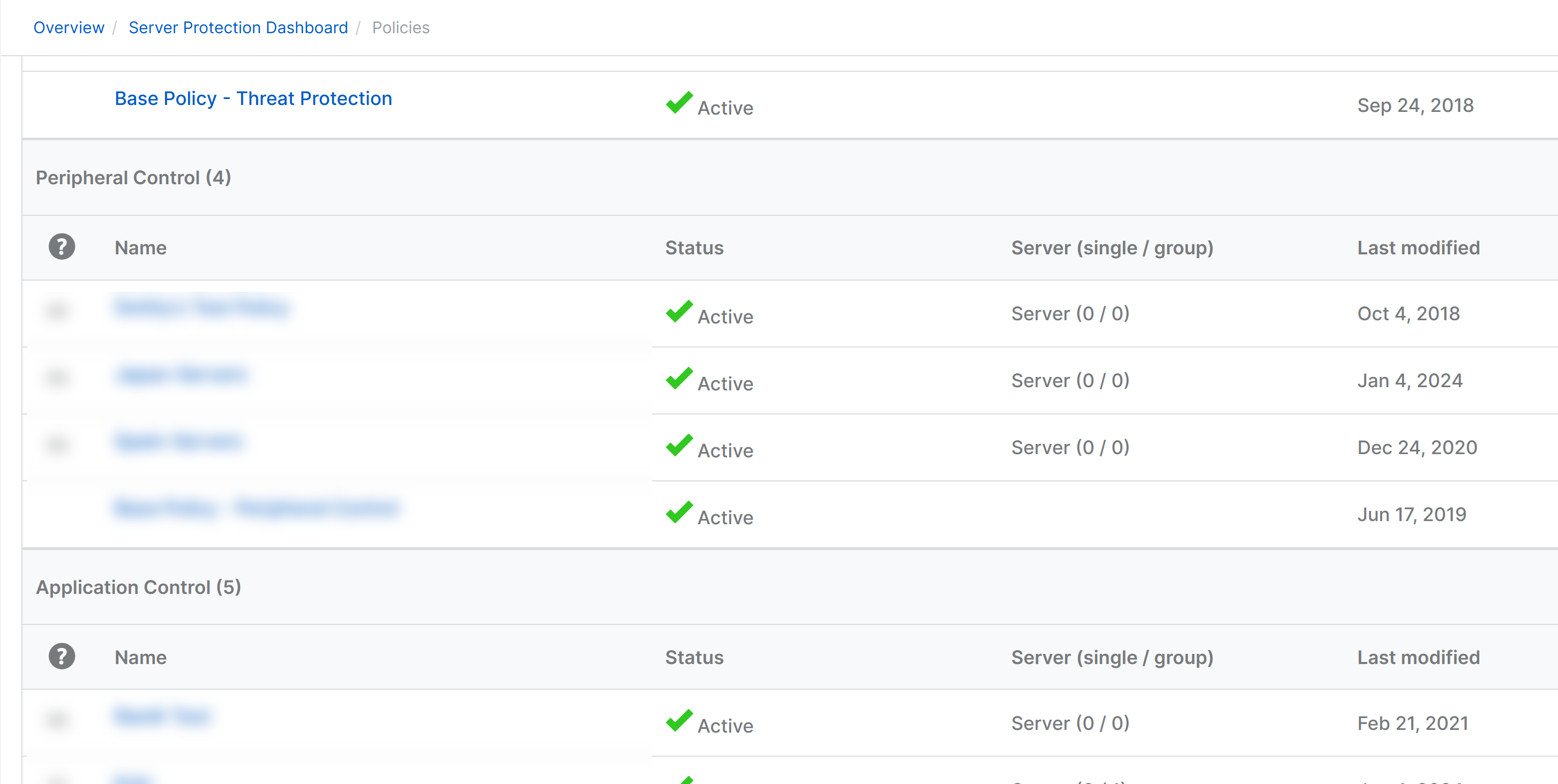
The current policies for each feature are listed. The policies at the top of the list override those at the bottom of the list for each feature.
Tip
Reorder policies by dragging them up or down in the list.
To see full details for a policy such as assigned groups, settings, and status select the policy name.
Tip
Use the Search box to start typing a name to filter the displayed policies.
Adding a Policy🔗
To add a new policy:
-
Select Add Policy in the upper right of the page.
Sophos Endpoint Add Policy -
Select the feature type of the policy, and apply a type of Device.
Note
Update Management policies are applicable to devices only.
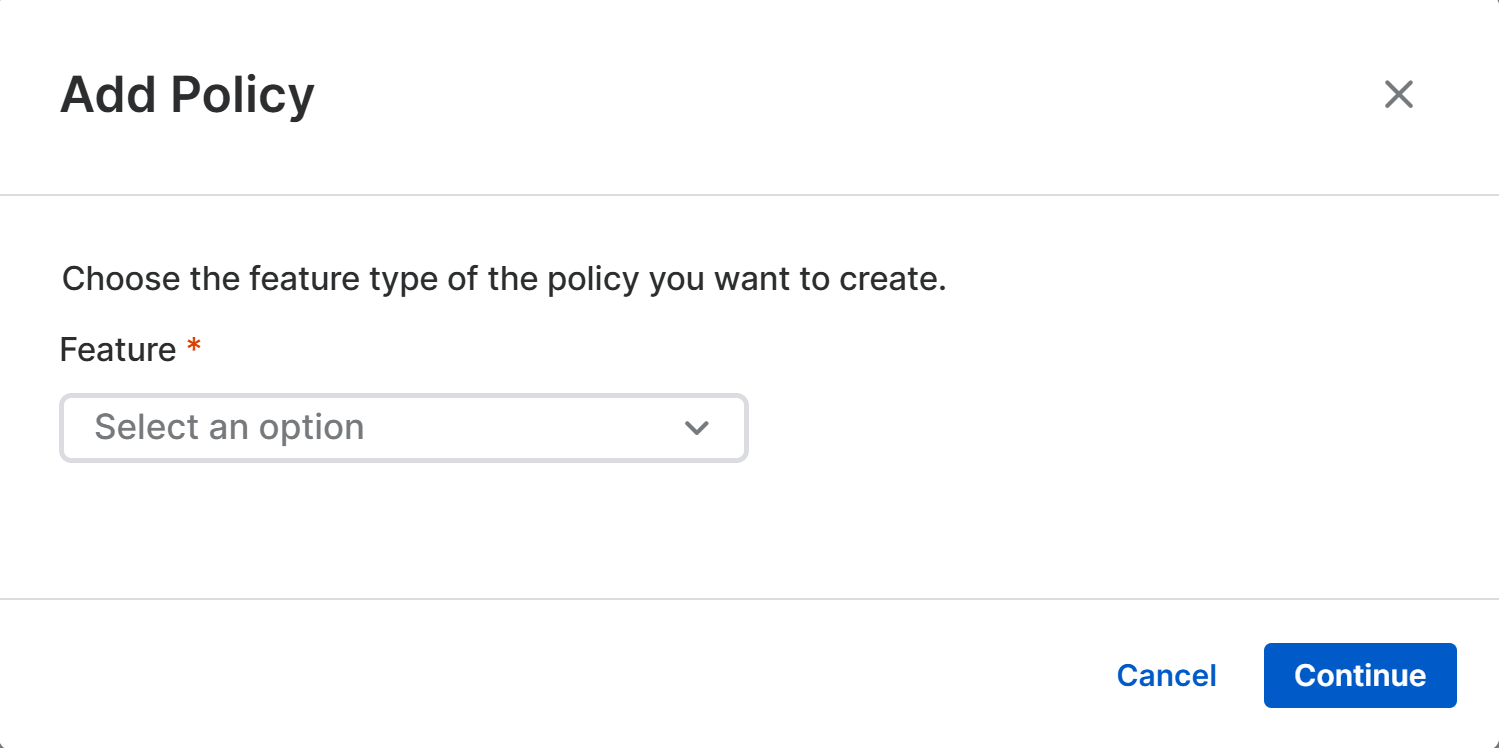
Sophos Endpoint Add Policy Tip
When choosing Device, the policy settings apply to the device or groups of devices, regardless of the logged-on user.
-
Press Continue.
-
Select the devices or groups of devices you want to apply the policy to, and move them to the Assigned Servers or Assigned Server Groups list.
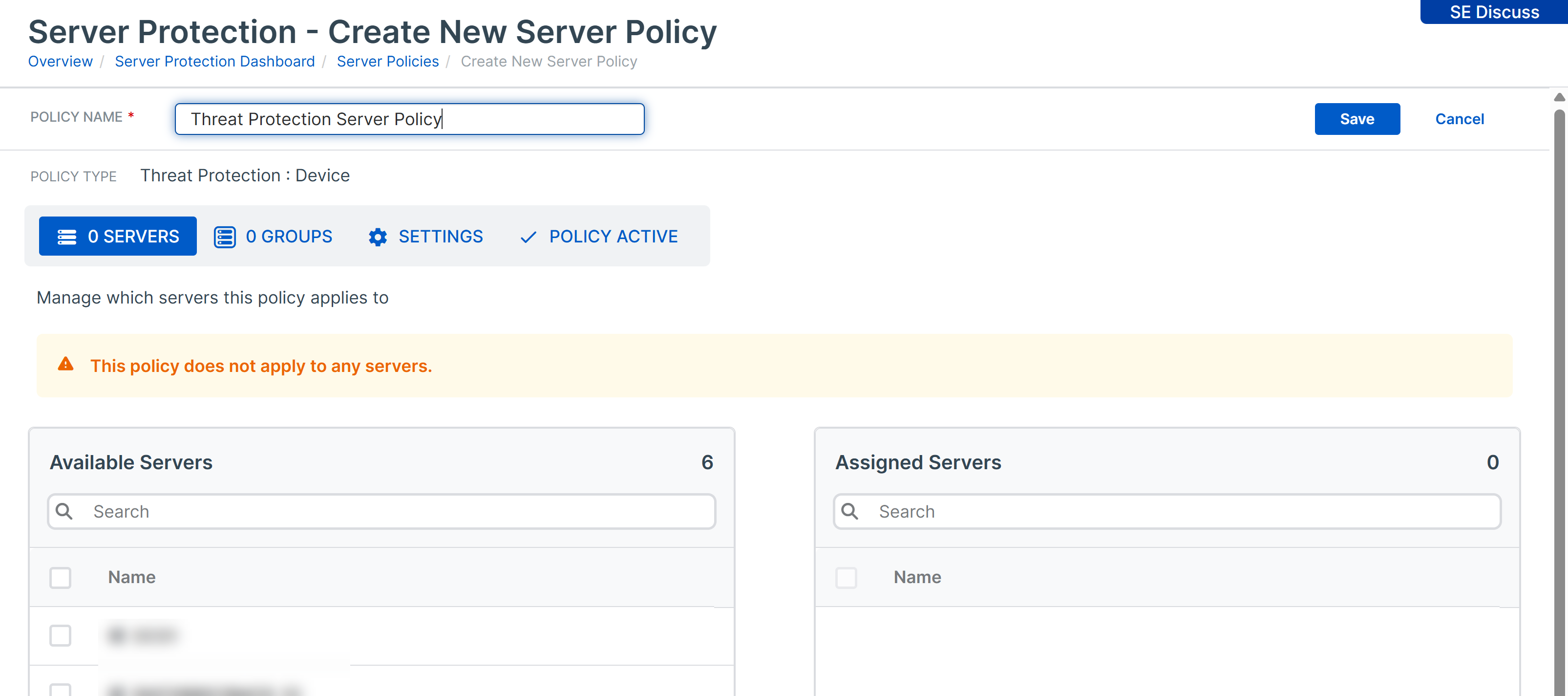
Add Servers to Policy -
Select the Settings tab to configure the policy.
-
Edit the settings as required.
Tip
For more information on configuring policies aligned to specific features, select the relevant link in the Sophos Endpoint Agent Policies section to access Sophos documentation.
-
Press Save to apply the policy.
On the Policies page, you can now see a new policy and the number of devices it applies to.
Validate New Policy Policies are applied in each section in the order shown on the Policies page.
-
Check the order of your policies. Drag your most specific policies, such as those for specific servers to the top so they're applied first.
Deleting a Policy🔗
To delete a policy:
- Select the policy.
-
Press Delete in the upper right of the page.
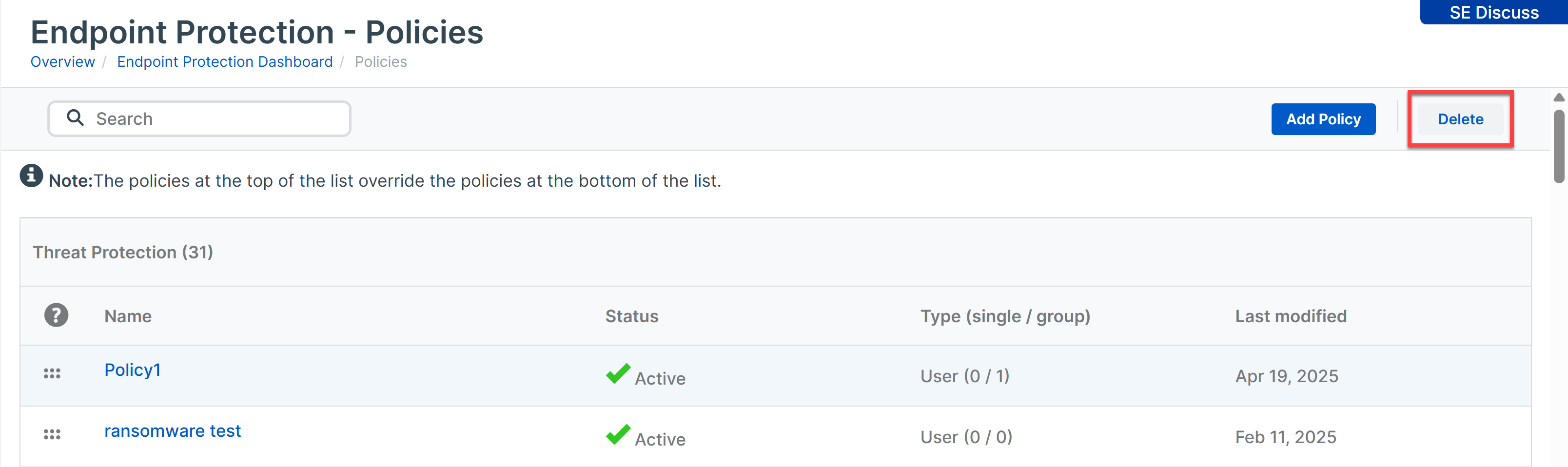
Delete Policy -
Press Delete again at the confirmation.
When a policy is deleted, assigned users or devices revert to the base policy.
Data Collection and Investigation Policy🔗
The Data Collection and Investigation policy feature provides configuration options for Secureworks® Taegis™ XDR users to manage Data Lake Uploads to Sophos Fusion. Users can include or exclude data from areas such as process and authentication activity on the endpoint.
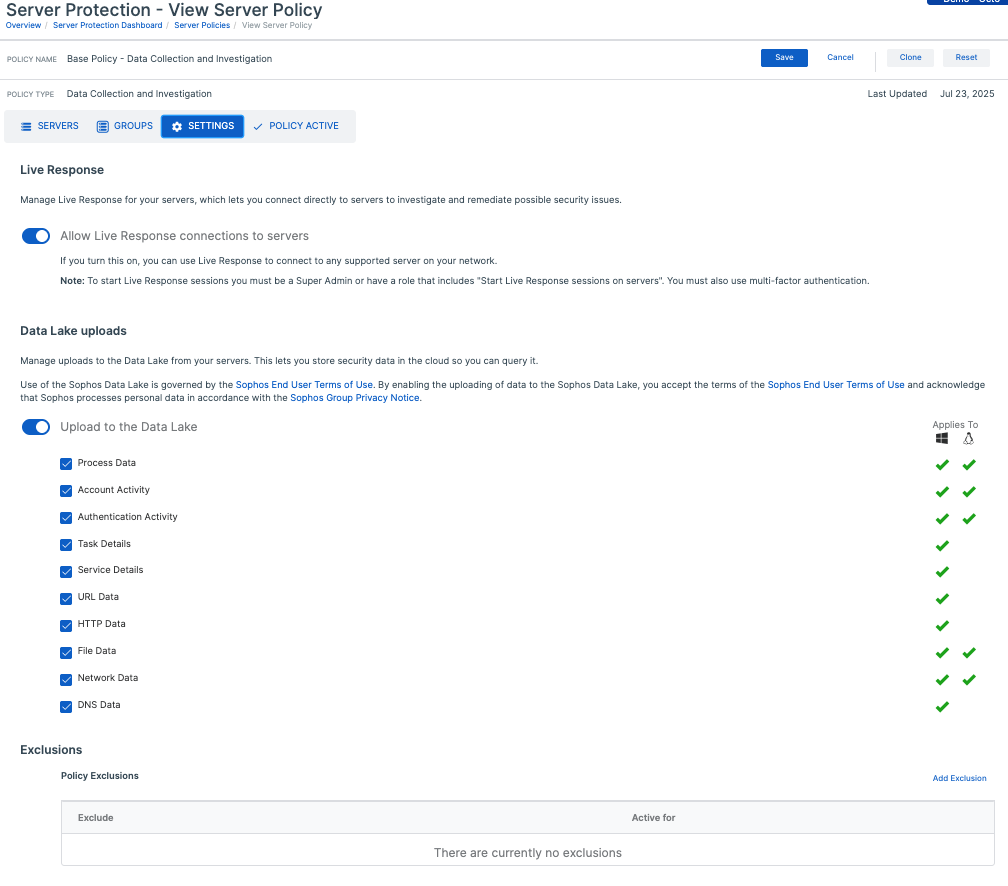
By default, the policy enables Data Lake Uploads and all data types. This default lets users query their data both on the endpoint and in the data lake. Deselect specific data types to reduce noisy events stored on disk and uploaded to the Sophos Fusion data lake.
When Data Lake Uploads are enabled, users can control specific locations on the endpoint with Exclusions. Define an exclusion to prevent the endpoint from storing events for that path locally or uploading them to the data lake.
Policies FAQ🔗
What is a policy?
A policy is a set of options that Sophos Fusion applies to protected users, devices or servers.
There is a policy for each product, or for a feature that’s part of a product (for example, there is a policy for the application control feature).
Users, devices and servers have separate policies.
What is a base policy?
Each feature has a base policy. Sophos provides this policy and initially it applies to all users (and devices) or all servers.
For some features, like threat protection, Sophos configures the base policy with the best practice settings. You can leave it unchanged if you want to.
For other features, like application control or peripheral control, which are more specific to your network, you must edit the policy to set up the feature.
The Base policy is always available and is used if you don't have other policies activated.
Note
You can't turn off or delete the base policy.
Do I need to add new policies?
You can choose whether to set up your own policies or not.
If you want to apply the same policy to all users or devices or servers, you can simply use the Base policy or adapt it for your needs.
If you want to use different settings for different groups, you can create additional policies.
What can I do with additional policies?
You can set up additional policies to override some or all of the settings in the base policy.
You can use additional policies to apply different settings to different users, devices or servers. You can also use them to make it easier to switch the settings that are applied quickly.
The order in which you put the policies in the list matters. The policies at the top of the list override the policies at the bottom.
What’s the difference between user policies and computer policies?
A user policy applies to all the devices that a user has.
A “device” or computer policy applies to specific computers or groups of computers, regardless of which user logs on.
Some features let you create either kind of policy. Other features only let you create one kind. For example you can set an updating policy for computers, but not for users.
If you set up a user policy and a computer policy for the same feature, and both could apply to the same computer, the policy that’s higher in your policy list takes priority.
You can check which policy is applied to a computer by looking at the Policies tab on that computer’s details page.
What is in each policy?
A policy lets you:
- Configure one of the features that you have licensed.
- Specify which users, devices or servers the policy applies to.
- Specify whether the policy is enforced and whether it expires.
A policy contains all the settings for a product or feature. For example, you cannot split up the threat protection settings across several different polices in such a way that a user gets one setting from one policy and another setting from a different policy.
How are policies prioritized?
The order in which you arrange the policies determines which is applied to specific users, devices or servers.
Sophos Fusion looks through the policies from the top down and applies the first policy it finds that applies to those users or devices.
The Base Policy is always at the bottom, and is applied to any users, devices or servers that aren’t covered by policies higher in the list.
Tip
Place the most specific policies at the top and general policies further down. Otherwise, a general policy might apply to a device for which you wanted an individual policy.
To sort policies, grab a policy and drag it to the position where you want to insert it.