Sophos Endpoint Agent Installation Information and Prerequisites🔗
This document provides essential information and prerequisites for installing the Sophos Endpoint Agent. Setting up your firewall or proxy correctly is crucial to ensure the protection and management of your devices.
Domains and Ports Setup🔗
You must configure your firewall or proxy to allow the necessary domains and ports. This setup allows all features to route traffic using the same proxy. Some domains are owned by Sophos, while others are essential for operations such as verifying installations or recognizing certificates.
Note
Apply the configuration steps below only if your firewall blocks outbound traffic by default (default deny). If your environment allows outbound traffic by default, skip these steps.
Recommendations🔗
- Avoid Regional Firewall Rules: These rules could override your allow list and prevent Sophos Agent from functioning correctly. For example, blocking non-US regions might hinder services running through European regions due to hosting on Amazon Web Services (AWS), which uses non-static IP addresses. See AWS IP address ranges and Amazon IP addresses.
- Use Wildcards: If your firewall or proxy supports wildcards, it can simplify configuration. If not, some features may be unavailable.
Ports🔗
- Allow this port: 443 (HTTPS)
Domains🔗
Sophos Fusion Admin Domains🔗
Allow these Sophos domains:
fusion.sophos.comcloud-assets.sophos.comsophos.comdownloads.sophos.com
If your proxy or firewall supports wildcards, you can use the wildcard *.sophos.com to cover these addresses.
Non-Sophos Addresses🔗
Allow the following non-Sophos addresses:
az416426.vo.msecnd.netdc.services.visualstudio.com
Sophos Domains🔗
The domains you need to allow depend on whether your firewall or proxy supports wildcards.
Click the appropriate tab for details.
Allow the following wildcards to cover the Sophos domains:
*.sophos.com*.sophosxl.com*.sophosxl.net*.sophosupd.com*.sophosupd.net*.hitmanpro.com
You may need to allow access to the following Certificate Authority sites if your firewall doesn't already allow them:
*.globalsign.com*.globalsign.net*.digicert.com
Allow the following wildcards to cover the Sophos domains:
^sophos\.com/^[A-Za-z0-9.-]*\.sophos\.com.?/^[A-Za-z0-9.-]*\.sophosxl\.com.?/^[A-Za-z0-9.-]*\.sophosxl\.net.?/^[A-Za-z0-9.-]*\.sophosupd\.com.?/^[A-Za-z0-9.-]*\.sophosupd\.net.?/^[A-Za-z0-9.-]*\.hitmanpro\.com.?/
You may need to allow access to the following Certificate Authority sites if your firewall doesn't already allow them:
^[A-Za-z0-9.-]*\.globalsign\.com.?/^[A-Za-z0-9.-]*\.globalsign\.net.?/^[A-Za-z0-9.-]*\.digicert\.com.?/
If your proxy or firewall doesn't support wildcards, you must manually add the exact domains you need.
Allow these Sophos domains:
fusion.sophos.comcloud-assets.sophos.comsophos.comdownloads.sophos.com
You also need to identify the server addresses that the Sophos management communication system and the device installers use to communicate with Sophos Fusion Admin securely. Click the tab corresponding to your device's operating system and follow the steps to identify and allow these addresses.
On Windows devices, do as follows:
- Open
SophosCloudInstaller.log. You can find it inC:\ProgramData\Sophos\CloudInstaller\Logs. -
Look for the line starting
Opening connection to.There will be at least two entries. The first will look like one of these:
dzr-mcs-amzn-eu-west-1-9af7.upe.p.hmr.sophos.commcs2-cloudstation-us-east-2.prod.hydra.sophos.commcs.stn100yul.ctr.sophos.commcs2.stn100yul.ctr.sophos.com
The second will look like one of these:
dzr-api-amzn-eu-west-1-9af7.api-upe.p.hmr.sophos.comapi-cloudstation-us-east-2.prod.hydra.sophos.comapi.stn100yul.ctr.sophos.com
Add both the domains to your rules.
-
Add the following addresses:
t1.sophosupd.comsus.sophosupd.comsdds3.sophosupd.comsdds3.sophosupd.netsdu-auto-upload.sophosupd.comsdu-feedback.sophos.comsophosxl.net4.sophosxl.netsamples.sophosxl.netcloud.sophos.comid.sophos.comfusion.sophos.comdownloads.sophos.comalert.hitmanpro.comssp.sophos.comsdu-auto-upload.sophosupd.comrca-upload-cloudstation-us-west-2.prod.hydra.sophos.comrca-upload-cloudstation-us-east-2.prod.hydra.sophos.comrca-upload-cloudstation-eu-west-1.prod.hydra.sophos.comrca-upload-cloudstation-eu-central-1.prod.hydra.sophos.comrca-upload.stn100bom.ctr.sophos.comrca-upload.stn100yul.ctr.sophos.comrca-upload.stn100hnd.ctr.sophos.comrca-upload.stn100gru.ctr.sophos.comrca-upload.stn100syd.ctr.sophos.com
-
Add the domains required for Sophos Management Communication System:
dzr-mcs-amzn-eu-west-1-9af7.upe.p.hmr.sophos.comdzr-mcs-amzn-us-west-2-fa88.upe.p.hmr.sophos.commcs-cloudstation-eu-central-1.prod.hydra.sophos.commcs-cloudstation-eu-west-1.prod.hydra.sophos.commcs-cloudstation-us-east-2.prod.hydra.sophos.commcs-cloudstation-us-west-2.prod.hydra.sophos.commcs2-cloudstation-eu-west-1.prod.hydra.sophos.commcs2-cloudstation-eu-central-1.prod.hydra.sophos.commcs2-cloudstation-us-east-2.prod.hydra.sophos.commcs2-cloudstation-us-west-2.prod.hydra.sophos.commcs.stn100syd.ctr.sophos.commcs.stn100yul.ctr.sophos.commcs.stn100hnd.ctr.sophos.commcs2.stn100syd.ctr.sophos.commcs2.stn100yul.ctr.sophos.commcs2.stn100hnd.ctr.sophos.commcs.stn100gru.ctr.sophos.commcs2.stn100gru.ctr.sophos.commcs.stn100bom.ctr.sophos.commcs2.stn100bom.ctr.sophos.commcs-push-server-eu-west-1.prod.hydra.sophos.commcs-push-server-eu-central-1.prod.hydra.sophos.commcs-push-server-us-west-2.prod.hydra.sophos.commcs-push-server-us-east-2.prod.hydra.sophos.commcs-push-server.stn100yul.ctr.sophos.commcs-push-server.stn100syd.ctr.sophos.commcs-push-server.stn100hnd.ctr.sophos.commcs-push-server.stn100gru.ctr.sophos.commcs-push-server.stn100bom.ctr.sophos.com
-
Add the domains required for the SophosLabs Intelix service:
us.analysis.sophos.comapac.analysis.sophos.comau.analysis.sophos.comeu.analysis.sophos.comanalysis.sophos.com
-
Add these domains if your license includes XDR or MDR:
live-terminal-eu-west-1.prod.hydra.sophos.comlive-terminal-eu-central-1.prod.hydra.sophos.comlive-terminal-us-west-2.prod.hydra.sophos.comlive-terminal-us-east-2.prod.hydra.sophos.comlive-terminal.stn100yul.ctr.sophos.comlive-terminal.stn100syd.ctr.sophos.comlive-terminal.stn100hnd.ctr.sophos.comlive-terminal.stn100gru.ctr.sophos.comlive-terminal.stn100bom.ctr.sophos.com
-
You may need to allow access to the following Certificate Authority sites if your firewall doesn't already allow them:
ocsp.globalsign.comocsp2.globalsign.comcrl.globalsign.comcrl.globalsign.netocsp.digicert.comcrl3.digicert.comcrl4.digicert.com
On macOS devices, do as follows:
- Download and extract SophosInstall.zip. See Before Installation.
- Open
SophosCloudConfig.plist. You can find it in theSophosInstall/Sophos Installer Componentsdirectory. - Look for the
RegistrationServerURLkey. The string that follows it contains a URL. Add this domain to your rules. -
Add the following addresses:
t1.sophosupd.comsus.sophosupd.comsdds3.sophosupd.comsdds3.sophosupd.netsdu-auto-upload.sophosupd.comsdu-feedback.sophos.comsophosxl.net4.sophosxl.netsamples.sophosxl.netcloud.sophos.comid.sophos.comfusion.sophos.comdownloads.sophos.comamazonaws.comssp.sophos.comsdu-auto-upload.sophosupd.comrca-upload-cloudstation-us-west-2.prod.hydra.sophos.comrca-upload-cloudstation-us-east-2.prod.hydra.sophos.comrca-upload-cloudstation-eu-west-1.prod.hydra.sophos.comrca-upload-cloudstation-eu-central-1.prod.hydra.sophos.comrca-upload.stn100bom.ctr.sophos.comrca-upload.stn100yul.ctr.sophos.comrca-upload.stn100hnd.ctr.sophos.comrca-upload.stn100gru.ctr.sophos.comrca-upload.stn100syd.ctr.sophos.com
-
Add the domains required for Sophos Management Communication System:
dzr-mcs-amzn-eu-west-1-9af7.upe.p.hmr.sophos.comdzr-mcs-amzn-us-west-2-fa88.upe.p.hmr.sophos.commcs-cloudstation-eu-central-1.prod.hydra.sophos.commcs-cloudstation-eu-west-1.prod.hydra.sophos.commcs-cloudstation-us-east-2.prod.hydra.sophos.commcs-cloudstation-us-west-2.prod.hydra.sophos.commcs2-cloudstation-eu-west-1.prod.hydra.sophos.commcs2-cloudstation-eu-central-1.prod.hydra.sophos.commcs2-cloudstation-us-east-2.prod.hydra.sophos.commcs2-cloudstation-us-west-2.prod.hydra.sophos.commcs.stn100syd.ctr.sophos.commcs.stn100yul.ctr.sophos.commcs.stn100hnd.ctr.sophos.commcs2.stn100syd.ctr.sophos.commcs2.stn100yul.ctr.sophos.commcs2.stn100hnd.ctr.sophos.commcs.stn100gru.ctr.sophos.commcs2.stn100gru.ctr.sophos.commcs.stn100bom.ctr.sophos.commcs2.stn100bom.ctr.sophos.com
-
Add the domains required for the SophosLabs Intelix service:
us.analysis.sophos.comapac.analysis.sophos.comau.analysis.sophos.comeu.analysis.sophos.com
-
You may need to allow access to the following Certificate Authority sites if they aren't allowed by your firewall:
ocsp.globalsign.comocsp2.globalsign.comcrl.globalsign.comcrl.globalsign.netocsp.digicert.comcrl3.digicert.comcrl4.digicert.com
On Linux devices, do as follows:
- Find
SophosSetup.shon your device. -
Run the following command to start the installer and print the output.
-
Look for the following lines:
- line starting
+ CLOUD_URL=https:// - line starting
+ MCS_URL=https://
Add the domains from both lines to your rules.
- line starting
-
Add the following addresses:
t1.sophosupd.comsus.sophosupd.comsdds3.sophosupd.comsdds3.sophosupd.netsdu-feedback.sophos.comsophosxl.net4.sophosxl.netsamples.sophosxl.netcloud.sophos.comid.sophos.comfusion.sophos.comdownloads.sophos.com
-
Add the domains required for Sophos Management Communication System:
dzr-mcs-amzn-eu-west-1-9af7.upe.p.hmr.sophos.comdzr-mcs-amzn-us-west-2-fa88.upe.p.hmr.sophos.commcs-cloudstation-eu-central-1.prod.hydra.sophos.commcs-cloudstation-eu-west-1.prod.hydra.sophos.commcs-cloudstation-us-east-2.prod.hydra.sophos.commcs-cloudstation-us-west-2.prod.hydra.sophos.commcs2-cloudstation-eu-west-1.prod.hydra.sophos.commcs2-cloudstation-eu-central-1.prod.hydra.sophos.commcs2-cloudstation-us-east-2.prod.hydra.sophos.commcs2-cloudstation-us-west-2.prod.hydra.sophos.commcs.stn100syd.ctr.sophos.commcs.stn100yul.ctr.sophos.commcs.stn100hnd.ctr.sophos.commcs2.stn100syd.ctr.sophos.commcs2.stn100yul.ctr.sophos.commcs2.stn100hnd.ctr.sophos.commcs.stn100gru.ctr.sophos.commcs2.stn100gru.ctr.sophos.commcs.stn100bom.ctr.sophos.commcs2.stn100bom.ctr.sophos.commcs-push-server-eu-west-1.prod.hydra.sophos.commcs-push-server-eu-central-1.prod.hydra.sophos.commcs-push-server-us-west-2.prod.hydra.sophos.commcs-push-server-us-east-2.prod.hydra.sophos.commcs-push-server.stn100yul.ctr.sophos.commcs-push-server.stn100syd.ctr.sophos.commcs-push-server.stn100hnd.ctr.sophos.commcs-push-server.stn100gru.ctr.sophos.commcs-push-server.stn100bom.ctr.sophos.com
-
Add the domains required for the SophosLabs Intelix service:
us.analysis.sophos.comapac.analysis.sophos.comau.analysis.sophos.comeu.analysis.sophos.com
-
Add these domains if your license includes XDR or Taegis MDR:
live-terminal-eu-west-1.prod.hydra.sophos.comlive-terminal-eu-central-1.prod.hydra.sophos.comlive-terminal-us-west-2.prod.hydra.sophos.comlive-terminal-us-east-2.prod.hydra.sophos.comlive-terminal.stn100yul.ctr.sophos.comlive-terminal.stn100syd.ctr.sophos.comlive-terminal.stn100hnd.ctr.sophos.comlive-terminal.stn100gru.ctr.sophos.comlive-terminal.stn100bom.ctr.sophos.com
-
You may need to allow access to the following Certificate Authority sites if they aren't allowed by your firewall:
ocsp.globalsign.comocsp2.globalsign.comcrl.globalsign.comcrl.globalsign.netocsp.digicert.comcrl3.digicert.comcrl4.digicert.com
Note
Some firewalls or proxies show reverse lookups with *.amazonaws.com addresses. This is expected as we use Amazon AWS to host several servers. You must add these URLs to your firewall or proxy.
Proxy Configuration🔗
You can configure Sophos Agent to connect to Sophos Fusion or download Sophos updates through a proxy server. This section explains how to configure proxy settings in Sophos Fusion.
If you prefer, you can configure the proxy settings directly on each device. For details, see Configure Devices to Use Proxy Server Settings.
Configure the Proxy🔗
These steps enable both computers and servers to use the proxy server.
- Select My Products → General Settings → Proxy Configuration.
- On the Proxy Configuration page, turn on Proxy Configuration.
-
Enter the proxy settings:
- Hostname. For example,
proxy.example.net. - Port. For example,
8080. - Username and Password for the proxy.
- Hostname. For example,
-
Select Save.
Note
For security reasons, we can't recover the password. When you select Save, you may overwrite an existing password.
How Devices Connect🔗
Sophos Agent devices connect to the internet using the first working configuration they find. Devices attempt to connect in the following order:
- Use a Sophos Fusion Message Relay.
- Use the proxy configuration detailed here.
- Use the default system proxy.
- Use an automatically discovered proxy (WPAD).
- Connect without using a proxy.
Managing Endpoint Software🔗
You can manage your Sophos Agent installation directly from Sophos Fusion. This feature enables you to easily upgrade from Sophos Agent Detection Only to Sophos Endpoint Agent to add advanced preventative controls when needed. If necessary, you can also downgrade from Sophos Endpoint Agent to Sophos Agent Detection Only.
You can apply these actions to both computers and servers.
- Go to My Products → Endpoint → Computers.
- Use the checkboxes to select individual computers, or use the select-all checkbox to manage all computers.
- Click Manage Endpoint Software to open the configuration modal.
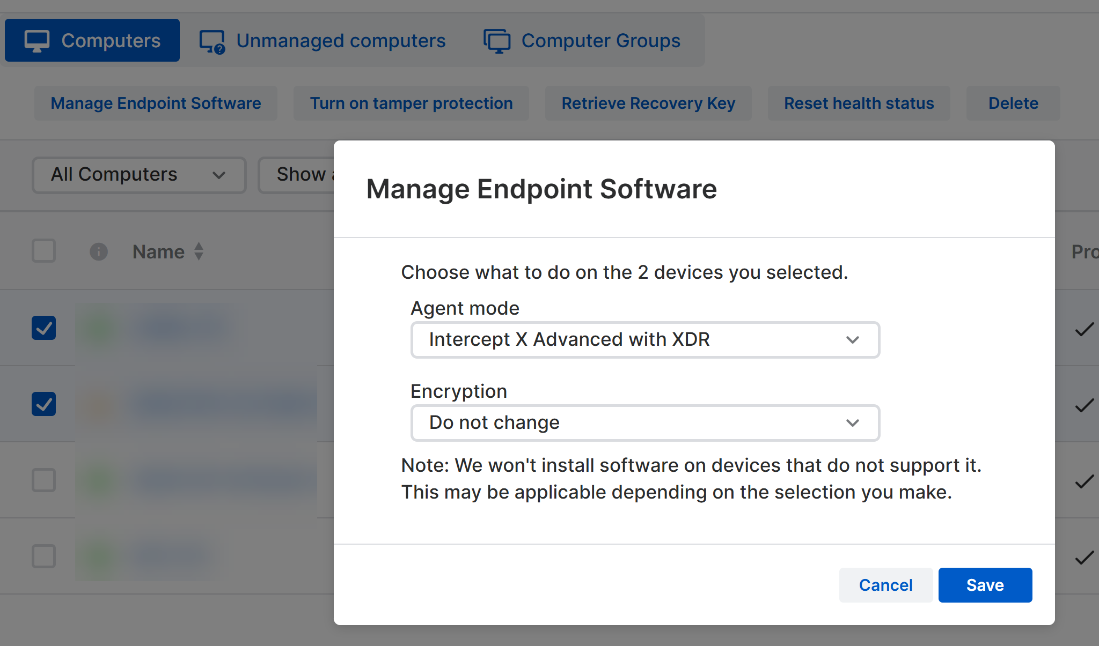
In the modal, use Agent Mode to switch the selected agents to a different software mode or to remotely uninstall the agent.
You can also use the Encryption option to enforce encryption on the selected endpoint(s).
- Go to My Products → Endpoint → Servers.
- Use the checkboxes to select individual servers, or use the select-all checkbox to manage all servers.
- Click Manage Endpoint Software to open the configuration modal.
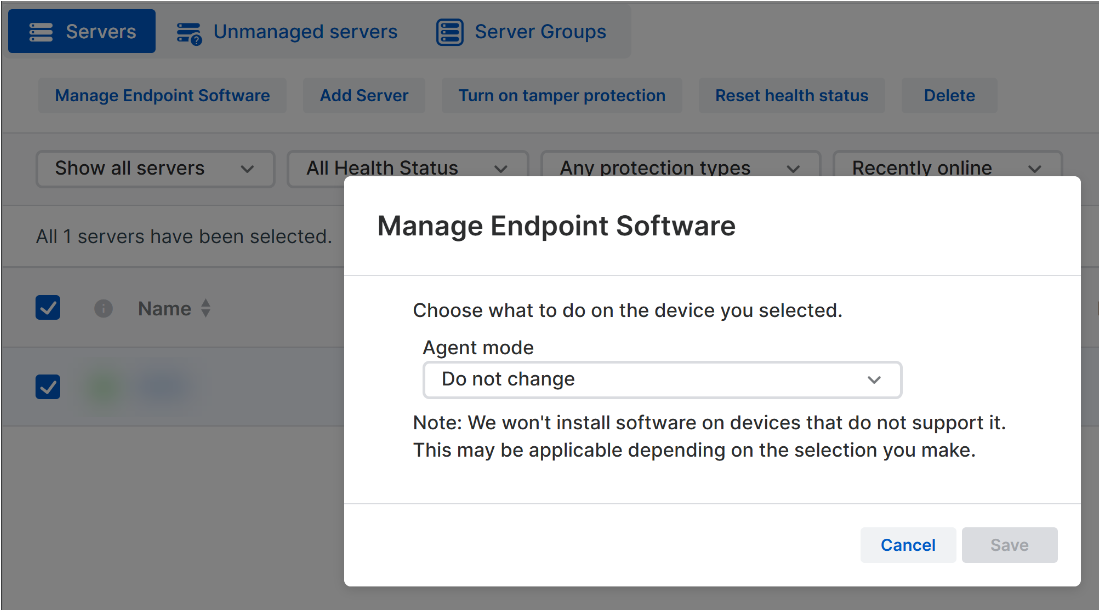
In the modal, use Agent Mode to switch the selected agents to a different software mode or to remotely uninstall the agent.
Note
The Encryption option is not available for servers.