Sophos Endpoint Agent Application User Interface🔗
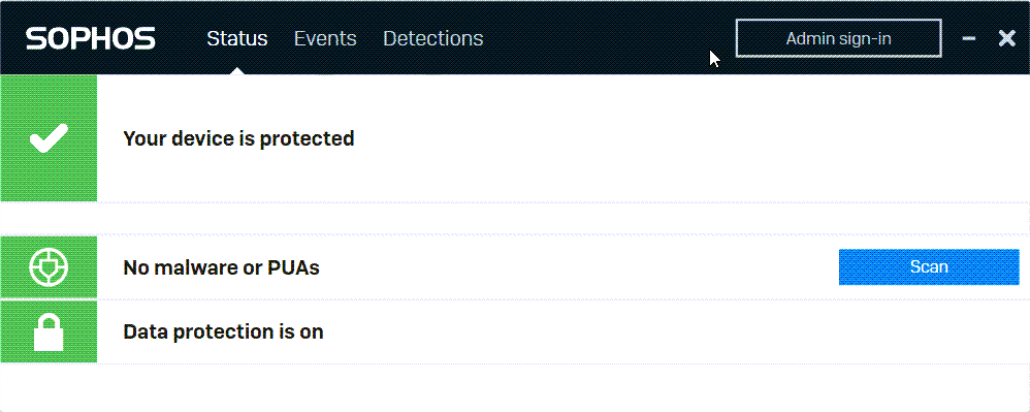
The Sophos Endpoint Agent app user interface helps you keep your computer secure. You can check the security status, scan for threats, and review recent security events. The features available depend on your version of Sophos Agent.
Note
The Sophos Endpoint Agent application user interface is available for Windows and macOS only.
Accessing the Application UI🔗
Double-click the Sophos icon in the system tray to open the app UI. If you do not see the icon, search for Sophos in the Windows Start menu to start the application.
Click the Sophos icon on the menu bar, and click the Open Endpoint Self Help option that shows to open the app UI. Alternatively, search for Sophos using Spotlight.
Status Page🔗
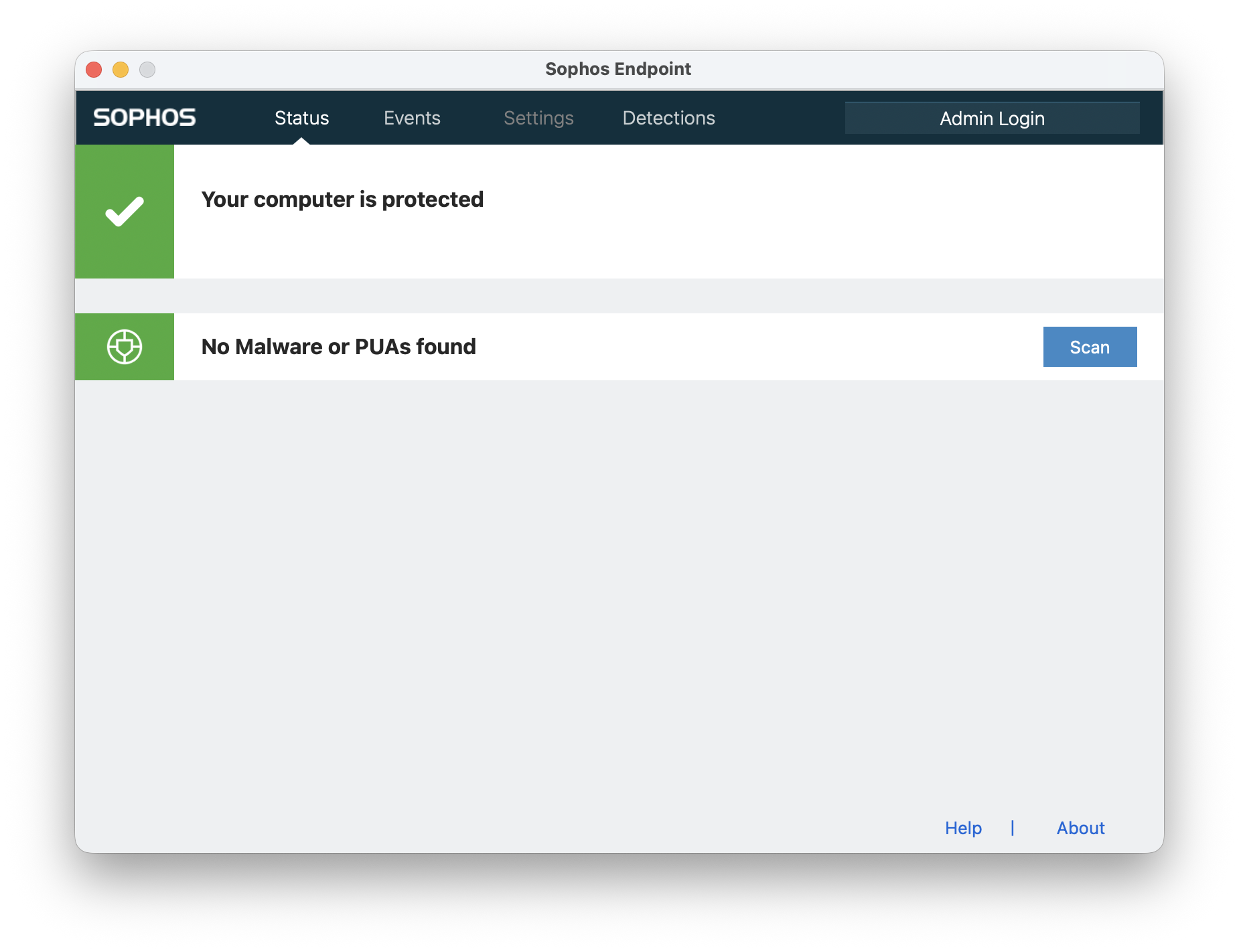
The Status page gives you an overview of your computer’s security.
What You Can Do🔗
- See the computer’s security status.
- Scan the computer for threats.
- View installed features and their security status.
- Use the About link in the lower right to update or troubleshoot Sophos Agent.
Security Status Icons🔗
An icon in the upper left shows the current security status.
| Icon | Status | Description |
|---|---|---|
 |
Green | No alerts, or only low-priority alerts |
 |
Red | High-priority alerts |
 |
Yellow | Medium-priority alerts |
 |
Gray | Status is unknown |
Features Installed🔗
All installed features display their security status. Features depend on your agent version and may include:
- Malware and PUA Protection
- Data Protection (Windows) or Device Encryption (Mac)
- Zero Trust Network Access
Note
Data Protection refers to encryption with BitLocker.
Scanning the Computer🔗
You can scan your computer for threats from the Status or Detections page.
How to Scan🔗
- Go to the Status or Detections page.
- Select Scan next to the malware and PUA status.
-
Choose Quick scan or Full scan.
Feature Description Quick Scan - Checks memory, Master Boot Record (MBR), running processes, and files that run at startup
- Provides rapid resultsFull Scan - Scans all files, folders, memory, and the MBR
- Takes longer than a quick scan
Viewing Scan Results🔗
- The Detections page shows scanning progress and results.
- If threats are detected, go to the Events page for details.
Scan a File🔗
You can select a single file or multiple files and start a scan from the right-click menu. For instructions, click the tab for your operating system.
- In Explorer, right-click the file.
- Select Scan.
- Check scanning progress and results on the Detections page.
- In Finder right-click the file or files and select Scan with Sophos Endpoint.
- A Finder Item Scan dialog opens and shows you scanning progress and results.
If you don't see Scan with Sophos Endpoint when you right-click, you need to add it as a service.
Add the Scan Service🔗
- Open Sophos Endpoint and click Services > Services Settings.
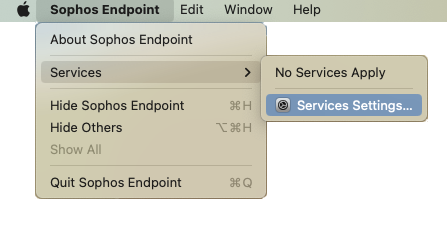
Alternatively, on the Mac go to System Settings > Keyboard > Keyboard Shortcuts > Services.
- In Services, click Files and Folders, and select Scan with Sophos Endpoint.
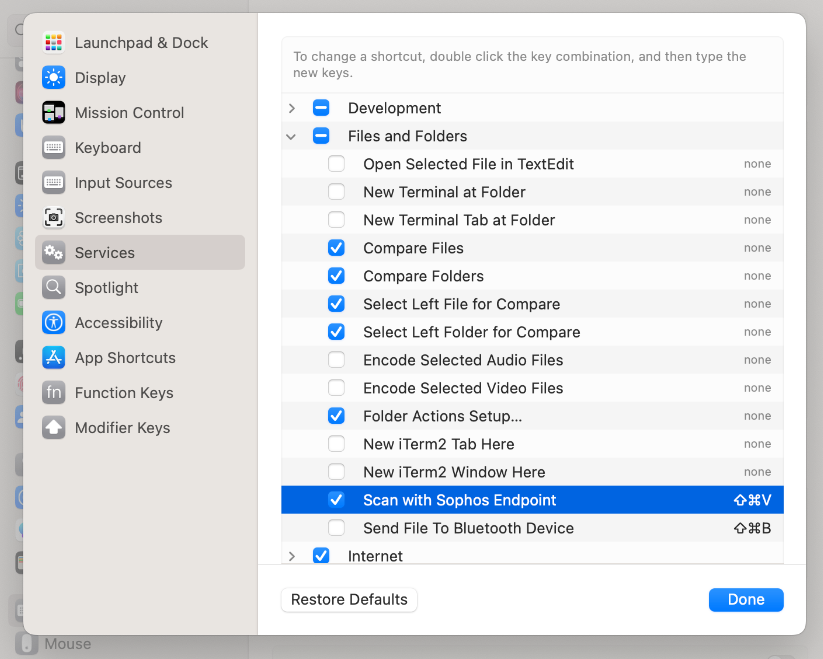
- Click Done.
Events Page🔗
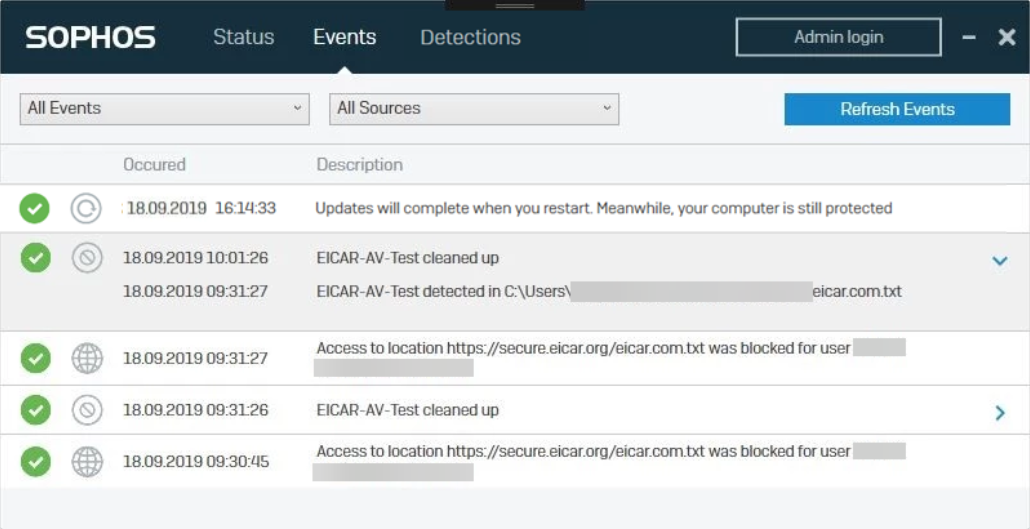
The Events page shows all security events on your computer. You can filter, search, and review event details.
Event List🔗
Each event displays:
- Severity — The icon shows if the event is high priority, medium priority, or a notification.
- Source — The icon indicates which Sophos feature reported the event.
- Date and Time — When the event occurred.
- Description — What happened.
- Action Link — If you’re signed in as an administrator and action is required.
To view details, select the arrow to the right of the event.
Event Filters🔗
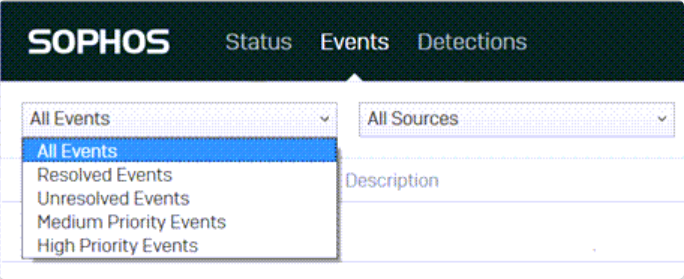
Filter events by:
- Priority — High, medium, or notification.
- Resolution — Show unresolved or all events.
- Source — Filter by the reporting Sophos feature.
- Detection Type — Filter by type of threat or item (options depend on your operating system).
Detections Page🔗
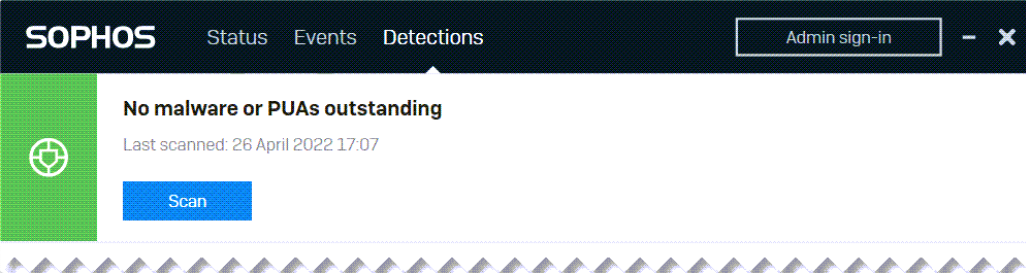
The Detections page shows all threats detected on your computer.
What You Can Do🔗
- Check whether there are any threats to address.
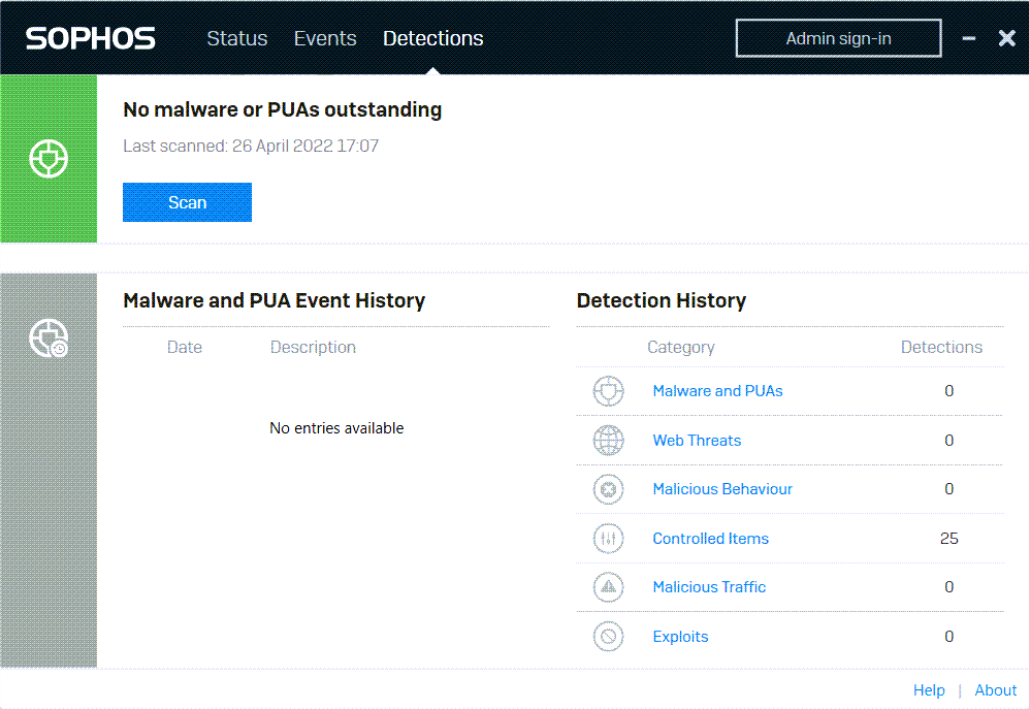
- See detection history for malware and PUAs.
- Select Scan to run a new scan.
If no malware or PUAs are outstanding, all threats have been cleaned up.
Detection History🔗
- See statistics for each type of threat.
- Select a threat type to view related events on the Events page.
Detection Types🔗
Sophos Agent detects several types of threats and unwanted items.
| Detection Type | Description |
|---|---|
| Malware and PUAs | Malware includes viruses, worms, Trojans, and spyware. PUAs (Potentially Unwanted Applications) are programs that aren’t malicious but are unsuitable for most business networks. |
| Web Threats | Malicious or uncategorized websites, and risky downloads. Includes sites unsuitable for business, such as adult content or social media. |
| Malicious Behavior | Suspicious behavior in running software. (Windows only.) |
| Ransomware | Malware that blocks access to files until a ransom is paid. |
| Controlled Items | Applications, peripherals, removable media, risky downloads, inappropriate websites, and files with sensitive information. |
| Malicious Traffic | Network traffic that may indicate attempts to take control of the computer. |
| Exploits | Application hijacks and attacks on vulnerabilities in browsers, plugins, Java, media, and Microsoft Office. (Windows only.) |
Settings Page🔗
The Settings page is available when you sign in as an administrator.
How to Access Settings🔗
- Select Admin sign-in (Windows) or Admin login (Mac) in the upper right.
- Enter the tamper protection password from your Sophos Fusion administrator.
- The Settings tab appears in the menu bar.
Note
Not all features are available on all licenses.
Overriding Policy🔗
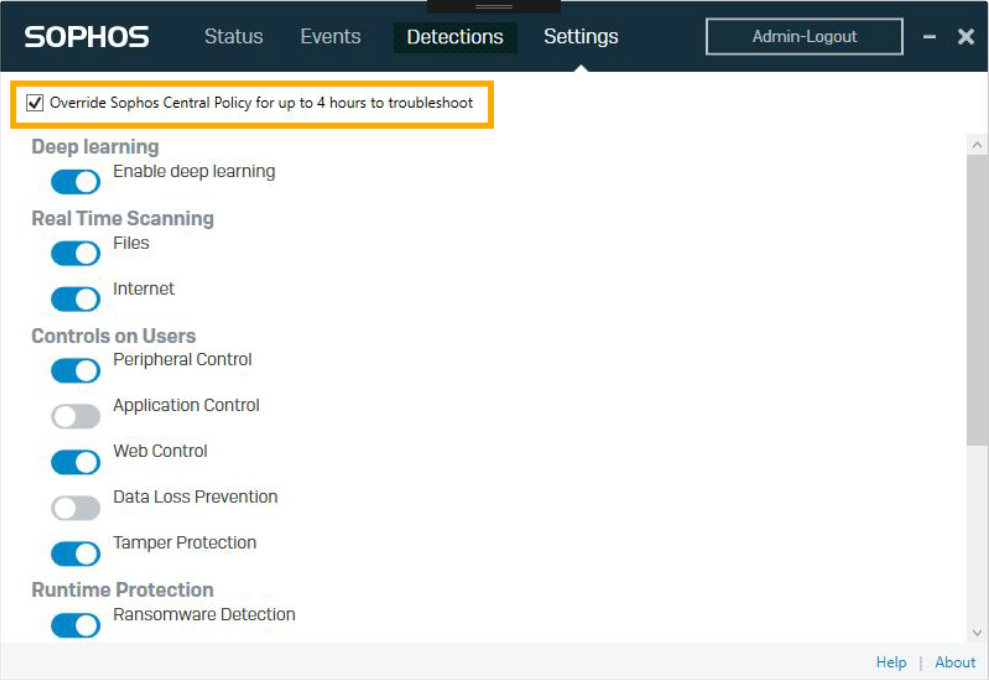
You can temporarily override the Sophos Fusion policy for up to four hours for troubleshooting.
- On the Settings page, check Override Sophos Fusion Policy for up to four hours to troubleshoot.
- Make the necessary changes.
- After four hours, settings revert automatically. To revert sooner, clear the override check box.
You can’t use sliders to revert individual features early. Use the override check box.
Security Features🔗
You can turn the following features on or off, depending on your license and operating system.
Deep Learning🔗
Uses advanced machine learning to detect threats without relying on signatures.
Real-Time Scanning🔗
Scans items as users attempt to access them.
- Files — Scans local files and network shares (if enabled).
- Internet — Scans downloads, blocks malicious sites, and detects low-reputation sites.
Controls on Users🔗
- Peripheral Control — Manage access to peripherals and removable media.
- Application Control — Detect and block applications unsuitable for business use.
- Web Control — Block risky downloads and websites, and prevent data loss.
- Data Loss Prevention — Monitor and restrict the transfer of sensitive data.
Tamper Protection🔗
Restricts changes to security settings or uninstalling Sophos Agent. Requires the tamper protection password.
Runtime Protection🔗
Protects against threats by detecting suspicious or malicious behavior or traffic.
- Ransomware Detection — Blocks malware that restricts file access for ransom.
-
Malicious Behavior Detection — Blocks known and suspicious malicious behavior.
-
Safe Browsing — Protects browsers from exploitation.
- Exploit Mitigation — Protects applications prone to malware exploitation.
- Network Threat Protection — Detects and blocks network threats. Includes packet inspection.
Note
Turning off Network Threat Protection also disables features that isolate devices or block network connections.
Computer Controls🔗
Monitor the Windows Firewall and other registered firewalls.