AI Workbench🔗
The AI workbench helps you keep important AI assistant content available while you continue your investigation. You can open chat items in the workbench, pin important responses, and add case details for quick reference without leaving the AI assistant page.
Open the Workbench🔗
To open the workbench, do one of the following:
- Click the Workbench icon next to a chat item, such as a query that you want to add to the workbench.
- Click the Pinned items icon at the top of the page.
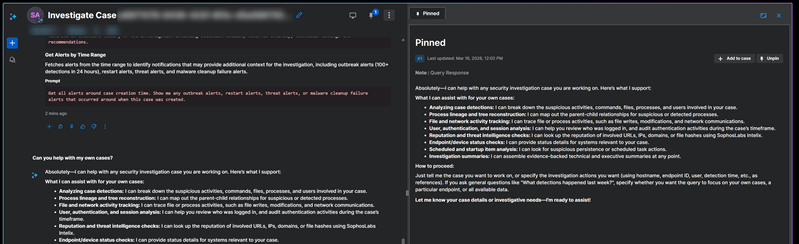
The workbench opens on the right side of the screen.
- If you opened it from a chat item, that item appears in its own tab.
- Pinned items appear in the Pinned tab.
Tip
Drag the workbench or click the Expand icon  to make it full screen.
Add Chat Items to the Workbench🔗
To keep a chat item available while you work:
-
Click the Workbench icon next to the item.
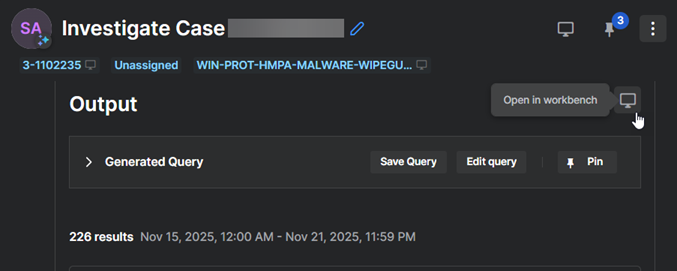
Open in Workbench -
View the item in its own tab in the workbench. You can add multiple items to the workbench as needed.
Add Case Details Using Tags🔗
In case-related chats, you can add case information directly to the workbench from the tags shown under the case name.
-
Find the tags under the case name.

Chat Showing Case Details Tags. -
Click a tag that has the Workbench icon beside it:
- Click the case name to add the case details.
- Click the threat name to add details of the initial detection that created the case.
Pin AI Responses🔗
Pin items to keep them available in the Pinned tab throughout the chat. This is useful for long or complex investigations.
You can pin:
- Individual table rows
- Entire tables
- Queries
- Full messages
Pin an Item🔗
-
Click the Pin icon next to the item or from the action icons beneath a query response.
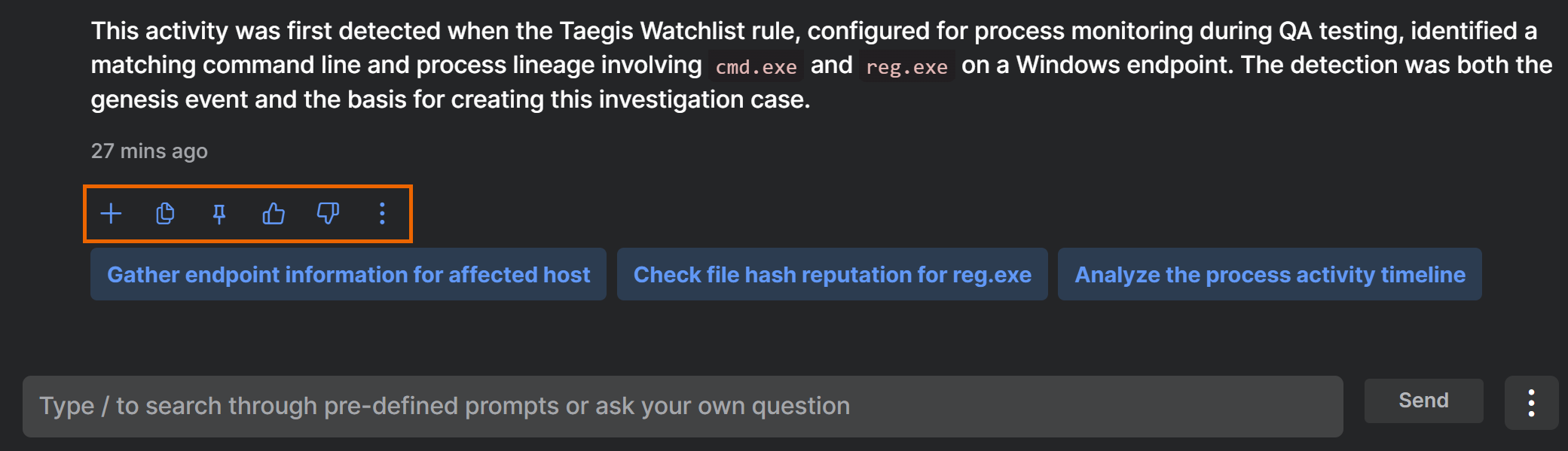
AI Assistant Action Icons -
Add a note explaining why the item matters.
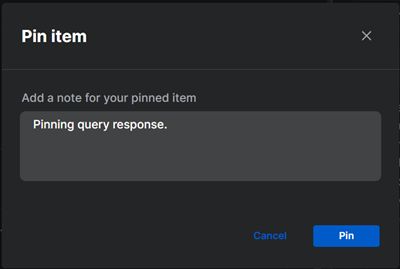
Pin Description -
Click Pin to confirm.
The item now appears in the Pinned tab in the workbench.
View Pinned Items🔗
-
Click the Pin icon at the top of the chat.

Pin Icon Showing the Number of Pinned Items -
In the Pinned tab, view and manage your pinned items.
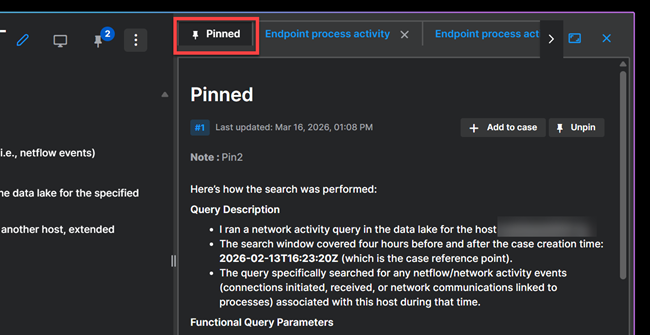
Pinned Tab Showing Pinned Items
You can also open the workbench from any chat item and then select the Pinned tab.
Unpin an Item🔗
-
Open the Pinned tab by clicking the Pin icon at the top of the chat.
Pin Icon Showing the Number of Pinned Items -
Find the item and click Unpin.
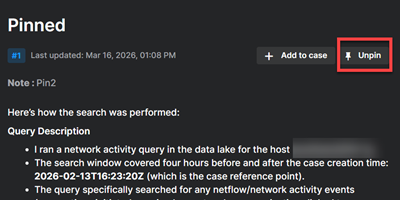
Pinned Page Showing Unpin Links
You can also unpin an item directly from the chat.
Close the Workbench🔗
To close the workbench, click the Workbench icon at the top right of the chat pane.
