Taegis Help Resources🔗
XDR Help Icon🔗
Select the Help icon from the Taegis Menu to access the Taegis Help Center, product documentation, and knowledge base.
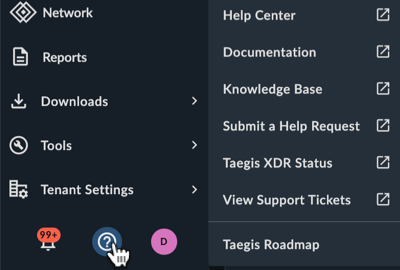
You can also open a new support ticket, access current tickets, open the XDR Status page, and view the XDR Roadmap.
Help Center🔗
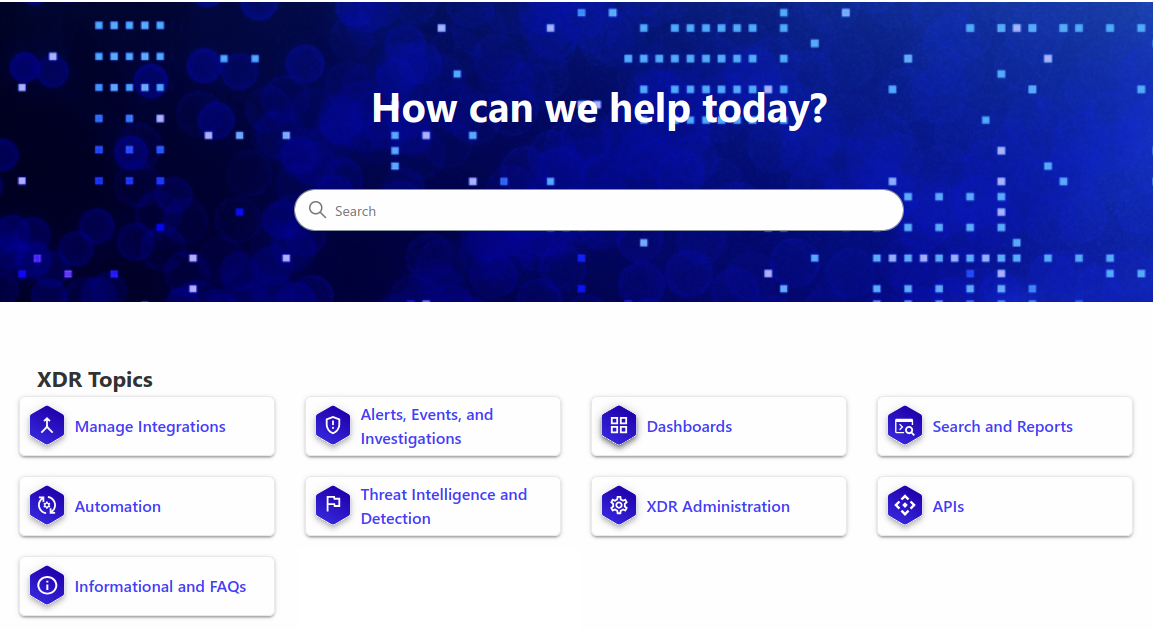
The Help Center offers an informational hub that allows you to search though Secureworks® Taegis™ product documentation and knowledge base articles to provide you with the resolution to your issues in the platform. The Help Center also provides the ability to submit support requests to our expert Product Support teams.
Tip
We recommend setting up browser bookmarks for this Documentation site and the Help Center.
Submit and Manage Support Tickets🔗
From the XDR Help icon:
-
Select Submit a Help Request to navigate directly to a new support ticket where you can choose your issue type and supply the details of your request.
-
Select View Support Tickets to navigate to your requests to view open and closed support tickets.
Tip
Access to both new and current support tickets can also be found from the top menu of the Help Center.
Taegis Chat🔗
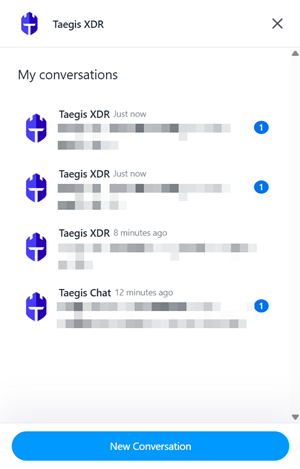
You can get help in-app using chat, where you can ask for guidance, receive support, and track conversations across multiple issues. To open chat, click the Chat button from the bottom of the Taegis Menu.
Note
If you have connectivity issues with the chat interface, it may help to refer to Zendesk Chat System Requirements, particularly the firewall configuration information.
Start a New Conversation🔗
- In the chat widget, select New Conversation.
-
Choose the team that best fits your issue:
- Security Analysis — For detections, cases, or other security events.
- Product Support — For questions about product functionality or integration assistance.
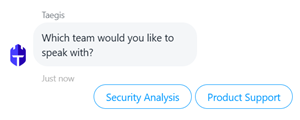
Initial Chat Response
Tip
During a conversation, select the icon to attach a file or image if needed.
Review Historical Conversations🔗
The new chat experience tracks unresolved chat interactions. Although you cannot add new messages to these historical chats, you can review them to follow ongoing issues.
To review and manage historical conversations:
- Select a conversation from the list to review an unresolved issue.
- Scroll through the conversation to find a link to the associated ticket and review updates there.
- To switch conversations, select the back arrow in the upper-left corner of the chat widget to return to the conversation list.
Once the associated ticket is marked as resolved, the conversation is removed from the list.
Tip
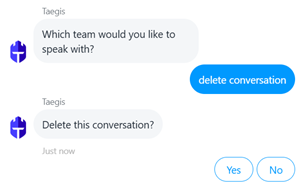
To remove a conversation from your list, such as one opened by mistake, type delete conversation in the text box and confirm when prompted.
AI Assistant🔗
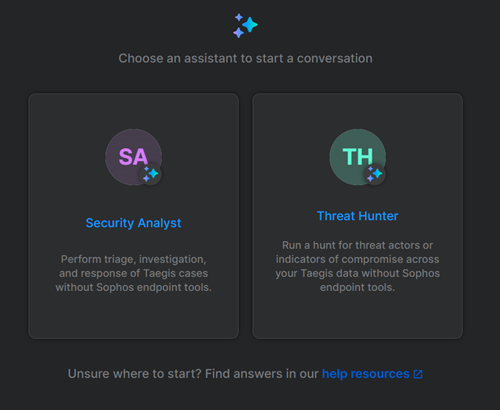
The Sophos AI assistant is a generative AI-powered tool that lets you investigate security issues using natural-language prompts. For more information, see AI Assistant Overview.
Call Support🔗
For customers whose service includes phone support, find the support phone number on the Subscriptions page in XDR. From the Taegis Menu, select Tenant Settings and choose Subscriptions. For more information, see Taegis MDR Telephone Support.
Tip
If you are unable to log in to XDR to use the preceding contact methods, see the Support FAQ for details on how to contact support.