Sophos Endpoint Agent for macOS Installation🔗
This guide provides step-by-step instructions for manually installing Sophos Endpoint Agent on macOS using the downloaded package or command line interface. You'll learn how to prepare your macOS environment, execute the installer, leverage advanced configuration options, and troubleshoot common installation issues.
Tip
We strongly recommend using the automated deployment method via configuration profiles instead of these manual steps. This approach utilizes configuration profiles to remotely manage your endpoints. This streamlines the installation process and helps reduce the risk of misconfiguration. For detailed instructions on deploying Sophos Endpoint Agent on macOS, see the Install Sophos Agent Using Jamf Pro section.
Prerequisites🔗
Review the requirements and complete the prerequisite steps in Sophos Endpoint Agent Information and Prerequisites.
Before Installation🔗
Download the installation package from Secureworks® Taegis™ XDR. For more information, see Sophos Endpoint Agent Downloads.
-
After downloading, move the
SophosInstall.zipto a location other than Documents, Desktop, or Downloads folders. We recommend your home folder. -
Extract the
.zipfile. -
Run
xattr ~/SophosInstall/Sophos\ Installer.app. This command will likely displaycom.apple.quarantine.
Note
If the attribute is not present, proceed to the next section.
- If the
com.apple.quarantineattribute is present, runsudo xattr -r -d com.apple.quarantine ~/SophosInstall/Sophos\ Installer.app.
Note
If you extract the files in a different location, adjust the paths accordingly.
Installation🔗
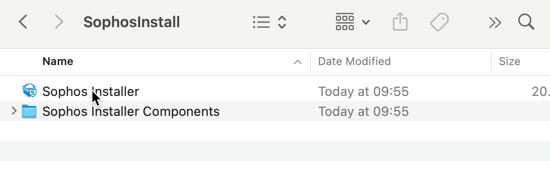
After completing all prerequisites, run the Sophos Installer from the extracted installation package.
Grant Security Permissions🔗
During installation you'll need to grant Sophos Agent security permissions to run on macOS. You may need to do this more than once as Apple frequently updates its security requirements.
Note
If you use remote deployment, you'll grant security permissions during the deployment setup. See the Install Sophos Agent Using Jamf Pro section.
Sophos checks that security permissions are satisfied every 30 minutes using the Sophos Service Manager.
Tip
To manually verify permissions, quit Sophos Service Manager in Activity Monitor. It restarts automatically, checks permissions after 30 seconds, then checks every 30 minutes.
Sophos Endpoint Agent shows a notification when it needs permissions. You can grant permissions from this notification.
You need to grant permissions to allow scanning and web protection to work. You also need to grant full disk access.
Grant Permissions for Scanning and Web Protection🔗
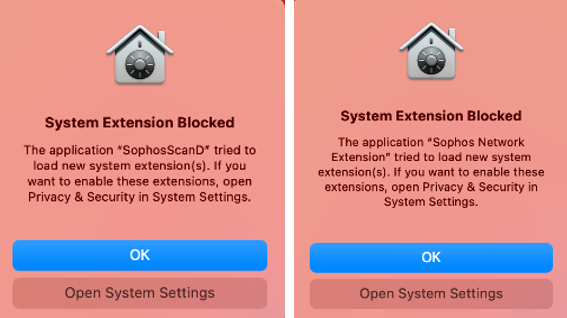
You need to grant disk access permissions for scanning and Web Protection. You also need to grant proxy permissions for Web Protection. Without these permissions, scanning and Web Protection don't work properly.
To grant permissions, do as follows:
- Click Open System Settings for each Sophos program notification that needs permissions.
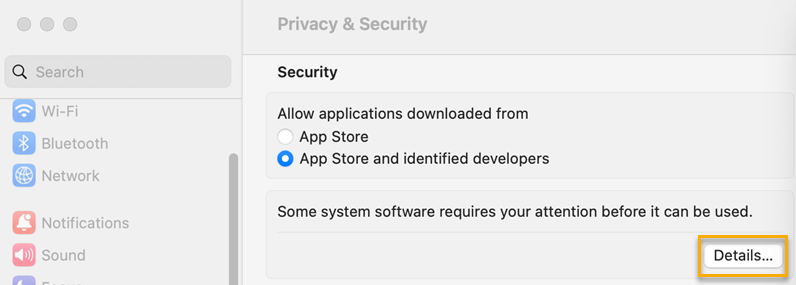
- In Privacy & Security, click Details to see more details about the notification.
-
Click Allow for both system extensions.
-
Turn on Sophos Network Extension and Sophos Detection.
-
Click OK to restart both services.
-
Close Privacy & Security.
-
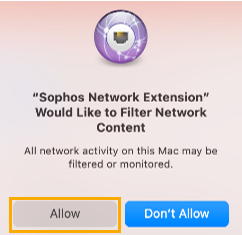
Click Allow to allow Sophos Network Extension to act as a proxy.
-
Click Open System Settings for each Sophos program notification that needs permissions.
-
Click General.
-
For Sophos Detection, do as follows:
- In Login Items & Extensions, click Endpoint Security Extensions.
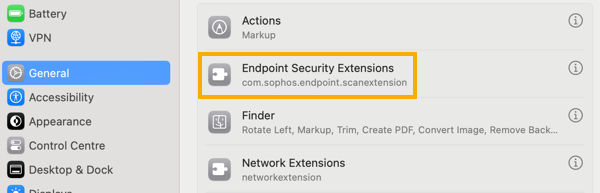
Access Endpoint Security Extensions -
Turn on Sophos Detection.
-
Click Done.
-
For Sophos Network Extension, do as follows:
- In Login Items & Extensions, click Network Extensions.
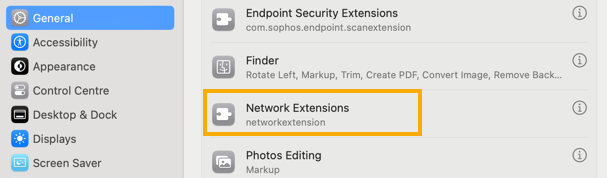
Access Endpoint Security Extensions - Turn on Sophos Network Extension.
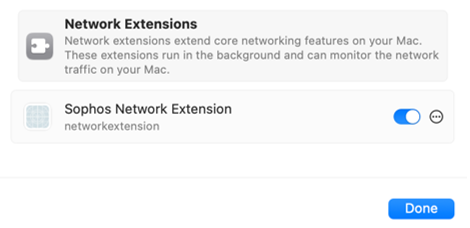
Enable Network Extension -
Click Done.
-
Click Allow.
Allow Network Extension
-
-
Click Open System Settings for each Sophos program notification that needs permissions.
-
Click General.
-
For Security Extension, do as follows:
-
Click the By App option, then click Sophos Detection.
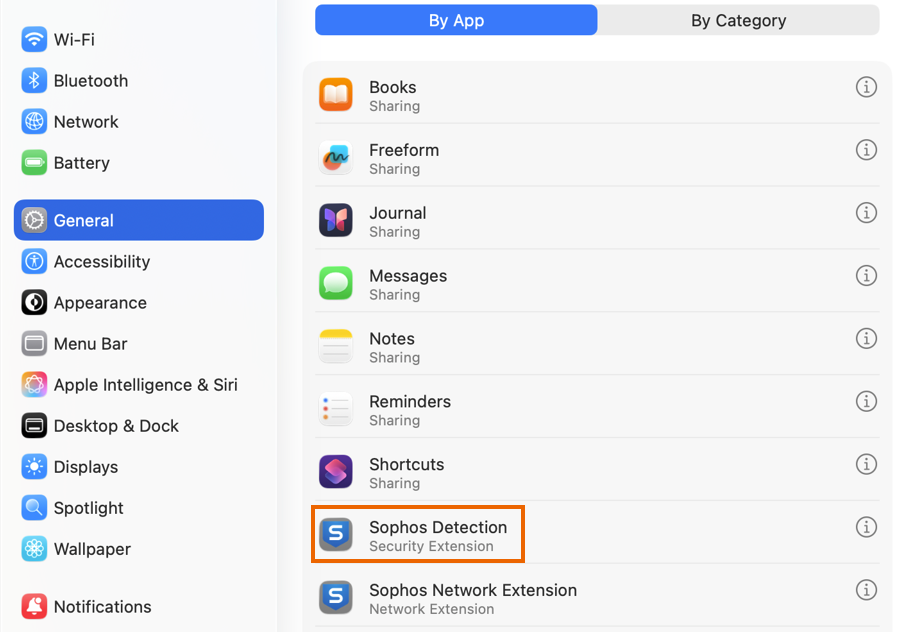
Sophos Detection setting -
In Sophos Detection Extensions, turn on Security Extension.
-
Click Done.
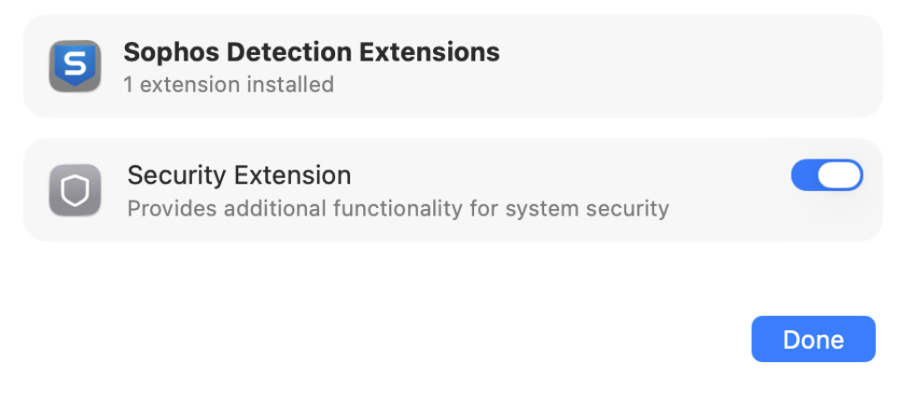
Turn on Security Extension.
-
-
For Network Extension, do as follows:
-
Click the By App option, then click Sophos Network Extension.
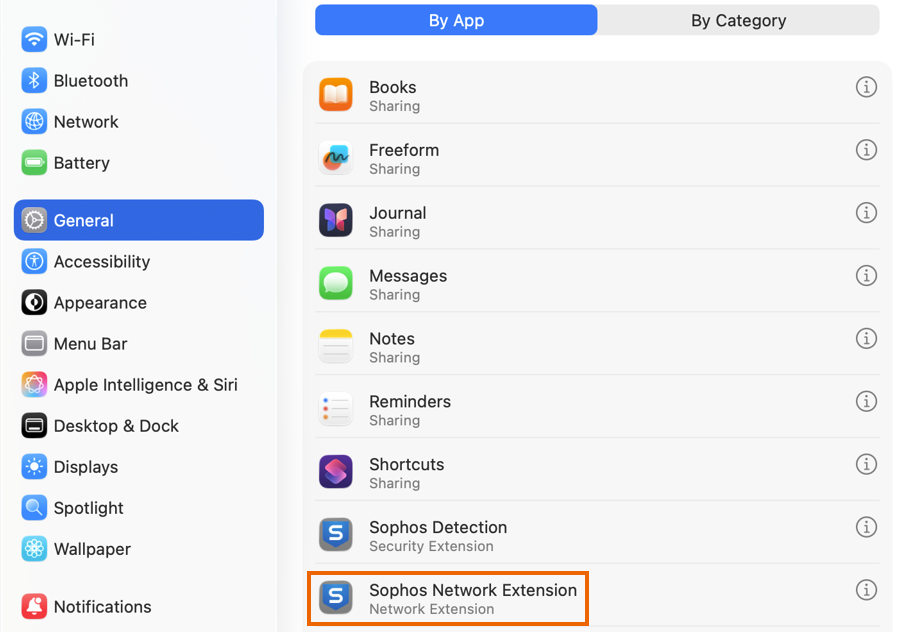
Sophos Network Extension setting -
In Sophos Network Extension Extensions, turn on Network Extension.
-
Click Done.
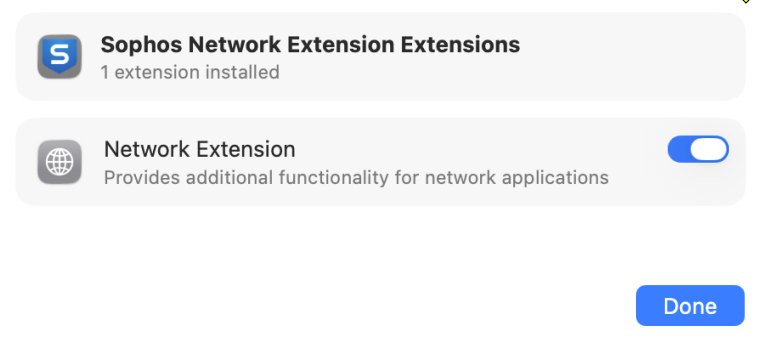
Turn on Network Extension -
Click Allow.
Allowing Sophos Network Extension to act as a proxy
-
-
Once installation is complete, you'll need to grant full disk access.
Grant Full Disk Access🔗
Note
The following steps require administrator privileges.
To grant full disk access, do as follows:
-
Click the Sophos icon on your menu bar, and then click Open Sophos Endpoint.
-
Click About.
-
Click Open Endpoint Self Help Tool.
-
Click Prerequisites, and then click Allow Full Disk Access.
-
In the Sophos Endpoint window, do as follows:
-
Click Open "Privacy & Security" preferences.
-
Click Full Disk Access.
-
Drag the Sophos icon from Sophos Endpoint to the applications list in Full Disk Access.
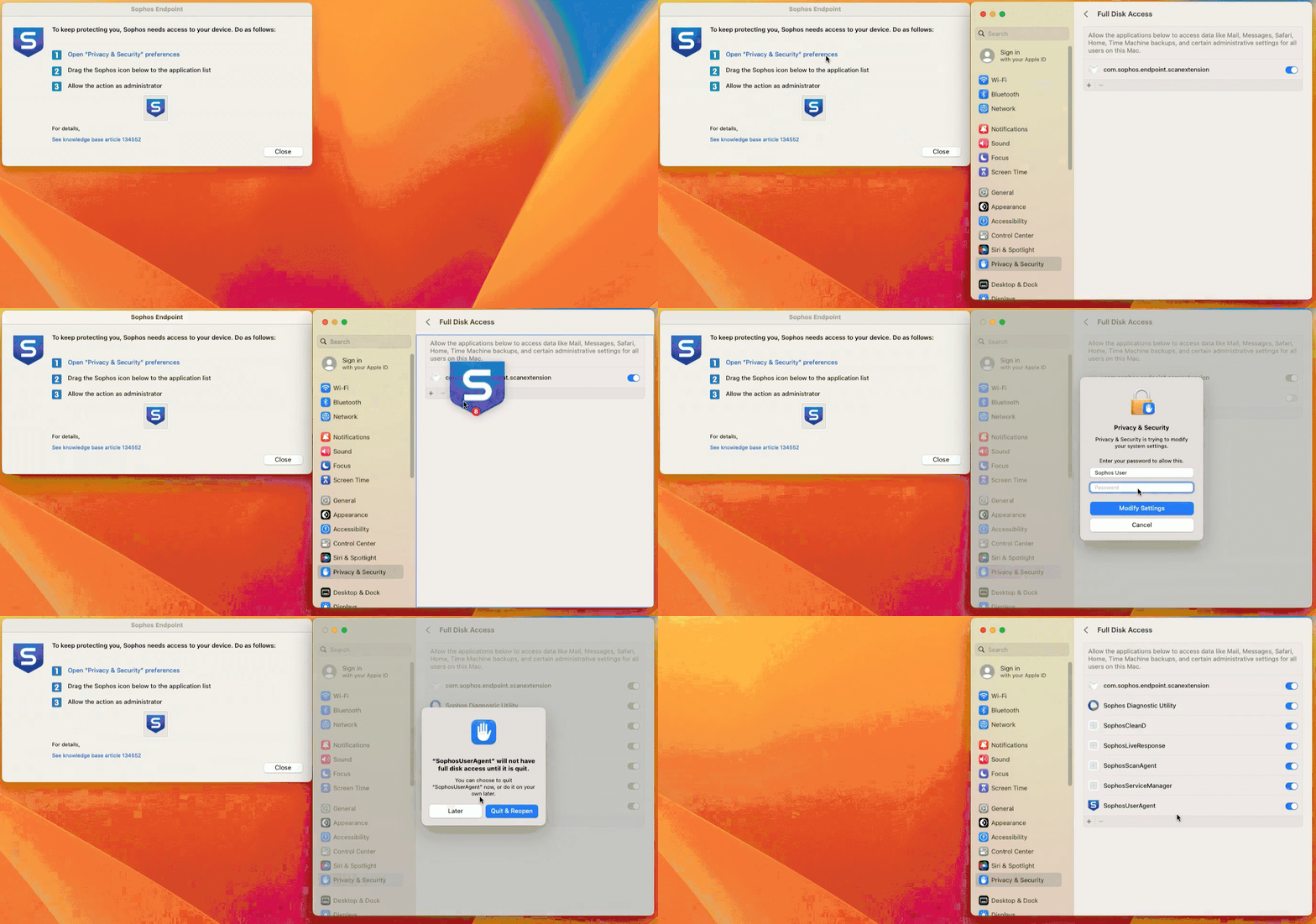
Add full access permissions for Sophos Endpoint -
You must grant full disk access to Sophos User Agent. Choose from the following options:
- Click Quit & Reopen to do this immediately.
- Click Later to give permissions and continue working. You'll need to restart your Mac to give full disk access. You're still protected.
-
Close Privacy & Security.
-
Install Sophos Agent Using the Terminal🔗
-
Verify that the prerequisite steps from the Before Installation section have been completed.
-
Provide executable permissions to the following files before running the installer. This can be done by running the following commands:
-
Run the below install command:
Note
If you extracted the files to another location, change the command above to the corresponding folder.
Log files related to the installation are found in the following locations:
/var/log/install.log/var/log/system.log
Note
You can't grant security permissions using the Terminal. Use the GUI to complete these steps manually.
Installer Command-line Options for macOS🔗
Sophos Agent for macOS supports the following command-line options.
| Option | Syntax | Description | Trailing argument | Notes / Examples |
|---|---|---|---|---|
| Quiet (silent install) | --quiet --install |
Runs the installer without displaying the UI. | — | — |
| Group (device group) | --devicegroup <group>--devicegroup <group>\<subgroup>--devicegroup <group>\<subgroup>\<subgroup> |
Specifies the Sophos Fusion device group (and optional subgroups) to join. | <group>, <subgroup> |
Use \ to escape spaces in group names. If the group/subgroup doesn't exist, it's created. Example: --devicegroup Organization\Group\ with\ space\Subgroup |
| Message relays | --messagerelays <IPs> |
Specifies a list of message relays to use. | <IPs> = space-separated list including port 8190 |
Example: --messagerelays IPADDRESS:8190 IPADDRESS:8190 |
| Proxy address | --proxyaddress <URL> |
Specifies a custom proxy to use. | <URL> (HTTPS) |
— |
| Proxy port | --proxyport <port> |
Specifies the proxy port. | <port> |
— |
| Proxy username | --proxyusername <user> |
Sets the proxy username (when a custom proxy is specified). | <user> |
— |
| Proxy password | --proxypassword <pw> |
Sets the proxy password (when a custom proxy and username are specified). | <pw> |
— |
| Computer name override | --computernameoverride <name> |
Overrides the computer name used in Sophos Fusion. | <name> |
Don't use quotes. Only for new installations. |
| Domain name override | --domainnameoverride <domain> |
Overrides the domain name used in Sophos Fusion. | <domain> |
Only for new installations. |
| Prefer hostname for usernames | --mcsPreferHostname |
Sends usernames as domain\username instead of machine\username. |
— | Only for new installations. |
| Registration server | --mgmtserver <URL> |
Specifies the MCS server to connect to. | <URL> |
— |
| Customer token | --customertoken <UUID> |
Associates the endpoint with a Sophos Fusion customer. | <UUID> |
— |
| Products to install | --products <products> |
Specifies products to install; unlicensed products aren't installed. | <products> = space-separated list |
Options: antivirus, intercept, mdr, xdr, deviceEncryption, all |
Install Sophos Agent Using Jamf Pro🔗
For details on how to deploy Sophos Agent Using Jamf Pro, see the article How To: Deploying Sophos Agent for macOS with Jamf Pro.
Validate Installation🔗
- Locate and open the Sophos Endpoint Agent application.
- Ensure the agent status shows as Protected.
- If you see any alerts or warnings, contact your administrator or refer to the Sophos Support Knowledge Base.
Review Endpoint Agents Summary🔗
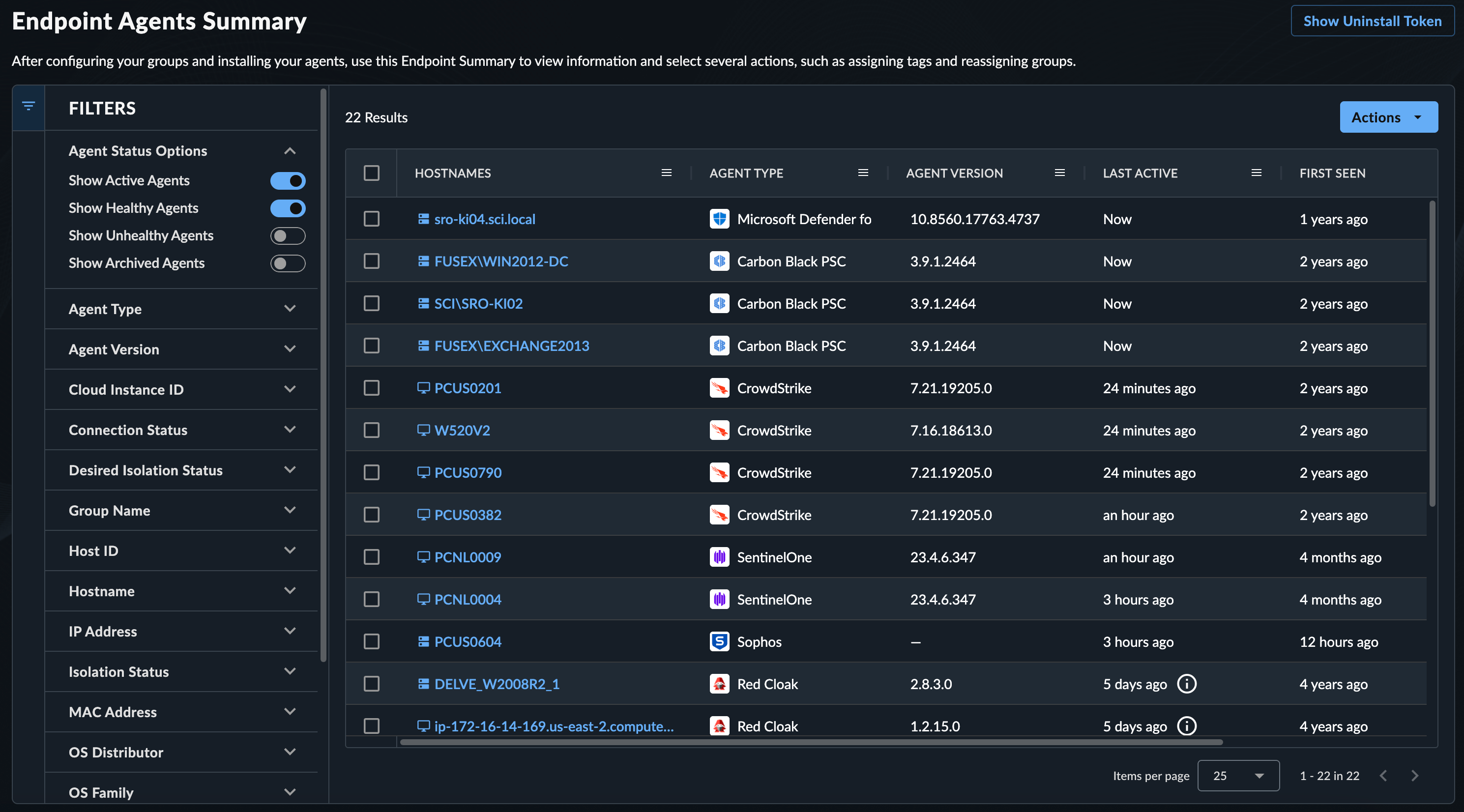
As XDR processes endpoint telemetry, a list of endpoints is generated. Review these by navigating to Endpoint Agents → Summary from the Taegis XDR menu. For more information, see Manage Endpoint Agents.