Microsoft Defender XDR Integration Guide🔗
The following guide steps you through integrating Microsoft Defender XDR with XDR.
Note
- Microsoft Defender XDR integration with XDR requires appropriate Microsoft licensing and an active Azure subscription. For more information, see Minimum requirements for Microsoft Defender for Endpoint.
- To receive device telemetry events, such as process or authentication events, you must have Microsoft Defender for Endpoint Plan 2, which is available as a standalone license and as part of Microsoft 365 E5/A5/G5 and other plans. Note that Microsoft Defender for Business plan only provides alert data. For more information, see the Microsoft Defender for Endpoint service description.
- Microsoft Defender XDR integration is available for the global Azure cloud and Azure Government. Azure in China (operated by 21Vianet) is not supported.
Data Provided from Integration🔗
| Detections | Auth | DNS | File Collection | HTTP | NIDS | Netflow | Process | Process Module | File Modification | API Call | Registry | Scriptblock | Management | Persistence | Thread Injection | Detection Finding | Technique Finding | Software Info | Patch State | Forensic Info | Inventory Info | Generic | |
|---|---|---|---|---|---|---|---|---|---|---|---|---|---|---|---|---|---|---|---|---|---|---|---|
| Microsoft Defender | ✓ | ✓ | ✓ | ✓ | ✓ | ✓ | ✓ | ✓* | ✓* | ✓ | ✓ | ✓ | ✓* | ✓ |
Note
Microsoft Defender Antivirus detection events are normalized to the antivirus schema.
Other Microsoft Defender Antivirus events like scan lifecycle and definition updates are normalized to the generic schema.
Determine Integration Method🔗
Microsoft Defender XDR can integrate with XDR via either an Azure Storage Account or an Azure Event Hub.
Azure Storage Account🔗
Storage Accounts are a consumption-based model. Your Azure subscription will be charged based on the actual amount of data that Microsoft Defender XDR writes to the Storage Account. If your throughput decreases, you will only be charged for the data stored and transferred. If your throughput increases, your processing will scale automatically.
For detailed pricing information, see Azure Blob Storage pricing.
Important
In addition to blob storage charges, transferring the data from your Storage Account to XDR will incur Internet Egress charges. For more information, see Azure Bandwidth pricing.
Azure Event Hub🔗
Event Hubs are a provisioned model. You will configure partitions and throughput units based on the expected number of Microsoft Defender agents and expected event volume and be charged for that provisioned throughput. If your event volume decreases, you will continue to be charged the provisioned rate. If your throughput increases beyond the provisioned amount, transfer of data to XDR will be delayed, and scaling the Event Hub can be difficult.
For detailed pricing information, see Azure Event Hubs pricing.
Download and Modify Terraform Templates🔗
-
Click one of these Terraform template download links, depending on the chosen integration method:
-
Unzip the archive and open the terraform.tfvars file in a text editor such as Notepad or vim.
- Click the tab below that corresponds to your chosen integration method and follow the instructions.
-
Change the following values to reflect your current environment. For information on how to find your Microsoft Entra tenant ID and Azure subscription ID, see Get subscription and tenant IDs in the Azure portal. For information about Azure locations, also known as regions, see Azure regions list.
entra_tenant_idazure_subscription_idazure_locationblob_storage_account_namequeue_storage_account_name
You can adjust other values if desired or leave as they are.
Note
Per Azure's requirements,
blob_storage_account_nameandqueue_storage_account_namecan contain only lowercase letters and numbers and must be between 3 and 24 characters long. The name must be globally unique. -
If you want to use an existing resource group, Blob Storage Account, or Queue Storage Account instead of creating new ones, set the following values to
true:use_existing_resource_group(specify the resource group inresource_group_name)use_existing_blob_storage(specify the Blob Storage Account inblob_storage_account_name)use_existing_queue_storage(specify the Queue Storage Account inqueue_storage_account_name)
-
Proceed to the Configure Azure section.
-
Change the following values to reflect your current environment. For information on how to find your Microsoft Entra tenant ID and Azure subscription ID, see Get subscription and tenant IDs in the Azure portal. For information about Azure locations, also known as regions, see Azure regions list.
entra_tenant_idazure_subscription_idazure_locationeventhub_namespace
Note
Per Azure's requirements,
eventhub_namespacecan contain only alphanumeric characters and hyphens and must be between 6 and 50 characters long. -
If you want to use an existing resource group, Event Hub namespace, or Event Hub instead of creating new ones, set the following values to
true:use_existing_resource_group(specify the resource group inresource_group_name)use_existing_eventhub_namespace(specify the Event Hub namespace ineventhub_namespace)use_existing_eventhub(specify the Event Hub name ineventhub_name)
Note
- Existing Event Hub must have sufficient capacity for your Microsoft Defender event rate. See the following steps to determine required Event Hub capacity.
- Per Azure's requirements,
eventhub_namecan contain only alphanumeric characters, periods, hyphens, and underscores and must be between 1 and 256 characters long.
-
If you need to configure for more than 1,000 endpoints, follow Steps 4-7. Otherwise, save the changes to your modified terraform.tfvars file and skip to Configure Azure.
-
Determine the event rate. Go to Advanced Hunting in Microsoft Defender XDR portal and calculate the event rate using the query below.
AlertInfo | where Timestamp > ago(7d) | join AlertEvidence on AlertId | summarize count() by bin(Timestamp, 1m)
| union (DeviceInfo | where Timestamp > ago(7d) | summarize count() by bin(Timestamp, 1m)
| union (DeviceNetworkInfo  | where Timestamp > ago(7d) | summarize count() by bin(Timestamp,1m)
| union (DeviceProcessEvents  | where Timestamp > ago(7d) | summarize count() by bin(Timestamp,  1m)
| union (DeviceNetworkEvents  | where Timestamp > ago(7d) | summarize count() by bin(Timestamp, 1m)
| union (DeviceFileEvents   | where Timestamp > ago(7d) | summarize count() by bin(Timestamp, 1m)
| union (DeviceRegistryEvents  | where Timestamp > ago(7d) | summarize count() by bin(Timestamp, 1m)
| union (DeviceLogonEvents  | where Timestamp > ago(7d) | summarize count() by bin(Timestamp, 1m)
| union (DeviceImageLoadEvents  | where Timestamp > ago(7d) | summarize count() by bin(Timestamp,  1m)
| union (DeviceEvents  | where Timestamp > ago(7d) | summarize count() by bin(Timestamp, 1m) )))))))))
| summarize EventsPerMinute= sum(count_) by Timestamp | summarize EventsPerMinute= percentile(EventsPerMinute, 99.9)
A query result looks like this in Microsoft Defender:
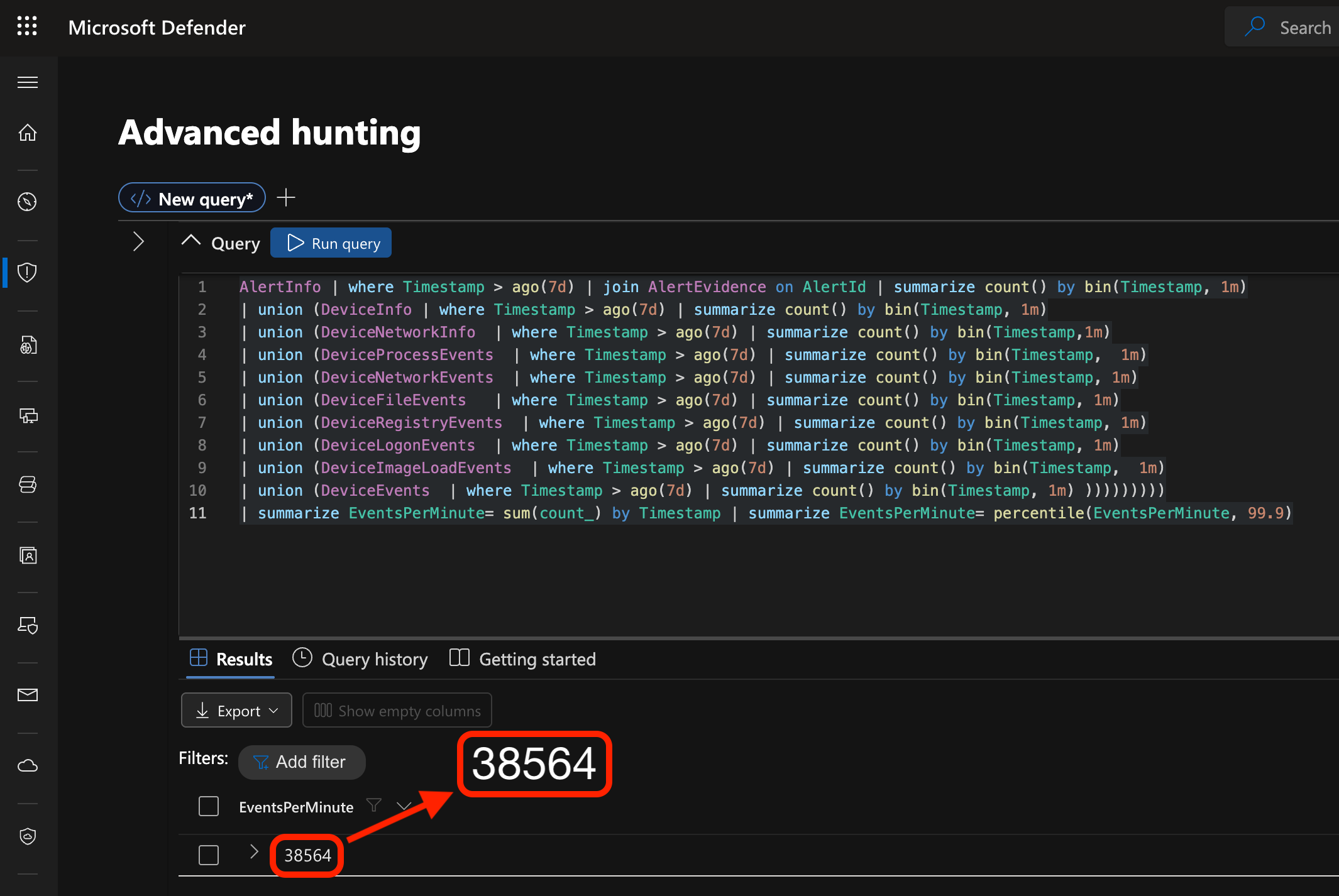
Event Rate Example This query outputs the number of Events per Minute that the endpoints generate.
-
Calculate the Number of Required Throughput Units (TUs) and Partitions using the Throughput Units Calculator below and the event rate (number of Events per Minute) determined in Step 4.
Throughput Units Calculation
The formula to calculate the required Throughput Units and Partitions for the namespace is below.
(Events per minute / 60*3/1024)+1 = Number of throughput units = Number of partitions
If desired, use the throughput and partition calculator below.
Calculator
Enter the number of events and press Enter to calculate:
You need 0 Throughput Units and 0 Partitions.
Important
Larger deployments require more partitions and more TUs per Event Hub. Take this into account if you expect your endpoint count to grow, because the partition count cannot be modified once created. You should enter the maximum number of Throughput Units needed to handle potential spikes in event flow. For example, if you have 2 Throughput Units defined, set this to 4 to provide double the potential on-demand capacity. Partitions do not auto-inflate.
-
After running the calculation, select the Event Hubs tier, and edit your terraform.tfvars file accordingly.
- If the calculated number of required TUs is between 1 and 32, use Standard Event Hubs tier.
Field Default Value Note eventhub_tier Standard Use Standard Event Hubs tier. eventhub_throughput_allocated 2 Set to 1-32 based on TU calculation above. eventhub_throughput_inflate_cap 4 This number should be larger than allocated TUs to allow for growth. eventhub_partition_count 4 Set to 1-32 based on the Number of Partitions you calculated above. data_retention_length 1 XDR only requires 1 day; add up to 7 days more for your own purposes. - If the calculated number of required TUs exceeds 32, but you have less than 50,000 endpoints, use Premium Event Hubs tier.
Field Default Value Note eventhub_tier Premium Use Premium Event Hubs tier. eventhub_processing_units 1 Choose between 1, 2, 4, 8 and 16 Processing Units (PUs) based on TU calculation above. 1 PU is approximately equivalent to 5-10 TUs. eventhub_partition_count 4 Set to 1-100 based on the number of Partitions you calculated above. data_retention_length 1 XDR only requires 1 day; add up to 90 days more for your own purposes. - If your deployment exceeds 50,000 endpoints, you may need to use a dedicated Event Hubs cluster.
Field Default Value Note eventhub_tier Dedicated Use Dedicated Event Hubs tier. eventhub_partition_count 4 Set to 1-1024 based on the number of Partitions you calculated above. data_retention_length 1 XDR only requires 1 day; add up to 90 days more for your own purposes. Important
If you are using an existing Event Hub rather than creating a new one, ensure that it meets the requirements calculated above. Parameters of an existing Event Hub cannot be changed by Terraform.
-
Save the changes to your modified terraform.tfvars file and proceed to the Configure Azure section.
Configure Azure🔗
-
Open the Azure Cloud Bash Shell and upload all the provided Terraform files, including the edited terraform.tfvars file to Azure using the Manage files and Upload toolbar action buttons.
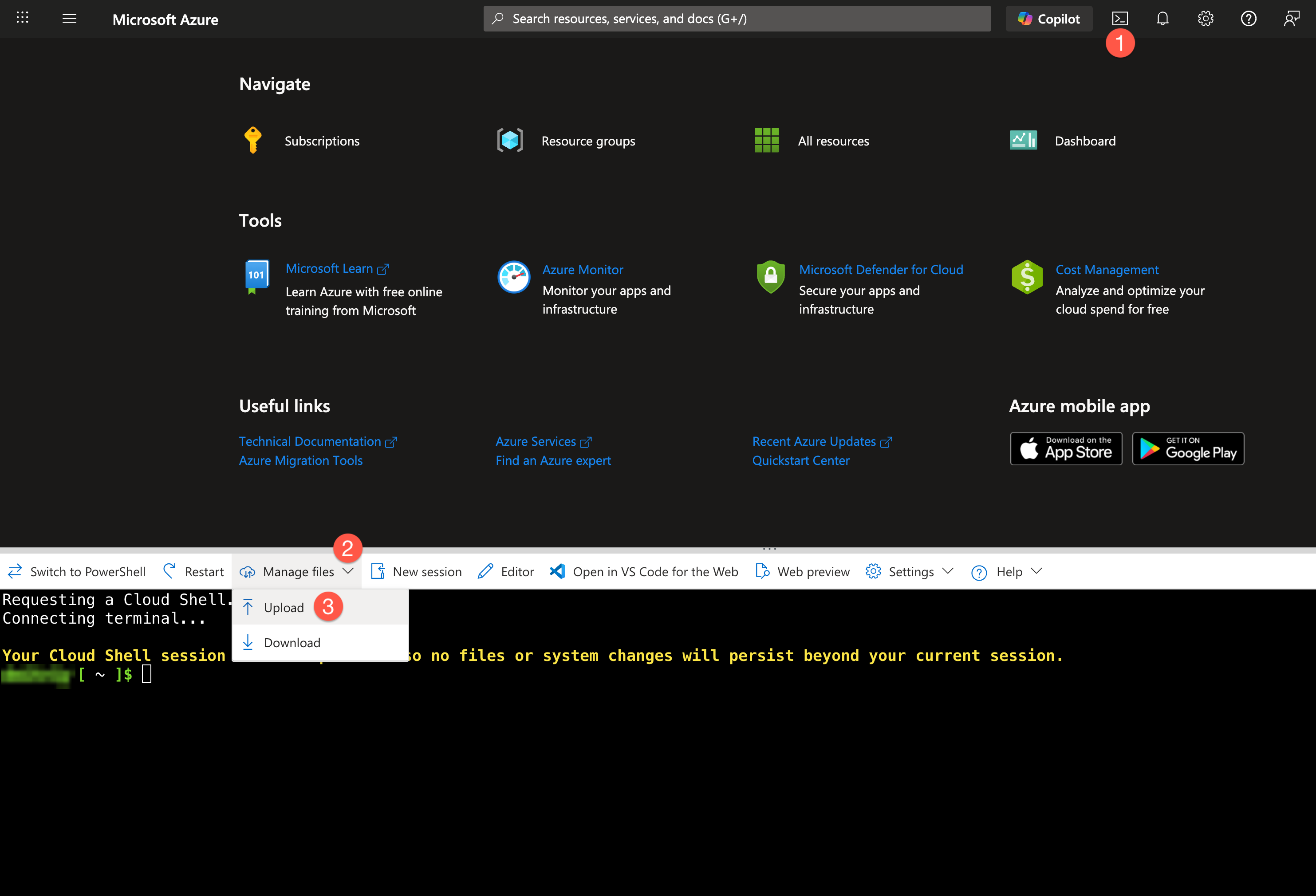
Terraform Upload -
From the Azure Cloud Bash shell, run the following commands. This process takes a few minutes to complete.
terraform init
terraform plan -out taegis-defender.tfplan -var-file="terraform.tfvars"
terraform apply taegis-defender.tfplan
Note
The
terraform applycommand requires that the user executing the command have the following permissions:- Permissions to create App Registrations and Service Principals in Microsoft Entra ID. These permissions are included in Application Administrator built-in Microsoft Entra role, among others.
- Permission to create Role Assignments in Azure RBAC. This permission is included in Privileged Azure RBAC roles, such as Owner and User Access Administrator.
-
Record the output of the commands — you need them for the rest of the configuration.
Configure Microsoft Defender🔗
-
Configure the Microsoft Defender Data Export by navigating to System → Settings → Microsoft Defender XDR → Streaming API.
Note
This action requires the Global Administrator or Security Administrator role, and the account creating the Data Export must have access to the Event Hub or Storage Account subscription.
-
Select + Add and configure the export settings as follows. Click the tab below that corresponds to your chosen integration method.
- Name:
Sophos-XDR-Integration-Export - Forward events to Azure Storage: Checked
- Storage account Resource ID: Copy and paste the
blob_storage_resource_idvalue found in the Terraform output.
An example Storage Account Resource ID:
/subscriptions/xxxxxxxx-xxxx-xxxx-xxxx-xxxxxxxxxxx/resourceGroups/xx-xxx-x-xx-xxxxxxxx/providers/Microsoft.Storage/storageAccounts/mycompanydefenderlogs- Name:
Sophos-XDR-Integration-Export - Forward events to Event Hub: Checked
- Event Hub Resource Id: Copy and paste the
eventhub_namespace_resource_idvalue found in the Terraform output.
An example Namespace Resource ID:
/subscriptions/xxxxxxxx-xxxx-xxxx-xxxx-xxxxxxxxxxx/resourceGroups/xx-xxx-x-xx-xxxxxxxx/providers/Microsoft.EventHub/namespaces/MyCompanyDefenderLogs- Event Hub name: Copy and paste the
eventhub_namevalue found in the Terraform output. For example,taegis-defender-eventhub.
- Name:
-
Select the following Event Types: AlertInfo and AlertEvidence under Alerts & Behaviors and the entire Devices category.
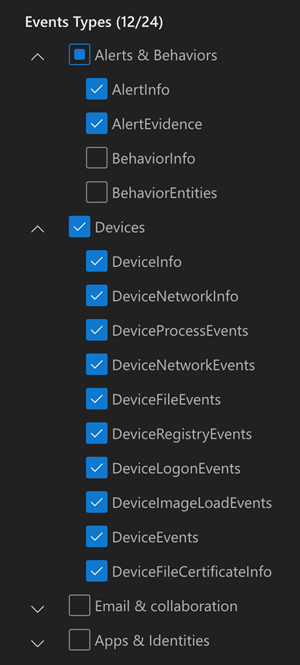
Defender Event Type Selection -
Select Submit (or Save).
Configure Microsoft Defender XDR Integration in XDR🔗
With the Terraform output from the preceding steps, create the integration in XDR.
- Select Integrations > Cloud APIs from the Taegis Menu.
- On the Cloud API Integrations page, click Add an Integration above the table.
-
On the Optimized tab, click the Microsoft Defender XDR card. The Microsoft Defender XDR dialog displays.
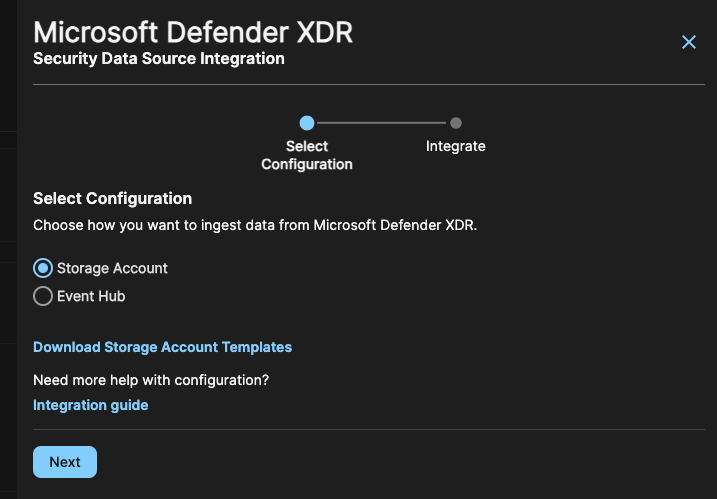
Microsoft Defender XDR Integration Type -
Select the chosen integration method (Event Hub or Storage Account) and click Next.
-
Enter the values you captured in the Terraform output from the Download and Modify Terraform Templates section. Click the tab below that corresponds to your chosen integration method.
Complete the form as follows:
- Enter an Integration Name. This can be any string.
- Enter
entra_tenant_idTerraform output in the Microsoft Entra ID field. - Enter
queue_storage_urlTerraform output in the Queue Storage URL field. - Enter
blob_storage_urlTerraform output in the Blob Storage URL field. - Select Microsoft Entra ID as the Authentication Type and enter
entra_client_idin the Application Client ID field.
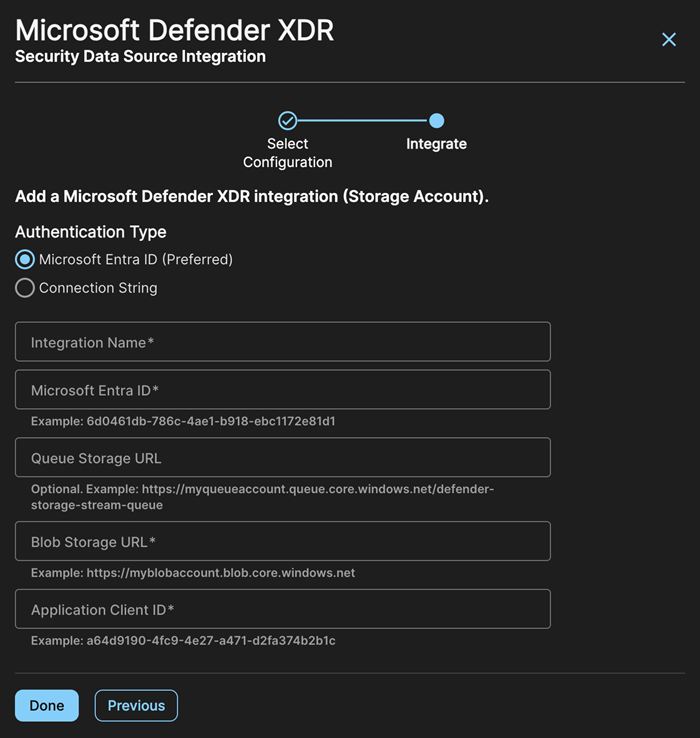
Microsoft Defender XDR Storage Account Complete the form as follows:
- Enter an Integration Name. This can be any string.
- Enter
entra_tenant_idTerraform output in the Microsoft Entra ID field. - Enter
eventhub_namespace_hostnameTerraform output in the Event Hub Namespace Hostname field. - Enter
eventhub_nameTerraform output in the Event Hub Name field. - Select Microsoft Entra ID as the Authentication Type and enter
entra_client_idin the Application Client ID field.
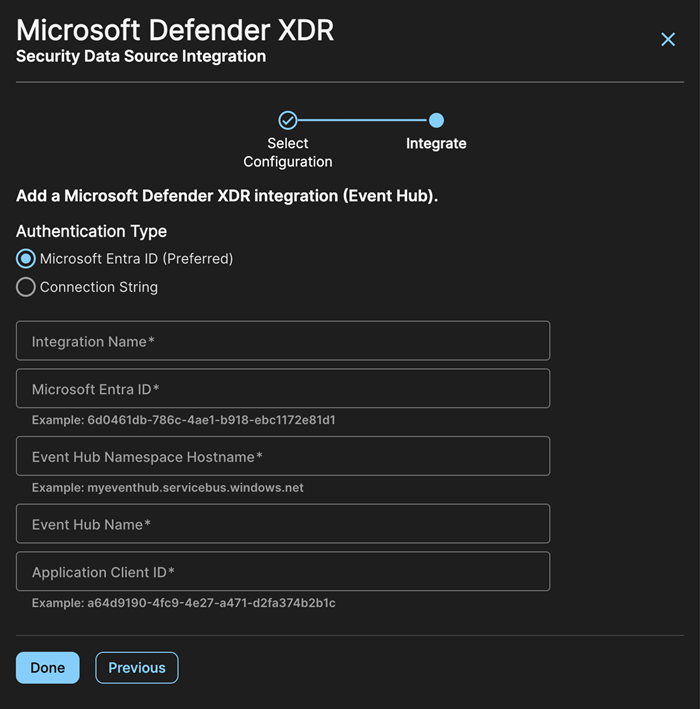
Microsoft Defender XDR Event Hub -
Click Done when you have completed the form.
Configure Federated Credential in Microsoft Entra ID🔗
The final step in the setup process is to configure a Federated Credential for the integration in Microsoft Entra ID, enabling the integration to authenticate without storing a client secret or certificate. This credential configures the App Registration that represents the integration in Microsoft Entra ID. It establishes trust for OIDC tokens issued to the integration's workload identity by an external identity provider, such as Amazon Cognito.
For more information about Federated Credentials, see Workload identity federation concepts in the Microsoft Entra documentation.
- Go to Integrations > Cloud APIs in the Taegis Menu and click the new integration name link. You may notice that the integration reports failures, because its Federated Credential is not configured yet.
-
Click the Details tab and record the following integration parameters:
- ClientId: The ID of the App Registration that represents the integration in Microsoft Entra ID.
- FederatedIdentityIssuer: The URL of Amazon Cognito IdP used by XDR.
- FederatedIdentityAudience: The ID of the Amazon Cognito Identity Pool which XDR uses to register workload identities associated with integrations.
- FederatedIdentitySubject: The workload identity associated with the integration.
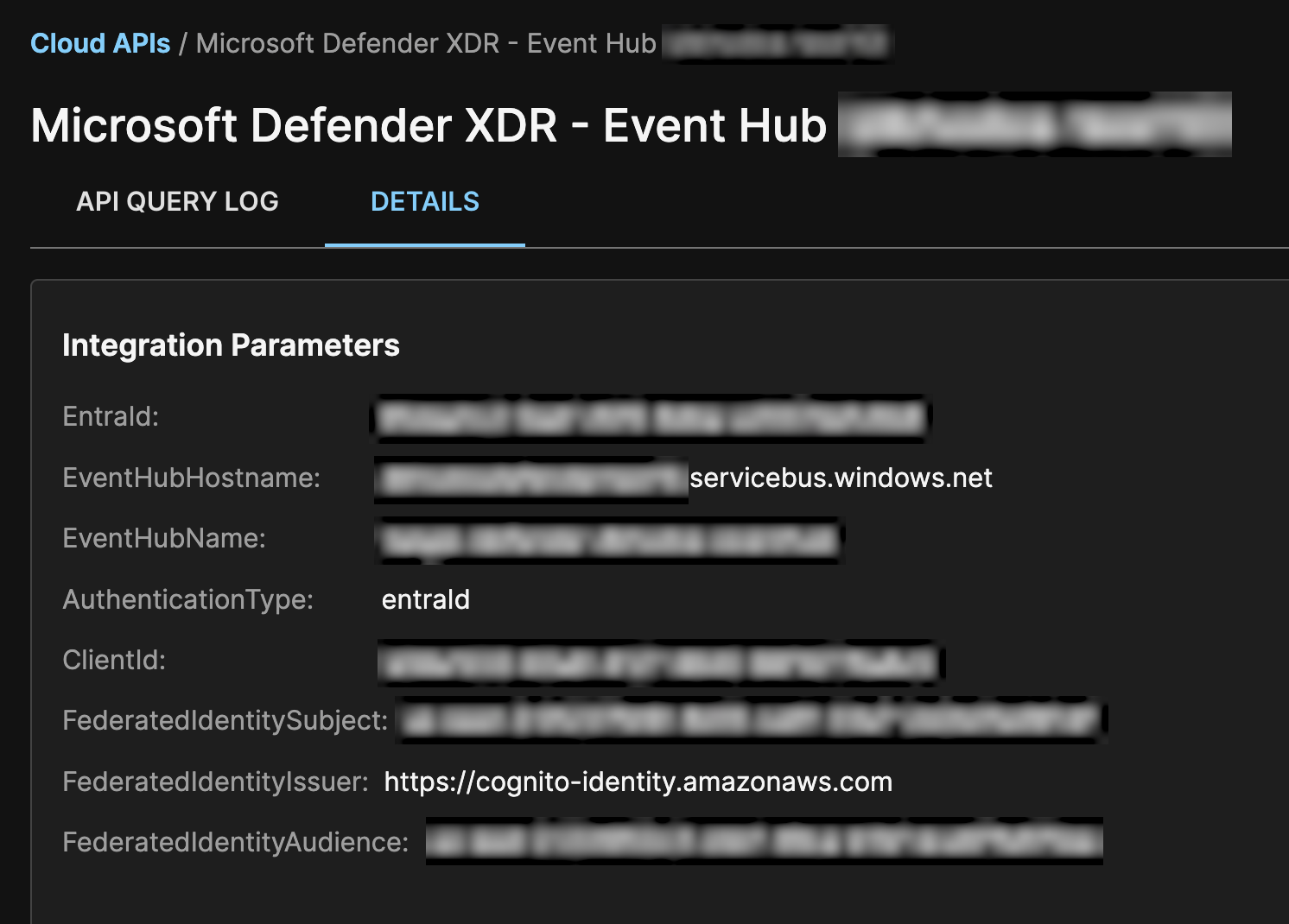
Microsoft Defender XDR Integration Parameters -
In the Azure Portal, copy the ClientId parameter from the previous step into the top search box. Two Microsoft Entra ID search results should appear representing the App Registration and the Service Principal associated with the integration. Select the Application entry.
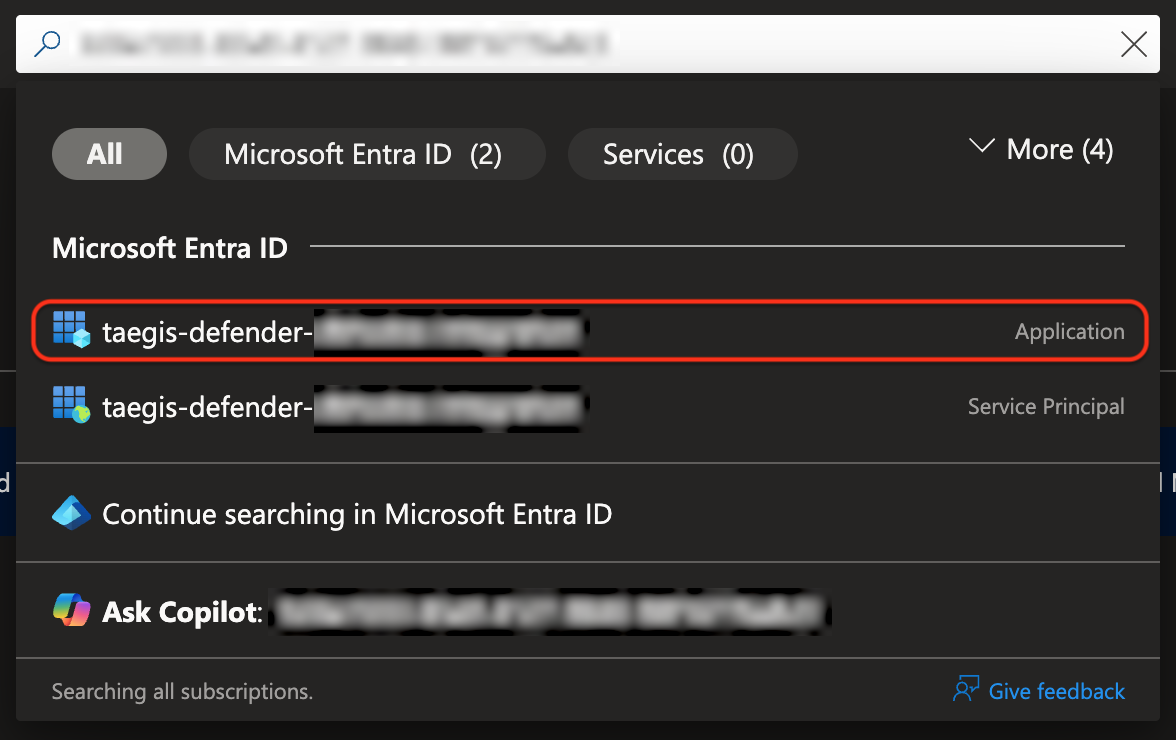
Microsoft Defender XDR Application Search -
On the App Registration page, select Manage, then Certificates & secrets, then click on the Federated credentials tab.
-
Select + Add credential and configure the Federated Credential as follows.
- Select Other issuer in the Federated credential scenario drop-down menu.
- Enter the FederatedIdentityIssuer parameter in the Issuer field.
- Select Explicit subject identifier in the Type field.
- Enter the FederatedIdentitySubject parameter in the Value field.
- Enter the Name for the Federated Credential. This can be any string.
- Click Edit under the Audience field and replace the existing value with the FederatedIdentityAudience parameter.
- Select Add at the bottom of the form.
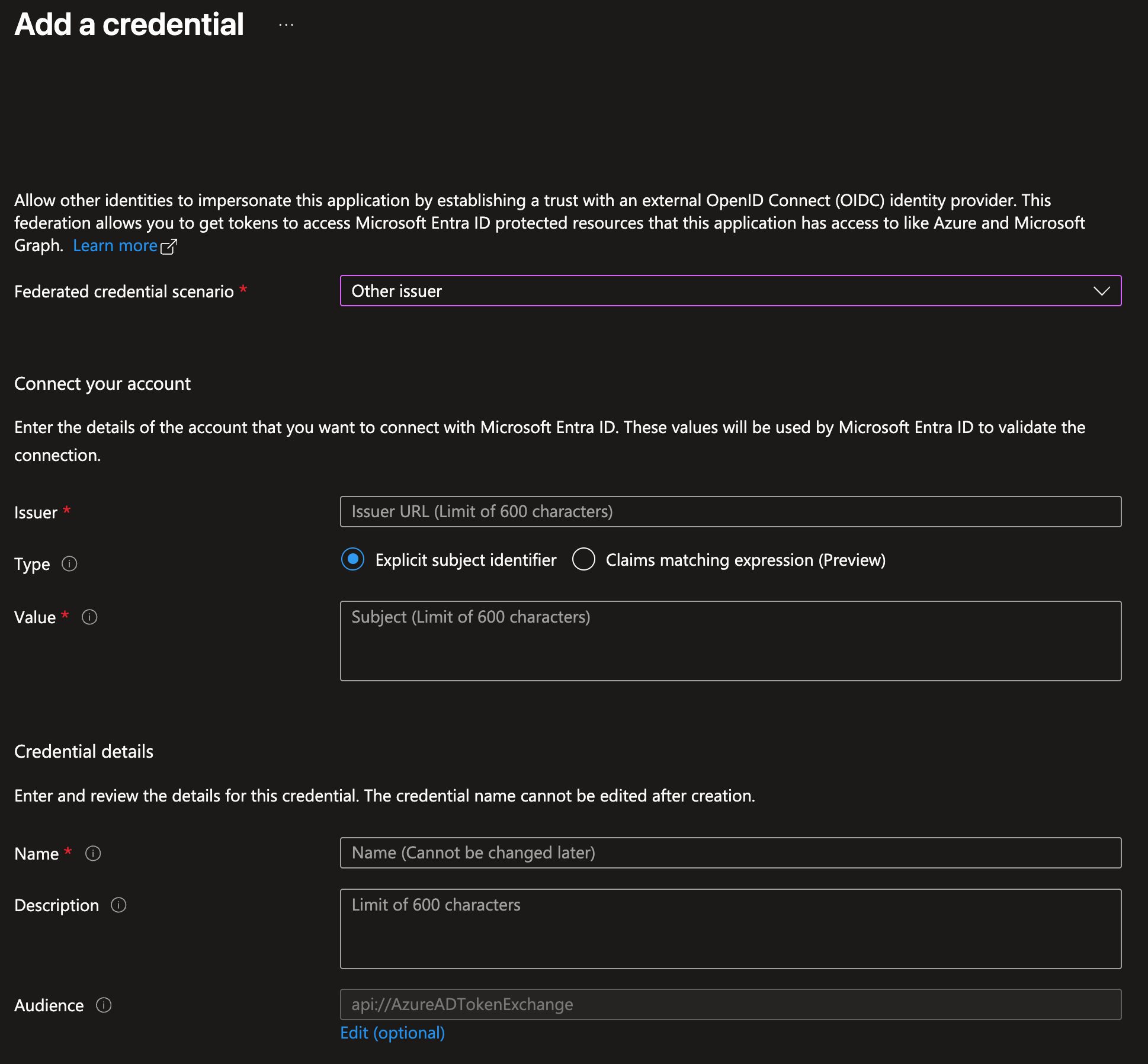
Microsoft Defender XDR Federated Credential
A few minutes after the Federated Credential has been configured, the integration should start working.
Integration Maintenance🔗
Scaling Event Hub🔗
You can monitor the performance of your Event Hub Namespace by alerting on the Incoming Bytes, Outgoing Bytes, and Throttled Requests metrics in the Azure Portal.
If any of the following occurs, the throughput of the Event Hub Namespace has reached its capacity, and the number of TUs should be increased:
- Incoming Bytes metric reaches
(Number_of_TUs * 1 MB/s) - Outgoing Bytes metric reaches
(Number_of_TUs * 2 MB/s) - Throttled Requests metric is non-zero
However, if the throughput of your Event Hub hits a "ceiling" that is below TU-based capacity and Taegis Support advises that your Event Hub is under-provisioned, then the Event Hub should be replaced.
For more information, see Scaling with Event Hubs in the Microsoft Azure documentation.
Scaling a Premium or Dedicated Event Hub🔗
You can dynamically change the following:
- Processing Units (PU) of Premium Event Hub
- Capacity Units (CU) of Dedicated Event Hub cluster (requires a support request)
- The number of partitions in the Event Hub
Scaling a Standard Event Hub🔗
The first step for increasing the throughput of your Event Hub would be to try and update the number of Throughput Units. You can manage Throughput Units on the Settings → Scale tab of the Event Hubs Namespace page in the Azure Portal. You can also set an Auto-Inflate value on the same Scale settings page to allow the Event Hub to automatically scale up the number of Throughput Units to meet usage needs.
If {{ no such element: super_collections.SuperDict object['shortshortProdXDR'] }} still cannot read data from your Event Hub as quickly as the messages are produced then the Event Hub itself will need to be replaced.
Replacing the Event Hub🔗
-
Create a new Event Hub (do not delete the old Event Hub yet). Follow these steps:
- Refer to the documentation above to calculate the required throughput, partition count, and Event Hub tier (Standard, Premium and Dedicated).
- Unzip the Terraform archive into a new directory. Continue to follow the directions for updating the Terraform parameters.
- Open the terraform.tfvars file in a text editor such as Notepad or vim. In order to create a new Event Hub namespace, you will have to enter a slightly different
eventhub_namespacein terraform.tfvars. If you would like to place the new Event Hub in the same resource group as the old one, put the resource group name inresource_group_nameand setuse_existing_resource_grouptotruein terraform.tfvars. - Plan and apply the Terraform to create the Event Hub.
-
In the Microsoft Defender portal, modify the Streaming API settings. Follow these steps:
- Add new settings and specify the Event Hub Namespace Resource ID and the name of the new Event Hub.
- Delete old settings.
-
In the Azure Portal, confirm that the old Event Hub's Outgoing Bytes and Outgoing Messages metrics have dropped to zero. This may take some time. If it is acceptable to discard remaining data in the old Event Hub, you can skip this step.
- In XDR, enter parameters of the new Event Hub in the Microsoft Defender XDR integration.
- Delete the old Event Hub in the Azure Portal.
Update Migrated Microsoft Defender Integration🔗
If your Microsoft Defender integration was migrated from the previous version, it may authenticate with a Connection String. To change the authentication type to Microsoft Entra ID, follow these steps:
- Follow the steps in the Download and Modify Terraform Templates section and proceed with the option to use existing Azure resources.
- Follow the steps in the Configure Azure section.
- In XDR, go to Integrations > Cloud APIs in the Taegis Menu and click on the Pencil icon for the Microsoft Defender XDR integration you want to update. The Microsoft Defender XDR dialog displays.
- Select Microsoft Entra ID as the Authentication Type and enter the
entra_client_idvalue from the Terraform output in the Application Client ID field. Click Done. - Follow the steps in the Configure Federated Credential in Microsoft Entra ID section.
Remove Microsoft Defender XDR Integration🔗
To remove a Microsoft Defender XDR integration:
- Delete the integration in XDR.
- Remove the Streaming API setting in Microsoft Defender (System → Settings → Microsoft Defender XDR → Streaming API).
- If you still have the directory with Terraform templates and state which were used to create Azure resources for the integration, run
terraform destroyto delete the resources. Carefully review the plan before confirming destruction of resources. If you don't have the Terraform directory, manually delete Storage Account or Event Hub resources.
Test Events🔗
Use the following test events to validate the integration.
Windows🔗
Run the following PowerShell script on a newly onboarded device to verify that it is properly reporting to the Defender for Endpoint service. The Command Prompt window closes automatically upon execution. If successful, a new detection will appear in the portal for the onboarded device in approximately 10 minutes.
- Create a folder:
'C:\test-WDATP-test'. -
Open an elevated command-line prompt on the device and run the script:
macOS/Linux🔗
Run the following to download the EICAR test file—a harmless, standardized file used to simulate malware—to verify that Microsoft Defender detects the threat and that alerts are generated for integration validation.
Further Reading🔗
- Minimum requirements for Microsoft Defender for Endpoint
- Get started with your Microsoft Defender for Endpoint deployment
- Microsoft Defender for Endpoint service description
- Azure Bandwidth pricing
- Get subscription and tenant IDs in the Azure portal
- Azure regions list
- Advanced Hunting
- Streaming API
- Workload identity federation concepts
- Scaling with Event Hubs