Log In to XDR 🔗
Important
Secureworks® Taegis™ XDR is undergoing an authentication provider migration. If your account has been invited to migrate to the new authentication platform, follow the account migration instructions. If not, follow the legacy authentication instructions in this document.
Log-In Instructions🔗
XDR URLs🔗
The URL for accessing XDR may vary depending on the region your tenant is in.
- US1: https://ctpx.secureworks.com/
- US2: https://delta.taegis.secureworks.com/
- US3: https://foxtrot.taegis.secureworks.com/
- EU1: https://echo.taegis.secureworks.com/
- EU2: https://golf.taegis.secureworks.com/
Log In to XDR (Legacy)🔗
To log in to XDR, follow these steps:
-
Navigate to XDR in a supported browser, using the correct URL for your region.
-
The login dialog displays. Enter your email address and select Continue.
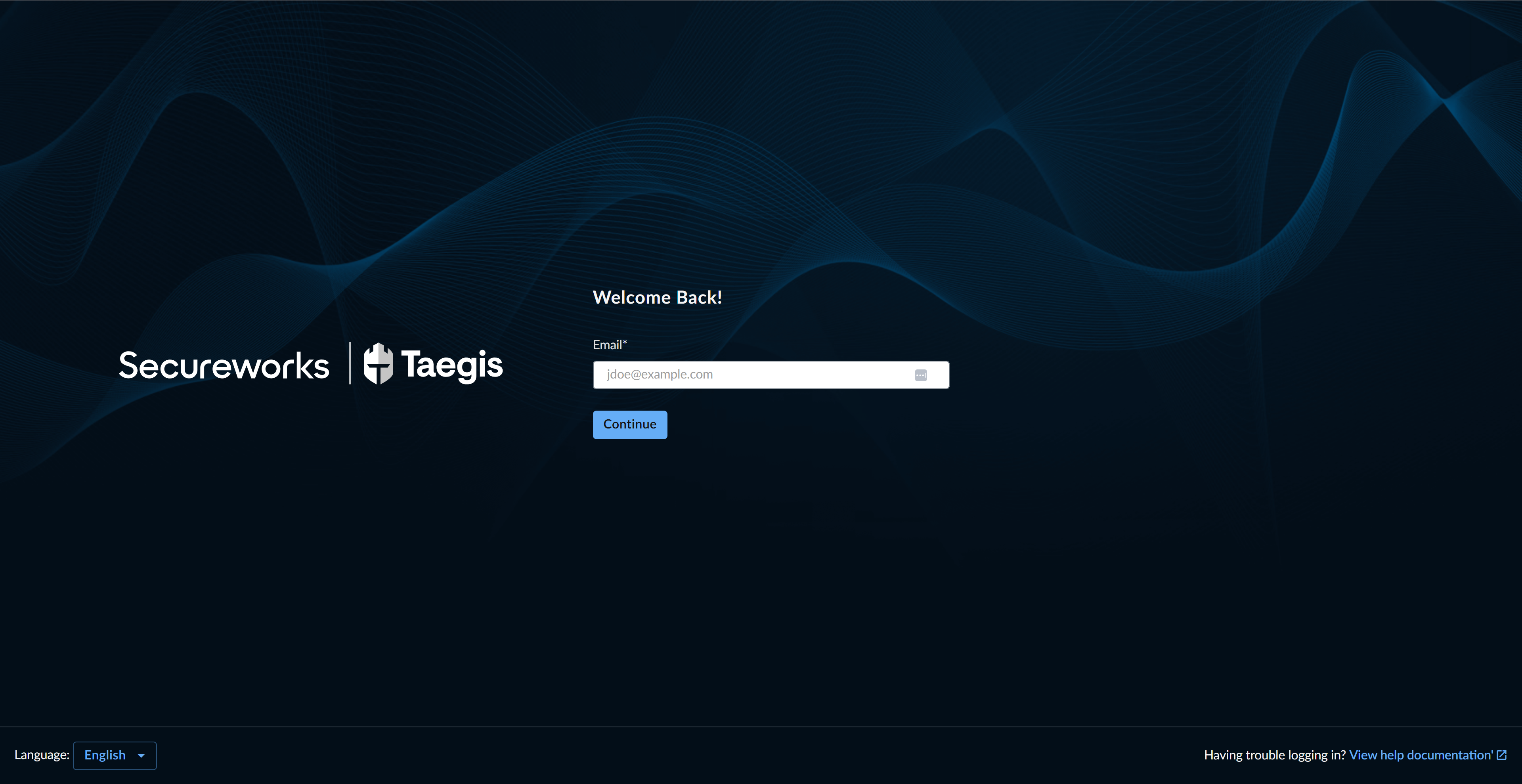
Login Email Dialog Note
If SSO has been configured for your tenant, you will be redirected to your organization's identity provider to complete login.
-
The password dialog displays. Enter your password and select Continue.
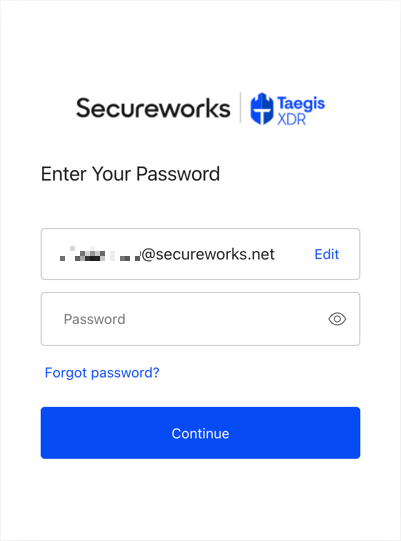
Login Password Dialog -
The multi-factor authentication dialog appears. Enter the code from your multi-factor app and select Continue.
Note
If you haven’t set up your multi-factor authentication for XDR yet, see Set Up Multi-factor Authentication.
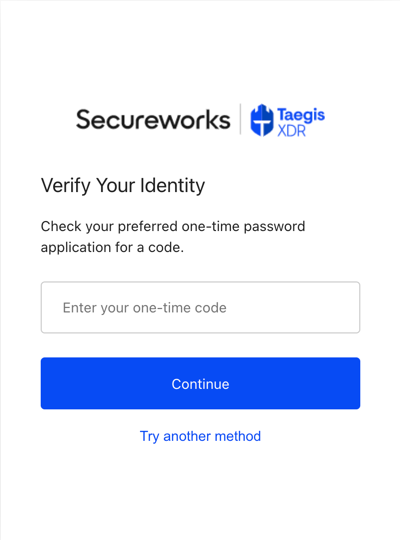
Multi-Factor Authentication Tip
Select Try Another Method to use a recovery code or have a one-time code sent to the email address associated to your account.
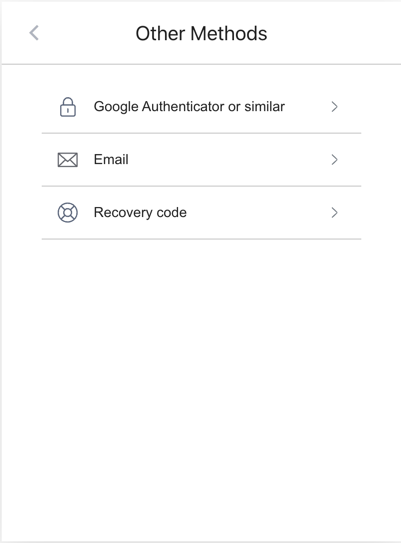
Other Multi-Factor Authentication Methods -
XDR will display the default page.
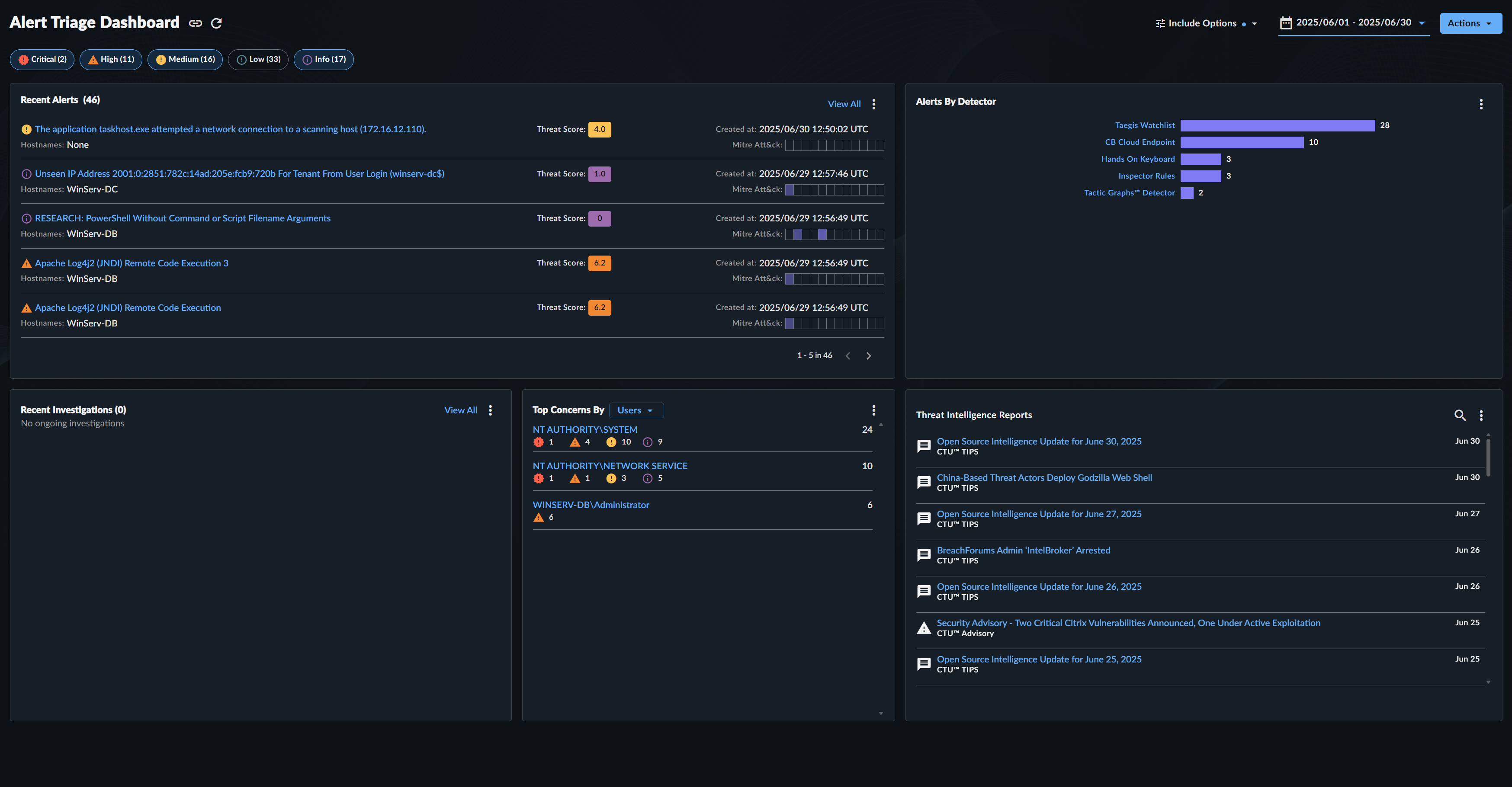
XDR Detection Triage Dashboard
Note
Don’t have access to XDR? Contact your Secureworks representative to set it up.
Set Up Multi-factor Authentication🔗
XDR uses multi-factor authentication for user login. This requires the use of a third-party authentication application. To set up multi-factor authentication for your account:
- In your browser, navigate to XDR.
-
The login dialog displays. Enter your email address and select Continue.
Login Dialog -
The password dialog displays. Enter your password and select Continue.
Login Password Dialog -
The new multi-factor authentication dialog appears. Scan the QR code with your preferred authenticator app, enter the one-time code, then select Continue.
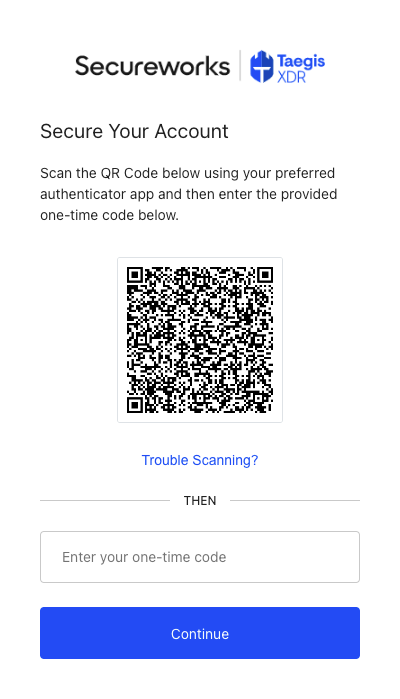
Scan QR Code
Tip
If you’re not able to scan the QR code at the time of setup, select Trouble Scanning? and copy the secret string into your authenticator app instead.
XDR Mobile App🔗
The XDR Mobile App is a Progressive Web App that brings many XDR features right to your mobile device. For more information on how to install and use the app, see XDR Mobile App.
Reset Your Multi-Factor Authentication🔗
You can reset your multi-factor authentication for XDR from Profile Settings. To do so:
- In your browser, navigate to XDR.
-
The login dialog displays. Enter your email address and select Continue.
Login Dialog -
The password dialog displays. Enter your password and select Continue.
Login Password Dialog -
The multi-factor authentication dialog appears. Enter the code from your multi-factor app and select Continue, or if you no longer have access to your multi-factor app, select Try Another Method.
Multi-Factor Authentication -
The other methods dialog displays. Choose Email to have a one-time code sent to the email address associated to your account.
Other Multi-Factor Authentication Methods -
Enter the one-time code sent to your email and choose Continue.
-
XDR displays. Navigate to Profile Settings to reset your multi-factor authentication.
Reset Your Password🔗
If you need to reset your password, or you can’t remember it:
-
Navigate to the login page using your region URL, and select Forgot Password?.
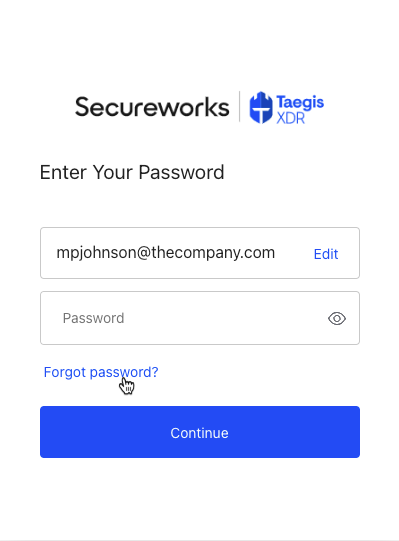
Reset Password -
The Forgot Password dialog displays. Verify your email address and select Continue.
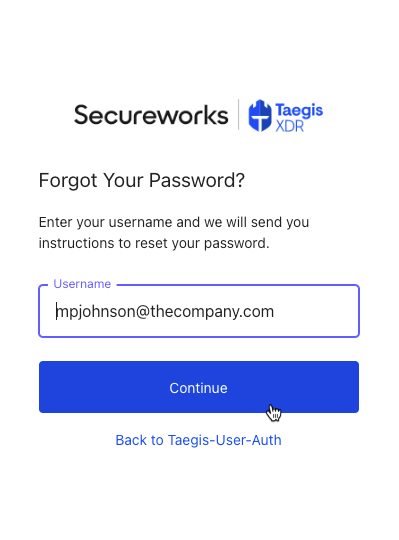
Forgot Password -
Check the email associated to your XDR account for reset instructions.
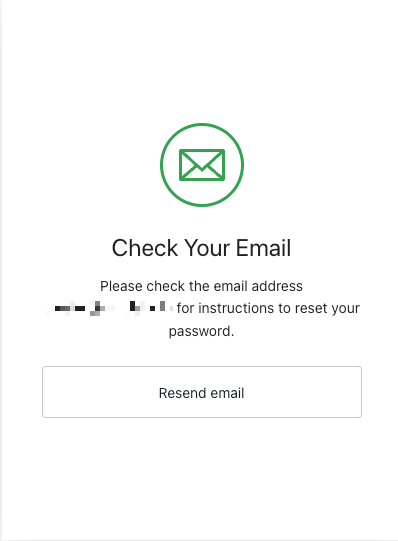
Check Email
Password Rules🔗
Passwords in XDR must meet the following criteria:
- Be different from the previous 10 passwords.
- Be at least 10 characters long.
- Not contain part of your account display name.
- Contain at least one character from three of the following categories:
- An uppercase character (A-Z),
- A lowercase character (a-z),
- A number (0-9),
- A special character (!, #, $, %, or a character from extended ASCII).
Troubleshoot Log-In or App Initialization Issues🔗
If you experience an issue logging in to XDR or receive an application initialization error such as the following, we recommend you clear your browser site data, close the browser completely, and then attempt to log in again.
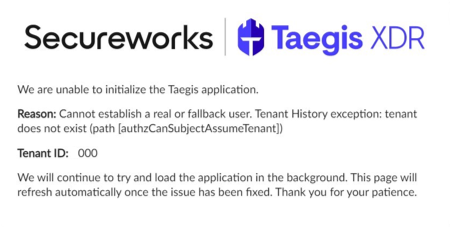
To clear your site data, follow the instructions from the support site specific to your browser, including:
Troubleshoot Blocked User Account Issues🔗
When XDR encounters ten consecutive failed login attempts for the same user account originating from the same IP address, XDR proactively secures the account by automatically blocking it.
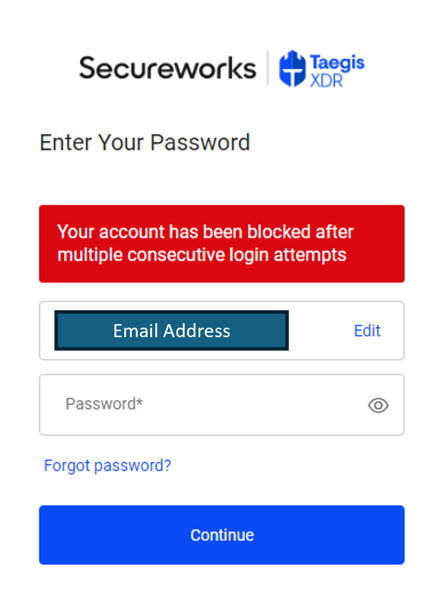
Note
If no action is taken, XDR user accounts that are blocked will unblock after 30 days, after which the user may regain access by logging in.
To unblock your XDR user account, take one of the following actions:
Unblock via Notification Email🔗
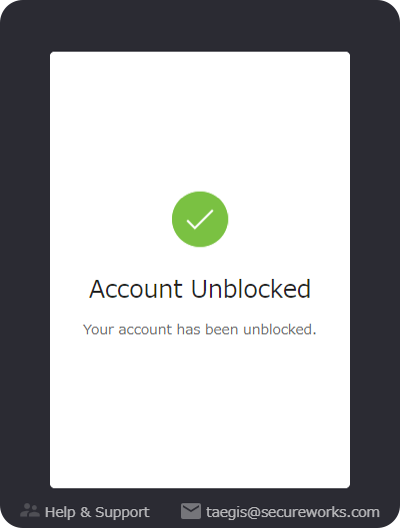
If your XDR user account has been blocked, an email notification is sent: Taegis XDR Blocked Access Attempt. In the email body, select the click here hyperlink.
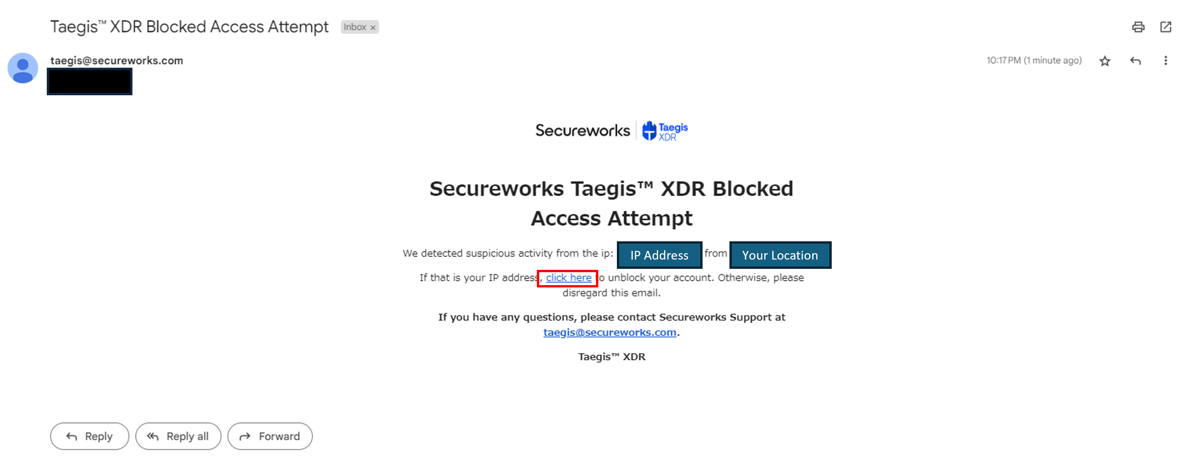
Once selected, an Account Unblocked message displays.
Unblock via Password Reset🔗
If your user account has been blocked, you can reset your XDR password to unblock the account.
Contact Support🔗
If further assistance is needed, see Taegis Help Resources for information on how to contact support.