Identity Response Actions🔗
You can configure response actions for identity accounts in Microsoft Entra ID and on-premises Active Directory (AD) environments using actions, playbooks, and connectors. For guidance, see these resources:
- Taegis Actions
- Connector Library
- Playbook Templates
- How To: Setting Up IDR Automation Playbooks
- How To: Configure Entra ID Force Password Reset Automation
Note
If you previously configured Azure AD or Entra ID connectors and playbooks, you do not need to do this step again. Automations are available across the platform once configured.
Entra ID Response Actions🔗
If your identity integration uses Microsoft Entra ID, you can use the Microsoft Graph API connector to configure response actions and playbooks. For example, you can disable or enable a user account, or reset a password.
Hybrid Environments
If on-premises Active Directory syncs to your Entra ID tenant, see Hybrid Microsoft Entra ID Behavior for Response Actions before relying on Entra ID response actions to disable an account.
To set up Entra ID response actions, do as follows:
- Add a connection using the Microsoft Graph API connector. See Create a New Connection for connector-specific authentication requirements.
- Use the connection in Actions, such as Disable / Enable User, or in a playbook templates, such as Microsoft Entra ID Disable User or Microsoft Entra ID Force Password Reset. See Supported Playbooks for a list of available Microsoft Graph API playbook templates.
On-Premises Automations and Response Actions (LDAP)🔗
If your Active Directory environment uses LDAP (Lightweight Directory Access Protocol), you can configure response actions for on-premises accounts. This lets playbooks and actions connect directly to your AD or LDAP directory services without exposing them to the internet.
To do this, deploy an on-premises Data Collector and configure an On-Premise Automation Connector.
Note
The system that hosts the On-Premise Automation Connector must have network access to your AD or LDAP directory services. The connector supports LDAP authentication for connecting to these services.
To set up on-premises LDAP response actions, do as follows:
- Deploy an on-premises Data Collector if you haven't already.
- Add an On-Premise Automation Connector to the data collector and configure it for LDAP authentication so it can reach your AD or LDAP directory services.
- Configure a connection with the On-Premise Automation Connector and use it in Actions or playbooks to run response actions, such as disabling an AD account.
Automated Response Actions🔗
Once you have enabled your connectors, you can configure automated response actions for Identity findings using the User Automated Response Actions playbook template. Follow the steps in Playbook Templates for using and configuring templates along with the following guidance for the Playbook Execution configuration:
-
For the Trigger Type, choose the following settings:
- Source: Identity Findings
- Events: Created
Warning
Choosing Updated causes the playbook to run whenever the finding is updated. Because posture checks generate update events, the playbook might run multiple times per day and repeatedly reset a user's password.
-
For When does this playbook run?, select Only When to customize the conditions in which the playbook should run. Refer to CEL Overview for more details on the Common Expression Language syntax.
The following example will execute the response action whenever a new Credential Compromise finding with a critical or high severity is created.
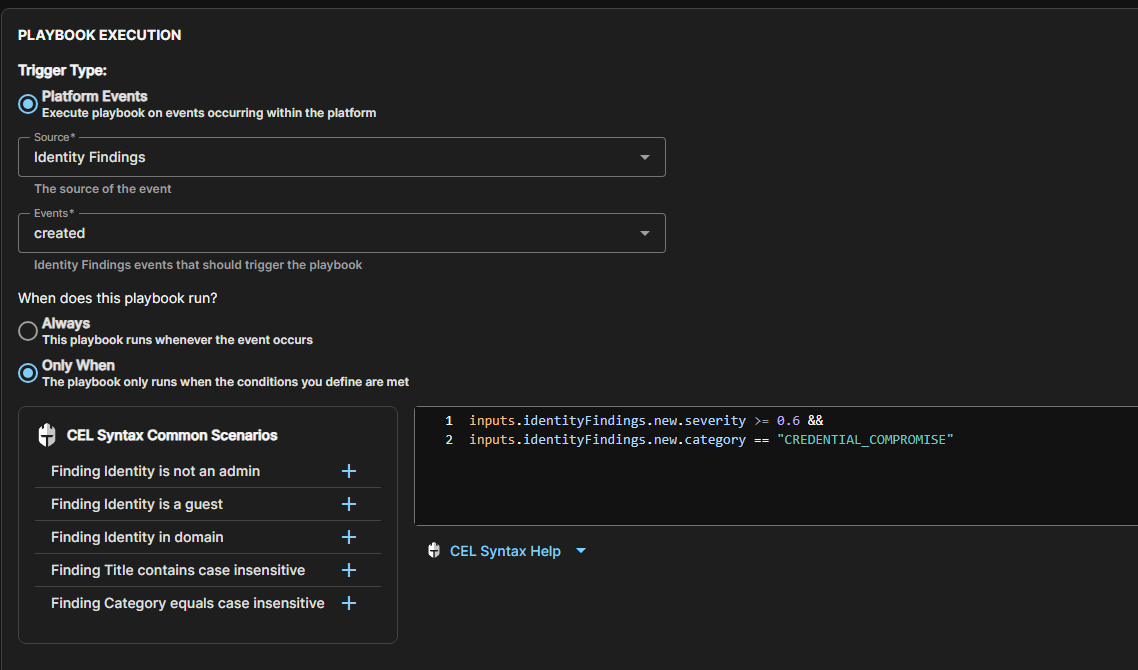
Below are some additional examples of matches you can perform via CEL expressions to customize what triggers the response action.
Examples
Hybrid Microsoft Entra ID Behavior for Response Actions🔗
To reliably disable an account in a hybrid environment, disable the user in on-premises AD, or use an on-premises LDAP response action, rather than relying on the Entra ID response action alone.
In hybrid environments, on-premises AD can override cloud response actions.
In a hybrid Microsoft Entra ID environment, Microsoft Entra Connect Sync treats the on-premises AD account as the authoritative source. If you disable a user in Entra ID but leave the account enabled in on-premises AD, the next synchronization can re-enable the user account.
This is normal Microsoft sync behavior and cannot be controlled from the cloud side alone.
For more information, see the Microsoft documentation on how Active Directory and Entra ID sync.