Create and Edit Queries 🔗
Live Endpoint Search is only available for devices with the Sophos Endpoint Agent.
You can edit a predefined Live Endpoint Search query or create your own query.
Live Endpoint Search queries use osquery and Structured Query Language (SQL). You must be familiar with osquery or SQL to create or edit a query. For help with osquery, see Osquery Schema.
You can use the Sophos Community to share queries or fine-tune existing ones. See Live Endpoint Search Query Forum.
Click a tab below for guidance on creating or editing queries.
To create a query, do as follows:
- From the Taegis Menu, go to Advanced Search > Live Endpoint Search.
-
Click Create Query.
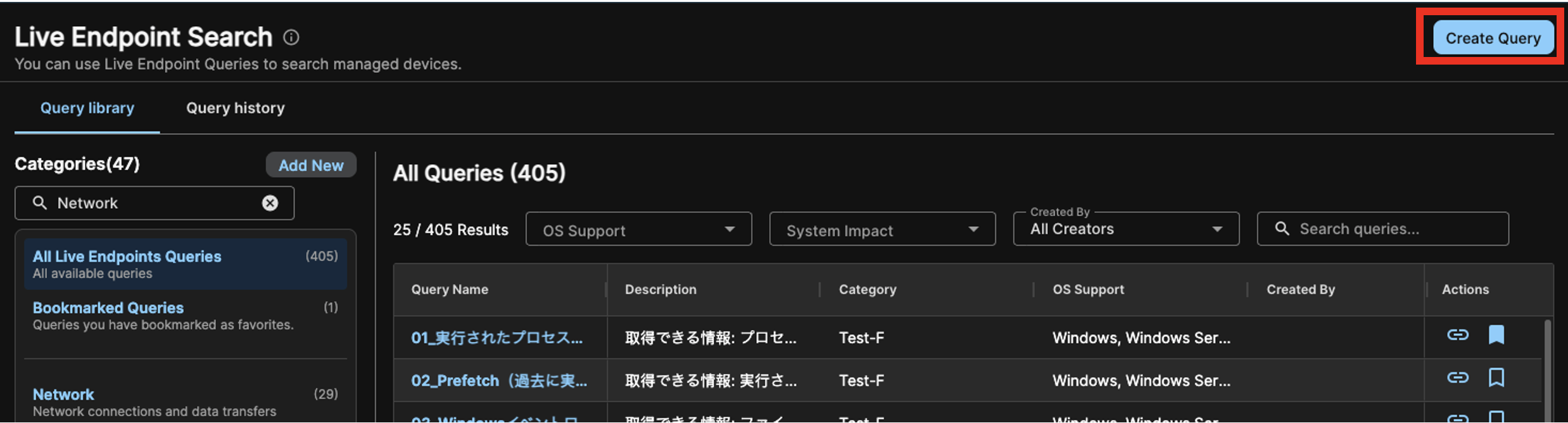
Create Query -
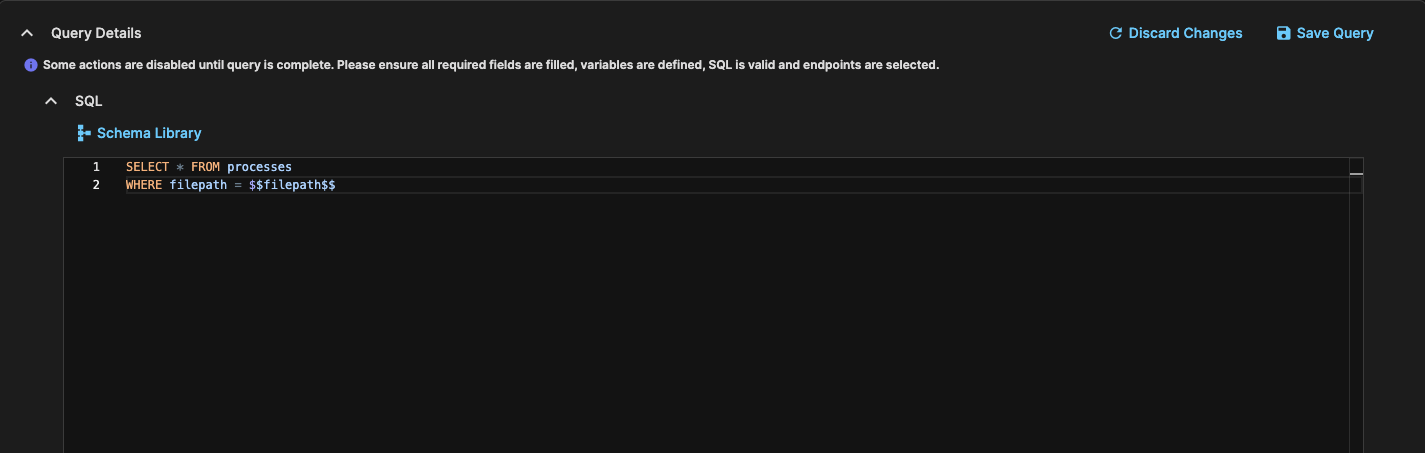
In the SQL section, enter the query. For details about the available tables and data, see Osquery Schema.
-
You can add variables to the query. To add a variable, do as follows:
-
In the Variables section, enter a variable name and a descriptive name.
Note
You can't include spaces or dollar signs in the variable.
-
Specify the variable type and the value that you want to use when the query runs.
- (Optional) Click + Add variable for each additional variable you want to define.
-
In the SQL section, enter the SQL variable, including the dollar symbols, where you want to use the variable.
-
-
In the Endpoint Selection section, select the devices to query.
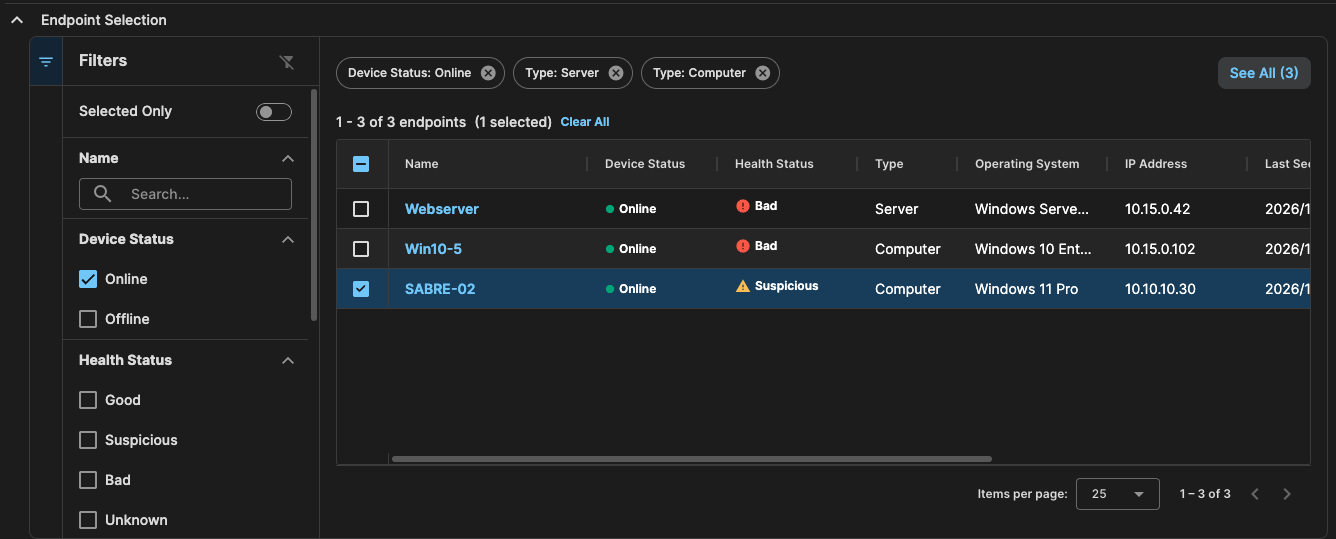
Endpoint Selection Tip
Click Run Query to test the output before saving.
-
Click Save Query.
- Enter a Name and Description, and select a Query Category and Supported OS.
- (Optional) Click Bookmark Query to add the query to your bookmarked queries.
-
Click Save Query.
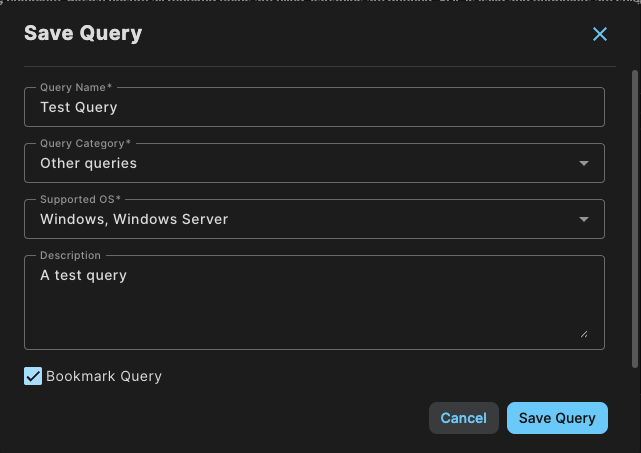
Save Query
To edit an existing query, do as follows:
- From the Taegis Menu, go to Advanced Search > Live Endpoint Search.
-
Use the Categories on the left to see queries by their category and then refine the results with the filters and search bar above the table.
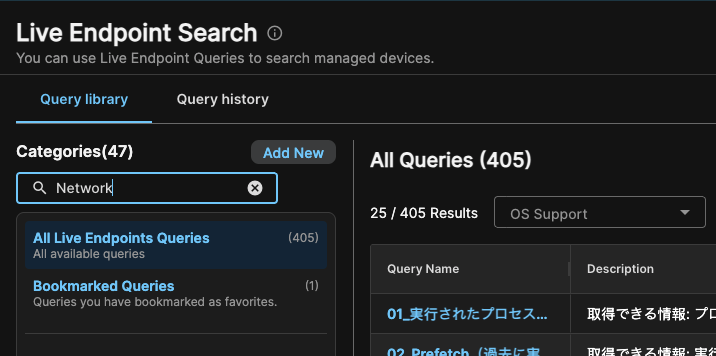
Network Category Filter -
Click the query you want to edit.
-
Click Edit Query to make the SQL query box editable.
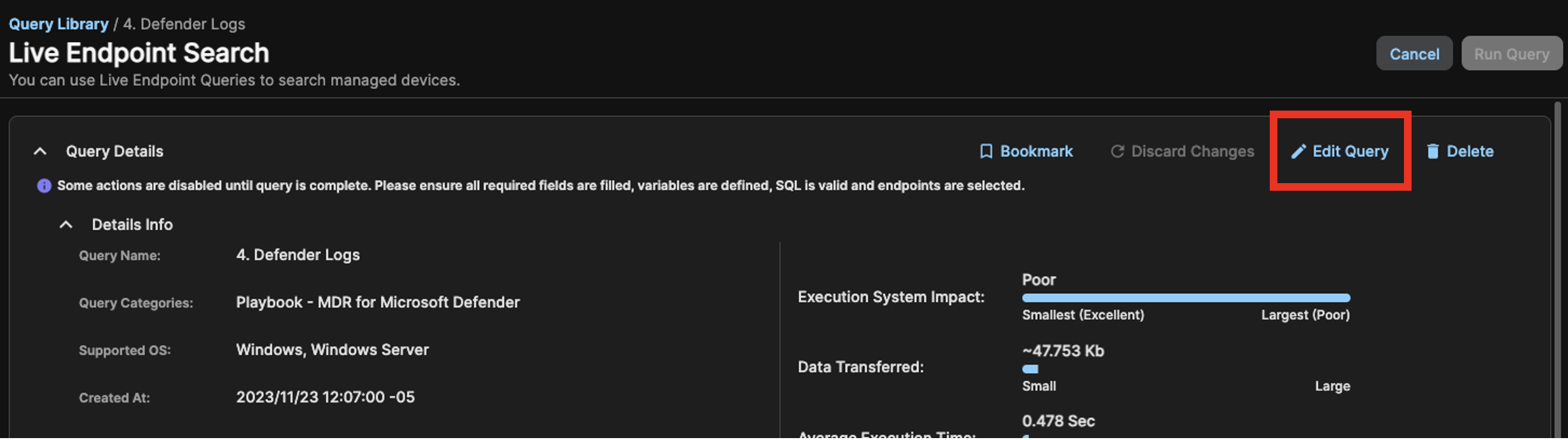
Edit Query -
In the SQL box, enter the changes that you want to make to the existing query. For details about the available tables and data, see Osquery Schema.
-
You can add variables to the query. To add a variable, do as follows:
-
In the Variables section, enter a variable name and a descriptive name.
Note
You can't include spaces or dollar signs in the variable.
-
Specify the variable type and the value that you want to use when the query runs.
- (Optional) Click + Add variable for each additional variable you want to define.
-
In the SQL section, enter the SQL variable name, including the dollar symbols, where you want to use the variable.
-
-
In the Endpoint Selection section, select the devices to query.
Endpoint Selection Tip
Click Run Query to test the output before saving.
-
Click Save Query.
- Enter a Name and Description, and select a Query Category and Supported OS.
-
(Optional) Click Bookmark Query to add the query to your bookmarked queries.
Save Query -
Click Save Query.