Live Endpoint Search 🔗
Live Endpoint Search is only available for devices with the Sophos Endpoint Agent.
Live Endpoint Search lets you run queries on devices with the Sophos Agent that Secureworks® Taegis™ XDR manages. You can use the queries to investigate potential threats and check device compliance.
You can use Live Endpoint Search queries to search devices for signs of threats that haven't been detected by other Taegis features. For example:
- Unusual changes to the registry
- Failed authentications
- A process that rarely runs on your devices
You can search devices for signs of a suspected or known threat that XDR found elsewhere, or for suspicious behavior reported by a user. You can also check device compliance, such as whether software is out of date or browser settings are insecure.
How Queries Work🔗
XDR provides predefined queries for you to use to check your devices. You can use them as they are or edit them if you're familiar with osquery or SQL. You can also create new queries. For more information on creating or editing queries, see Create and Edit Queries.
Select Query🔗
To select a predefined query, do as follows:
-
From the Taegis Menu, go to Advanced Search > Live Endpoint Search.
The Query Library tab opens with all available queries shown by default.
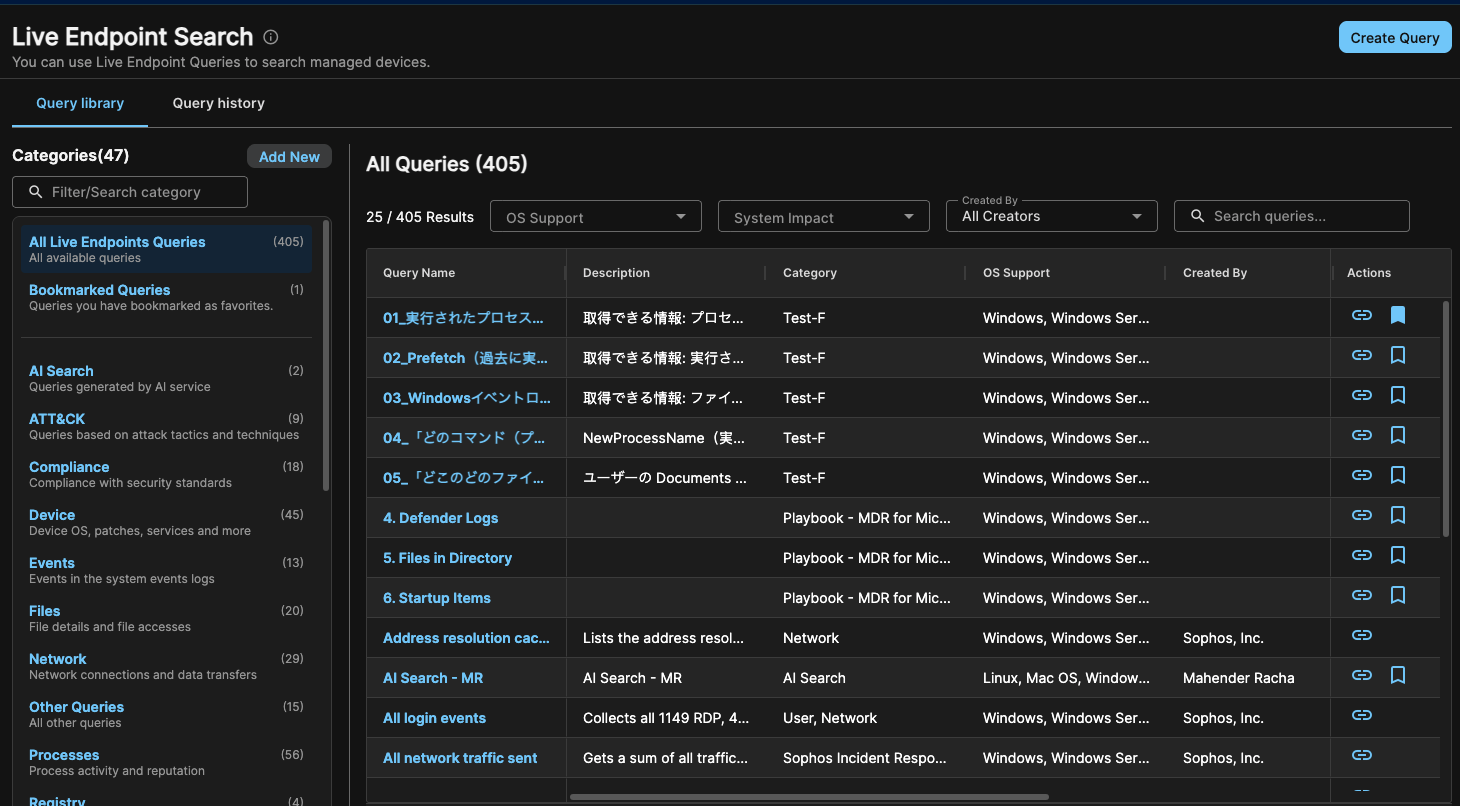
Live Endpoint Search Query Library -
Use the Categories on the left to see queries by their category and then refine the results with the filters and search bar above the table.
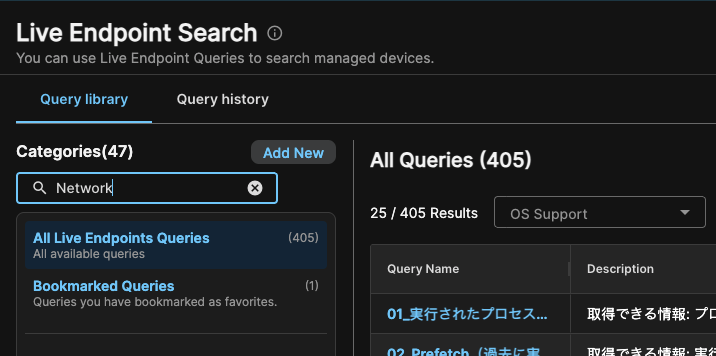
Network Category Filter Tip
Click Add New to add a custom category. See Create Query Categories.
-
Click a query name to see its details. Each query has these sections:
This section lists metadata, including supported operating systems and performance data.
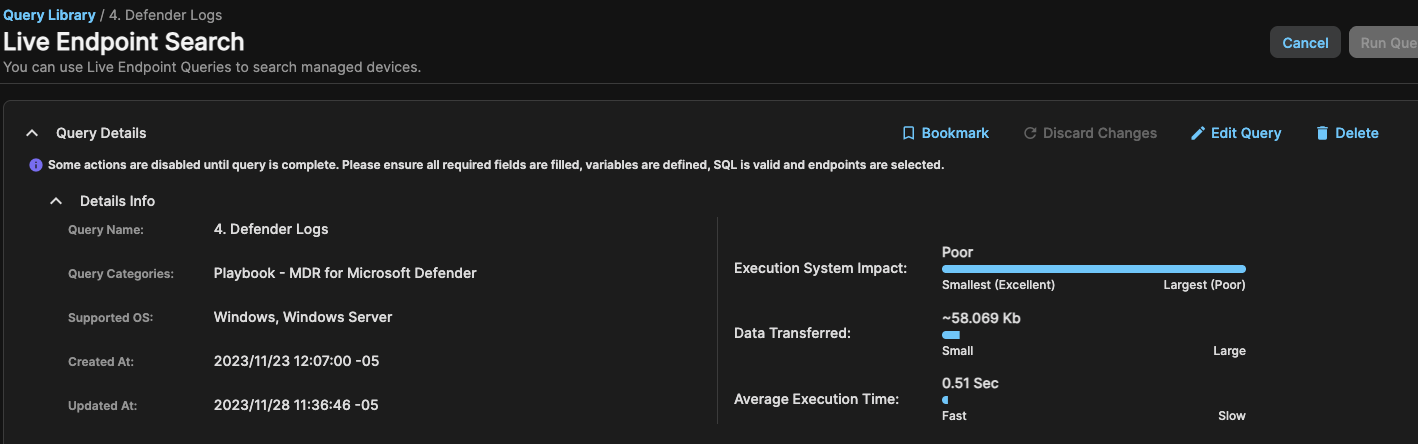
Query Details This section shows the search query SQL syntax. Click Edit Query to make changes and save it as a custom query. See Create and Edit Queries.
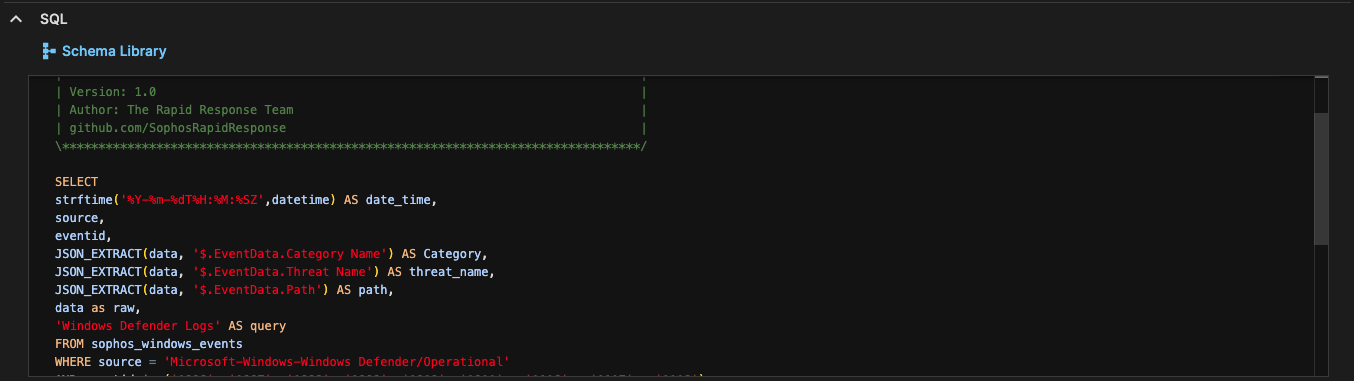
SQL Editor For queries that require variables, this section lets you define a time range for the query and any other parameters relevant to the query.

Variables This section lets you select the endpoints to query.
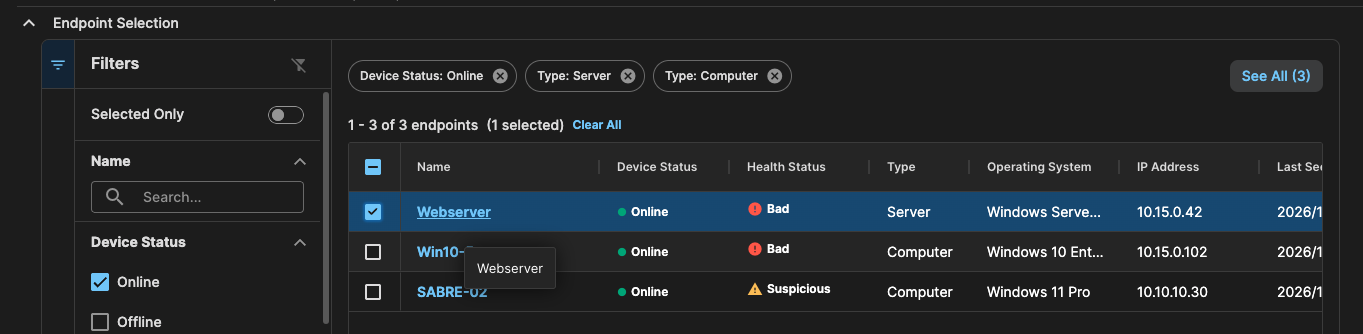
Endpoint Selection -
For queries with a Variables section, define a time range and any other parameters for the query.
- In the Endpoint Selection section, select the devices that you want to query.
Run Query🔗
After you've configured any required variables and selected endpoints, you can run the query. Do as follows:
-
Click Run Query at the top of the page.

Run Query -
When the query stops running, the Query Results tab shows a table with the results and items found for each device.
You can click Export All to get a CSV export of the results.
-
Click the Device Telemetry tab to see a table with query data for each endpoint, including:
- Status: Shows whether the query finished.
- Result: Shows the query's result.
-
Performance: Shows the amount of data that the query generated and the query's impact on the device.

Device Telemetry
Create Query🔗
You can define your own custom queries in Live Endpoint Search using SQL. For more information, see Create and Edit Queries.