Case Templates🔗
You can create case templates that populate an automatic case's status, assignee, severity, type, title, and Key Findings.
Create Case Templates🔗
If you are opted in to Preview mode, templates have been moved from Automatic Investigations to their own page.
Click the tab below that corresponds to the Preview mode in your user profile settings.
- From the Taegis Menu, select Cases → Automatic Cases. The Automatic Cases page displays.
-
Select the Templates tab.
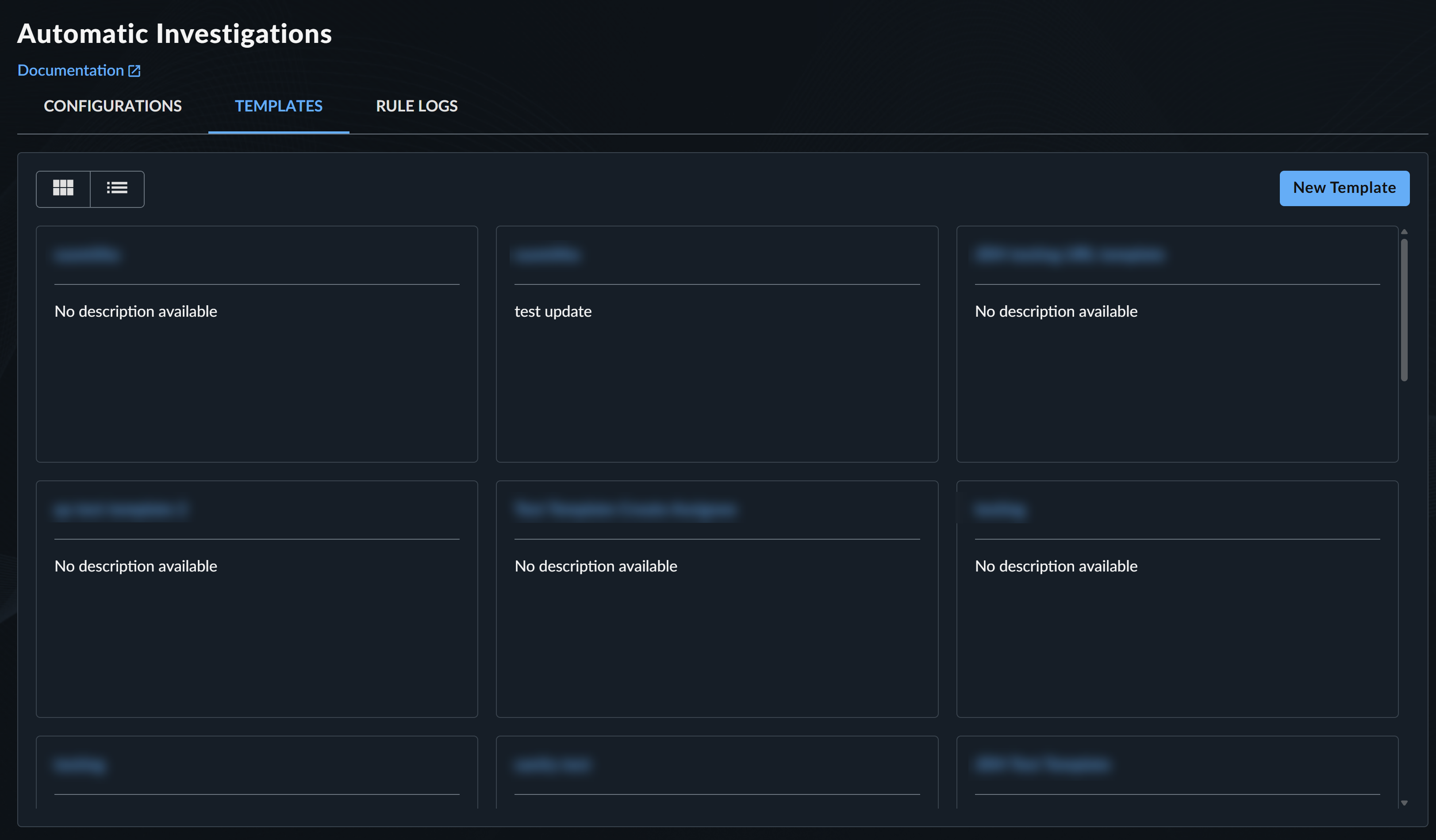
Automatic Case Templates -
Select New Template. The Create New Case Template dialog displays.
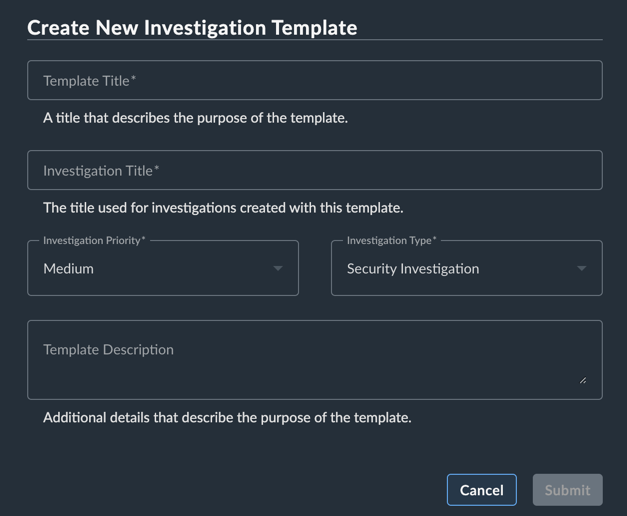
Create New Template -
Enter a Template Title.
- Enter a Case Title that will be assigned to cases created from this template.
-
Select the Priority Level for cases created from this template.
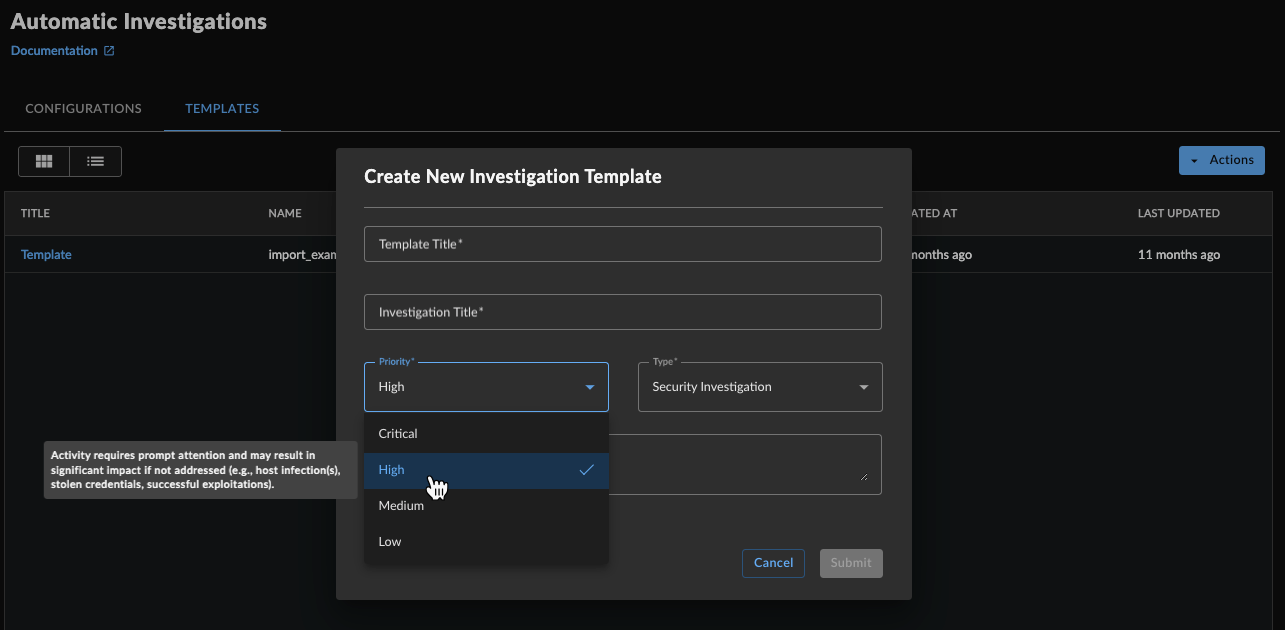
Case Priority -
Select the Case Type.
- (Optional) Give the template a description. This is to help you and others using the template to know what the template is for.
- Select Submit to close out the dialog and save the template. It now lists on the templates tab.
- Follow the steps in the next section to edit the template to add values, edit the title and key findings scripts, and add tags.
Edit Automatic Case Templates🔗
- From the Taegis Menu, select Cases → Automatic Cases.
-
The Automatic Cases page displays. Select the Templates tab to display the currently available templates.
Automatic Case Templates -
Select the template you want to edit from the cards or list. The template editor displays.

Template Editor -
Make the edits you need, then choose Save.
Tip
You can edit values in the template that aren’t available in the template creation dialog, such as adding tags or scripting.
To create a case template, do as follows:
-
From the Taegis Menu, select Cases > Templates.
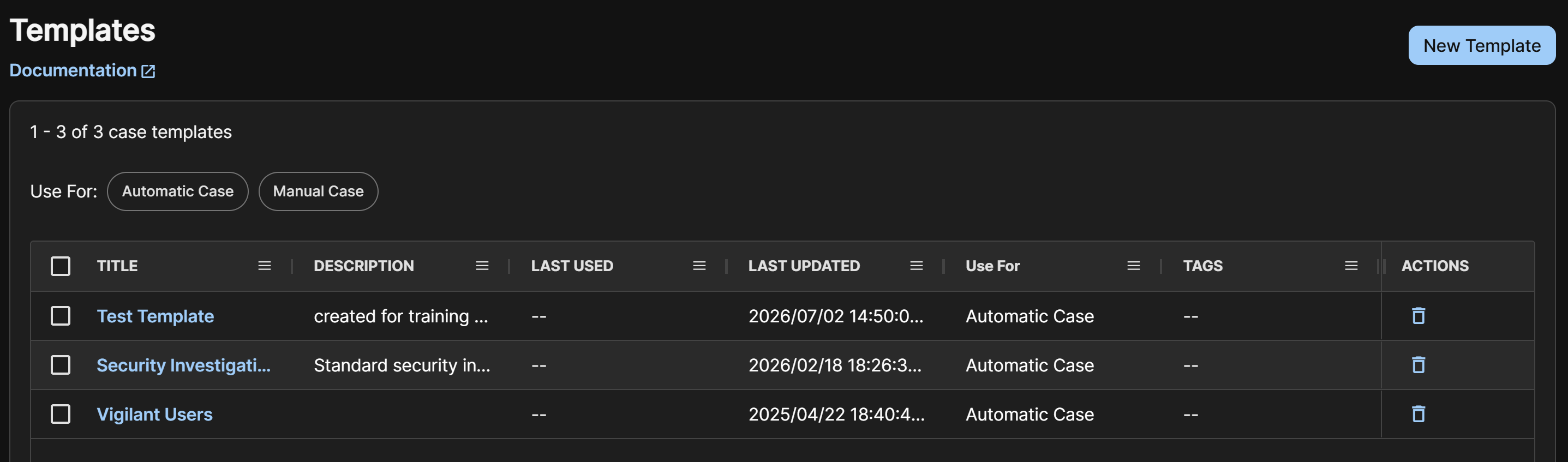
Automatic Case Templates -
Select New Template.
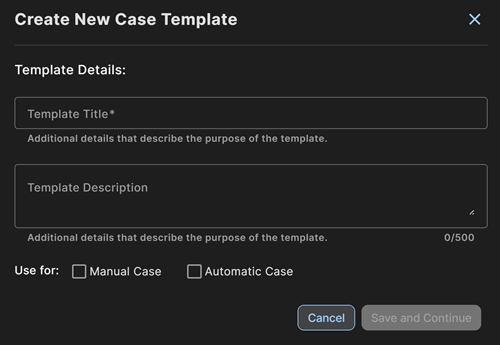
Create New Template -
In Create New Case Template, enter a template title and an optional description to help you and others using the template know the template's purpose.
- Select the case types the template can be used for.
- Click Save and Continue. The template is created and added to the table.
- Follow the steps in the next section to add values, edit the case title and Key Findings, and add tags.
Edit Case Templates🔗
To edit a case template, do as follows:
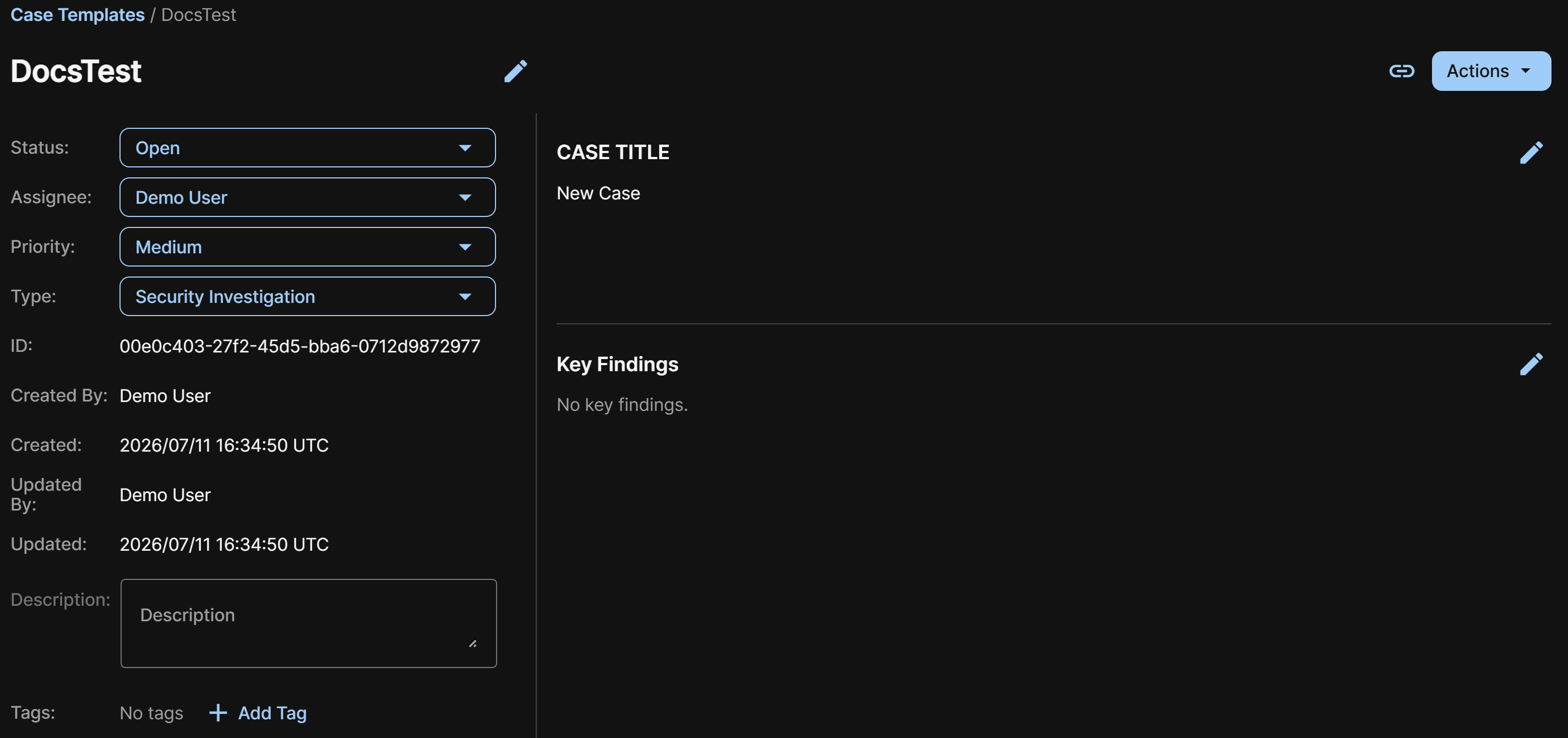
- On the Templates page, click the link in the Title column to see and edit the template details.
- In the Case Title section, click the Pencil icon and enter the title that will be assigned to cases created from this template, then click Save.
- In the Key Findings section, click the Pencil icon and enter the content that will be added to the Key Findings of cases created from this template, then click Save.
- Select the Status, Assignee, Priority, and Type for cases created from this template. For details, see Work a Case.
- (Optional) Add a description and one or more tags to organize the template.
Important
- You cannot set the Assignee of automatic cases to Secureworks, only to the tenant or a registered tenant user. For assistance with a case created by customer-created auto case rules, request help through chat or
@secureworksin a case comment. - Email notifications are only sent for cases opened with the Status set to Awaiting Action.
Share Case Templates🔗
To share a case template with another user within the tenant, click the Share icon at the top of the template details page for a direct URL.
Delete Case Templates🔗
To delete a case template, click Actions > Delete Template on a template details page.